Why download my organization's user list?
Downloading your organization’s user list lets you review all users in your SafetyCulture organization by downloading the list to a CSV file. This is useful when you need to manage users in bulk, review group and site membership, and import the data for use in other systems for your records. By downloading your data, you can quickly identify gaps, keep user information up to date, and maintain accurate records across your organization.
Download user list as CSV
Click your organization name on the lower-left corner of the page and select Users.
Click on the upper-right of the page and select Download user list (CSV).
In the pop-up window, select the CSV template you want to download your user list in.
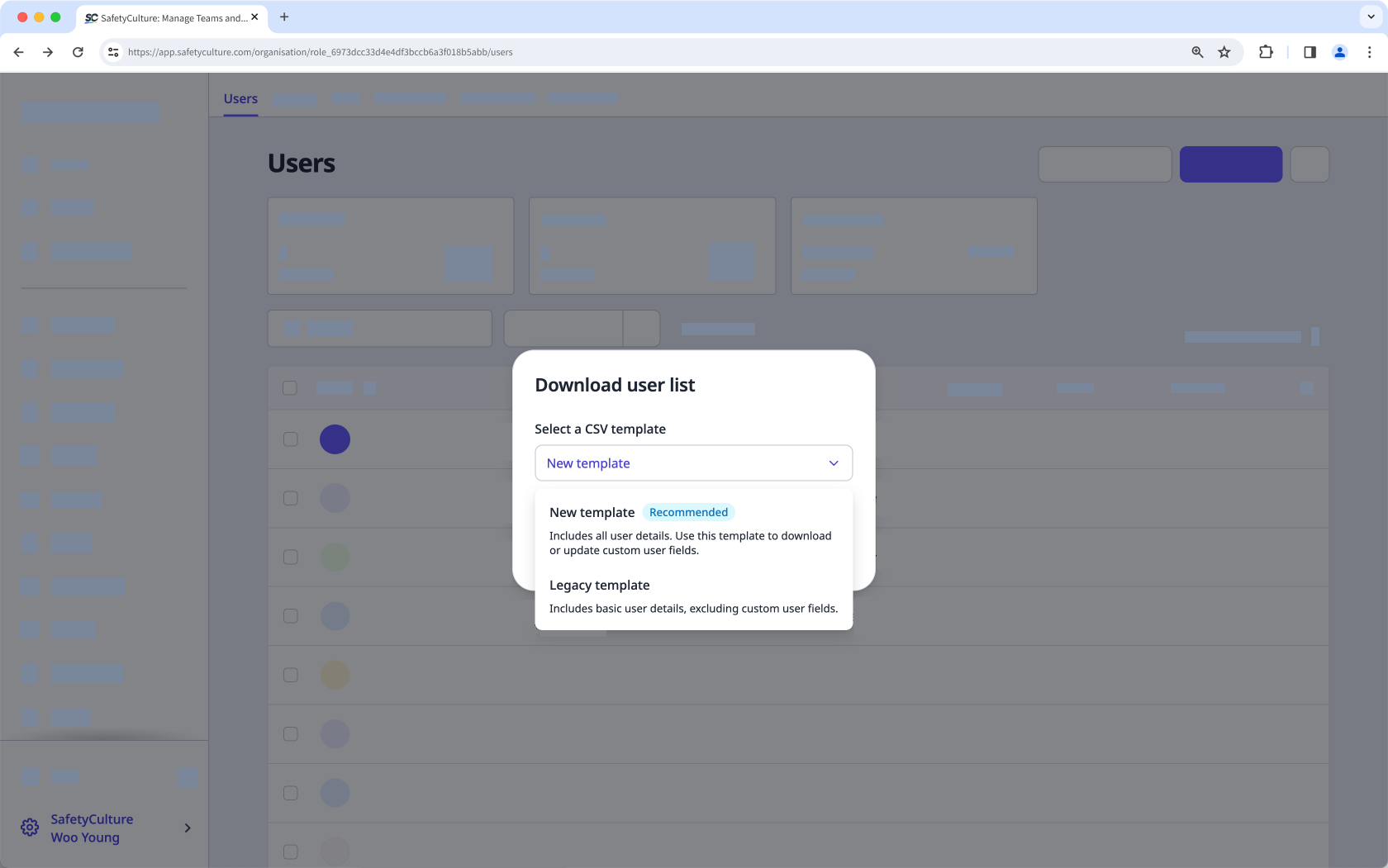
New template: Includes custom user fields in the organization and is ideal for bulk managing users.
Legacy template: Includes basic user details, without custom user fields.
If filters are applied to your user list, check "Apply current filters to downloaded list" if you want to keep the filters applied to your CSV.
Click Download.
Download user list as CSV for selected users
Click your organization name on the lower-left corner of the page and select Users.
Check the boxes of the users you want to include in the CSV file.
Click Download CSV at the bottom of the page.
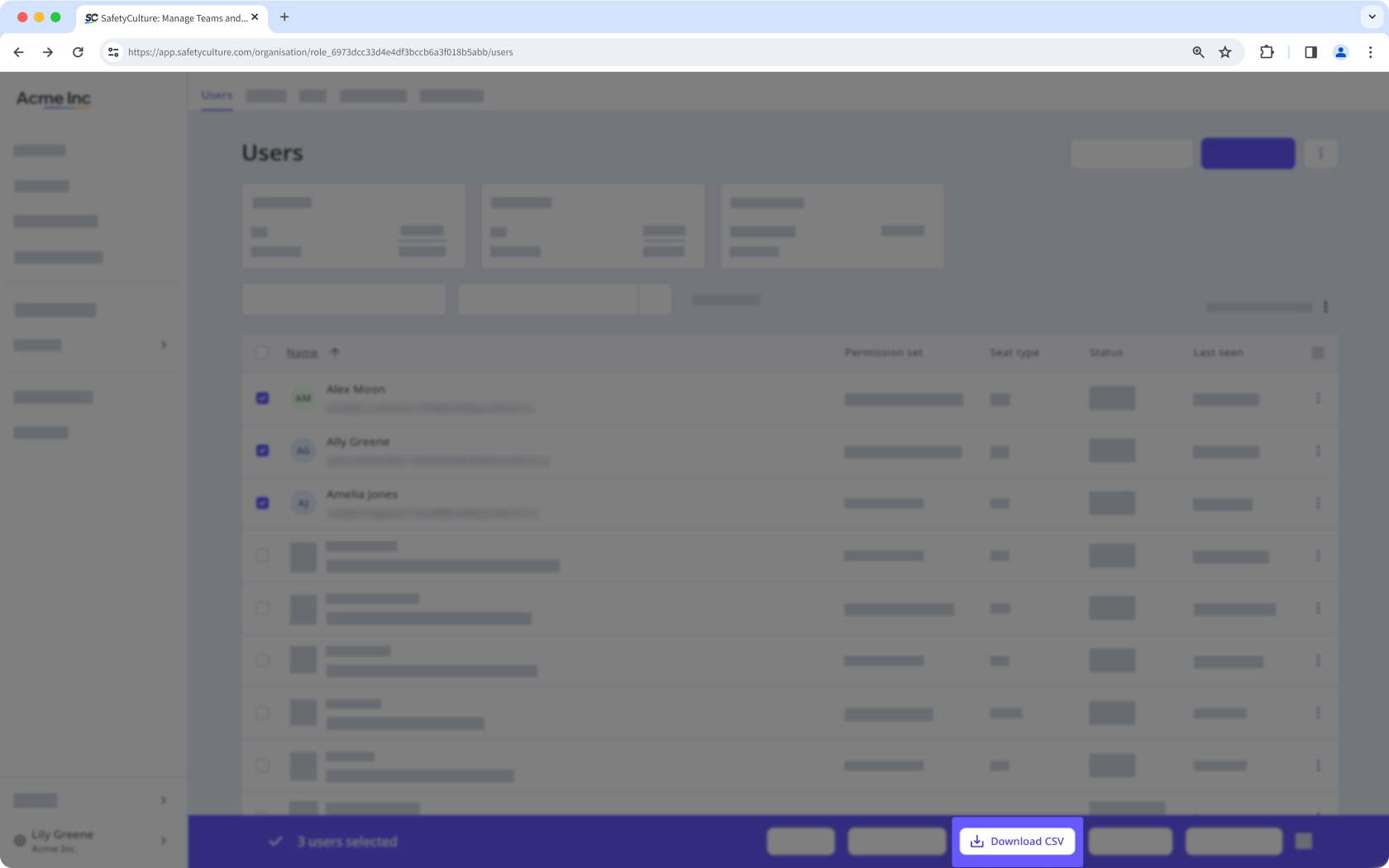
In the pop-up window, select the CSV template you want to download your user list in.
New template: Includes custom user fields in the organization and is ideal for bulk managing users.
Legacy template: Includes basic user details, without custom user fields.
If filters are applied to your user list, check "Apply current filters to downloaded list" if you want to keep the filters applied to your CSV.
Click Download.
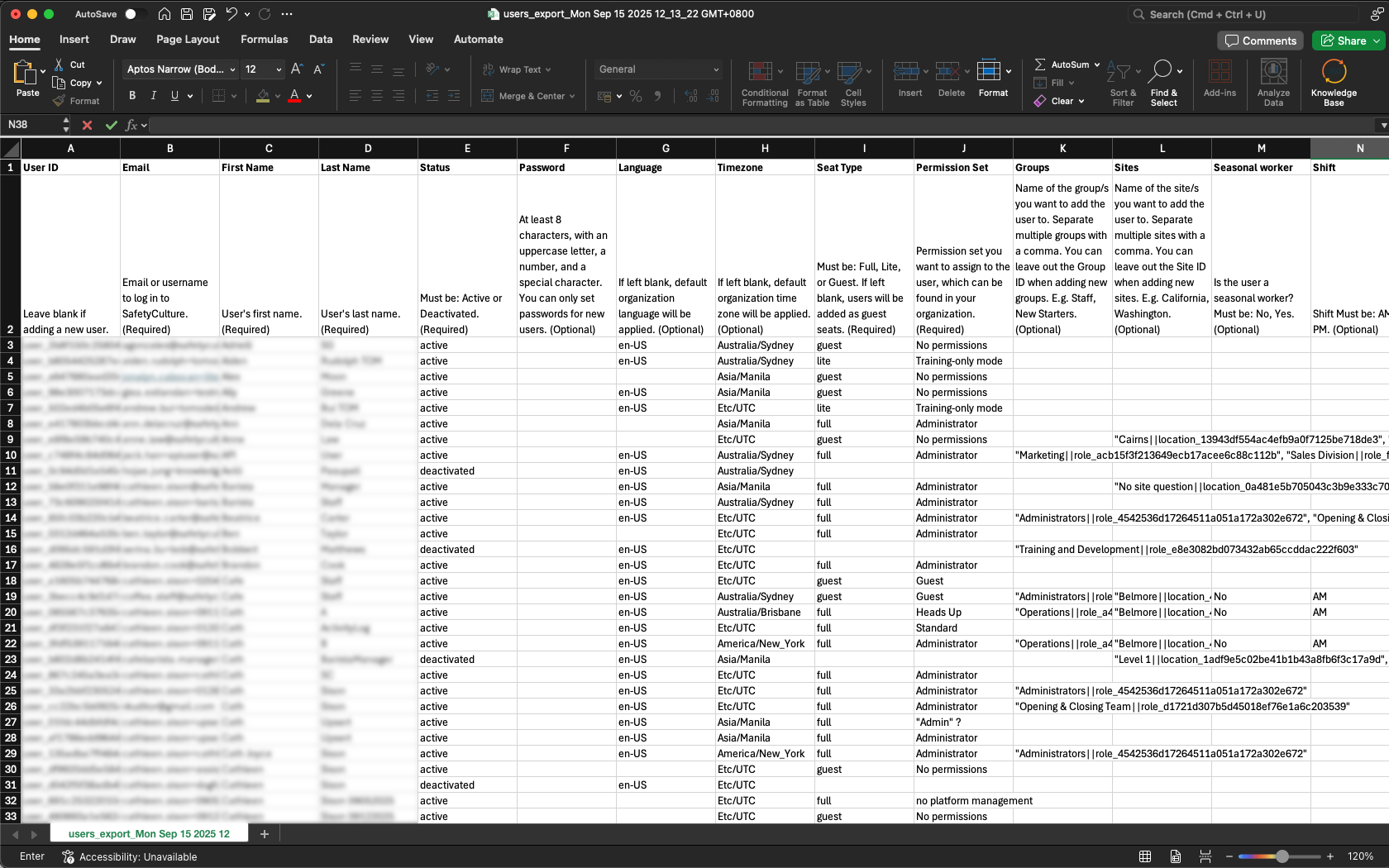
CSV and Excel column headers (New template)
Column header | Description |
|---|---|
User ID | The unique ID of each user in your organization. |
The account email address of a user. Updating existing users' email addresses is currently unsupported. | |
First name | The first name of a user. |
Last name | The last name of a user. |
Status | The account status of a user. Must be either "active" or "deactivated". New users can only be set as active. |
Password | The password of a user, which must be at least 8 characters, containing an uppercase letter, a number, and a special character. You can only set passwords for new users. |
Language | The account language of a user. Refer to the "ISO-639 language codes" section in this article for language codes that are supported on the web app. |
Time zone | The account timezone of a user in IANA timezone or Country/Region format. For example, "America/New_York". |
Seat type | The seat type (opens in new tab) of a user. If left blank, the user will be assigned a guest seat by default. This column only appears if your organization is on the Premium Plan or Enterprise Plan (opens in new tab). |
Permission set | The name of the permission set (opens in new tab) of a user. Users' permission sets can only be updated if you have "Platform management: Permissions" permission. |
Groups | The names of the groups (opens in new tab) of a user. |
Sites | The names of the sites or levels of a user. |
Custom user fields | The custom user fields of a user. |
CSV column headers (Legacy template)
Column header | Description |
|---|---|
The account email address of a user. | |
firstname | The first name of a user. |
lastname | The last name of a user. |
status | The account status of a user. Either "active" or "deactivated". |
lastSeen | The time of a user's last activity in SafetyCulture. The date is formatted as YYYY-MM-DD, followed by the time in Coordinated Universal Time (UTC) e.g. 2021-10-26T06:54:14.000Z. |
seat_type | The seat type that a user occupies. This column only appears if your organization is on the Premium Plan or Enterprise Plan (opens in new tab). |
permission_set | The permission set of a user. |
groups | The groups that a user is part of, separated by commas. |
sites | The sites or levels that a user is a member of, separated by commas. If a user is added to a level as a member, the level's name appears rather than all sites under the level. This column only includes site membership information if you have "Site management" permission. |
group_ids | The unique identifiers of the groups that a user is a member of, separated by commas. |
site_ids | The unique identifiers of the sites or levels that a user is a member of, separated by commas. |
createdAt | The date a user was added to or joined the organization via an invite link. |