- Using SafetyCulture
- Issues
- Report issues
Report issues
Learn how to report issues via the web app and mobile app to capture workplace incidents and help your organization maintain a safe workplace.What are issues?
The Issues feature in SafetyCulture lets you capture and track problems in your organization that don’t look right and need to be resolved, such as near-misses, broken equipment, or safety hazards. When you report issues, you can manage them in one place and organize them by category, with fields and custom questions to capture the right context. From an issue, you can start inspections, create actions to support resolution, link an investigation for deeper analysis, notify team members responsible for resolving them, and control access so the right people have visibility. This helps your team maintain a clear, shared record to collaborate on and resolve issues faster.
What you'll need
If you have "Report only" access to an issue category, you can report an issue but cannot view or edit it afterward.
Report an issue
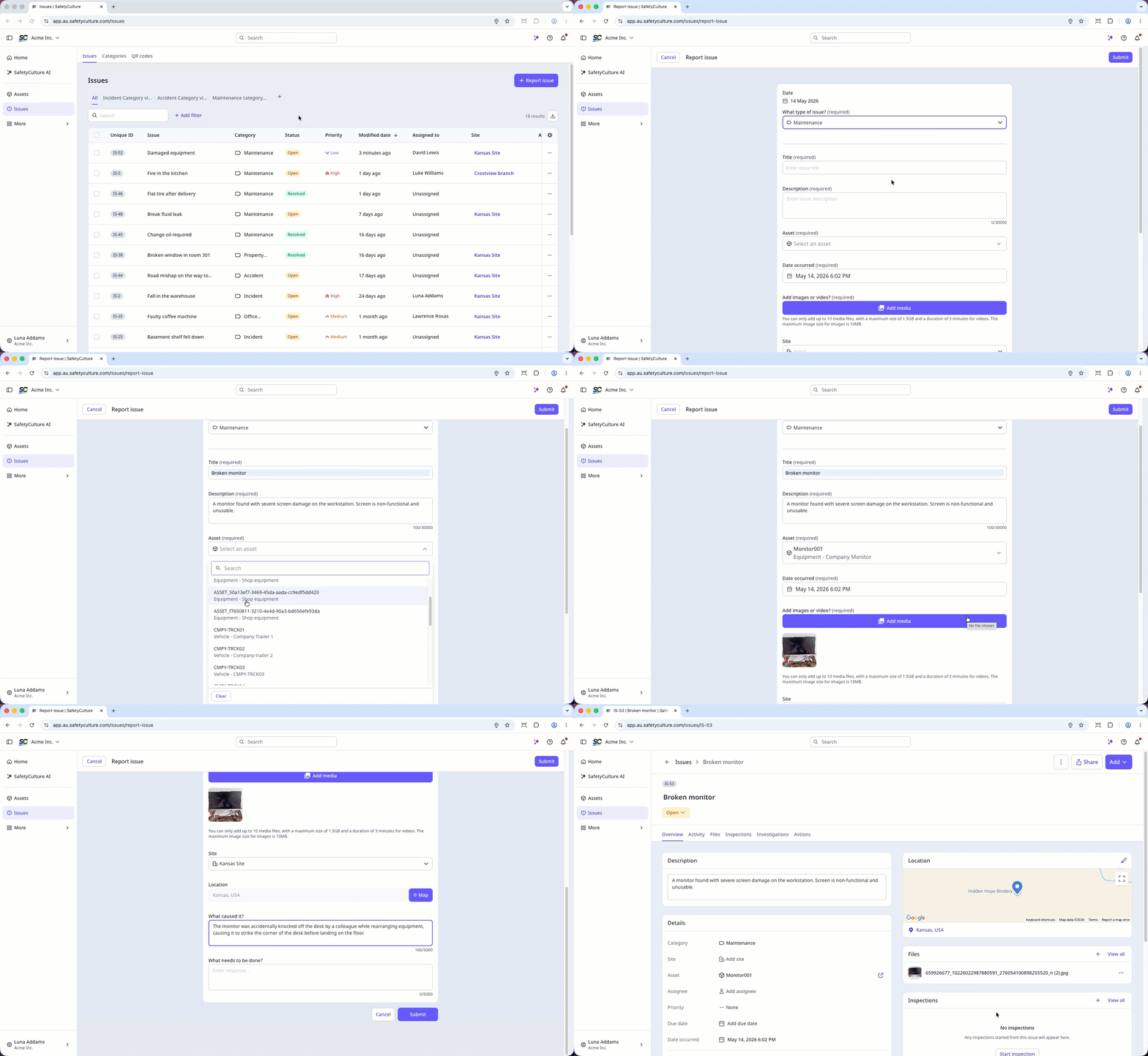
Select
Issues in the sidebar or select it in
More.
Click
Report issue on the upper-right of the page.
On this page, select the issue category.
Enter an issue title and answer any required fields. Depending on the selected issue category, you can also configure the following details:
Click Submit.
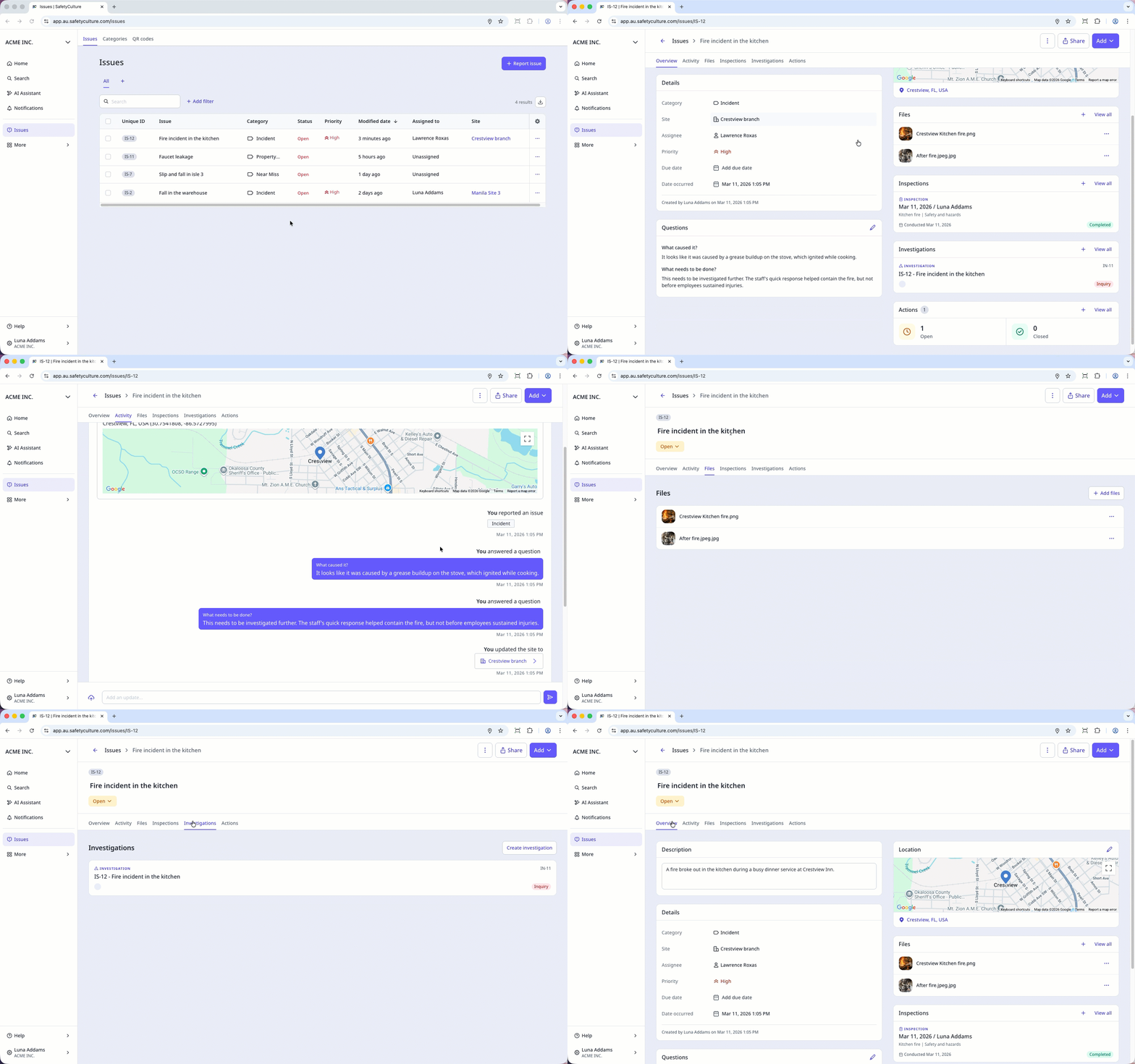
In the issue profile, you can find details about an issue in the following tabs:
Overview: You can view and update key issue details, check responses to any custom questions, see the location of the issue, view any media attachments, and see if the issue is linked to an inspection or action.
Activity: You can keep track of the changes made to an issue and see any comments your team members added.
Files: You can view photos, videos, and PDF files attached to an issue.
Inspections: You can view linked inspections and templates related to an issue.
Investigations: You can view investigations linked to an issue.
Actions: You can create and keep track of actions created for an issue.
Open the mobile app.
Tap
Issues in the navigation bar or select it in
More.
Tap
at the lower-right corner of your screen.
In the pop-up window, select the issue category.
Enter an issue title, and answer any required fields accordingly. Depending on whether the field or question has been enabled for the issue category, you can:
Add a description, location, as well as photos or videos of the issue, to provide more context.
Select the site, if sites have been enabled in your organization.
Tap Submit.
In the issue profile, you can find details about an issue in the following tabs:
Overview: You can view the summary of the issue details, where you can check responses to any custom questions, see the location of the issue, view any media attachments, and see if the issue is linked to an inspection or action.
Details: You can view the key issue details and update the fields accordingly.
Activity: You can keep track of the changes made to an issue and see any comments your team members added.
Files: You can view photos, videos, and PDF files attached to an issue.
Tap
at the lower-right corner of your screen to:
Upload media attachments.
Location access is required to capture the location when reporting issues.
When you report an issue while your device is offline, the issue will display the location coordinates instead of the full address.

Frequently asked questions
No, you cannot change any of the comments you posted or files you attached to issues. All of your changes are logged in the "Activity" tab, and all images, videos, or PDF files will remain available in the "Files" tab.
You can only upload one video at a time when reporting an issue via the mobile app, but you can upload more videos later on. Specifically, you can upload the following attachments to each issue:
PDF files: Up to 20MB per file
Photos: Up to 10MB per photo
Videos: Up to three minutes or 1.5GB in size per video
When you report an issue, the timestamp is captured automatically and you can't change it. However, if the issue category you used to report the issue includes a "Date occurred" field, you can change it to specify the date and time the issue happened.

Was this page helpful?
Thank you for letting us know.