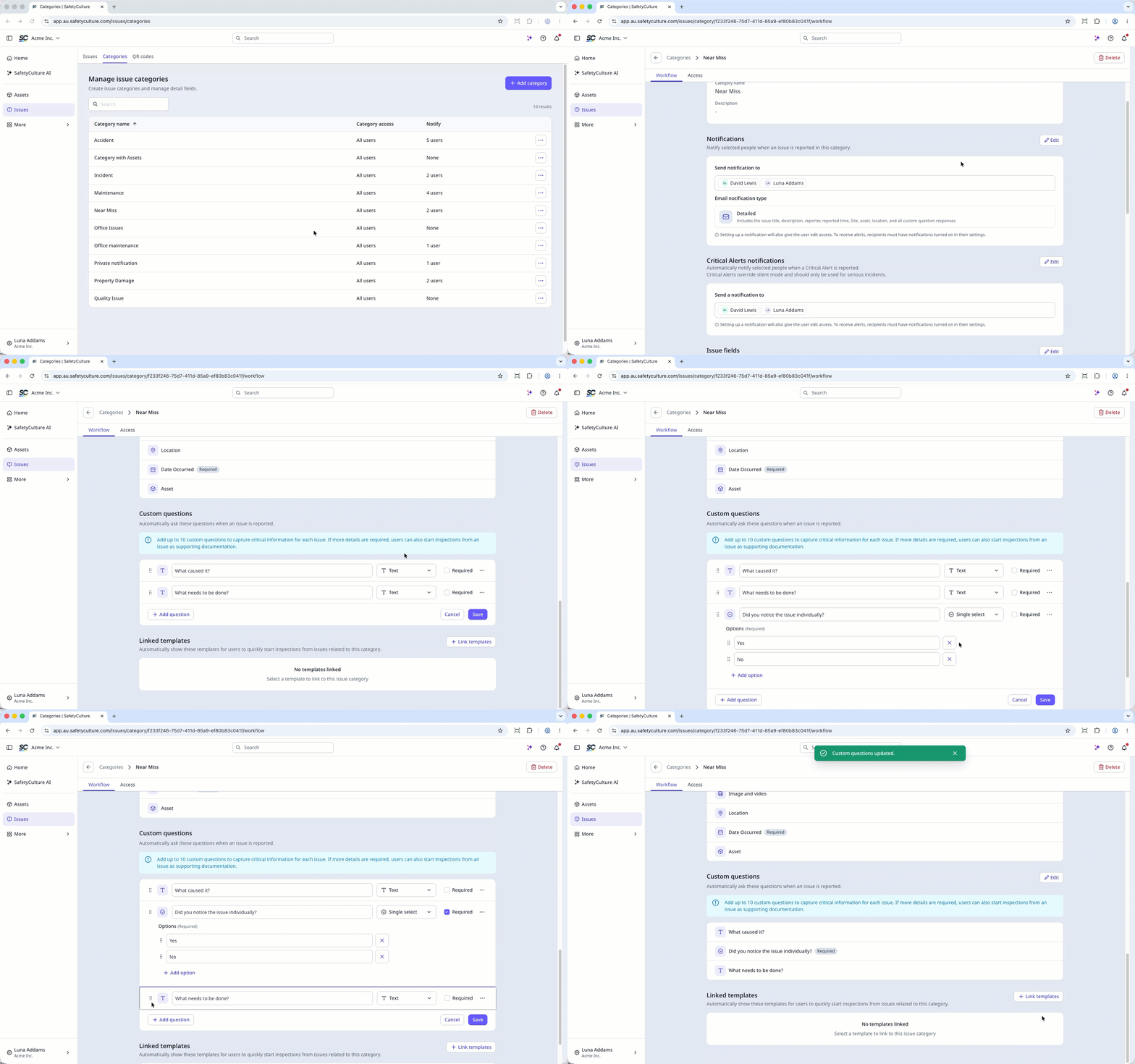
What are issue fields and custom questions?
Issue fields and custom questions help teams record the right details when reporting an issue and make reports clearer and more consistent for stakeholders. Admins can set required fields or add custom questions to guide users in providing the key information needed to resolve the issue.
For example, maintenance staff may need a detailed report or photo showing the extent of the damage. Capturing these details early helps teams assess risk, prioritize fixes, and prevent future incidents.
Manage issue fields
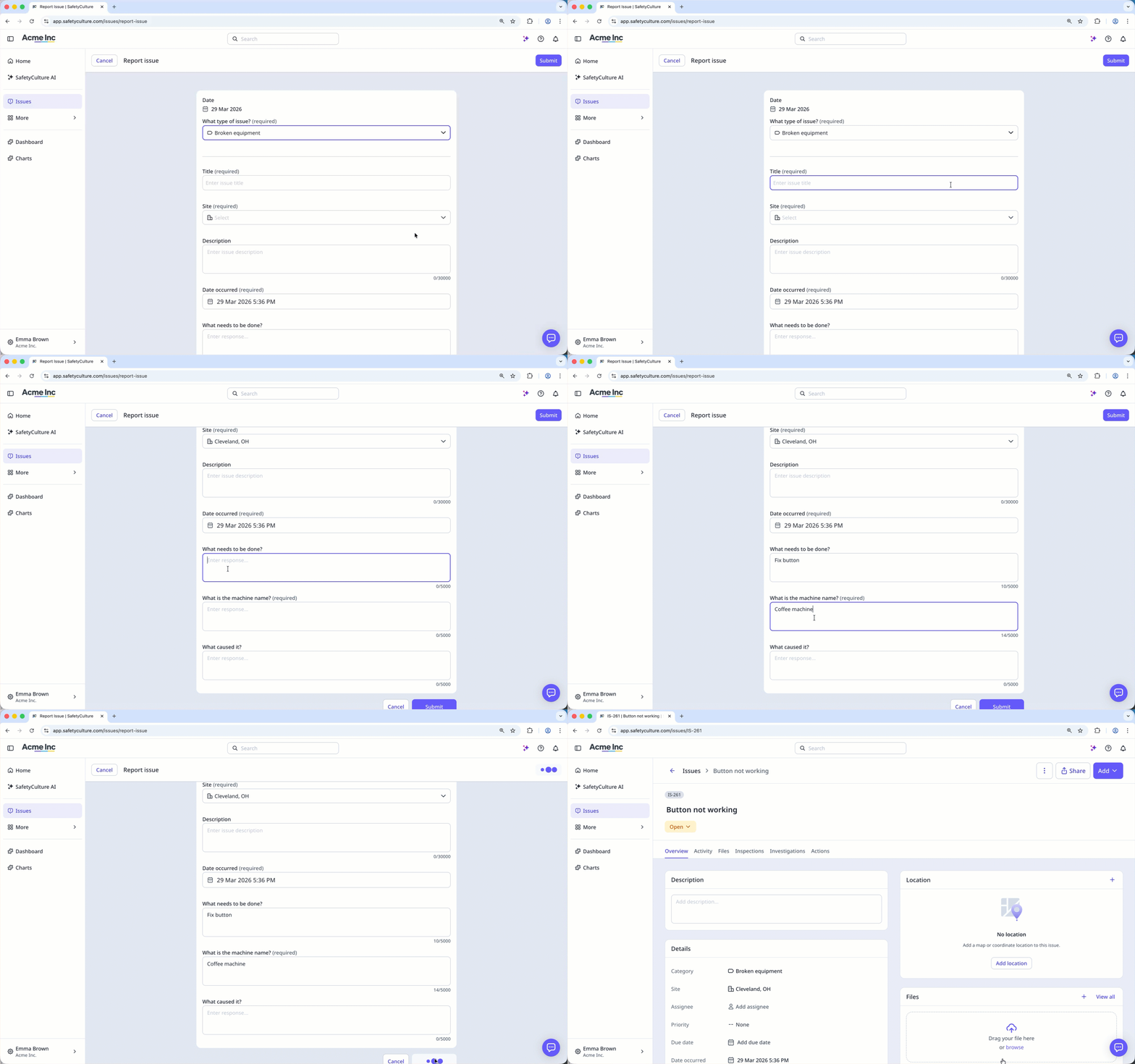
Select Issues in the sidebar or select it in More.
Select Categories at the top of the page.
Click on the right-hand side of the category, and select Edit.
Select Workflow at the top of the page.
Click Edit on the right-hand side of the “Issue fields” section.
Under "Issue fields", you can manage the following preset fields:
Title: This is a required field where users in your organization can put a short descriptive name for their report.
Description: This is an optional field where users can enter more details about the issue.
Site: This is an optional field where users can select a site that is relevant to the issue.
Image and video: This is an optional field where users can add up to 10 media files that provide more information about the issue.
Location: This is an optional field where users can search for or directly pin their location on the map.
Date Occurred: This is a required field where users can enter the date the issue occurred.
Asset:This is an optional field where users can link an asset relevant to the issue.
Manage your optional issue fields by:
Manage field visibility: Turn a field on or off to make it visible or hidden when an issue is reported.
Making a field required: Check or uncheck the box on the field's right-hand side to make it required or optional when an issue is reported.
You can also rearrange the order of the fields by dragging .
Click Save.
You can have up to ten custom questions per category, with each custom question label limited to 255 characters.
You can also have up to 50 responses per single-select question, but users can only select one response for each question.
Manage issue custom questions
Select Issues in the sidebar or select it in More.
Select Categories at the top of the page.
Click on the right-hand side of the category, and select Edit.
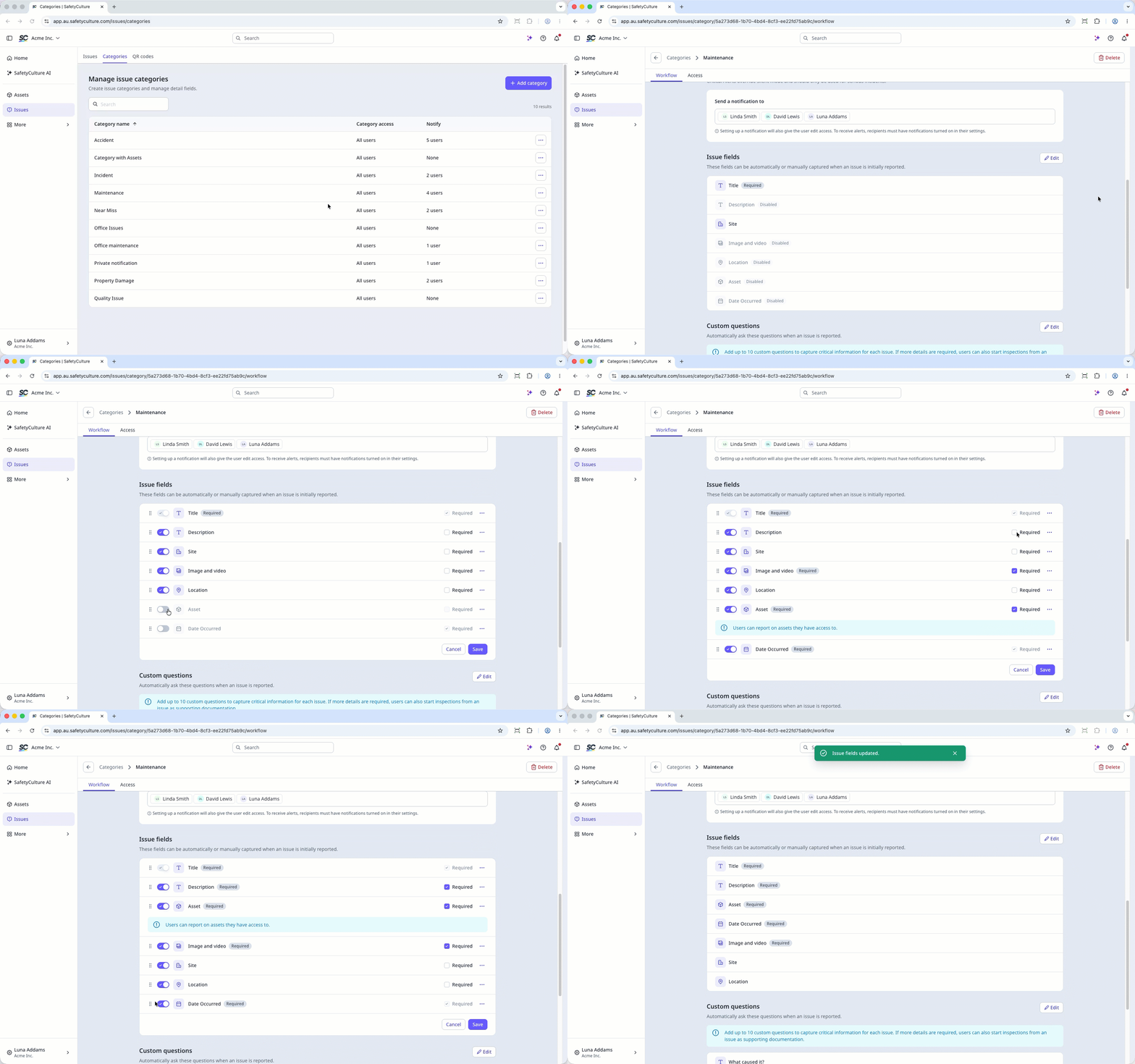
Click Edit on the right-hand side of the of the “Custom questions” section.
You can edit the custom questions and manage the following options:
Question response type: Option to ask text or single-select questions. If you select the single-select question option, you can add responses by clicking Add option and rearrange their order by dragging .
Required: To make a question mandatory when an issue is reported.
You can also:
Click Add question to add a new question.
Click on the right-hand side of the question to delete the question.
Drag to rearrange the order of the questions.
Click Save.