
- Administration
- Contractors
- Manage company profiles
Manage company profiles
Learn about company profiles and how to manage them via the web app by editing company details or internal notes, adding or removing users, and viewing user credentials and activity.What are company profiles?
A company profile is a centralized space for managing a contractor company within your organization. You can view and update key contractor details, add internal notes to keep records accurate, and manage users tied to the contractor, including their credentials and activity. You can also request and store documents from key contacts to support compliance. This ensures your team efficiently oversees contractor relationships, maintains compliance, and collaborates seamlessly with your contractor network.
Onboard contractors from the company profile to quickly guide your team on the steps they need to complete before starting their roles.
You can narrow down companies with documents that are expired, expiring soon, or pending approval from the company profile to quickly focus on what needs attention.
Edit a company profile
Select
 Contractors in the sidebar or select it in
  More.
More.Select a company.
In the "Company details" section, click
 Edit on the right-hand side of the page.
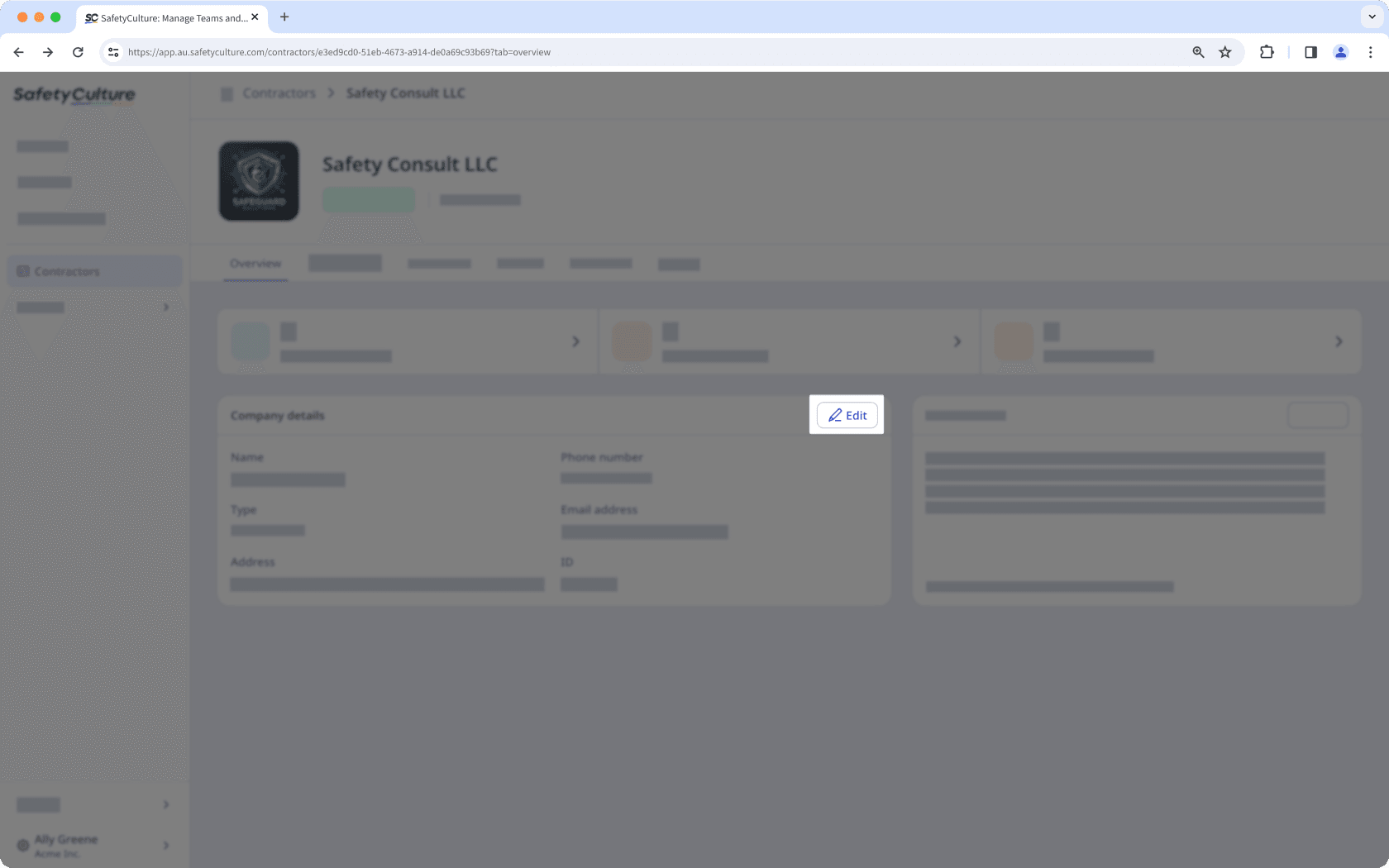
Update the company details accordingly.
Click Save.
Edit internal notes in a company profile
Select
Contractors in the sidebar or select it in More.Select a company.
In the "Internal notes" section, click
Edit on the right-hand side of the page.
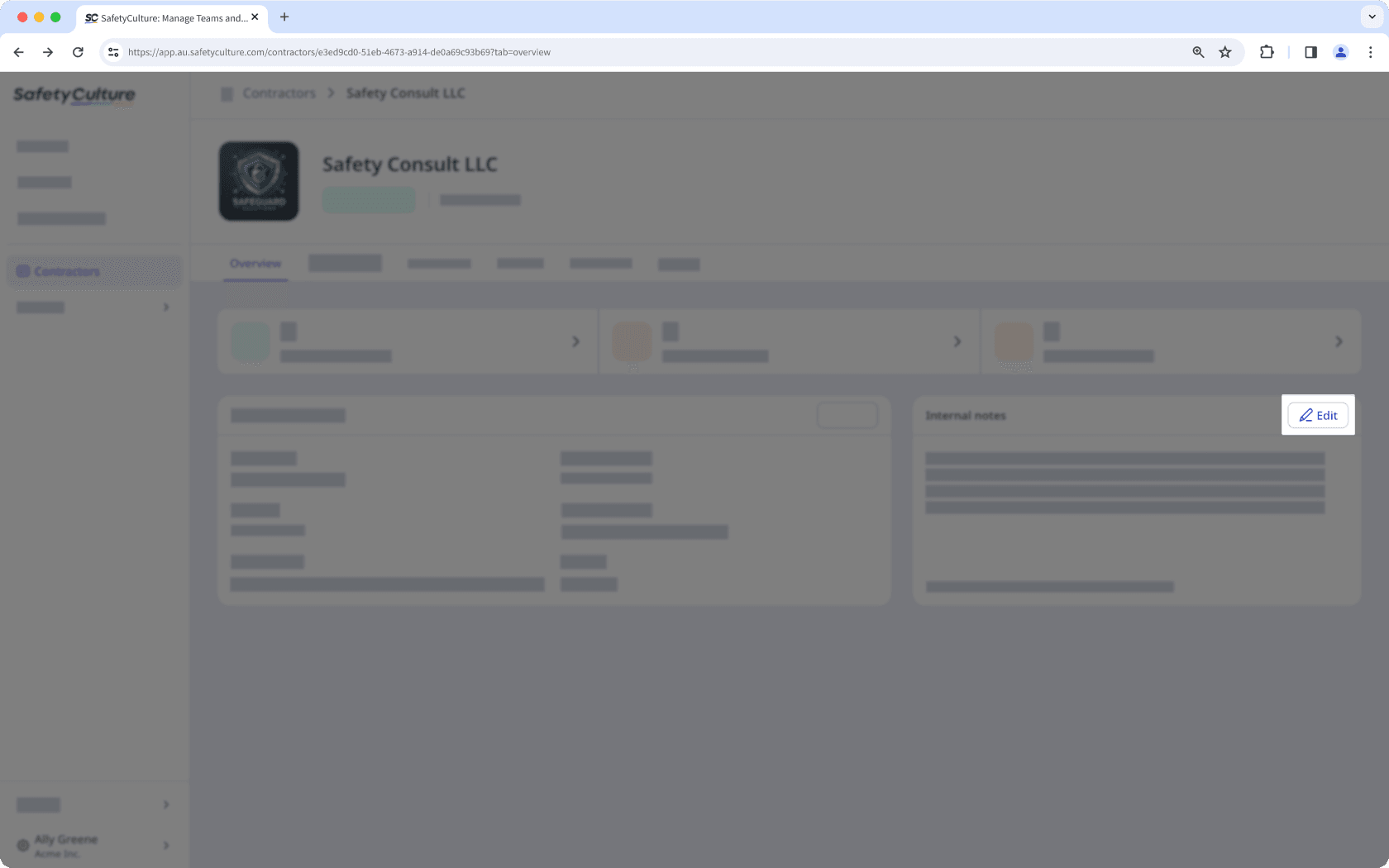
Update the notes accordingly.
Click
 to save your changes.
If you have "Platform management: Users" permission, you can add existing or new users to a company individually or in bulk via CSV or Excel.
Add a user to a company
Select
Contractors in the sidebar or select it in More.Select a company.
Click Workers tab in the company profile.
Click
 Add workers on the upper-right of the user list.
In the side panel, choose whether to select an existing user or invite a new one:
To select an existing user: Select a user from the dropdown menu.
To invite a new user: Click
 Invite new worker from the dropdown menu. In the pop-up window, enter the user's email address, first name and last name, and select a seat type. Then, click Add to team.
Click
 next to the user's name and select their role:
 Member: A regular worker whose activity is tracked in the company.
Key contact: A representative who can upload documents and add workers to the company. You can also customize the email key contacts receive in the “Message to key contacts” section.
You can also click
 Remove from list if you want to remove a user before adding them.
When you're ready, click Add to company.
You can add a new or existing user in a company and assign them as the key contact when you request a document or form.
Remove a user from a company
Select
Contractors in the sidebar or select it in More.Select a company.
Click Workers tab in the company profile.
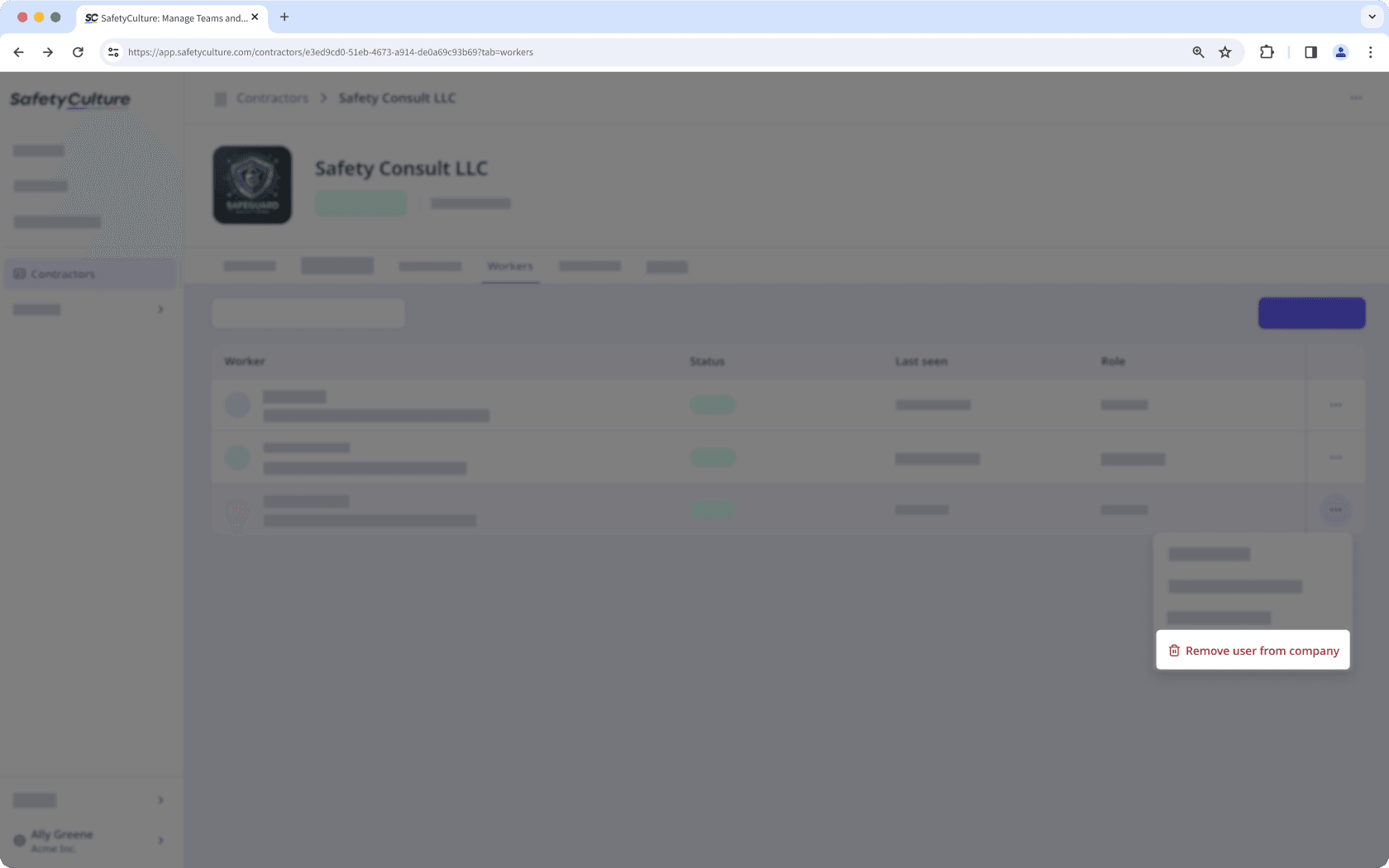
Click
 on the right-hand side of the user's row and select
  Remove user from company.
View a company user's credential
Select
Contractors in the sidebar or select it in More.Select a company.
Click Credentials tab in the company profile.
In this tab, you can view the credentials of users in your company.
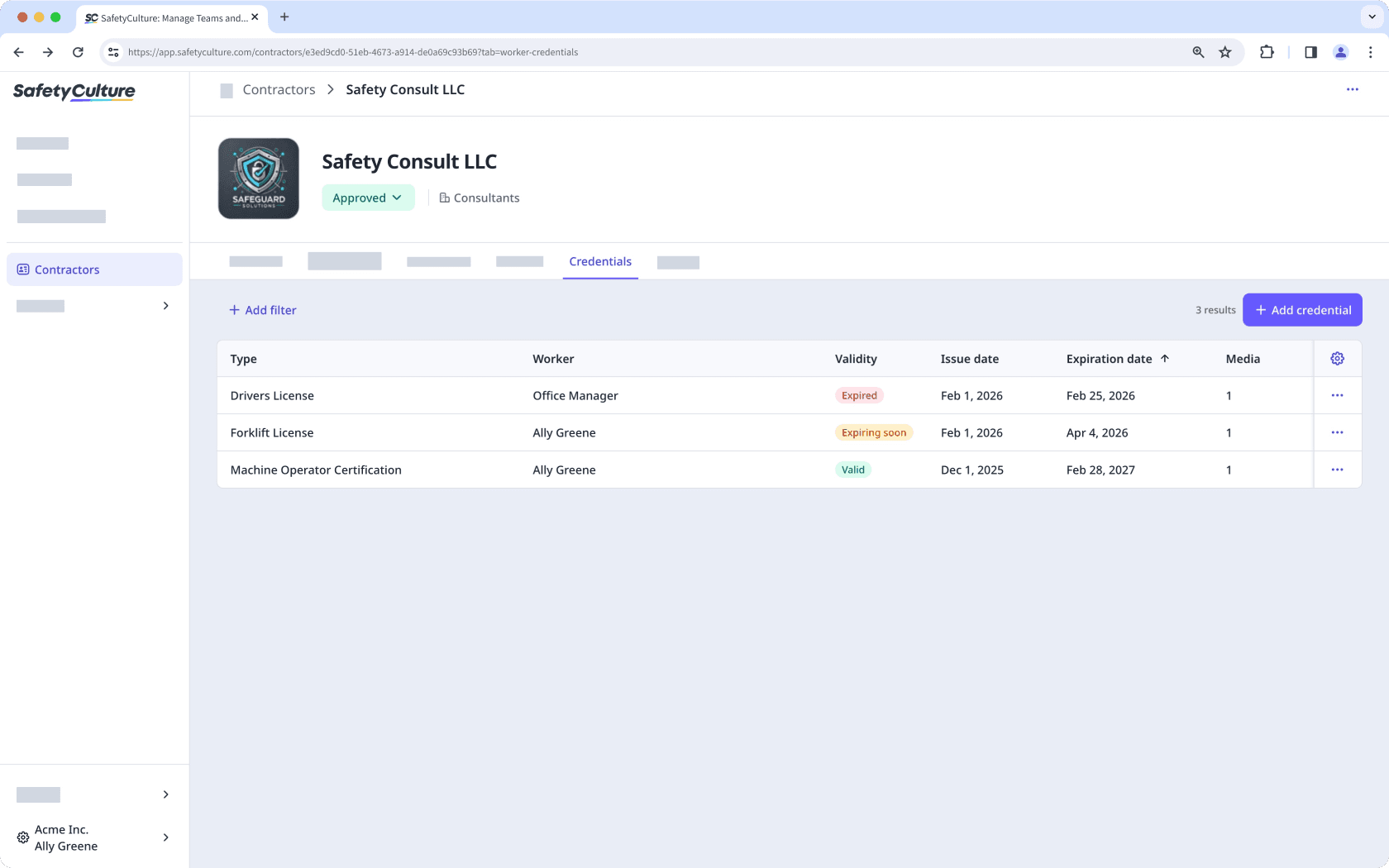
If you have "Platform management: Credentials" permission, you can view and manage the credentials of users in your company.
View a company user’s activity
Select
Contractors in the sidebar or select it in More.Select a company.
Click Activity tab in the company profile.
In this tab, you can view the relevant actions, issues, and inspections associated with each user.

You can also view inspections linked to a company using the Company response type.
You can also view and manage company documents and document or form requests directly from the company profile.
Frequently asked questions
The Credentials tab in a company profile only shows credentials for users associated with that specific company. From the company profile, you can manage those users’ credentials, where you can can add, edit, delete, and view credential history for those users.
To manage credentials for all users across your organization, you can do so from the Credentials feature.
Was this page helpful?
Thank you for letting us know.