
Depending on asset access settings, the assets you can view and manage may vary based on your site membership.
Download assets as CSV
Select Assets in the sidebar or select it in More.
Filter the asset list to narrow down the results. If you want to download archived assets, select Archive at the top of the page.
Click on the upper-right of the asset list and select Download all assets.
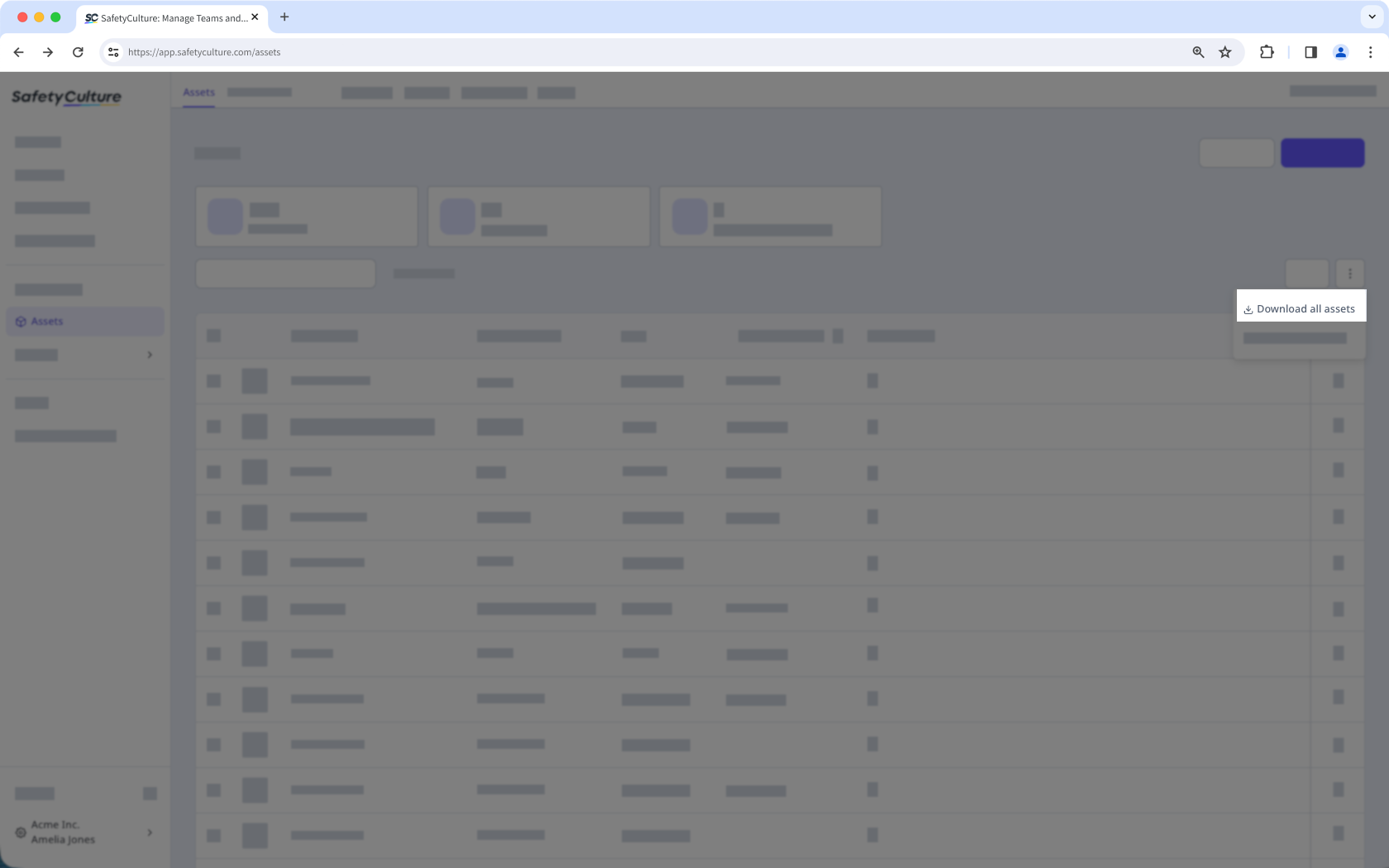
In the pop-up window, click Download CSV. If you have filters applied, check the "Ignore filters" box to download all assets you have access to.
CSV column headers
Column header | Description |
|---|---|
Internal ID | The unique identifier of an asset automatically generated in SafetyCulture. |
Unique ID | The unique identifier of an asset in your own system. |
Archived | The indicator for whether an asset is archived or not. Either "TRUE" or "FALSE". |
Created date | The date and time an asset was created. |
Modified date | The date and time an asset's profile was modified. |
Last inspection date | The date and time the inspection was conducted. |
Link | The deep link of an asset that allows you to view the asset profile directly via the web app or the mobile app. |
Site | The site of an asset. |
Site ID | The unique identifier of a site where an asset was added. |
Type | The type of an asset. |
Detail field | Each detail field appears as an additional column. Detail fields are customizable and dependent on what you have set up in an asset's type. |


