¿Qué es el asistente de IA en SafetyCulture?
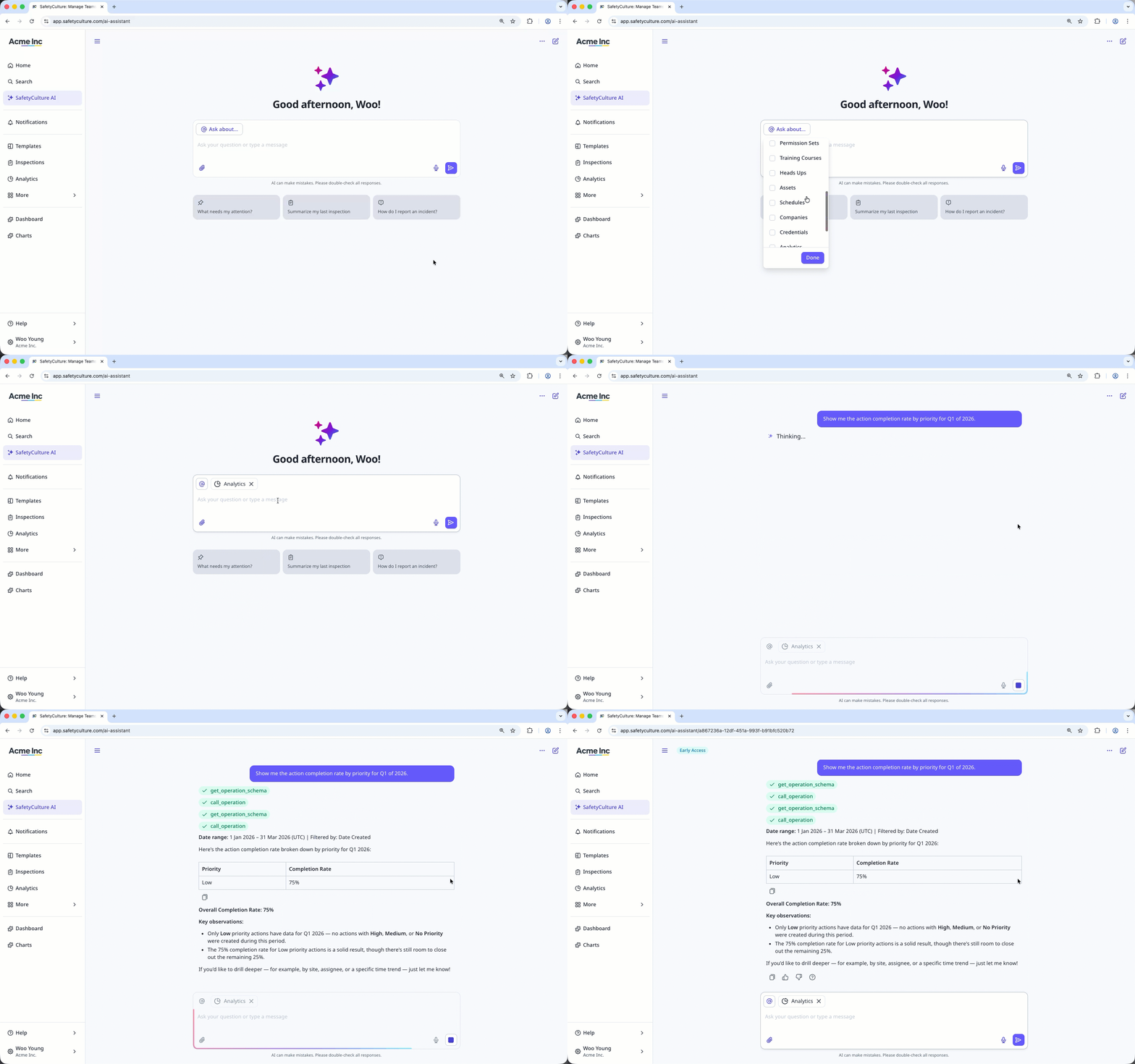
El Asistente de IA de SafetyCulture es una interfaz conversacional que reúne las herramientas y la información que los usuarios necesitan en un solo lugar. Mantiene un resumen de todas las conversaciones anteriores de un usuario y lo utiliza en las nuevas, de modo que el contexto se transfiere automáticamente. Ayuda a los usuarios a trabajar de forma más eficaz en las áreas de seguridad, calidad, cumplimiento, formación y operaciones diarias. En lugar de navegar entre funciones, los usuarios pueden encontrar respuestas, identificar el contexto adecuado y pasar a la acción directamente en la plataforma.
Esta experiencia de copiloto ahorra tiempo en tareas repetitivas y facilita la concentración en el trabajo que genera resultados. Con el Asistente de IA, puede trabajar de forma más inteligente, obtener soporte técnico cuando lo necesite y dedicar más tiempo al trabajo que más importa.
What can I use the AI Assistant for?
The AI Assistant works across SafetyCulture, so you can spot problems, take action, and find answers, all in one place. It connects to everything in your account, such as templates and inspections, issues, actions, files in Documents, courses, assets, and more, so you don't need to switch between features to get things done.
You can ask the AI Assistant to find information for you by pulling data, summarizing results, or answering questions about what's happening across your organization. It can also analyze patterns, surface risks, and suggest next steps based on your own standard operating procedures (SOPs) and other documents. And when you're ready to act, it can create, edit, and assign things like templates, actions, issues, and training courses, all without leaving the chat.
Here are some examples of what you can ask it to do:
Analyze inspection data: Summarize our food safety audits from last month and flag any failed temperature checks.
Get analytics across your data: Compare action completion rates across our sites this quarter and flag any outliers.
Generate reports: Build a report of overdue compliance actions by site, grouped by priority.
Edit or build templates: Add a section for daily equipment checks to this template, with photo evidence required for each question.
Track issues and actions: Show me all open quality issues assigned to the manufacturing team.
Get answers from your documents: What does our SOP say about cleaning between shifts?
Build training courses: Create a short training course on equipment handover, based on the SOP I uploaded.
Monitor sensor data: Show all sensors in the organization and create an alert.
Generate downloadable files and reports: Summarize last quarter's inspection results into a PDF report with a chart of our most failed items, ready to share with leadership teams.
Search the web:What are the current regulatory requirements for food safety labeling?
A full example: from spotting problems to taking action
You can also chain prompts to start from a question, dig into the data, get recommendations, and create actions, all in one chat. Here's how that flow works end-to-end.
1. Identify where problems are happening
Find out which sites have the most reported issueswithout filtering through data manually. The AI Assistant pulls from your Issues data to surface a ranked list by site.
Which sites have the most issues reported this month?
2. Drill down to the source
After you've narrowed down a site, dig deeper to find which issue category the problems are coming from. From there, you can start building a picture of what's driving them.
Which category at [site] has the most reported issues?
3. Get recommendations from your own documents
Ask the AI Assistant to suggest corrective actions based on your organization's existing files and procedures in Documents. This works best when your relevant SOPs and business documents are already uploaded by your organization.
Based on our files on safety procedures, what steps should we take to address [issue category] at [site]?
4. Create and assign actions
Act on the findings by creating multiple actions at once with different assignees, priorities, and due dates without leaving the chat.
Create actions to address the open issues under [issue category] at [site]. Assign the first to [name] with high priority due [date], and the second to [group] with medium priority due [date].
Get started as an admin
Configure user permissions
Before your team can use the AI Assistant, confirm it's turned on and that users have the right access. The AI Assistant is turned on by default for organizations, but you can turn it off at any time if it's not the right fit yet.
The Permiso de "Asistente de IA: acceso" is available to all seat types. Review and update your users'permission sets to make sure only the right people can use the feature. Users without this permission won't be able to access the AI Assistant.
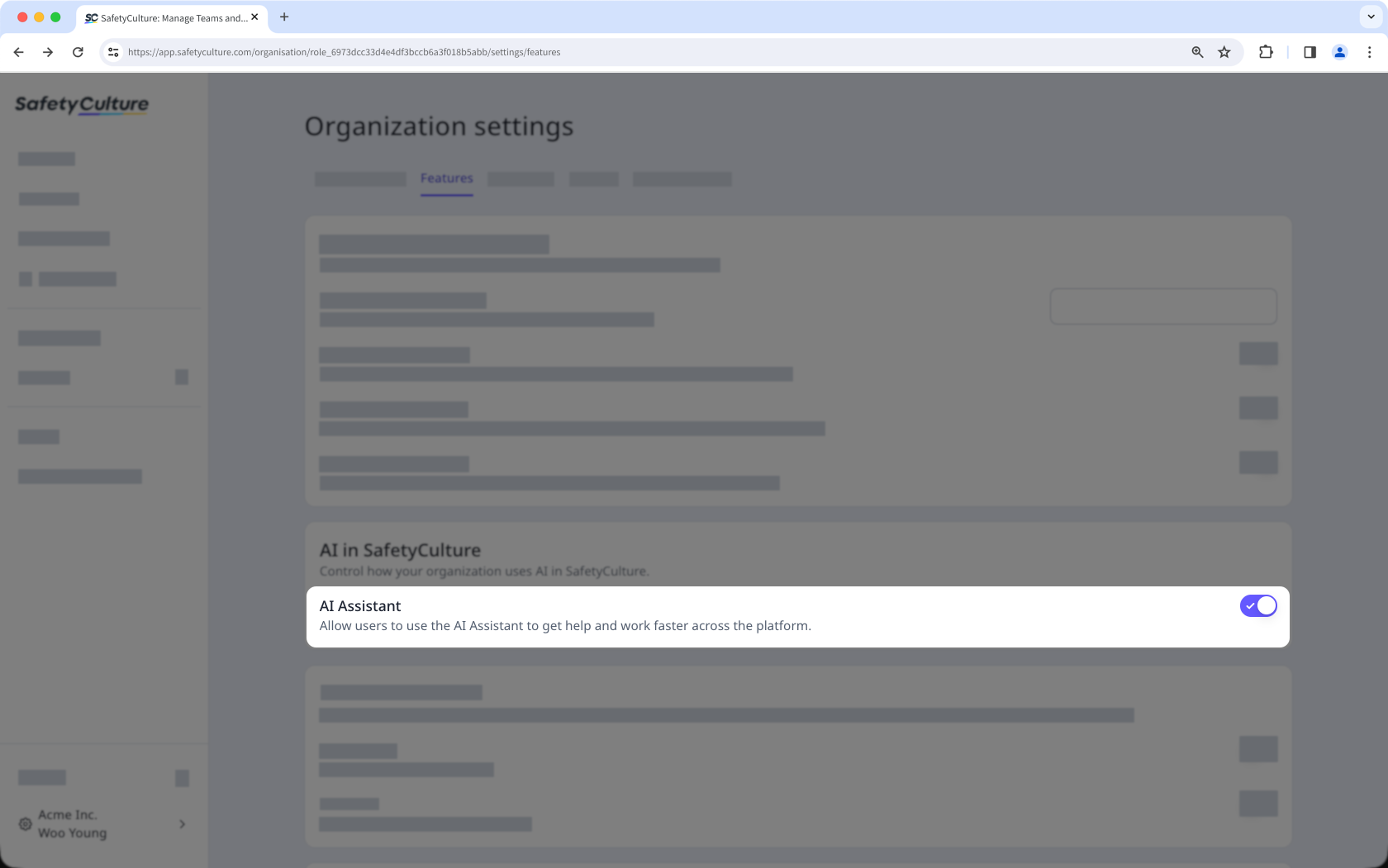
Si desactiva el Asistente de IA para su organización, los usuarios no podrán acceder a él.
Set up custom contexts
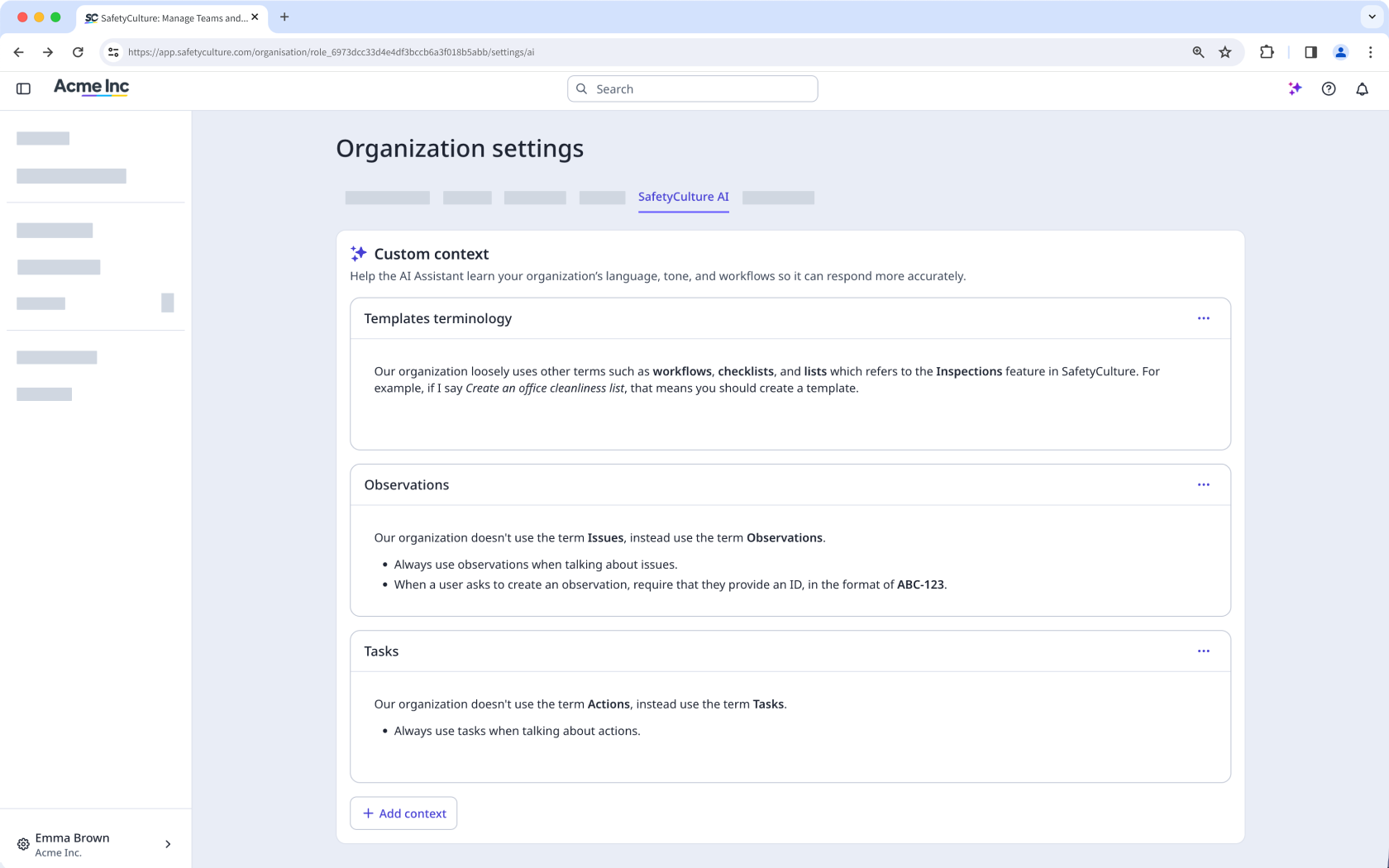
Custom contexts let you tailor how the AI Assistant responds. Add information about your organization, such as internal terminology, standard procedures, or specific workflows, so the AI Assistant's responses match how your team works. The more context you give it, the more relevant its responses will be.
Set up custom contexts in your organization settings to get started. After you set them up, the AI Assistant applies them automatically across every conversation for all your users.
Get started as a team member
Check your access
To use the AI Assistant, you need the Permiso de "Asistente de IA: acceso". If the AI Assistant doesn't appear in your menu, contact your admin to confirm you have the right permission assigned.
The AI Assistant can only work with data you already have access to in SafetyCulture. If it can't find something you're expecting, you can also check with your admin to confirm you have the right permissions assigned.
Get tasks done
Open the AI Assistant from the web app or the mobile app to type your question or prompt in the chat. The AI Assistant will return a response, take an action, or ask a follow-up question to clarify what you need.
You can also use Preguntar sobre... to focus the AI Assistant on a specific area. You can pload a file to ask questions about its contents, or ask it to generate a document or report you can download. If the first response isn't quite right, keep the conversation going. Like any AI model, the more specific and detailed your prompt, the better the result.