
Why create an investigation from an issue?
Issues are a quick way to report a problem in the workplace. When a reported issue needs deeper analysis, an investigation gives you the structure to analyze and resolve it. Creating an investigation directly from an issue keeps everything connected. All the original details from an issue, including comments, media, inspections, and actions, stay in one place. This gives you a complete view of what happened and how it was handled.
From there, you can gather evidence, run inspections, assign corrective actions, and manage access so the right people are involved at every stage. This creates a full audit trail from the reported issue to the actual resolution.
What you'll need
Create an investigation from issues
Select Issues in the sidebar or select it in More.
Report an issue or select an existing one.
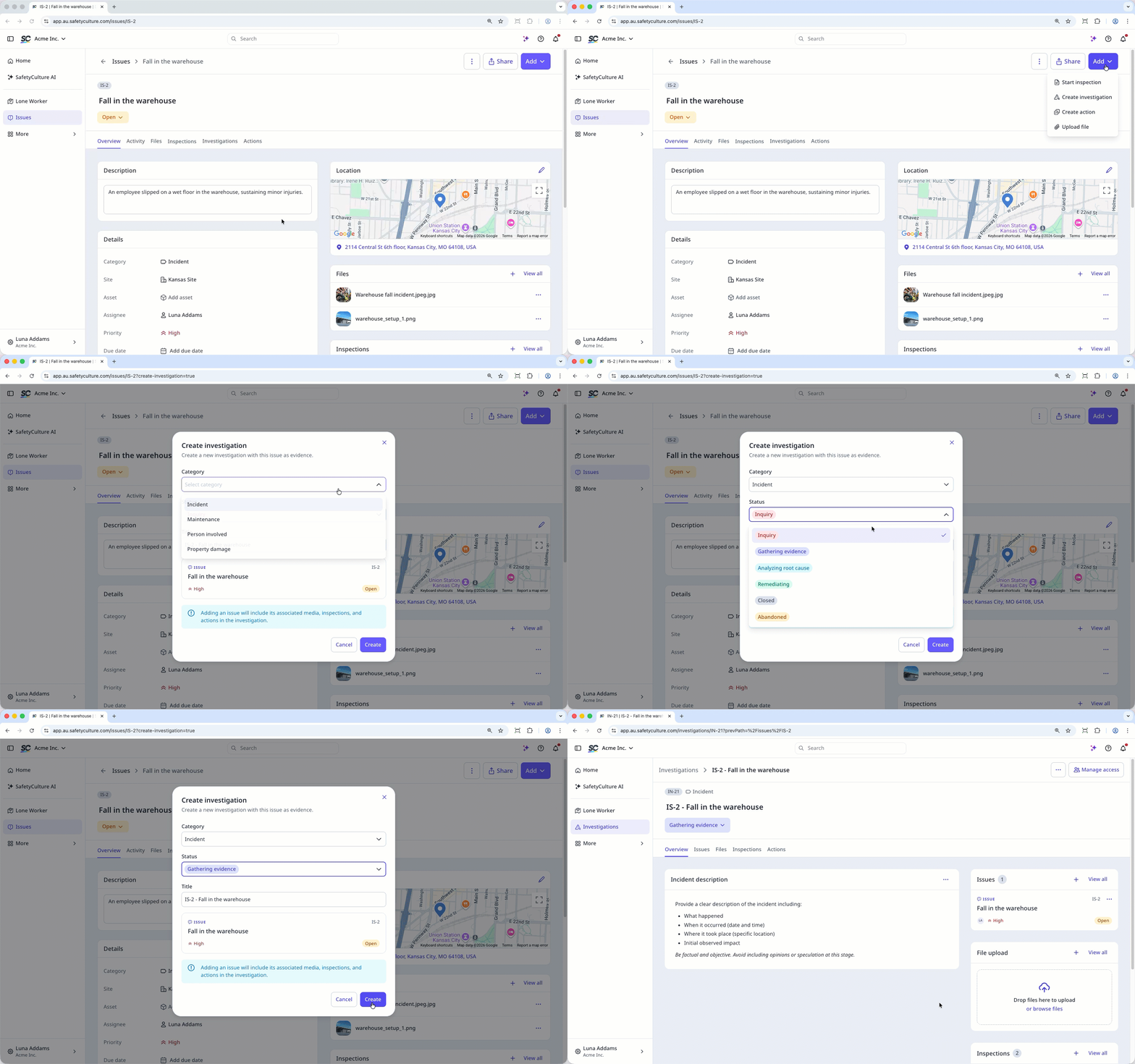
Create an investigation using one of the following methods:
Click Add on the upper-right of the page, and select Create investigation.
In Overview tab, scroll down to Investigations and click on the upper-right or click Create investigation.
In Investigations tab, click Create investigation.
In the pop-up window, select the category and status, then enter a title or use the generated title from the issue.
Click Create.
Fill out the investigation details.
Investigations you create from an issue are only visible to you by default. You can give your team members access to the investigation from the investigation profile.


