What are organization feature settings?
Organization feature settings define how features are configured and used across your organization. By managing these settings at the organization level, you can set default access, sharing, and viewing options for templates and inspections, control how AI is used, and simplify the training experience. You can also configure how media is uploaded and captured, and set how files are shared on the mobile app. This helps standardize how teams work, reducing inconsistencies and supporting a more consistent way of using features across your organization.
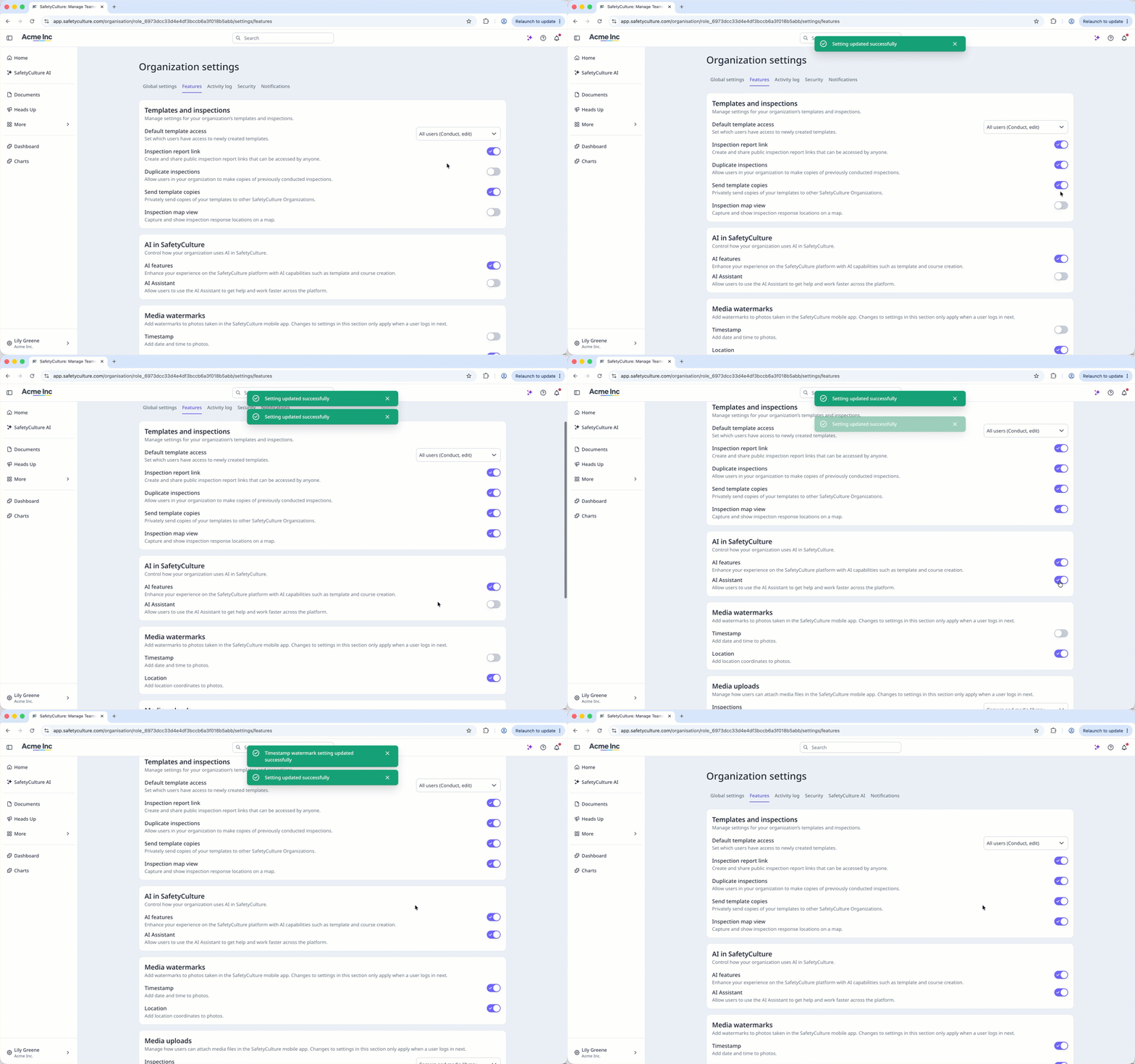
The features available in Organization settings may vary depending on your plan.
Exploring Feature settings
Templates and inspections
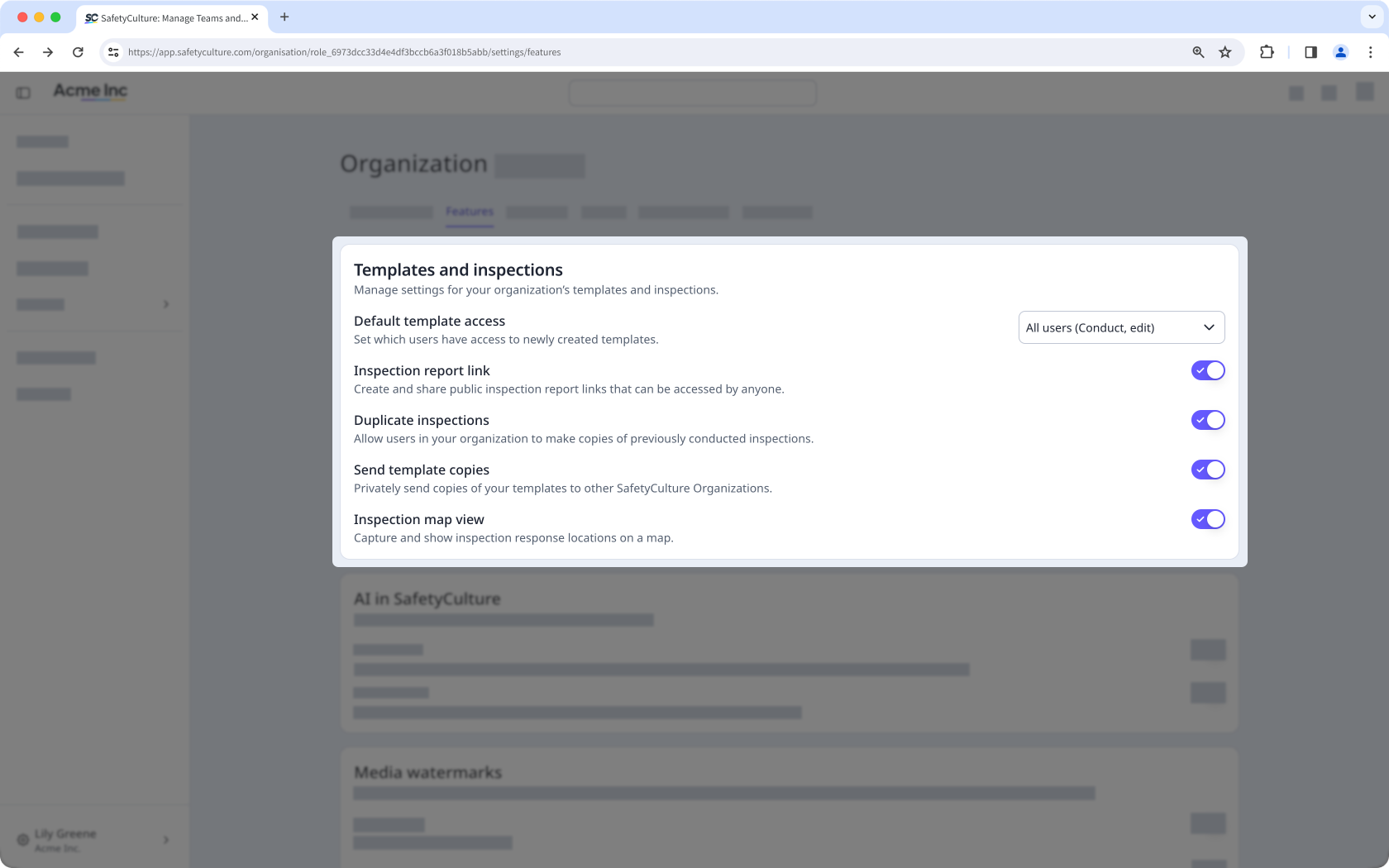
Manage settings for templates and inspections to control how they are accessed, shared, viewed, and used across your organization. You can set default template access for new templates, control whether inspection reports can be shared publicly via link, allow users to duplicate inspections, manage how template copies are shared with users outside your organization, and capture and view inspection response locations on a map. These settings help protect the integrity of your templates and inspection data while giving you clearer control over how they’re shared.
AI in SafetyCulture
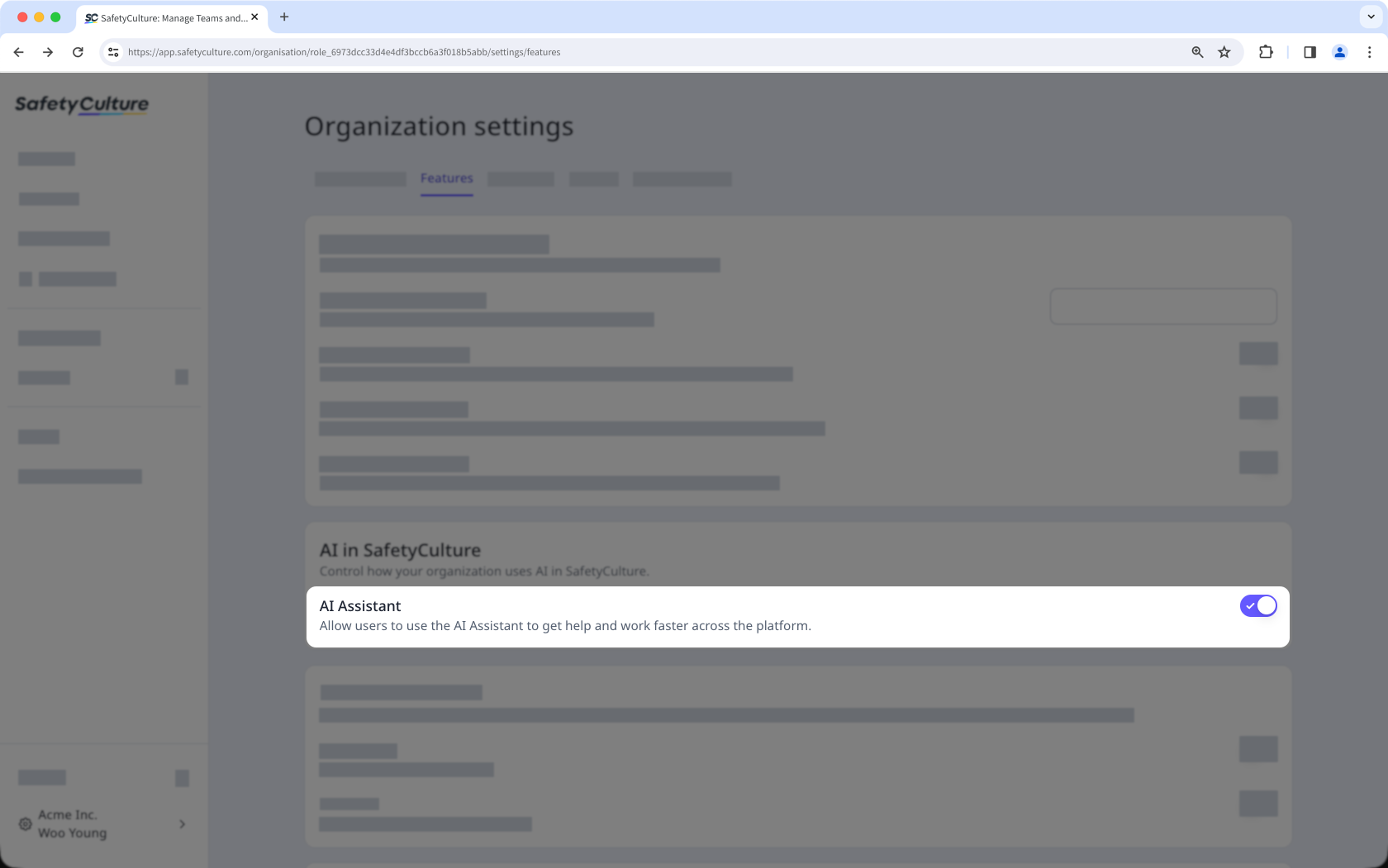
Control whether your team can access the AI Assistant within the platform. The AI Assistant provides a conversational interface that helps users quickly find information, complete tasks, and navigate features more efficiently. This helps you maintain oversight of how AI is used to support work across your organization.
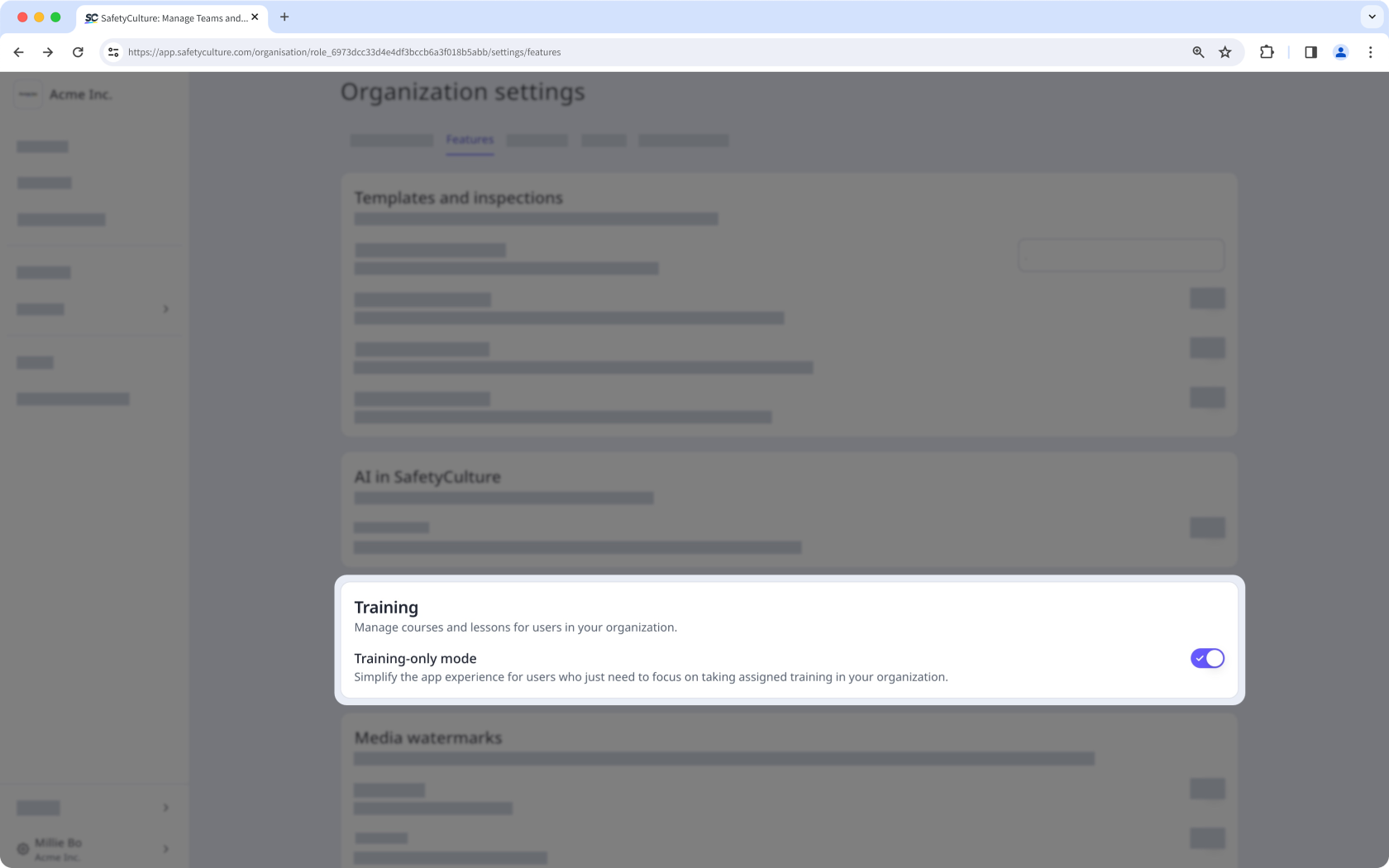
Training
Simplify your team’s training experience by turning on Training-only mode in your organization. This ensures they focus only on the features required to complete training, reducing distractions and creating a more structured learning environment.
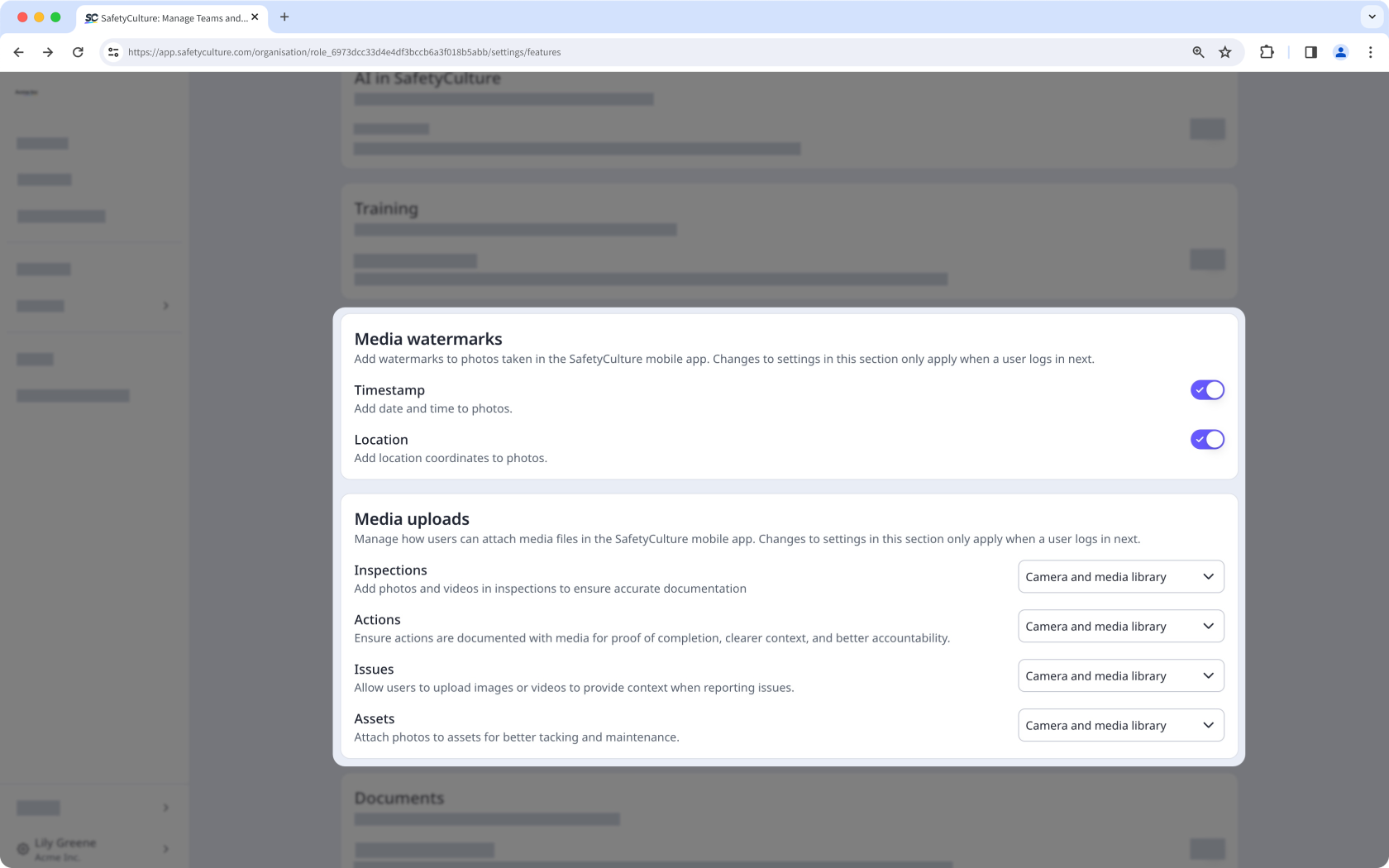
Media watermarks and uploads
Manage media settings to control how photos and other media are captured for inspections, actions, issues, and assets across your organization. By applying standardized settings for media uploads, you can maintain clear and consistent practices for capturing visual evidence.
Documents
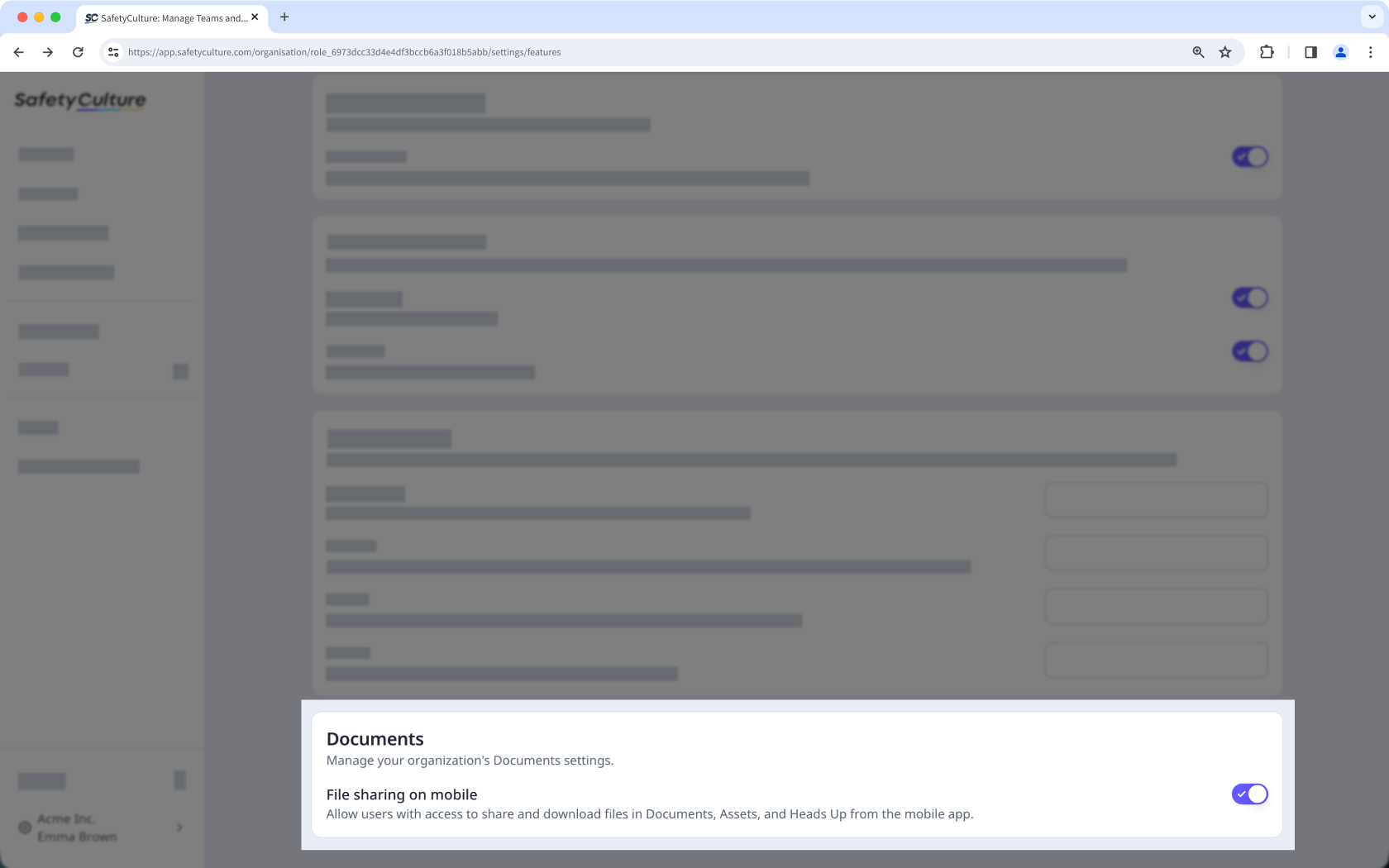
Manage how files stored in Documents, Assets, and Heads Up are shared on the mobile app. This helps ensure important files are easily available to your team while maintaining consistent file sharing across your organization.