What are template settings?
Template settings control how inspections are structured and completed. They define how questions appear, what responses are required, and what evidence users must provide. This ensures inspections capture all the right information for complete, accurate reports.
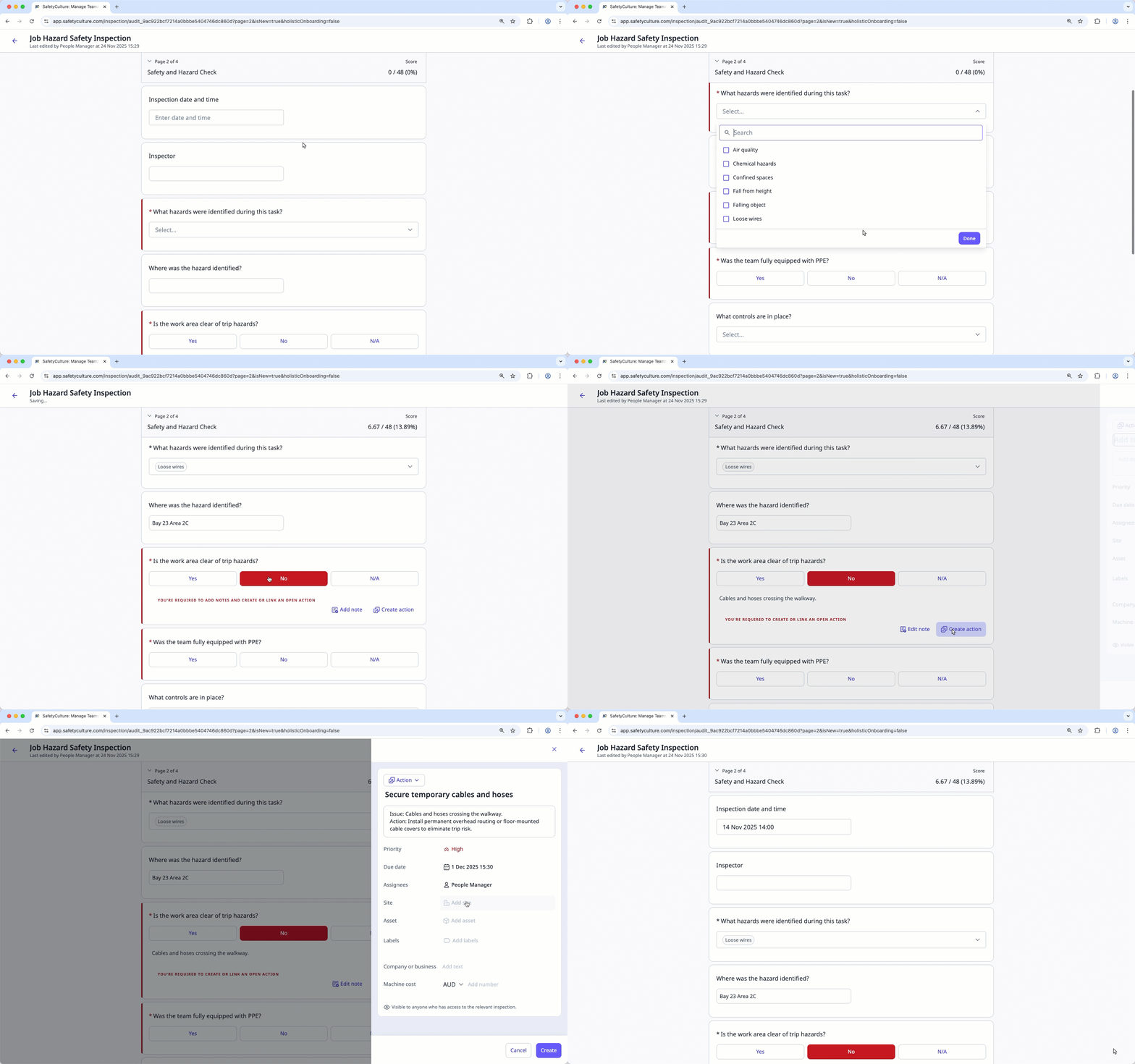
For example, in a room inspection, you can require users to confirm the room is clean and ready for use, then attach a photo as proof. This helps maintain inspection quality, standardize reporting, and keep records accurate.
What settings are available?
These settings allow you to customize how inspections look and how users complete them.
Note, media, and action
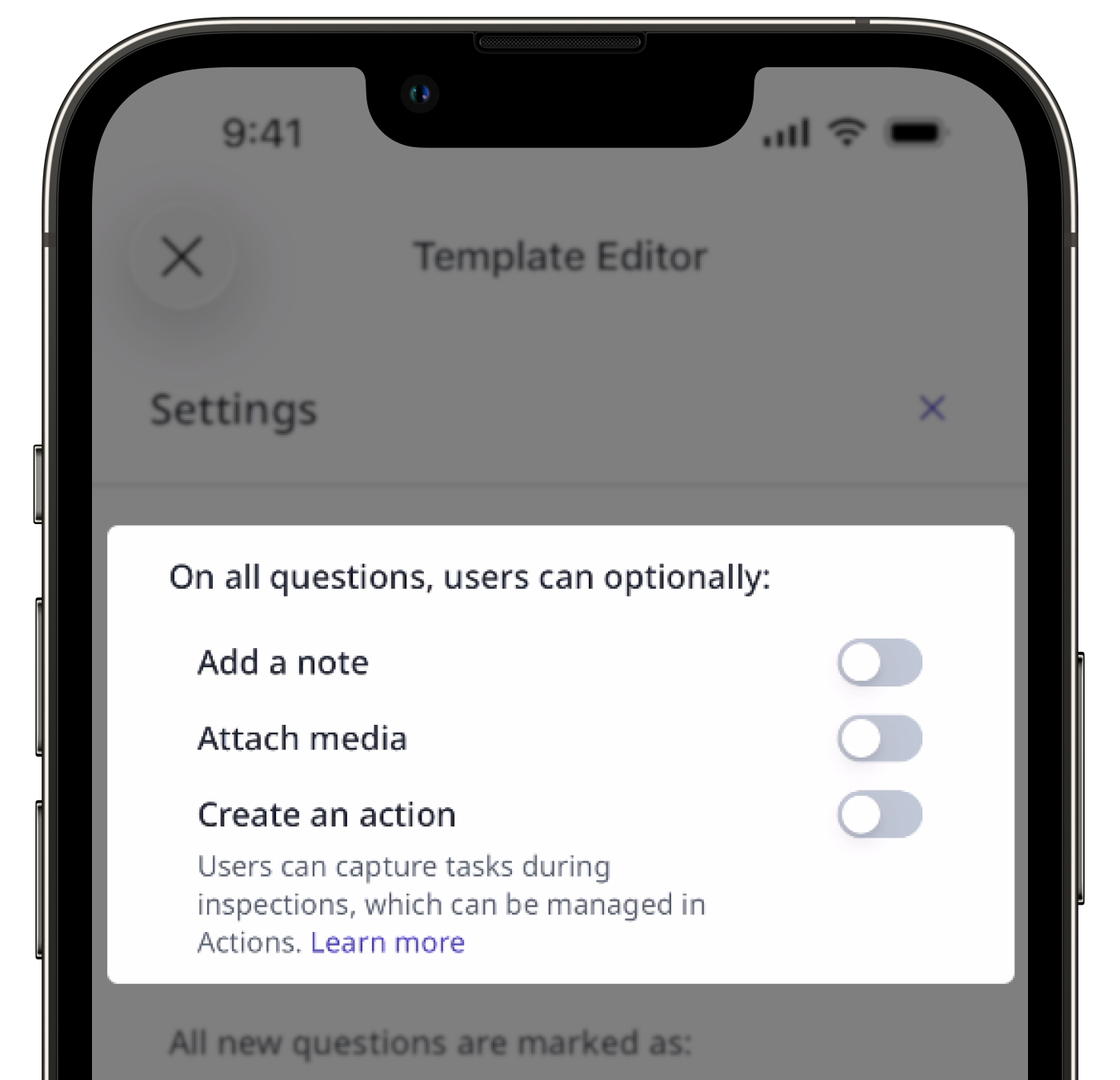
The setting for note, media, and action controls whether these options appear during inspections. Turning these options on helps gather detailed information and provide clearer insights.
Add note: Include extra details or instructions.
Attach media: Add photos, videos, or files for context, reference, or proof.
Create action: Create actions or link open actions as follow-up tasks.
However, turning all options on at once can overwhelm users and lead to cluttered or low-quality data. Hiding unnecessary options helps simplify the interface and keep the focus on what matters.
Required and optional questions
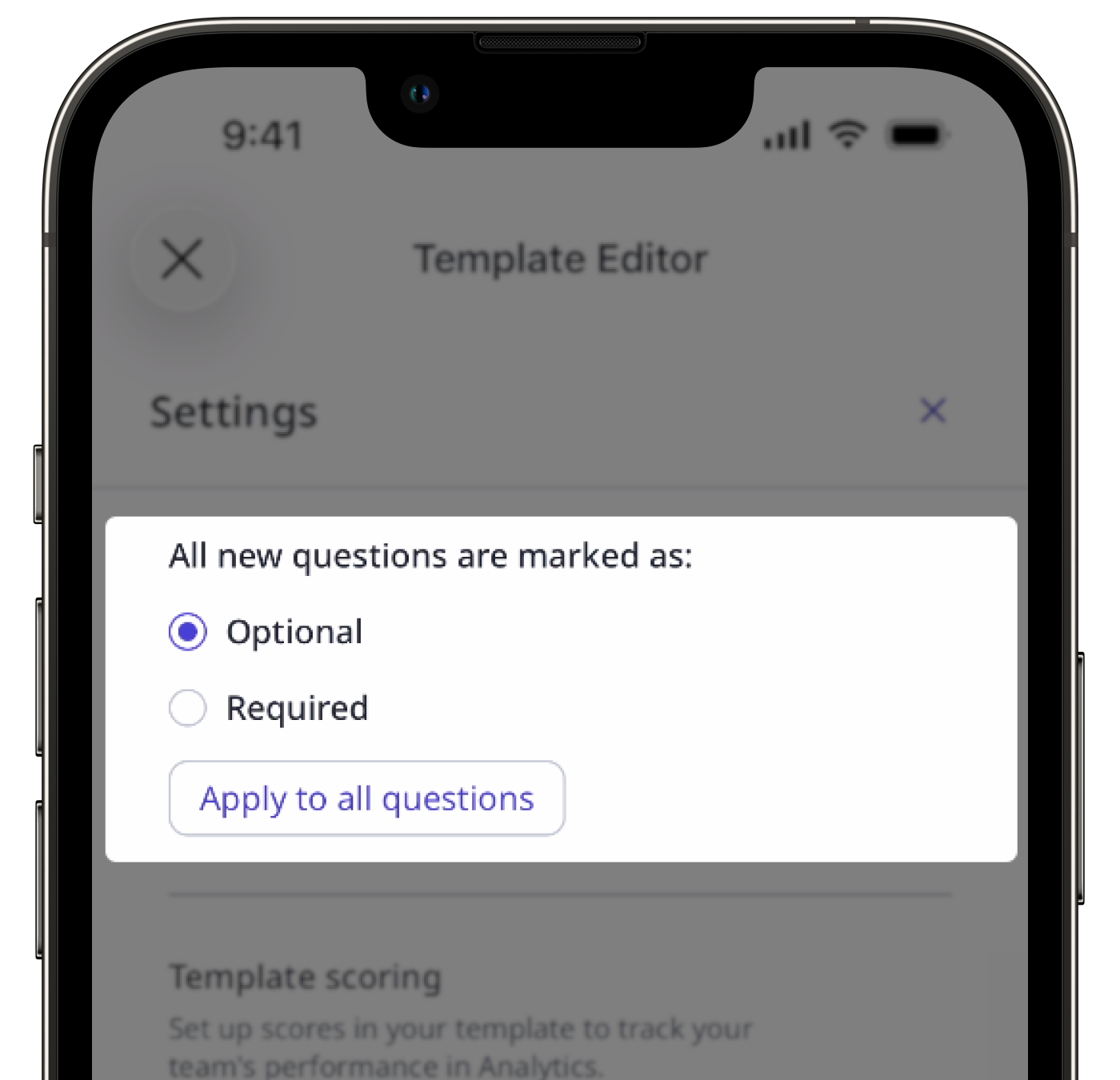
The setting for required and optional questions determines which questions must be answered before completing an inspection and which can be skipped if they're less critical. It helps ensure essential information is always captured while giving users flexibility for less important items. Using this setting helps maintain consistency, prevent incomplete inspections, and improve data accuracy.
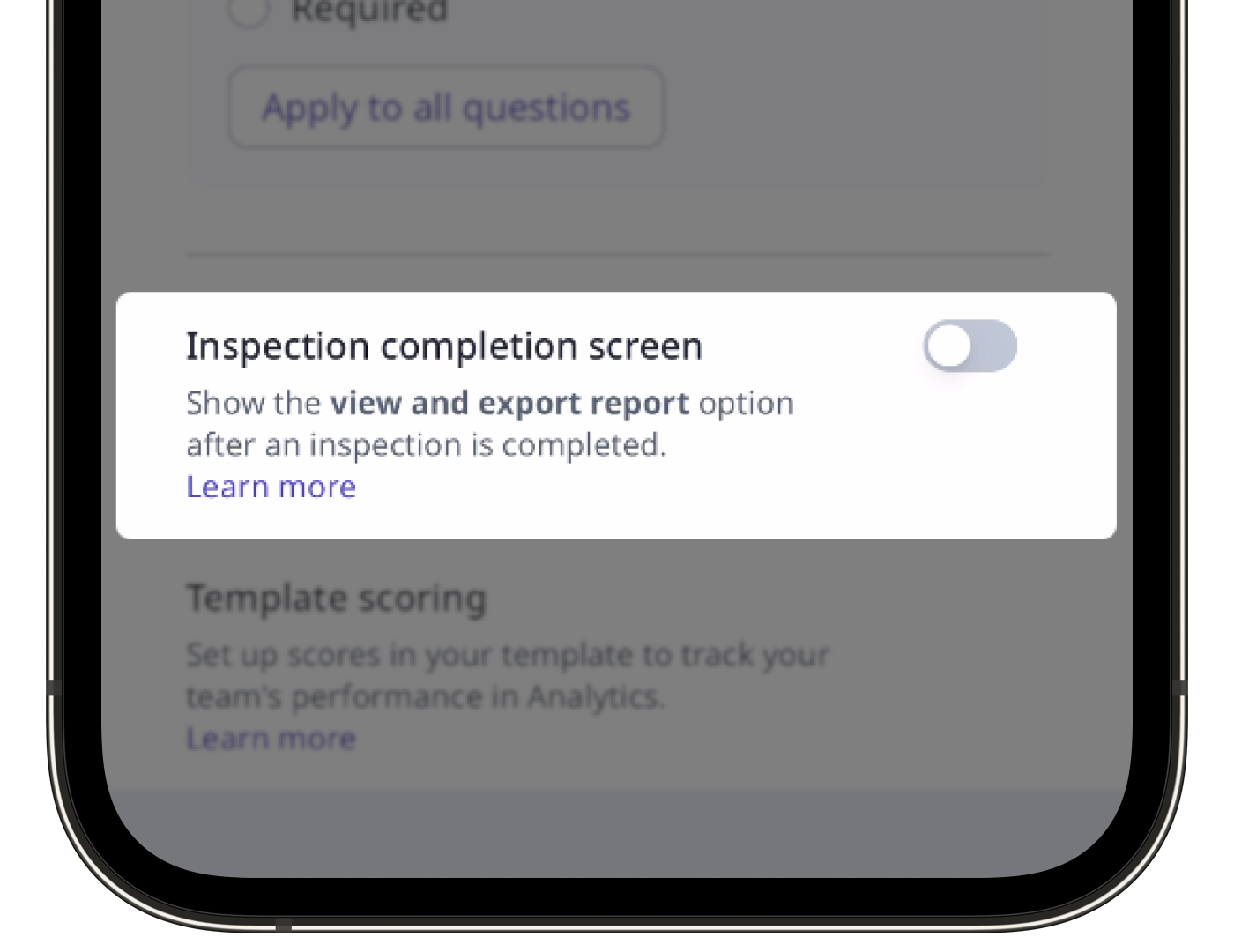
Inspection completion screen
The setting for the inspection completion screen determines whether users can immediately view and export the inspection report after completing an inspection or return straight to where they started. It supports quick reporting needs as well as faster inspection turnaround for teams working through multiple tasks.
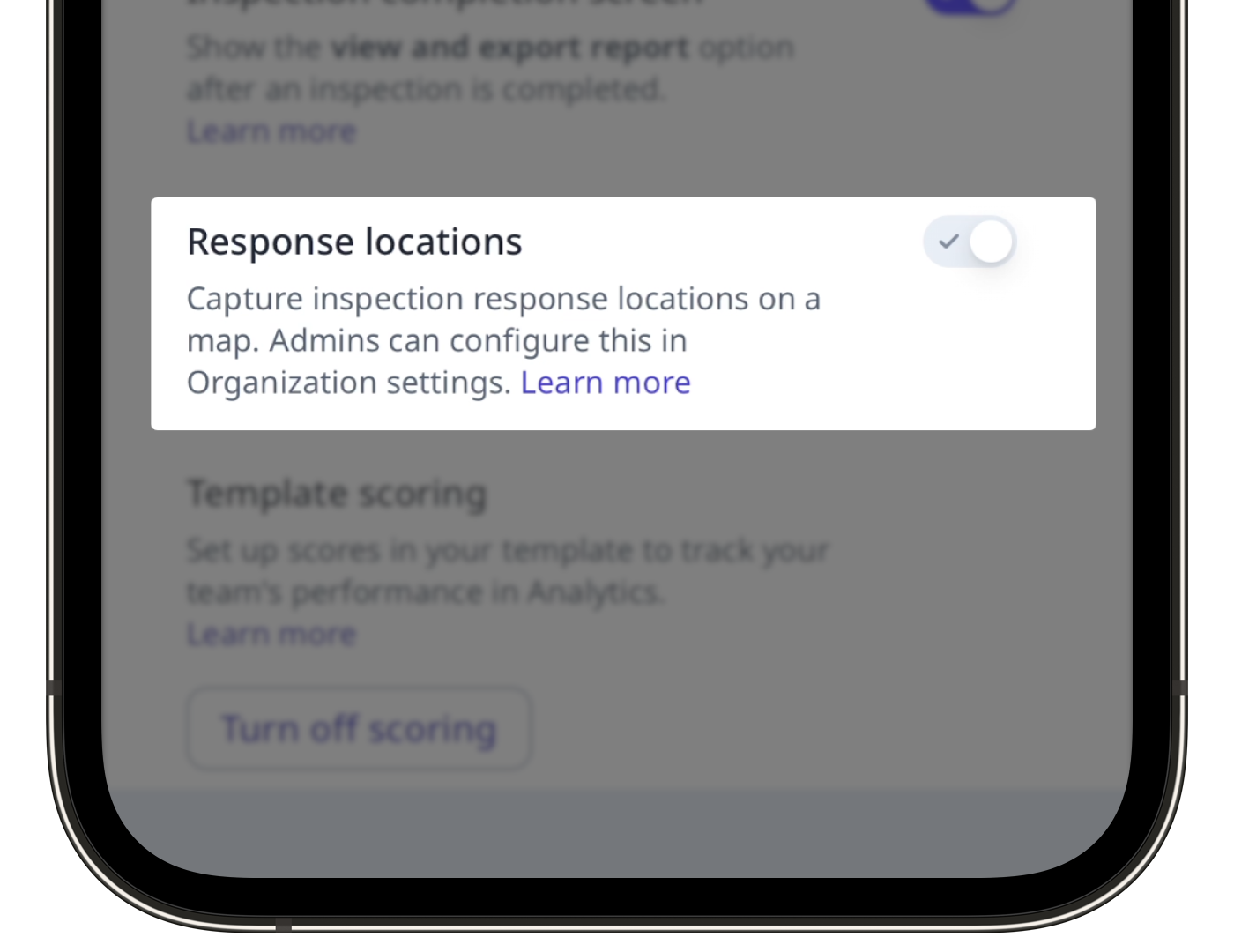
Response locations
The setting for response locations appears when the setting to view inspection response locations on a map is turned on for your organization. It indicates that response locations will be captured with each response submission during inspections, helping teams verify that work was completed in the right location. This setting is controlled at the organization level and cannot be changed from a template's settings.
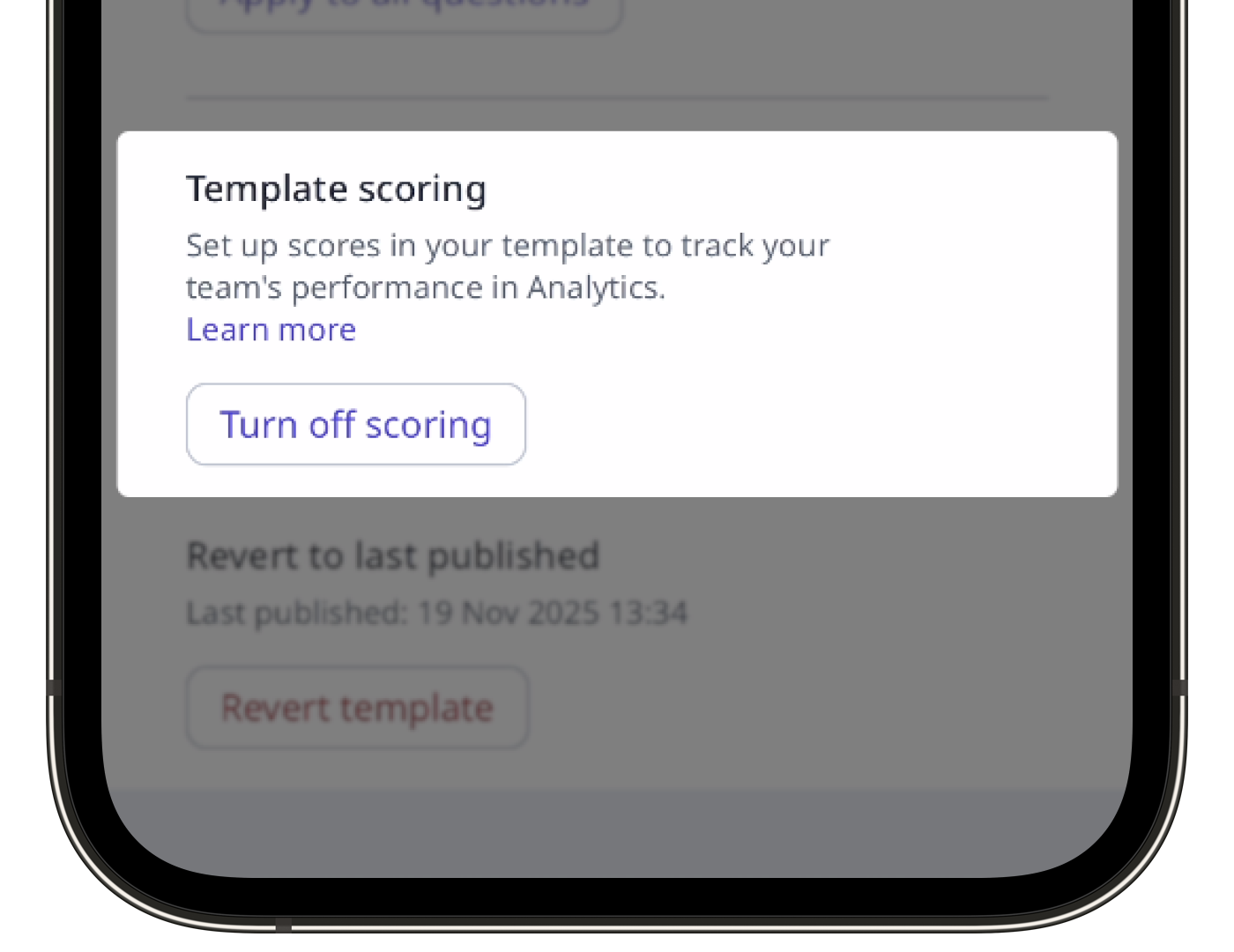
Template scoring
The setting for template scoring allows you to turn scoring on or off within a template. When turned on, you can set up scoring for custom response sets or set up scoring for individual questions, making it easier to measure performance and track results consistently.
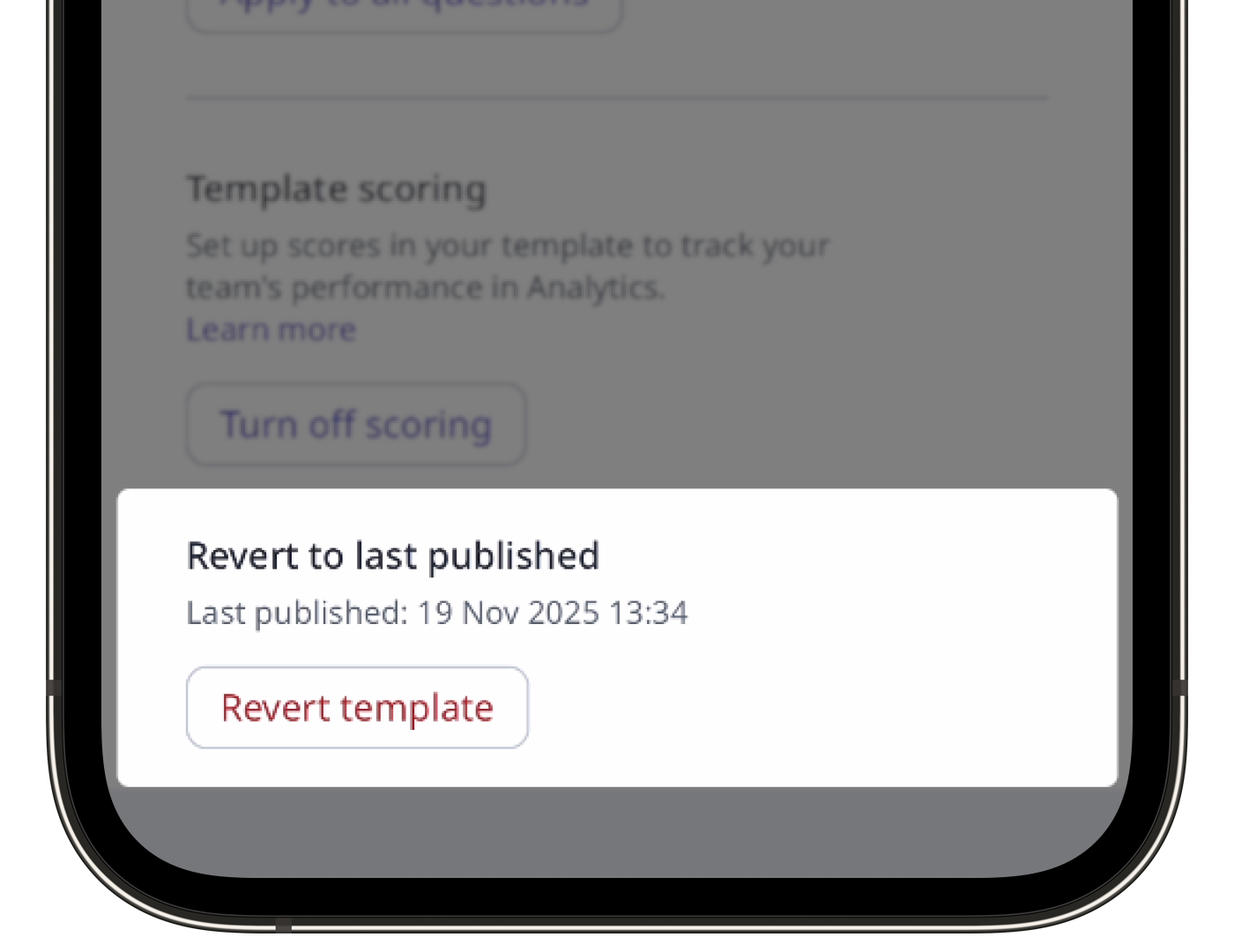
Revert to last published
The setting for reverting your template to the last published version restores it to its most recently saved and published state. It's useful when you've made several edits but decide not to continue with the changes. Using this setting helps save time, maintain version control, and ensure your templates stay consistent and accurate.