Why turn inspection scoring on or off?
We understand the scoring feature may not be relevant to some of the templates in your organization. Depending on the context of an inspection, you can easily turn scoring on or off from templates with a click of a button instead of manually updating the score value of individual questions and responses.
Turning off scoring for a template doesn't immediately hide the score from its inspection reports. You can hide the score by creating report layouts.
What you'll need
Published changes made to templates only apply to new inspections moving forward.
Turn inspection scoring on or off
Select Templates in the sidebar or select it in More.
Click the template and select Edit template in the side panel.
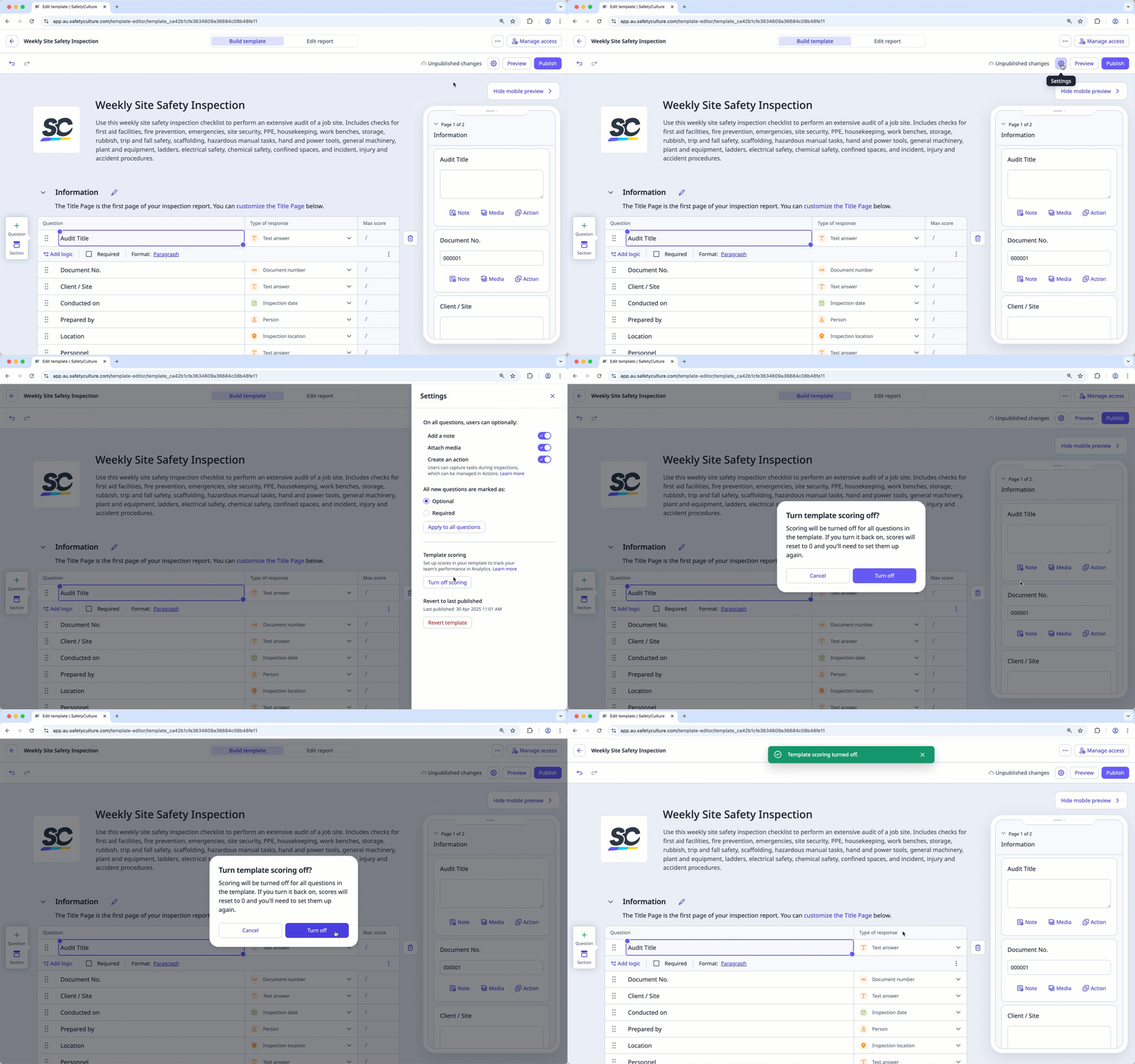
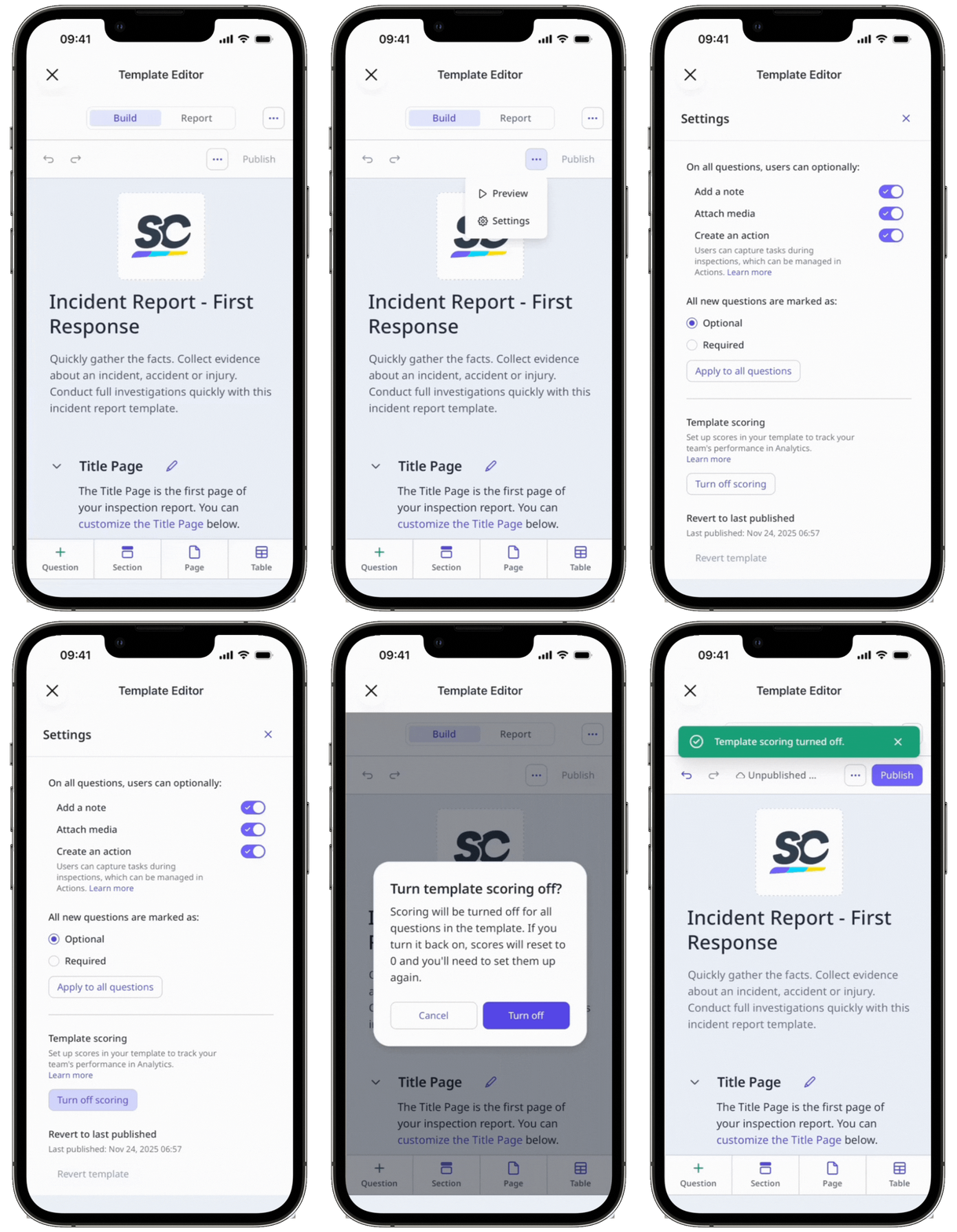
Click on the upper-right of the page
In the side panel, under "Template scoring", click Turn on scoring or Turn off scoring.
If you turned template scoring off, click Turn off in the pop-up window.
Click Publish on the upper-right of the page to publish the template. If you're not ready to publish the template, you can go back to the templates list and come back when you're ready.
Turning scoring on or off will reset all score values to 0.
Turning off scoring for a question
Select Templates in the sidebar or select it in More.
Click the template and select Edit template in the side panel.
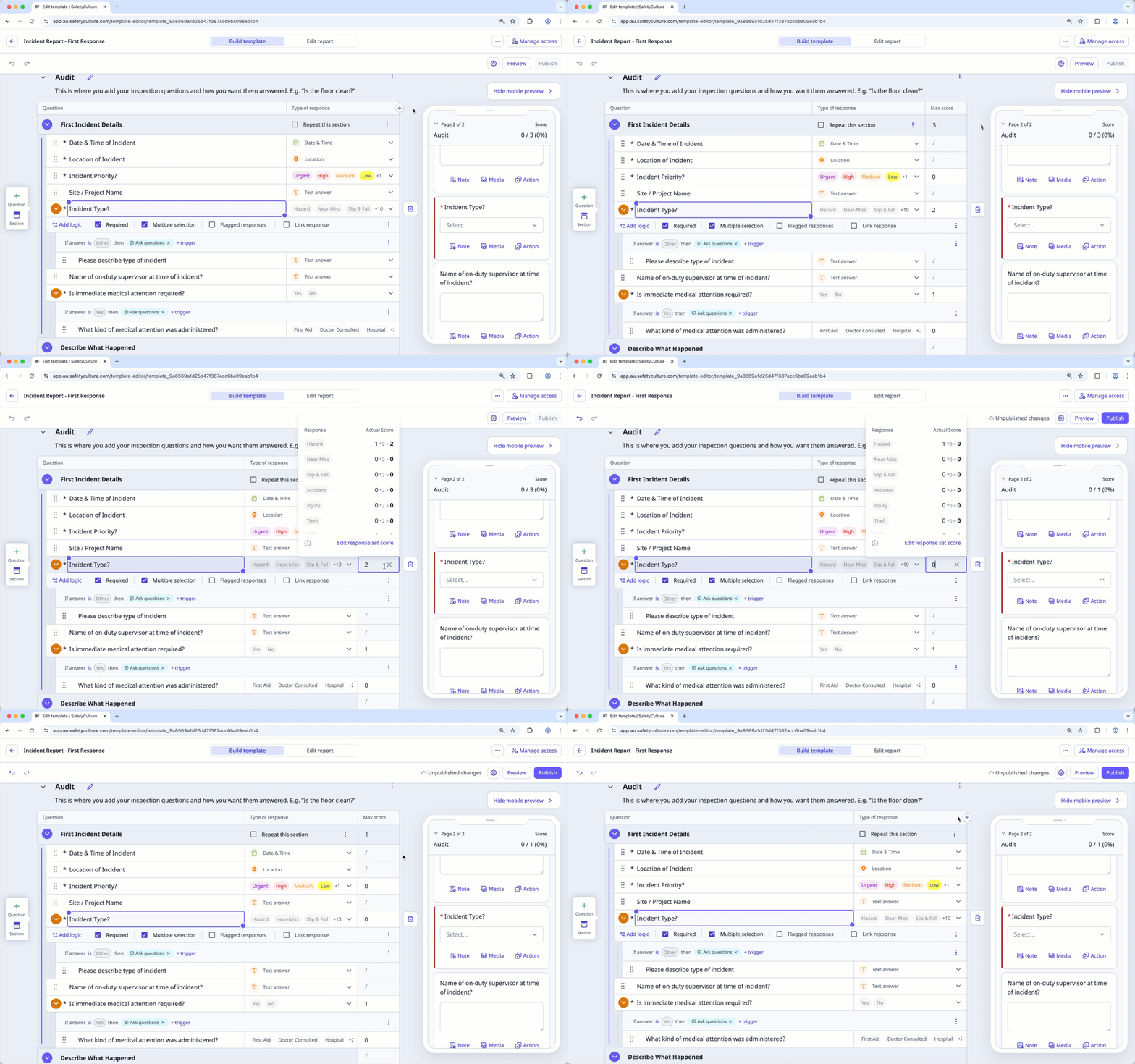
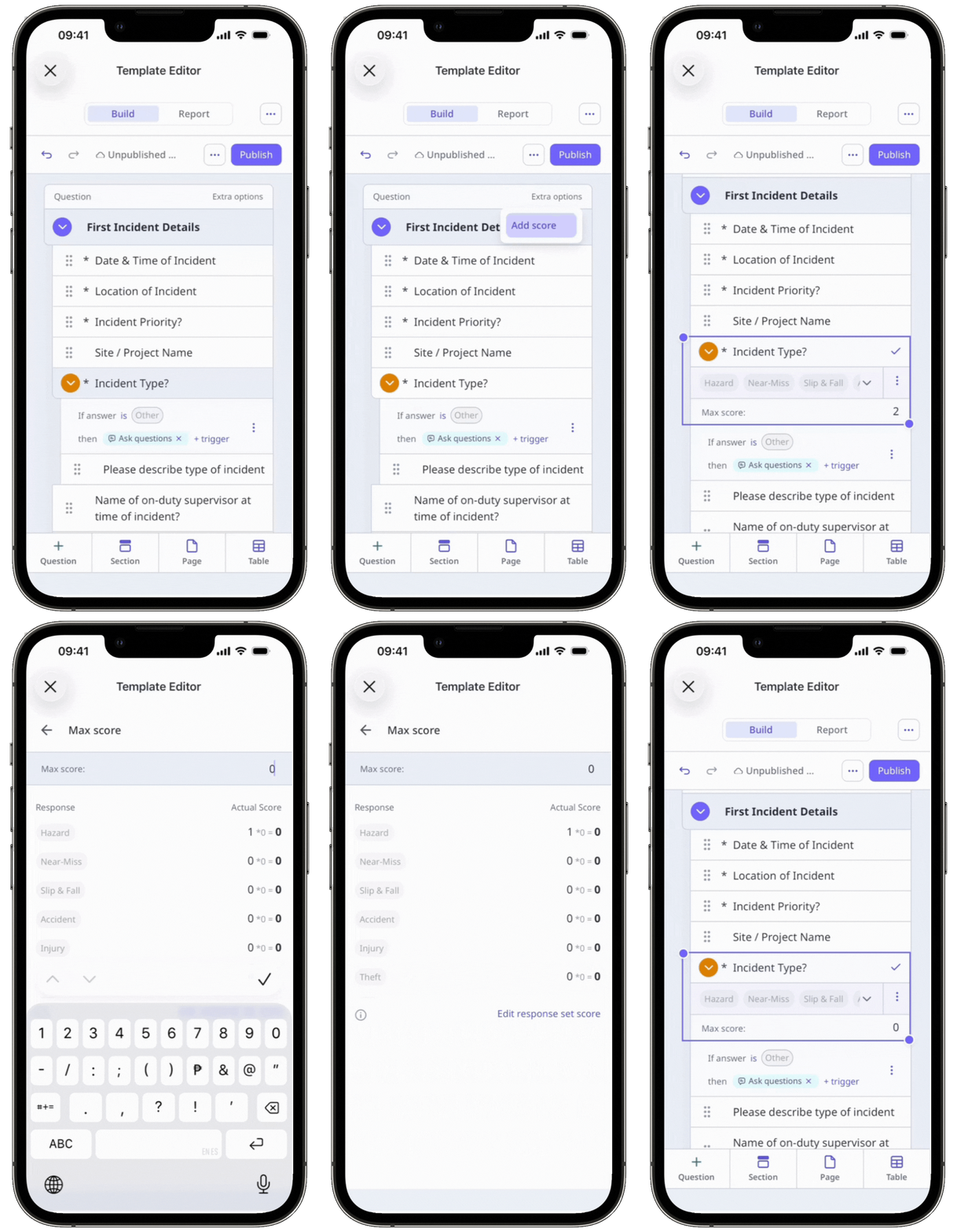
Click on the upper-right corner of an inspection page, next to the "Type of response" column.
Click Add score to show the "Max score" column.
Click the question's max score field and remove the score. The question's score will be set as "0".
Click Publish on the upper-right of the page to publish the template. If you're not ready to publish the template, you can go back to the templates list and come back when you're ready.
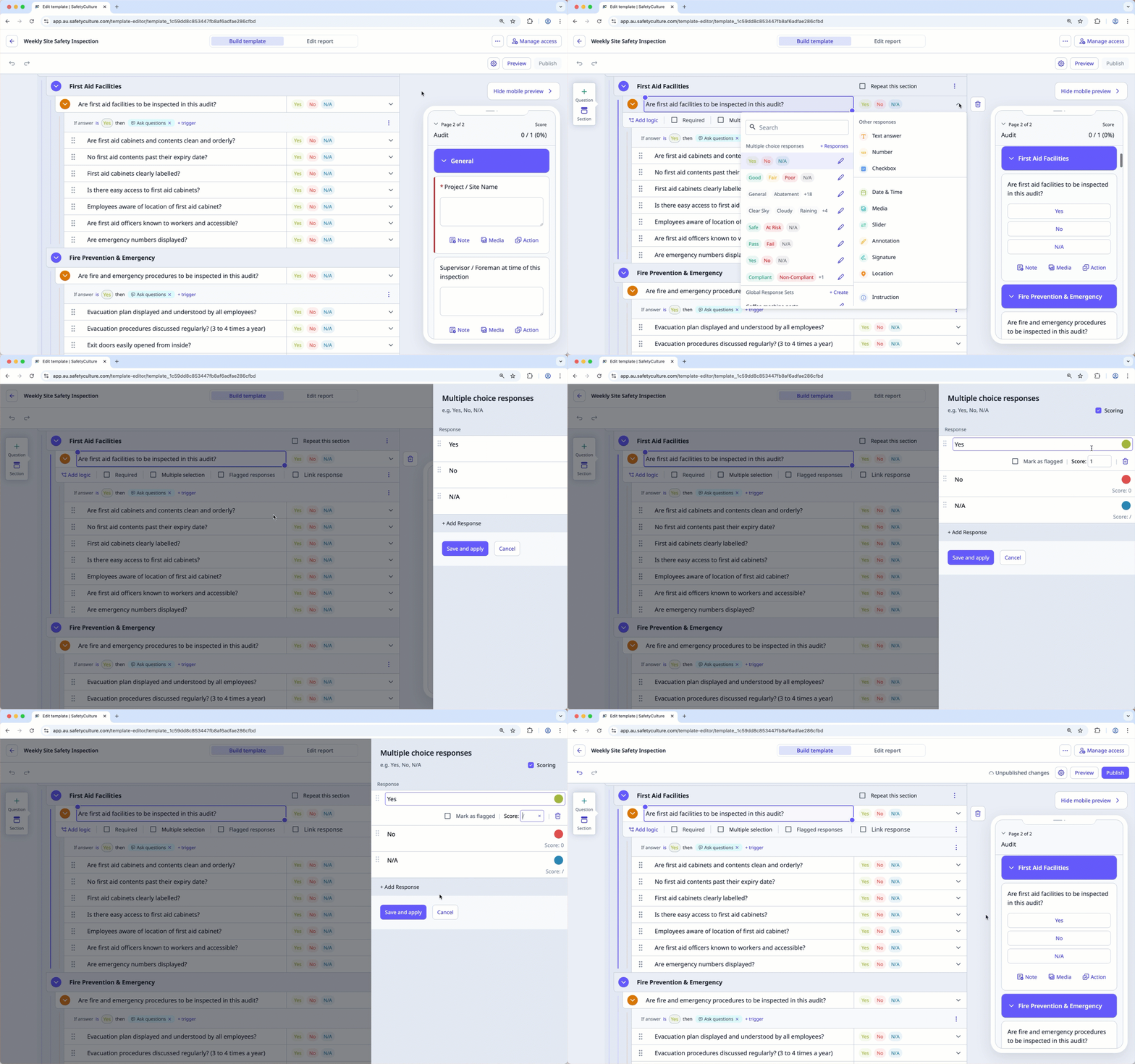
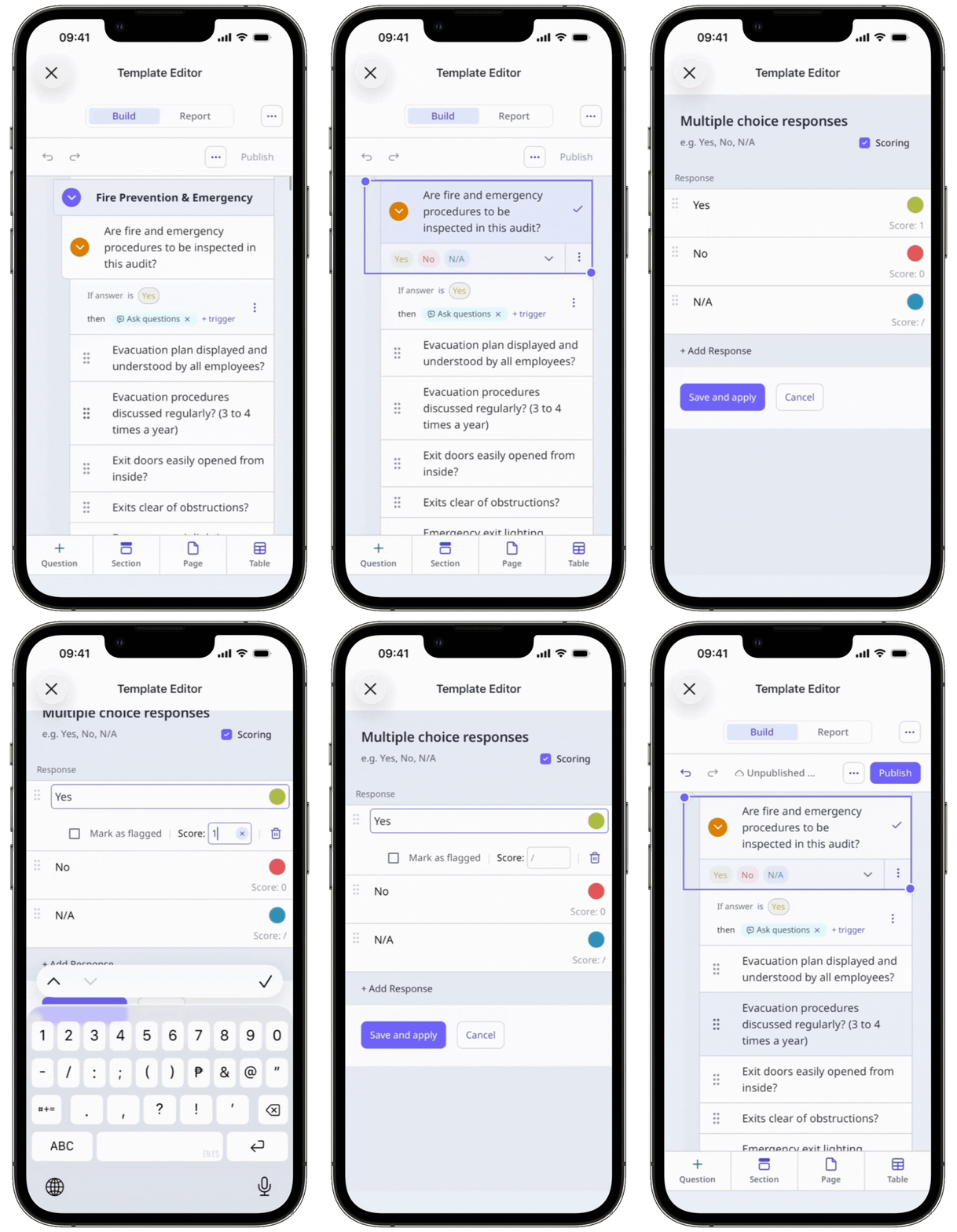
Turning off scoring for a response
Select Templates in the sidebar or select it in More.
Click the template and select Edit template in the side panel.
Select any question and click on the right-hand side, under "Type of response".
Click on the right-hand side of the custom response set.
In the side panel, click the response and remove the score value. The response score will be set as "/".
Click Save and apply.
Click Publish on the upper-right of the page to publish the template. If you're not ready to publish the template, you can go back to the templates list and come back when you're ready.