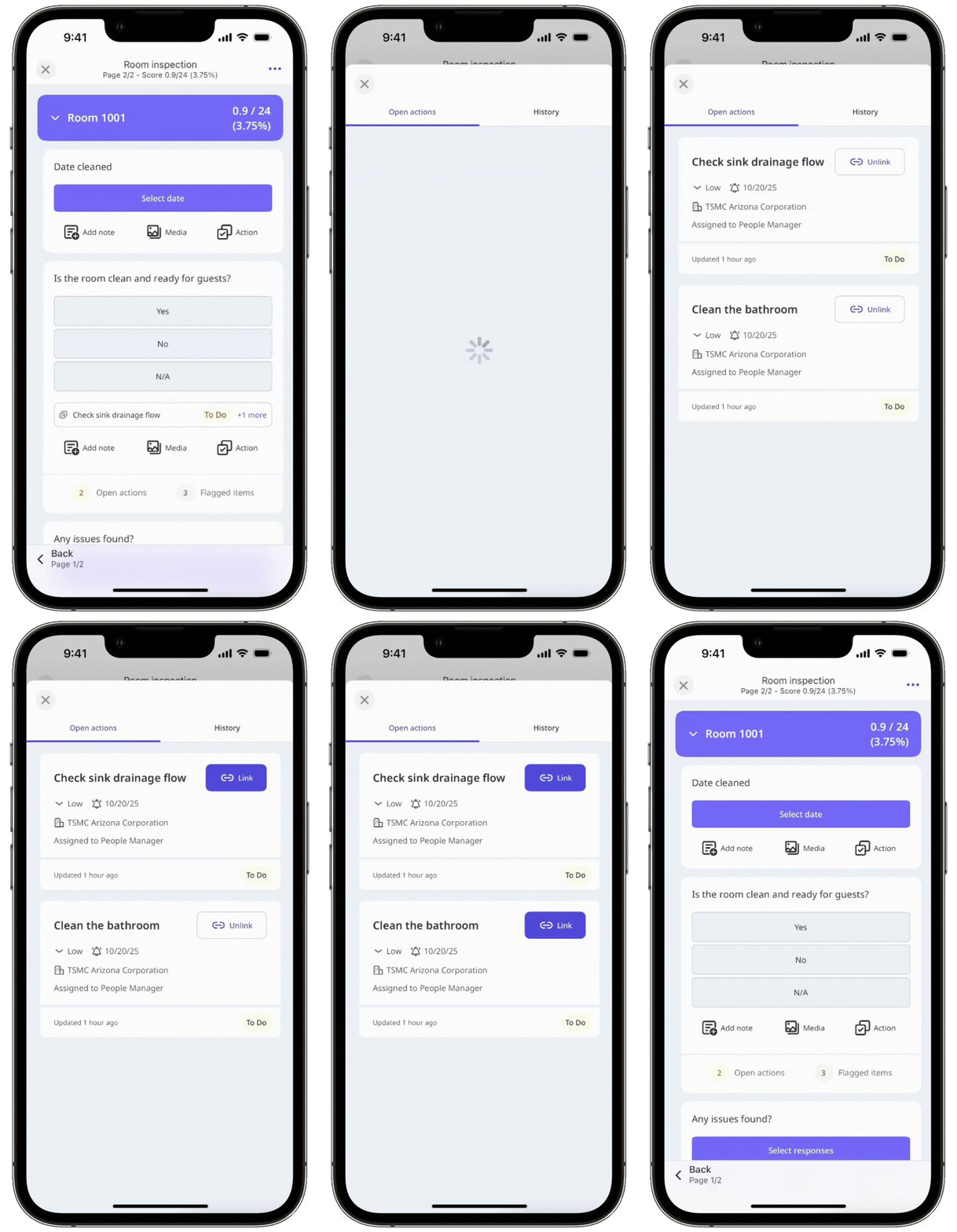
What does it mean to link open actions?
Creating actions while conducting inspections has never been easier, allowing your team to highlight problems that require attention as tasks and resolve them together. However, we understand that team members can sometimes create similar actions that never get completed. With that in mind, you can view and link any open actions created in inspections to reduce duplication and increase the completion rate.
How do open actions work?
Actions created in previous inspections that are still in open (unresolved) statuses will appear in your inspection when the following conditions are met:
You have access to the previous inspections.
Your current inspection uses the same template as the previous inspections.
Your current inspection matches the site or asset selected from previous inspections based on the following conditions:
If an asset is selected, actions from inspections with the same asset will appear.
If no asset is selected but a site is, actions from inspections with the same site will appear.
If both are selected, actions are matched by asset only (site is not considered).
On the web app, Open actions will only show if at least one action has been created for the question in another inspection.
What you'll need
View open actions from previous inspections
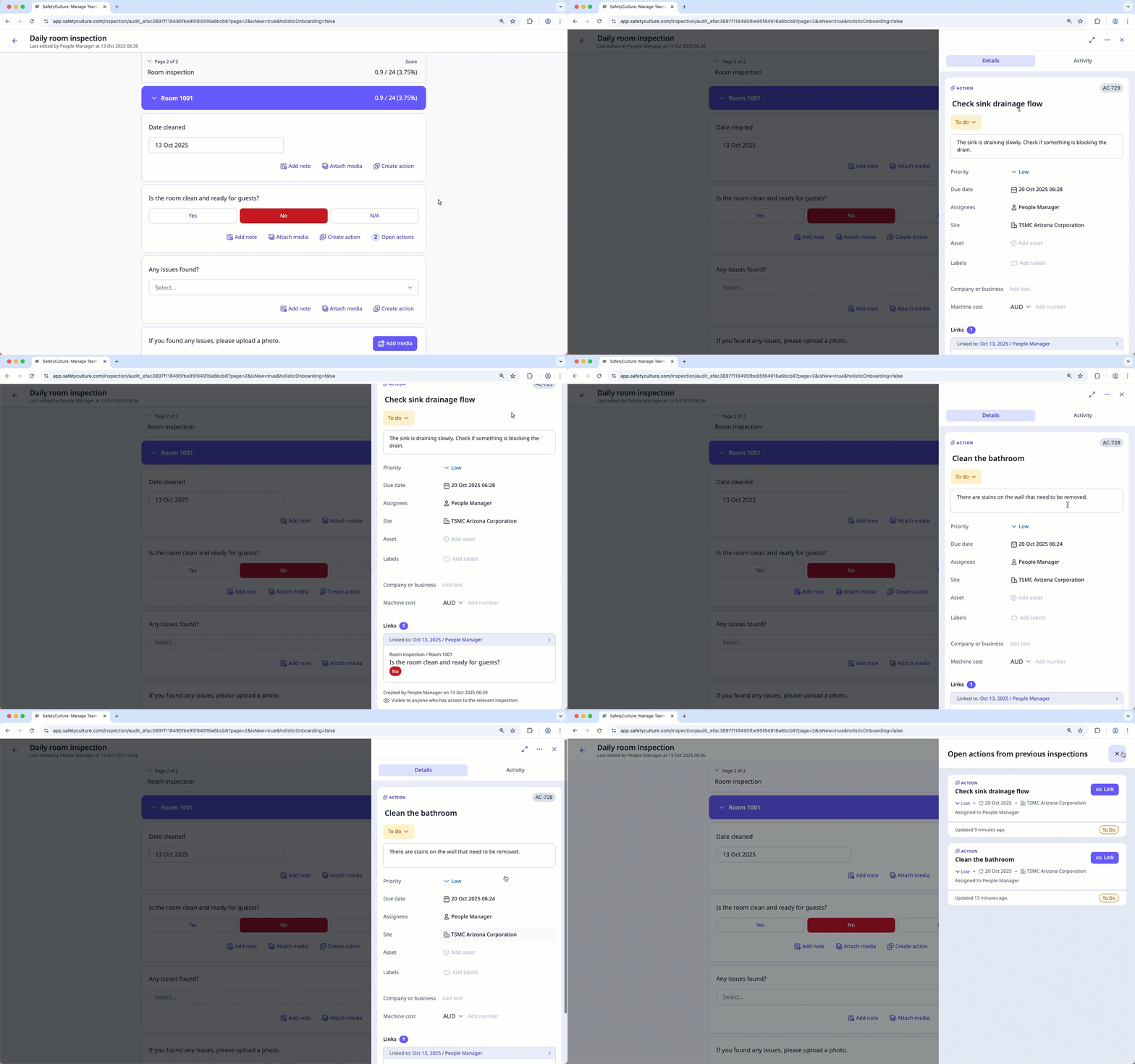
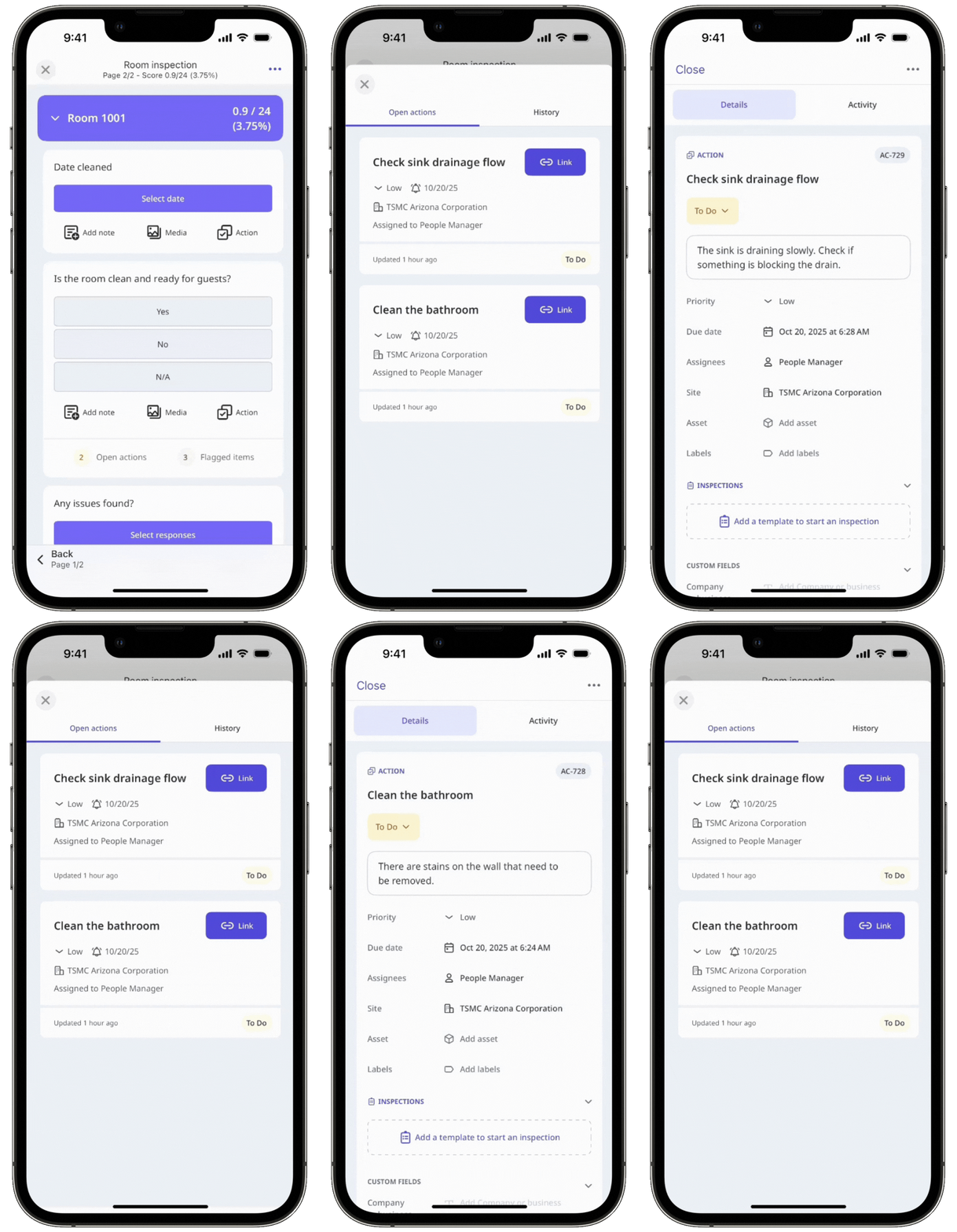
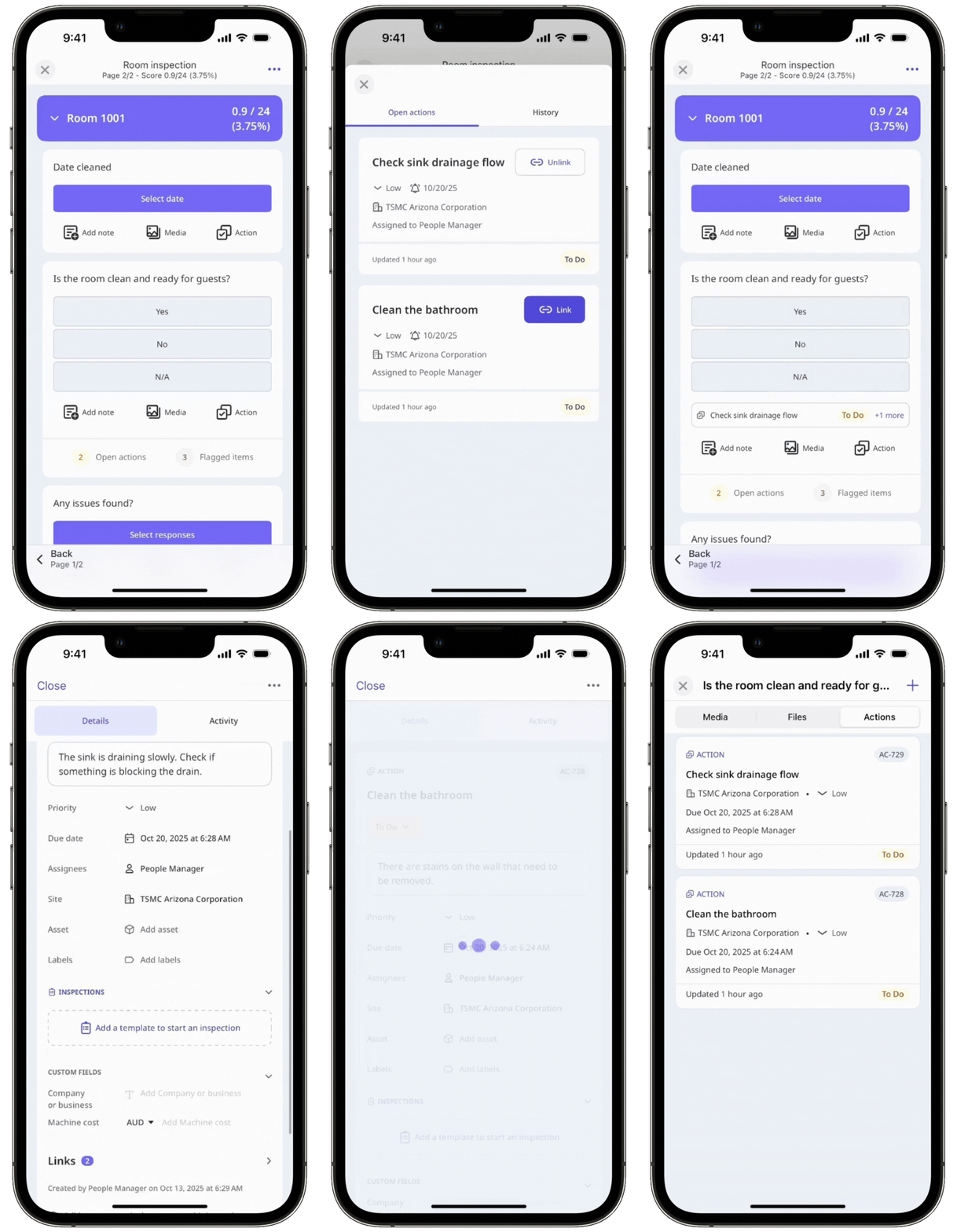
Click Open actions to view the list of open actions that have been created in inspections.
You can click each action to view its activities and details.
Link an open action in an inspection
Navigate to the question with open actions.
Click Open actions to view the list of open actions that have been created from the question.
Click
 Link to link an action to the question.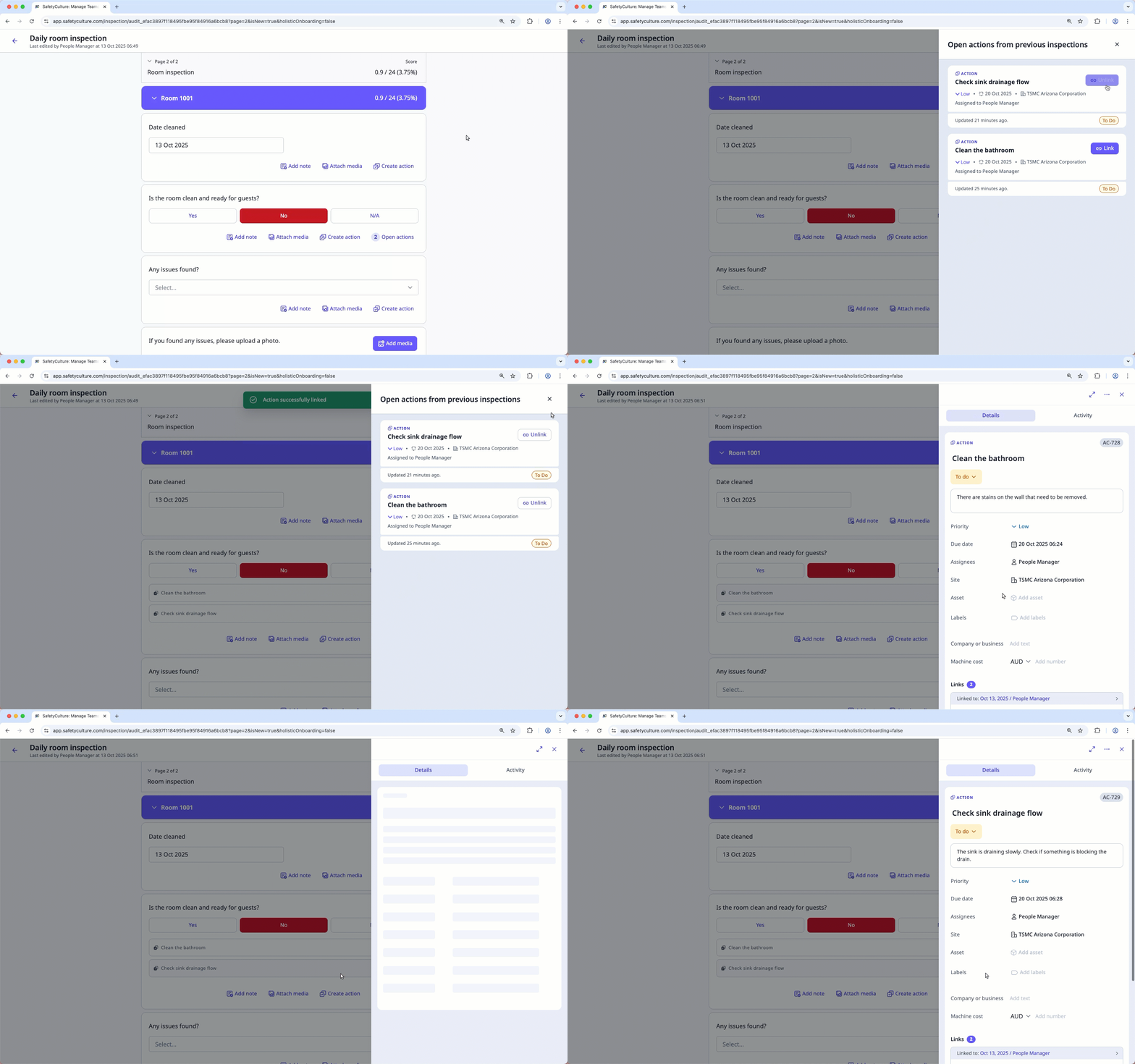
You can also click each action to view its activity log or update its details.
Linking open actions is not available for questions in repeat sections.
Unlink an open action in an inspection
Navigate to the question with open actions.
Click Open actions to view the list of open actions that have been created from the question.
Click
Unlink to unlink an action to the question. 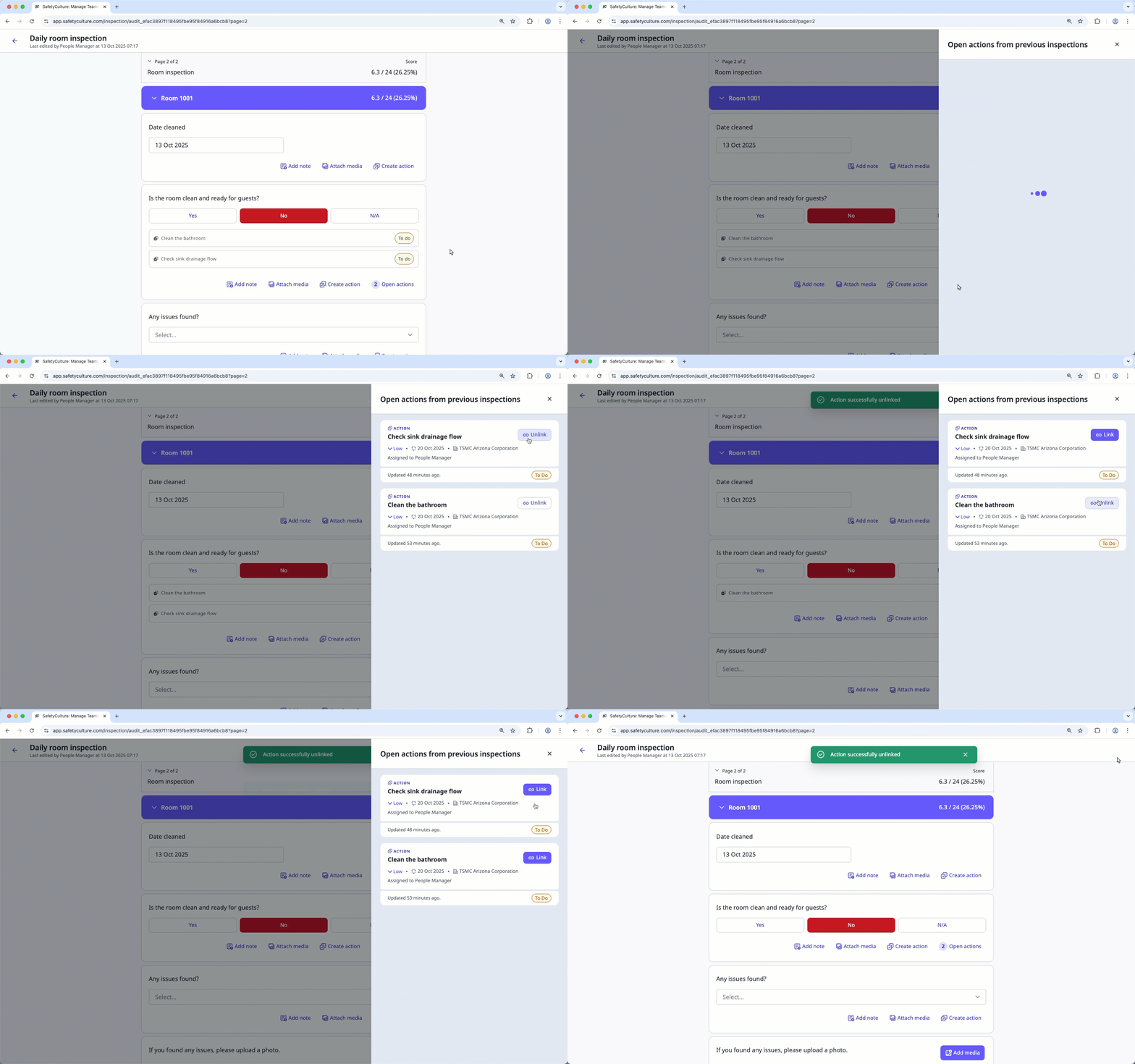
You can also click each action to view its activity log or update its details.