Why turn note, media, and action on or off?
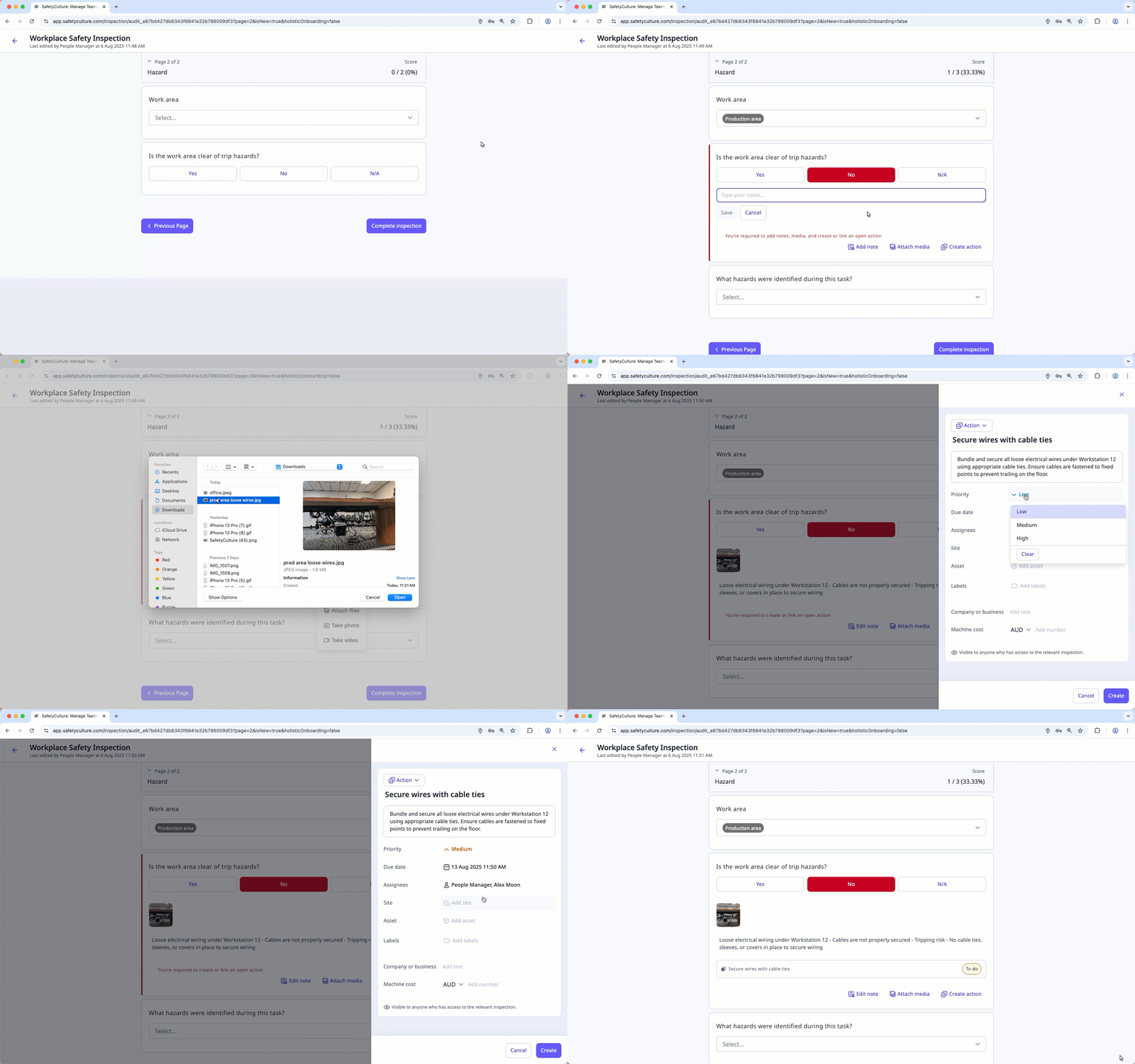
Turning note, media, and action options on helps teams capture detailed information and gain clearer insights during inspections. For example, if someone finds a broken office monitor, they can leave a note about when it last worked, attach a photo showing the damage, and create an action to request repairs.
However, not all templates need this level of detail. These options can overwhelm users and lead to cluttered or low-quality data. Turning them off can help simplify the interface, reduce unnecessary input, and keep inspectors focused on completing inspections efficiently.
What you'll need
Turn note, media, and action on
Select Templates in the sidebar or select it in More.
Click a template and select Edit template in the side panel.
Click on the upper right of the page.
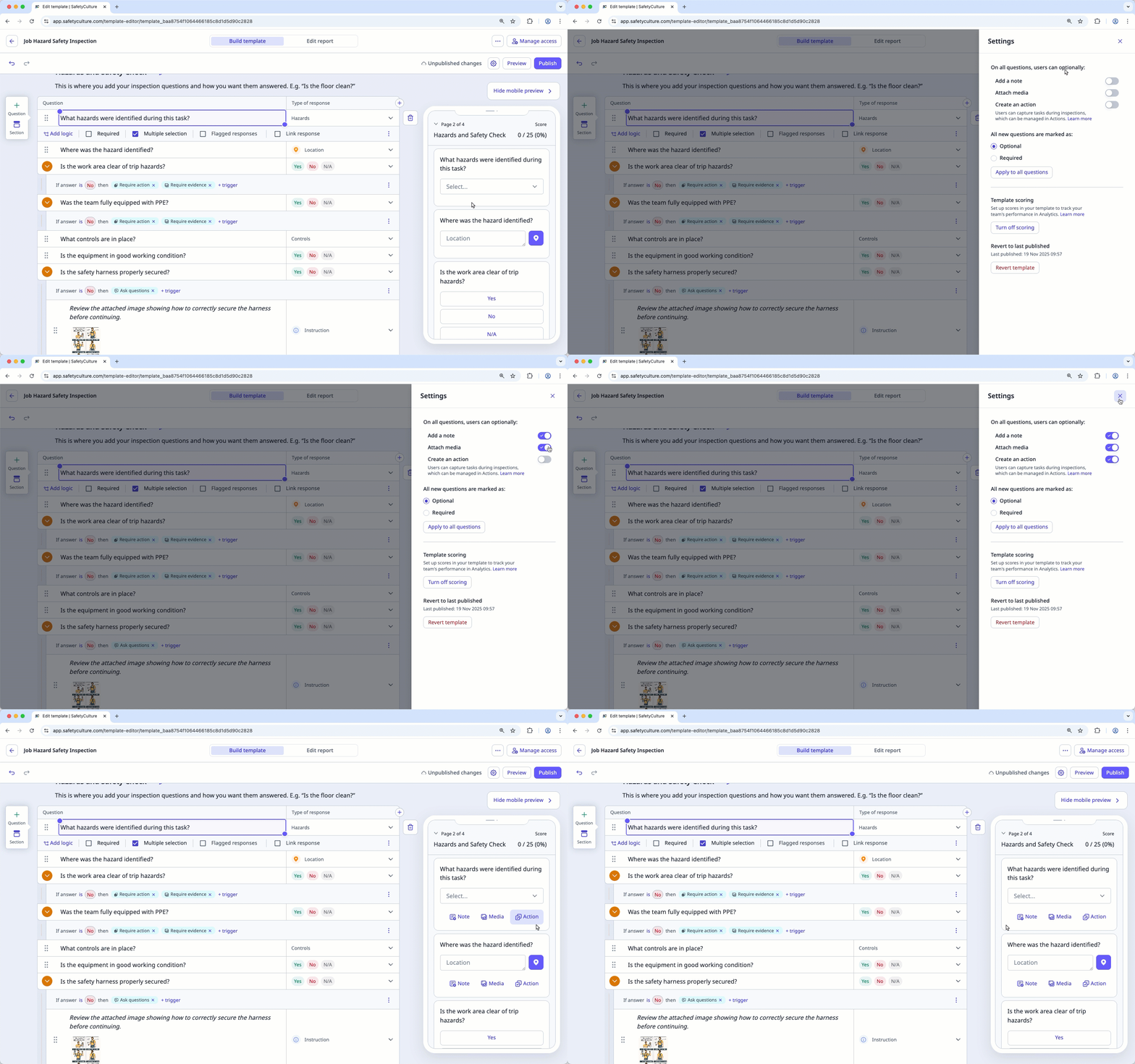
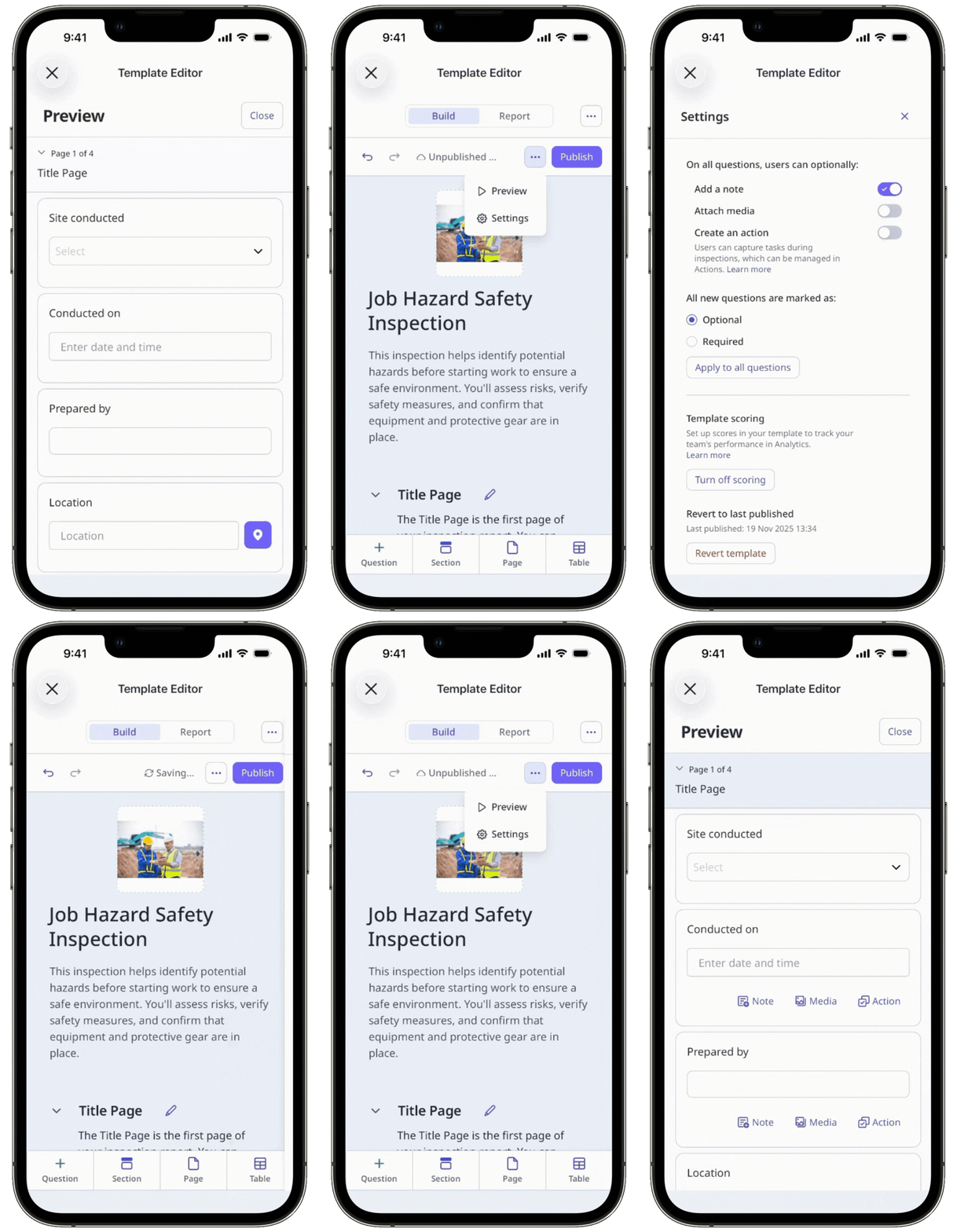
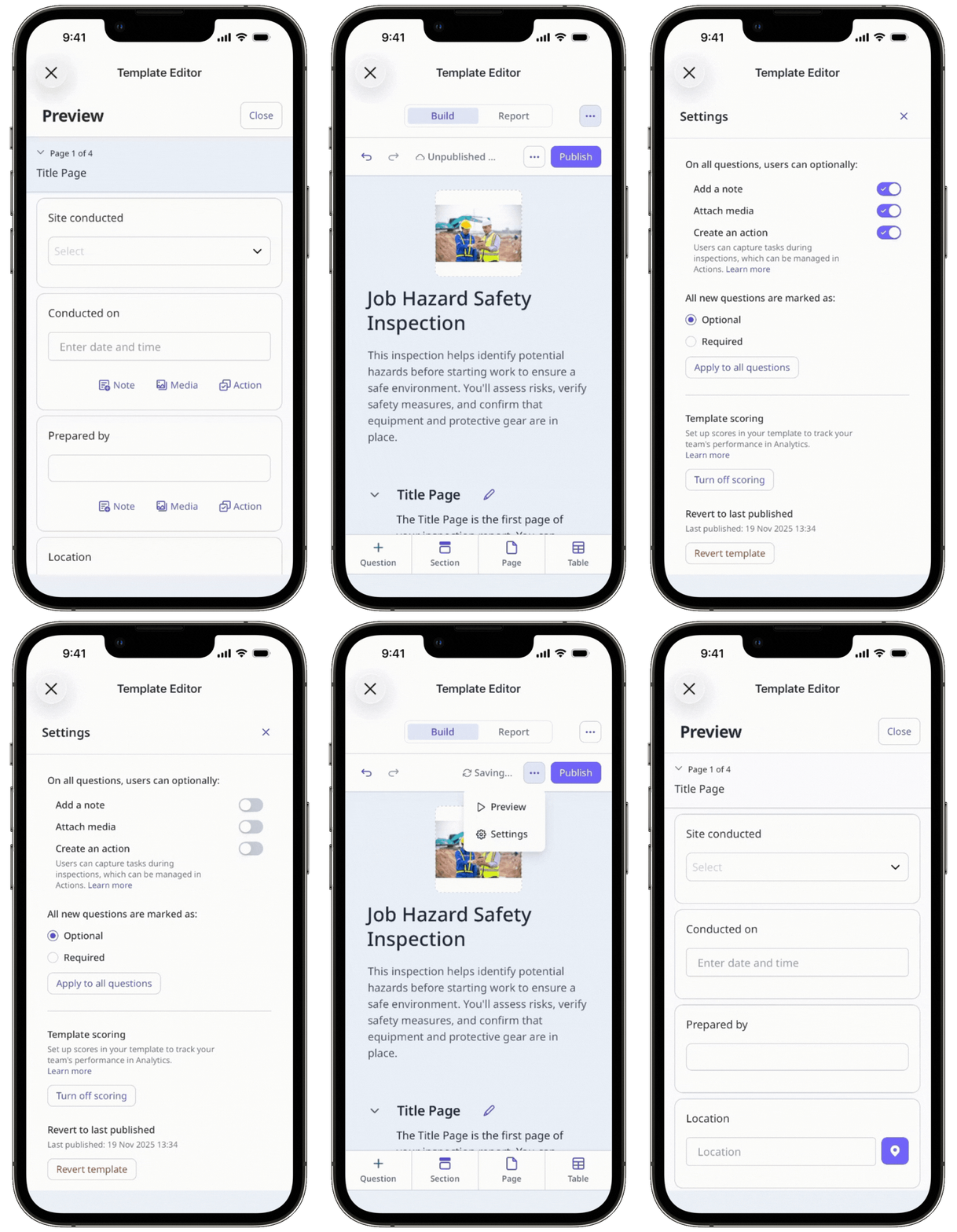
In the side panel, turn on the options you want to display in your inspection.
Add a note: Add additional details or instructions.
Attach media: Add photos, videos, or files for context, reference, or proof.
Create an action: Create actions or link open actions as follow-up tasks.
Click on the upper-right corner of the side panel.
Click Publish on the upper-right of the page to publish the template. If you're not ready to publish the template, you can go back to the template list and publish the changes when you're ready.
Even if you turn off note, media, and action, they may still appear during inspections if you've set logic to require them.
Turn note, media, and action off
Select Templates in the sidebar or select it in More.
Click a template and select Edit template in the side panel.
Click on the upper right of the page.
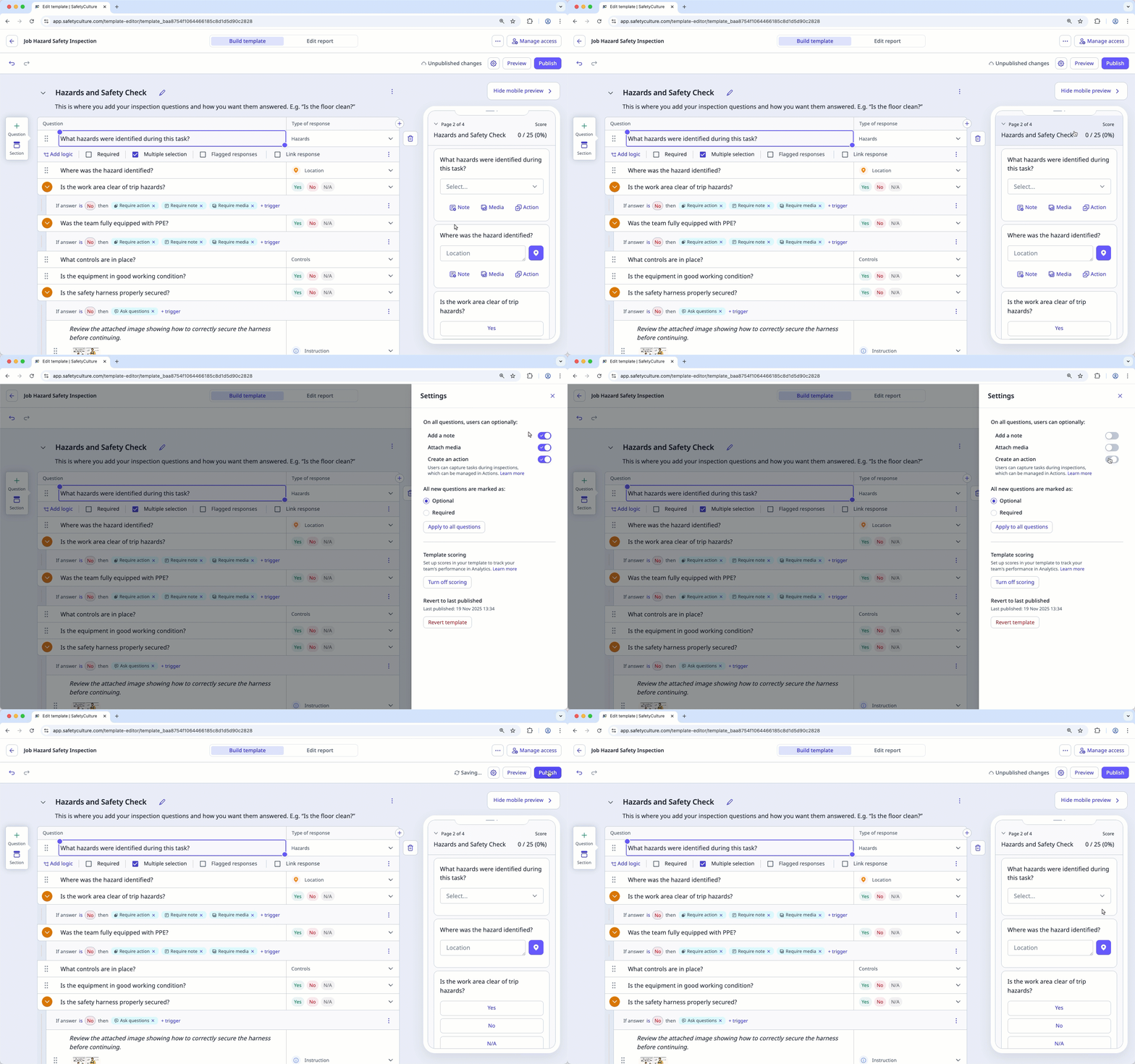
In the side panel, turn off the options you want to hide in your inspection.
Click on the upper-right corner of the side panel.
Click Publish on the upper-right of the page to publish the template. If you're not ready to publish the template, you can go back to the template list and publish the changes when you're ready.
Published changes made to templates only apply to new inspections moving forward.