How does scoring work at the question level?
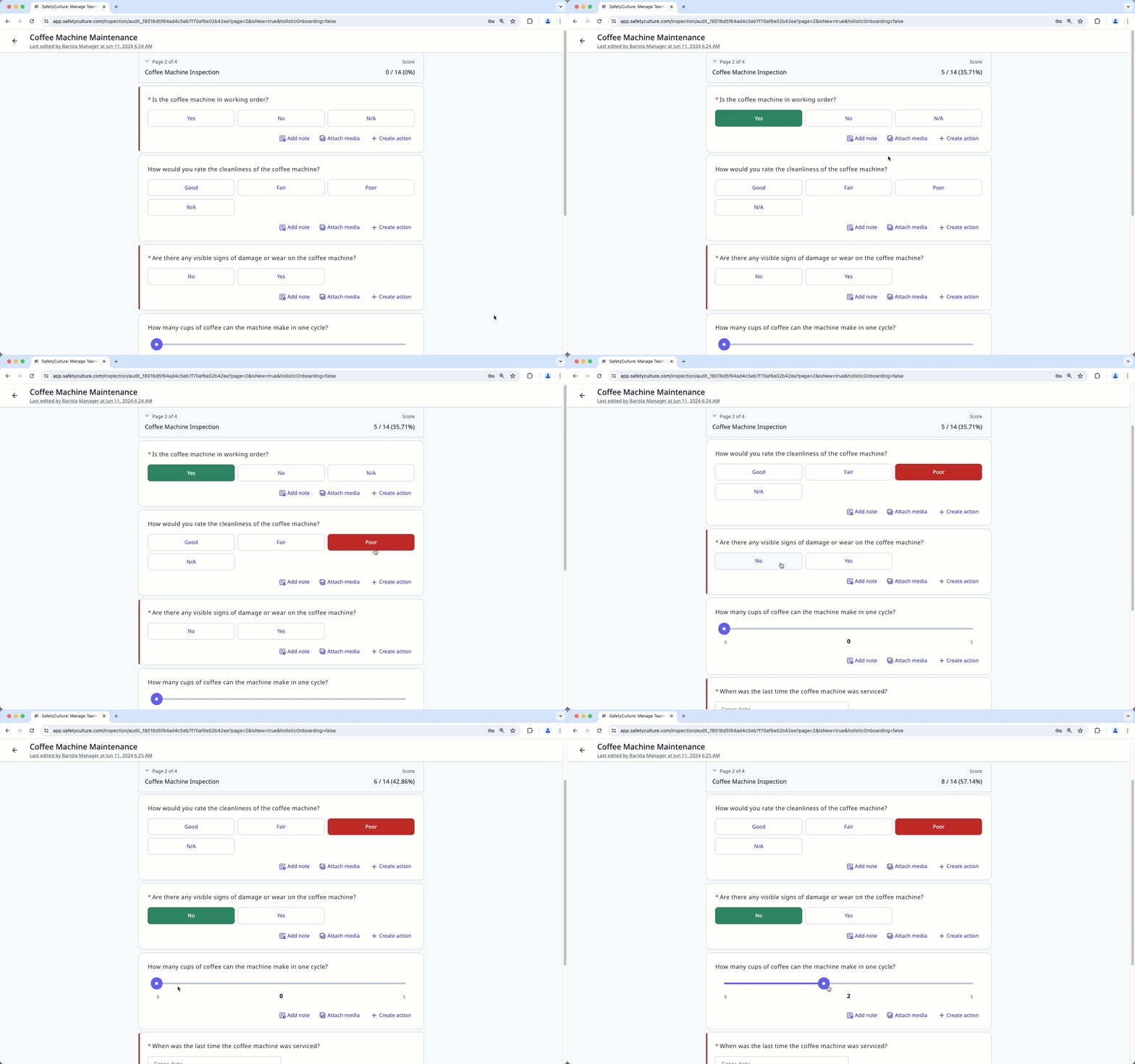
By setting up scoring at the question level, you can change your question's weighting depending on its importance. This way, some questions will be worth more points than others.
Score values can be assigned or removed from a specific question by adjusting its max score value. Changes made only apply to the specific question, giving you the flexibility needed when building templates.
When it's not relevant, you can also remove scoring per question or disable scoring from the template entirely to ensure you only get to record what's needed.
You can also change the score values for responses within a custom response set.
What you'll need
Limitations
Only the following response types support scoring:
Multiple choice: Custom response set and Global Response Set
Checkbox
Slider
The score value of responses within Global Response Sets can't be adjusted from their default value of 1.
Published changes made to templates only apply to new inspections moving forward.
Set up a question's scoring
Select Templates in the sidebar or select it in More.
Click the template and select Edit template in the side panel.
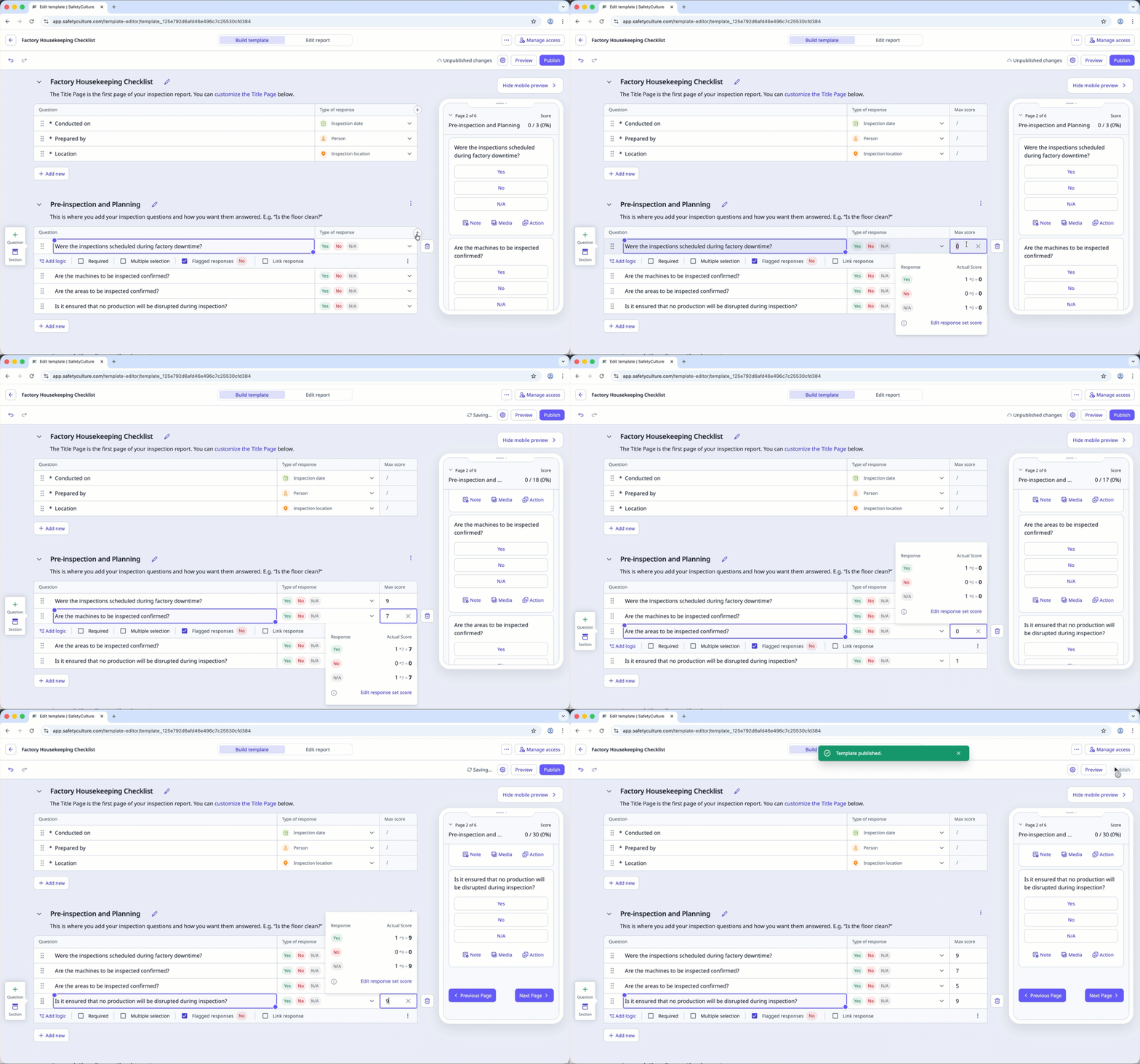
Click on the upper-right corner of an inspection page, next to the "Type of response" column.
Click Add score to show the "Max score" column.
Click the question's max score field and set up the scoring accordingly.
Click Publish on the upper-right of the page to publish the template. If you're not ready to publish the template, you can go back to the templates list and come back when you're ready.
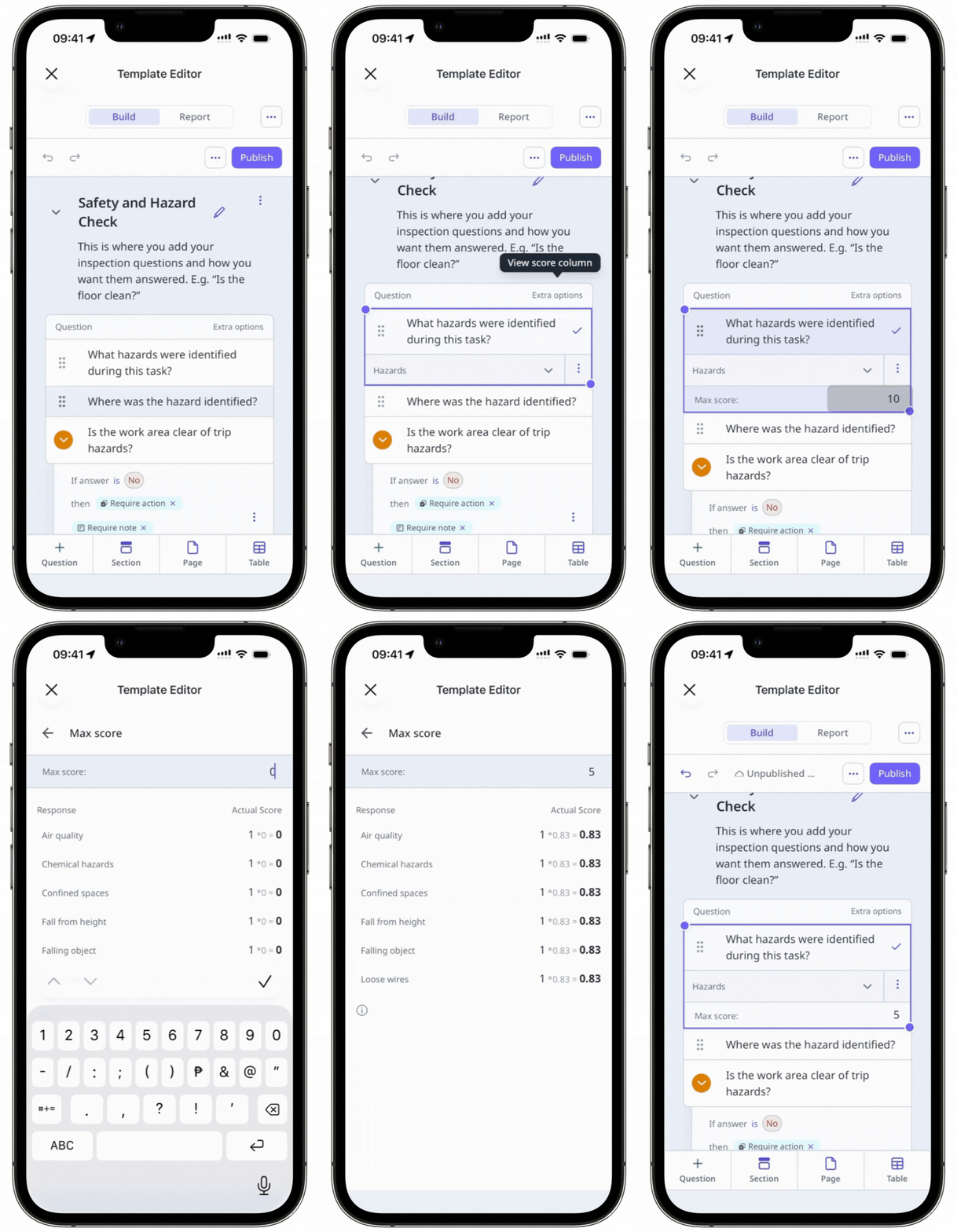
Set up a slider response question's scoring
Select Templates in the sidebar or select it in More.
Click the template and select Edit template in the side panel.
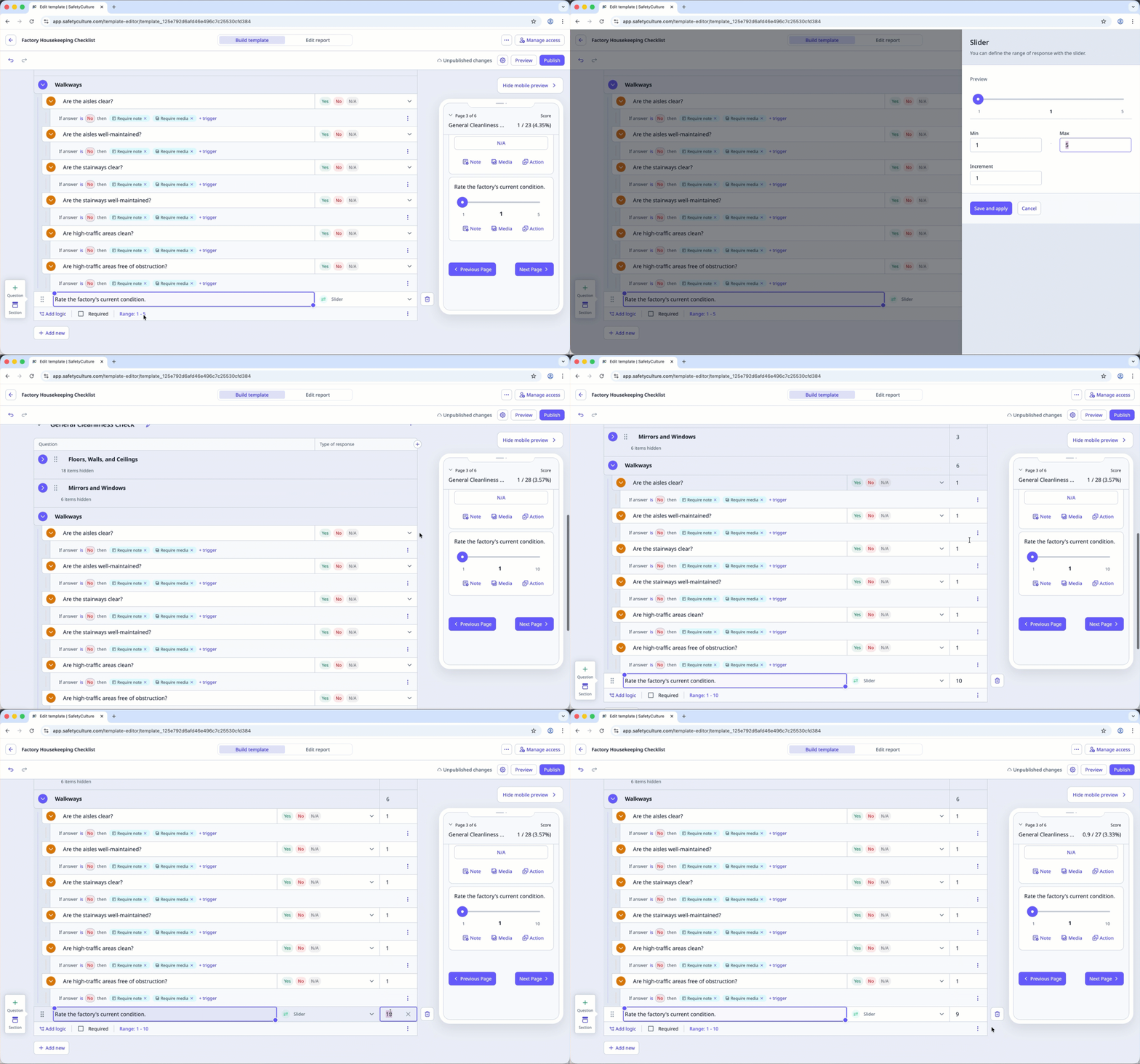
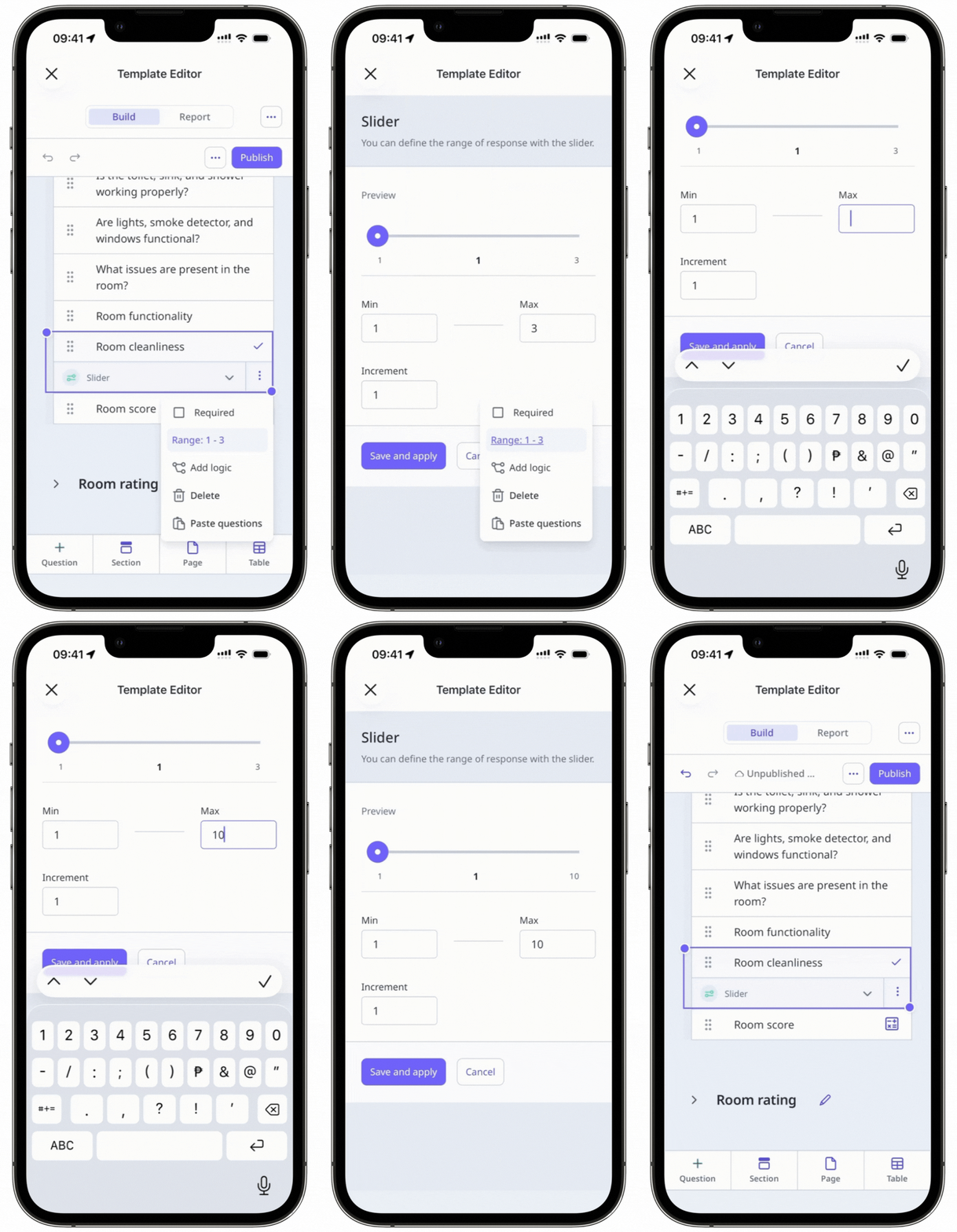
Click Range below the slider response question.
In the side panel, define the slider's range and the increments available to inspectors.
Click Save and apply.
Click on the upper-right corner of an inspection page, next to the "Type of response" column.
Click Add score to show the "Max score" column.
Click the question's max score field and set up the scoring accordingly.
Click Publish on the upper-right of the page to publish the template. If you're not ready to publish the template, you can go back to the templates list and come back when you're ready.