Why do I need to publish template drafts?
We understand that there are times when you might want to edit a template across several days, to make sure it's detailed and ready, before getting your team to start using it for inspections. With the Template Editor, you can make changes without worry as each edit will be saved in a draft state, leaving you in control of when to publish the changes. And remember, if you're editing a template that's already in use, your team won't get the latest changes until you publish the template draft.
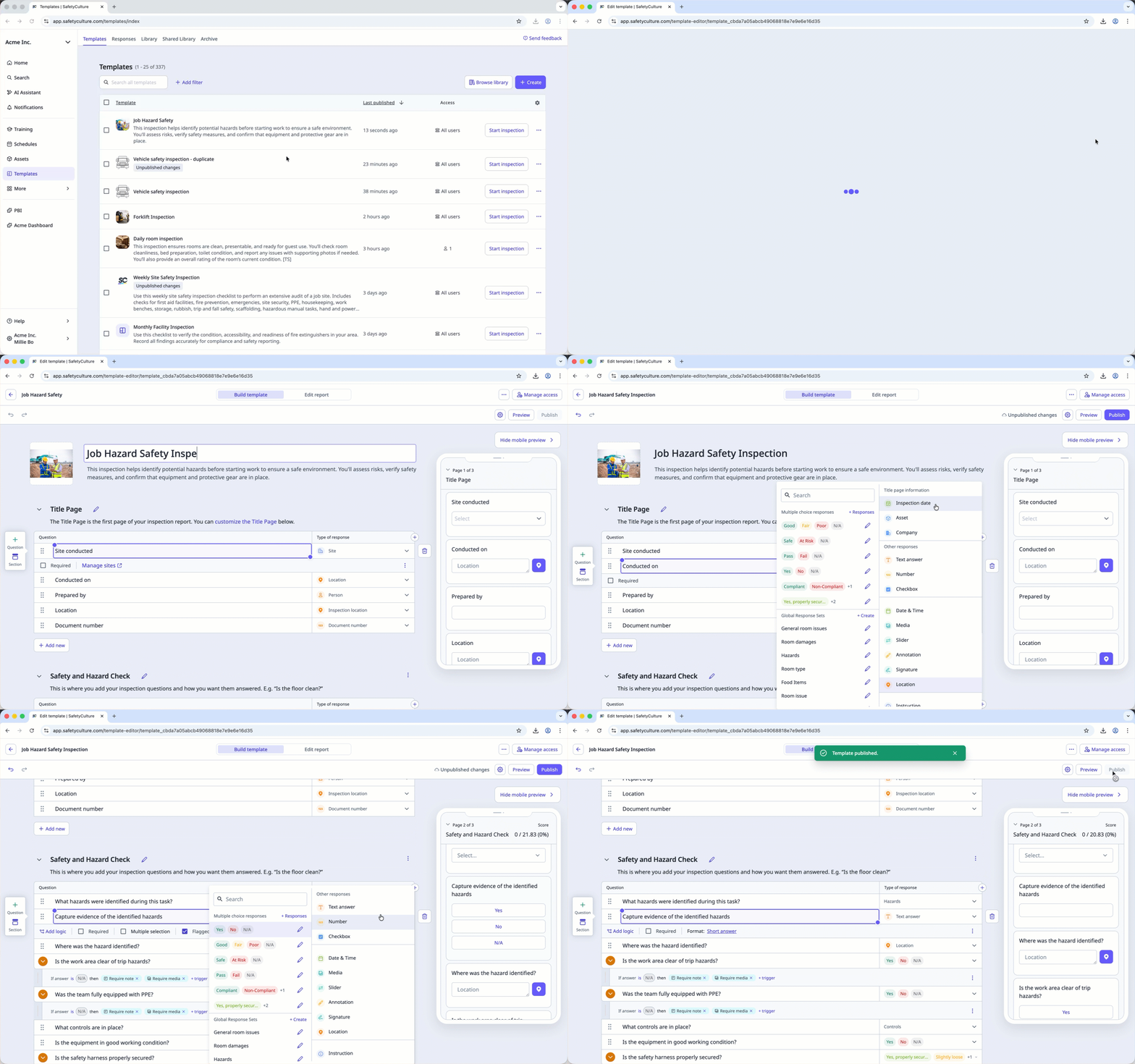
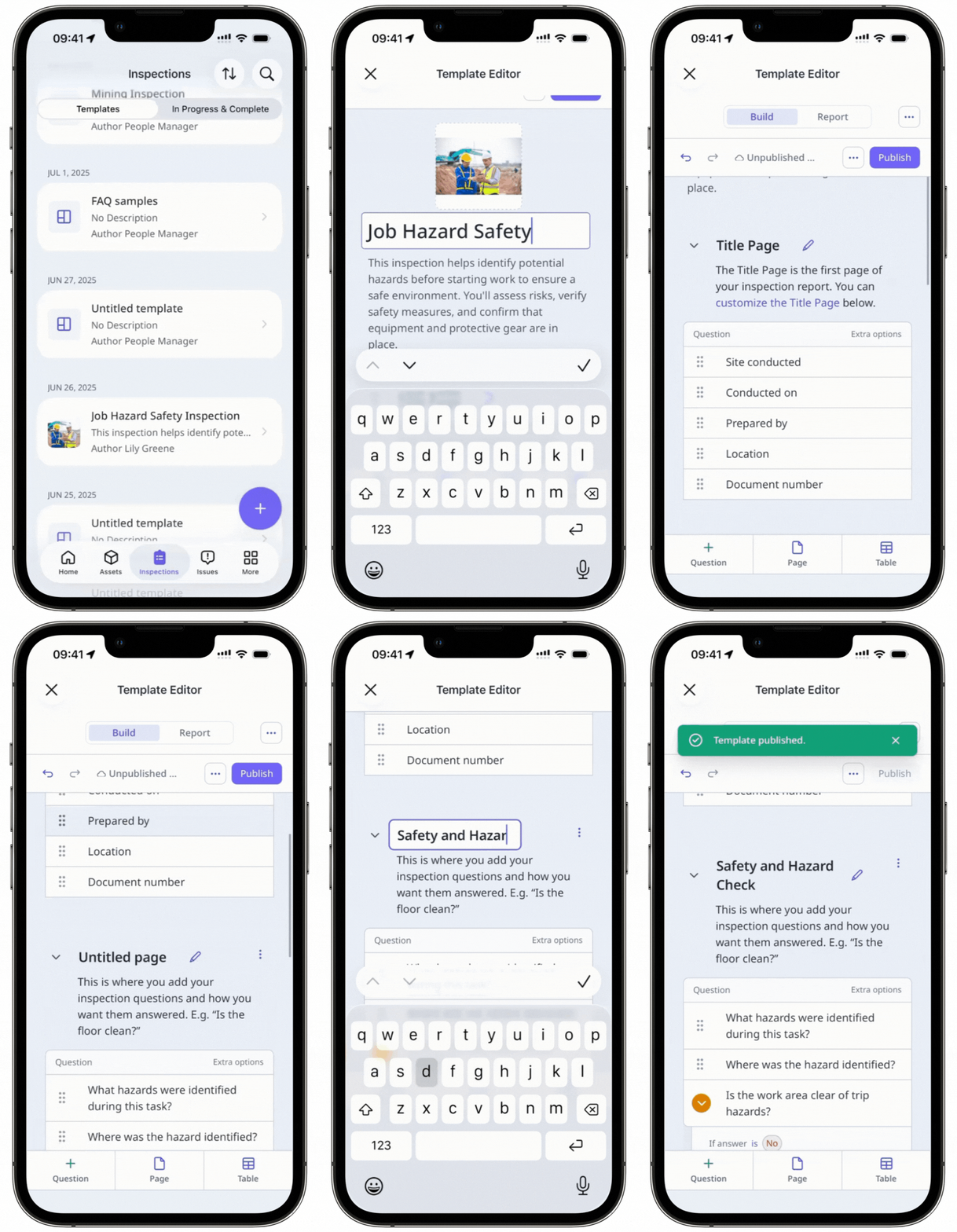
Any changes you make in the Template Editor will be automatically saved as a draft. The status will be indicated by "Saving..." and "Unpublished changes saved".
What you'll need
Published changes made to templates only apply to new inspections moving forward.
Publish a template draft
Select Templates in the sidebar or select it in More.
Click the template and select Edit template in the side panel.
Update your template accordingly.
Click Publish on the upper-right of the page to publish the template. If you're not ready to publish the template, you can go back to the templates list and come back when you're ready.
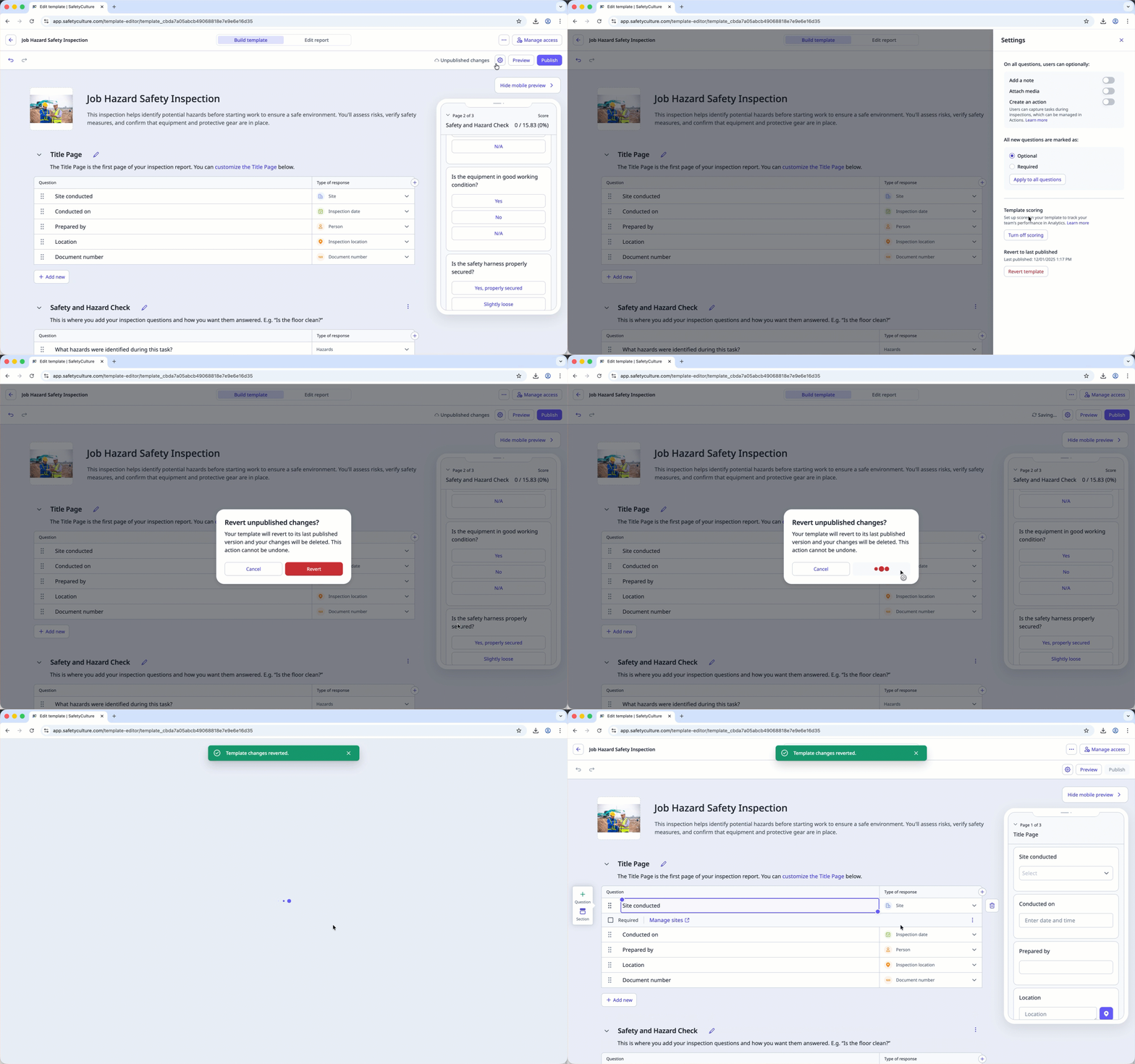
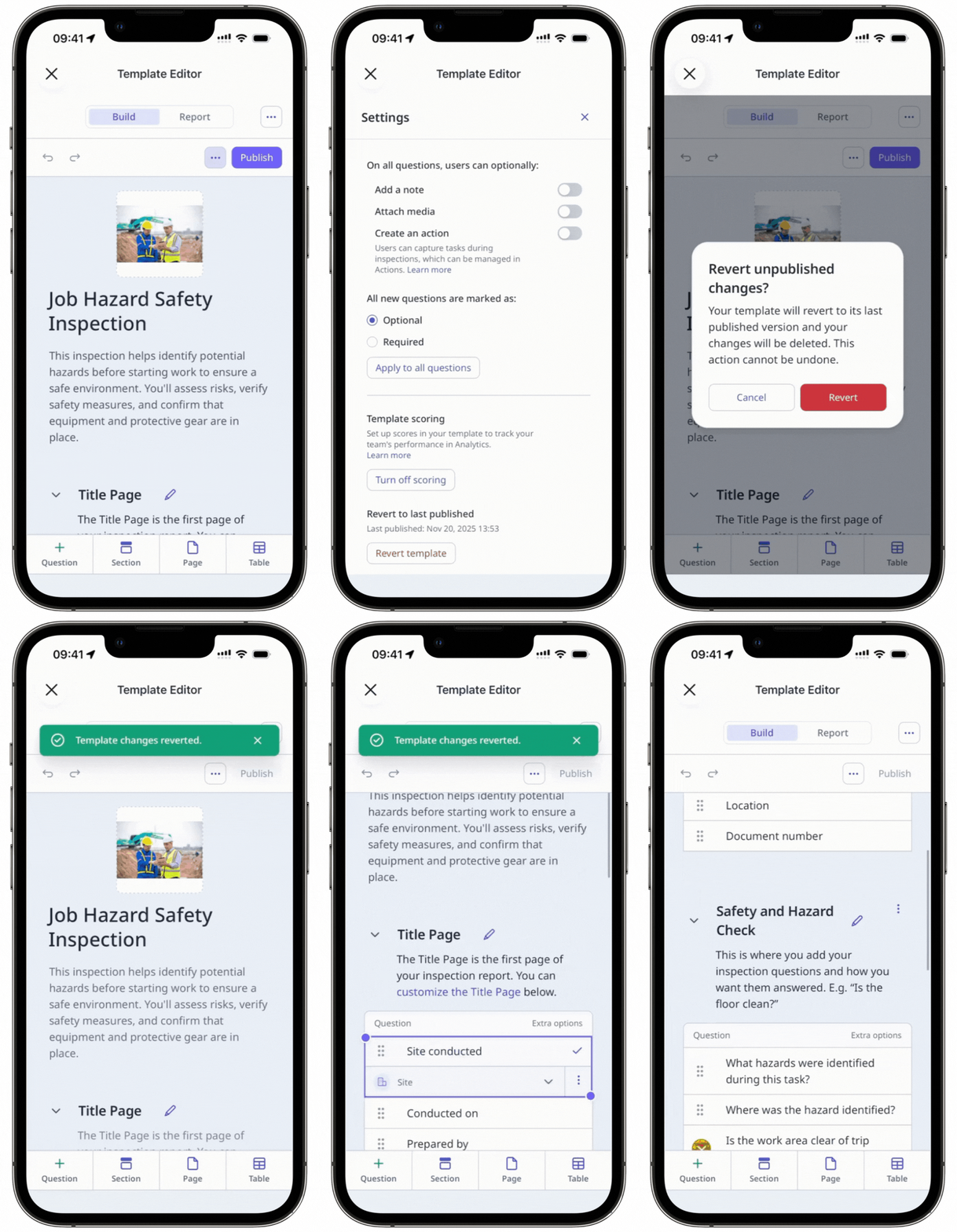
Revert unpublished changes
Select Templates in the sidebar or select it in More.
Click the template and select Edit template in the side panel. You can tell if a template has a draft by the "Unpublished changes" label.
Click Settings on the upper-right of the page.
In the side panel, click Revert template.
In the pop-up window, click Revert.