Last updated:

Automate user management with HR integrations

Learn more about HR integrations, which keep your SafetyCulture user list in sync with your HR system so new starters, employee updates, and deactivations happen automatically.

What are HR integrations?

HR integrations allows you to import and maintain your SafetyCulture users automatically from your HR system. Your HR system holds employee records and employment status, and SafetyCulture mirrors that data to keep your user list up to date. New starters appear as SafetyCulture users on the next sync, employee details stay aligned, and people who leave the organization are deactivated automatically. It is designed for organizations that manage hundreds or thousands of workers, where manual onboarding and offboarding do not scale, and where the HR system is already the trusted record of who works at the company.

When you install a connector from the Integrations Marketplace, you authenticate with your HR system once. SafetyCulture then runs a daily sync at the time you choose, picks up changes in your HR system, and applies them to your SafetyCulture user list.
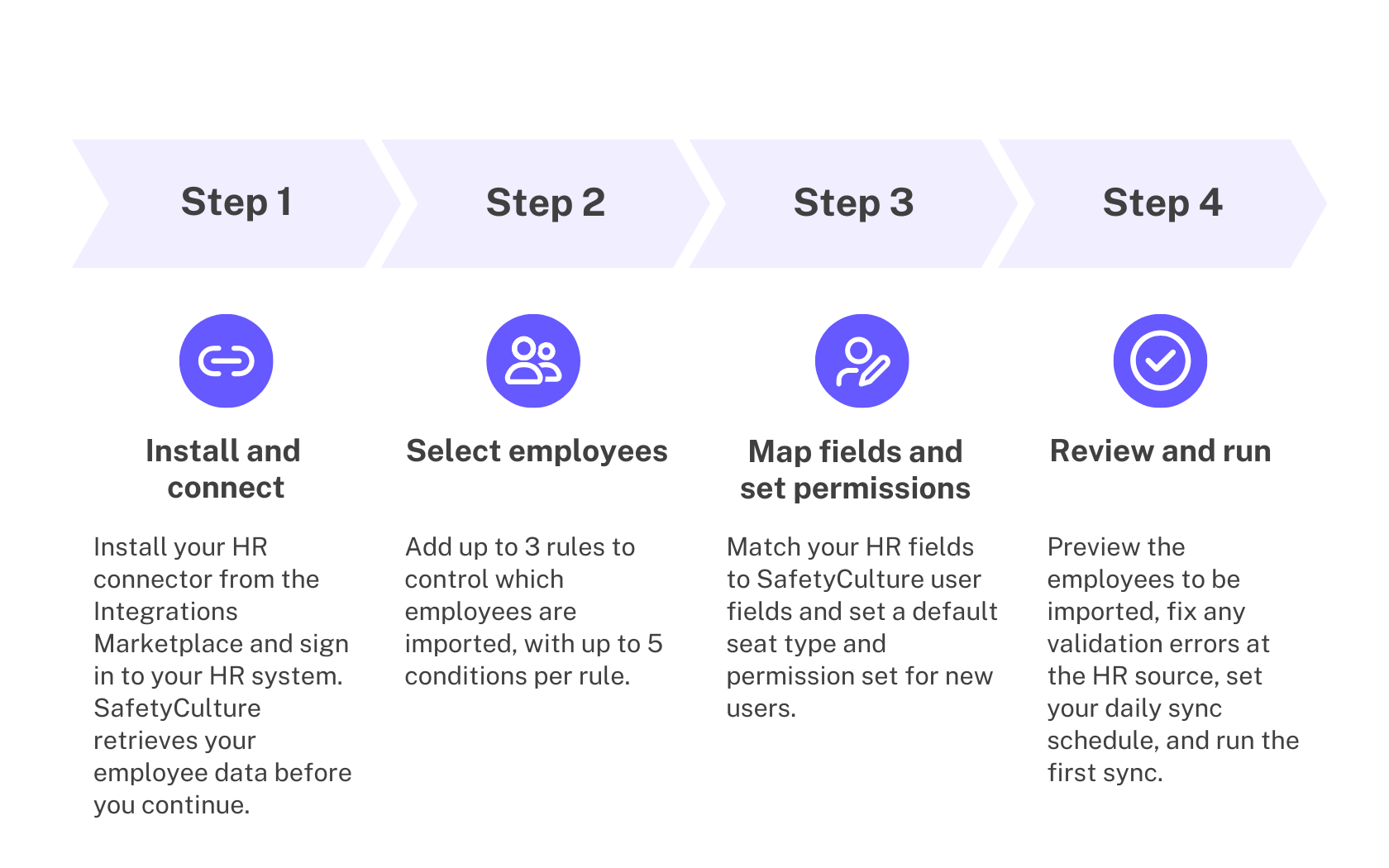
The process diagram for HR integrations in SafetyCulture.

What you'll need

Supported HR systems

The setup flow is the same for every HR system; however, the authentication steps may vary. Merge is our integration partner who hosts the authentication window. See Merge's HR connector guides to learn more about signing in to your HR system.

HR system

Status

Authentication guide

BambooHR

Generally available

Link using OAuth or an API key

HiBob

Generally available

Link using OAuth or a service user

7Shifts

Early Access

-

ADP Workforce Now

Early Access

See article

Dayforce

Early Access

See article

Employment Hero

Early Access

-

Oracle HCM

Early Access

See article

SAP SuccessFactors

Early Access

Link your account or using a service user

UKG Pro

Early Access

See article

UKG Ready

Early Access

See article

Workday

Early Access

See article

The list of supported HR integrations grows as new connectors become generally available. If your preferred HR system is not on this list, contact your customer success manager and they can advise on alternative ways to manage users at scale, such as through CSV or SCIM provisioning.

Set up HR integrations

  1. Log in to the web app.

  2. Click your organization name on the lower-left corner of the page and select Integrations.

  3. Search for your HR system and select the integration.

  4. Click Install at the center of the page, then click Install in the pop-up window.

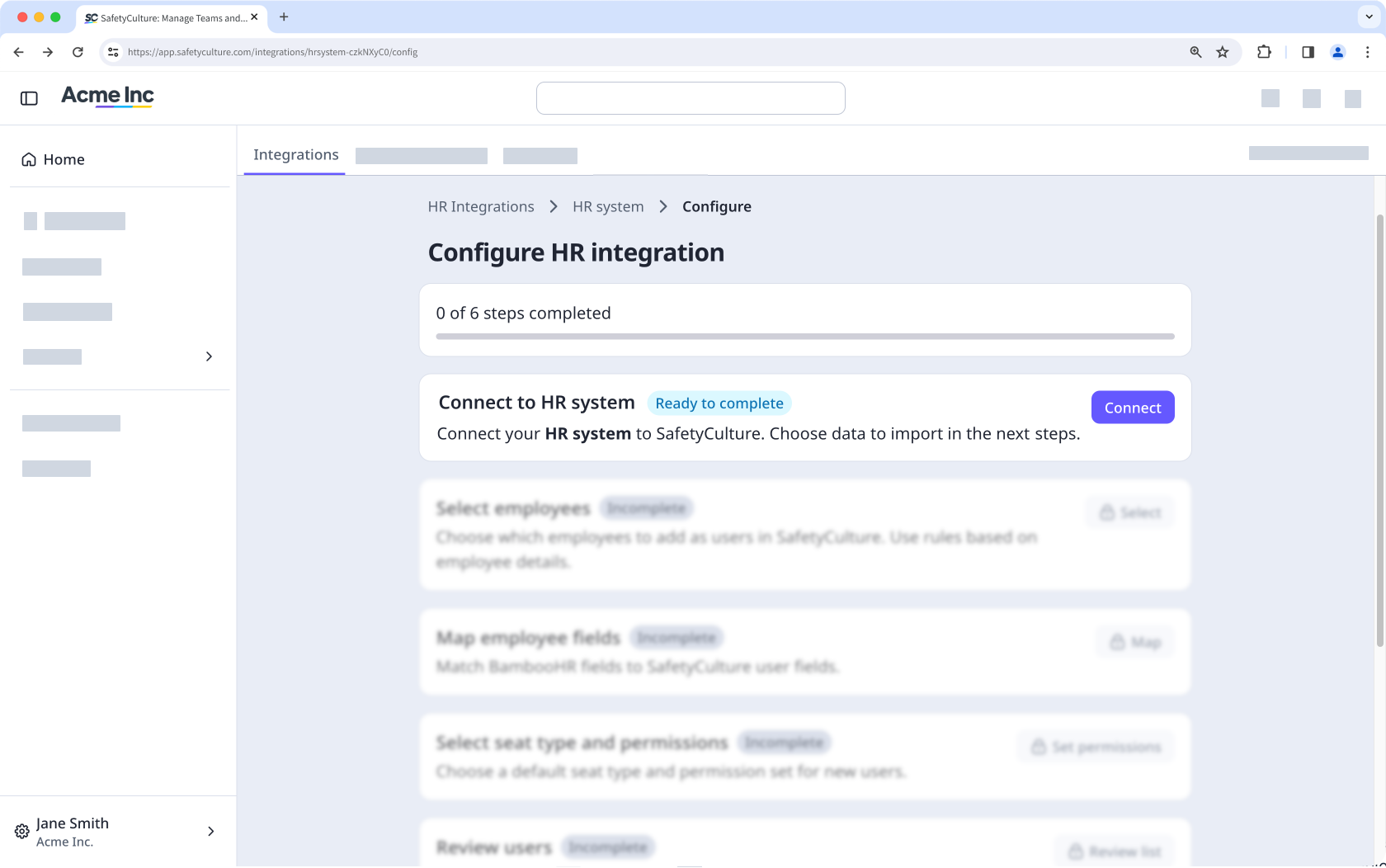
  5. On the configuration page, click Connect on the upper-right of the page, then click Setup integration link. The Configure HR integration page showing how to connect SafetyCulture to your HR system.
  6. In the authentication window, sign in to your HR system and approve access for SafetyCulture. If you close the window before completing it, no partial connection is saved, and you can start again.

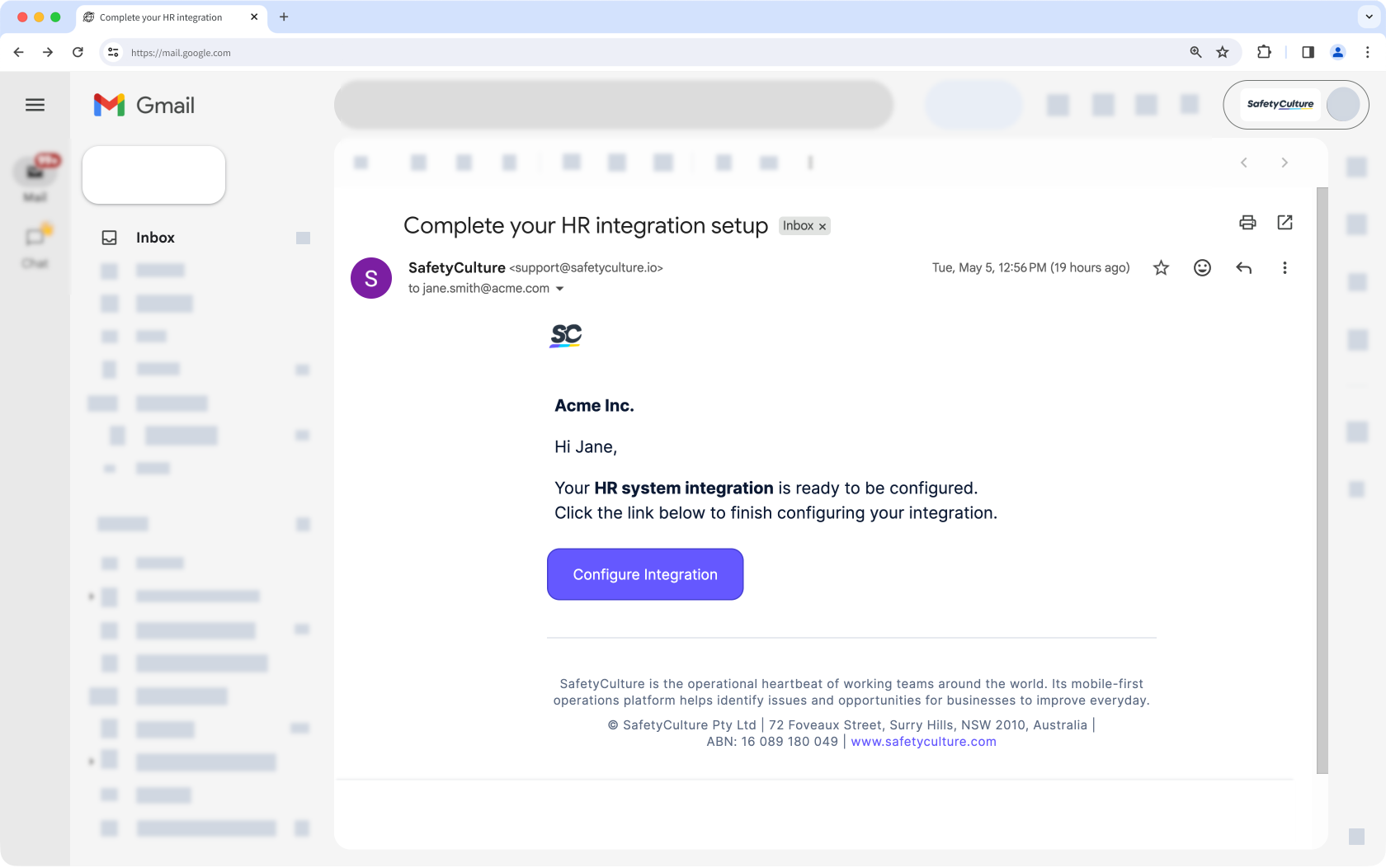
  7. SafetyCulture retrieves your employee data from your HR system, which can take some time depending on the size of your data. You'll receive an email when retrieval is complete, and you can return to this page to continue with the remaining steps. View email notification to complete your HR system integration in SafetyCulture.
  1. In the "Select employees" box, click Select.

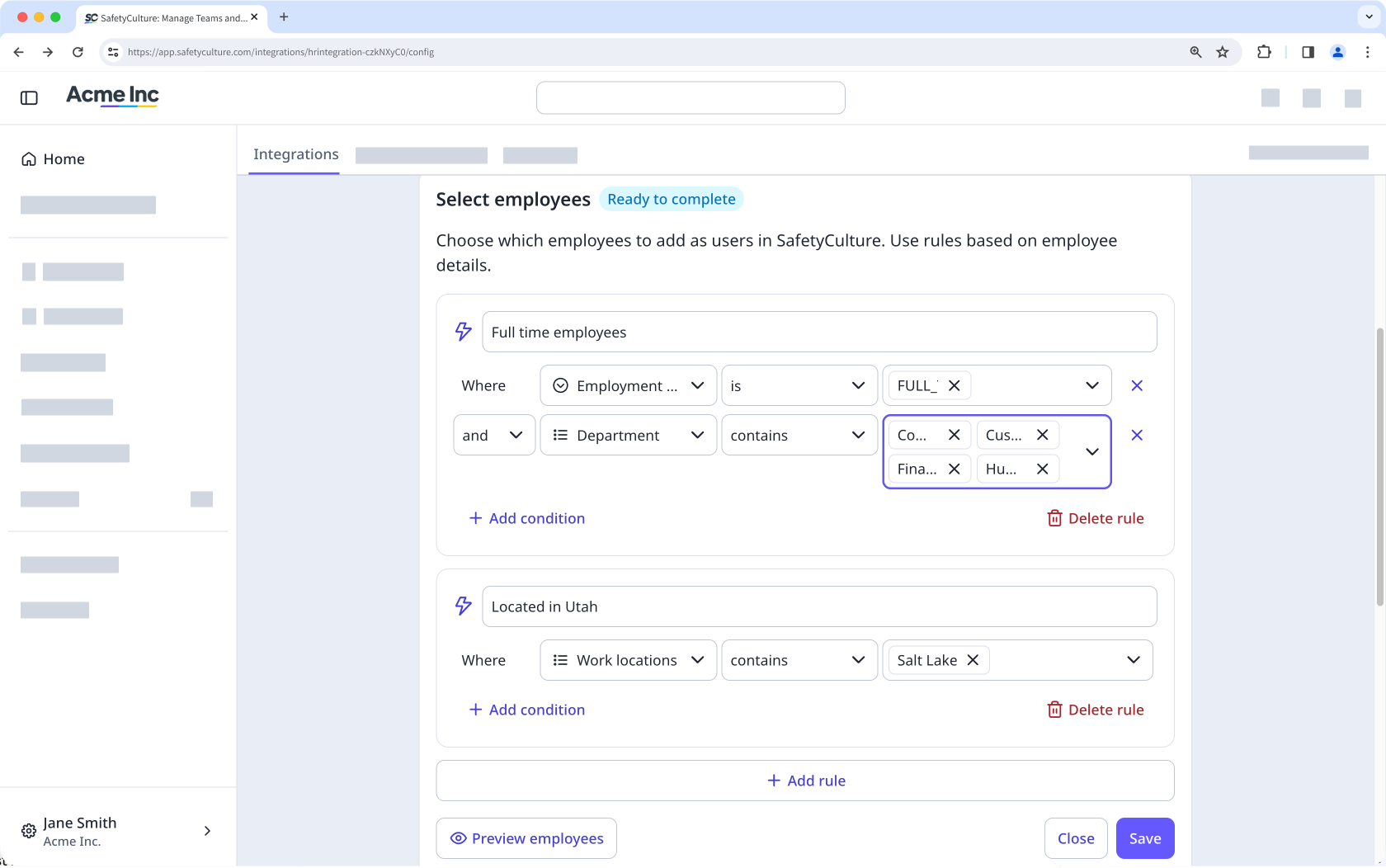
  2. Add up to 3 rules to control which employees are imported, with up to 5 conditions per rule. Filter employees using rules and conditions before importing users into SafetyCulture.

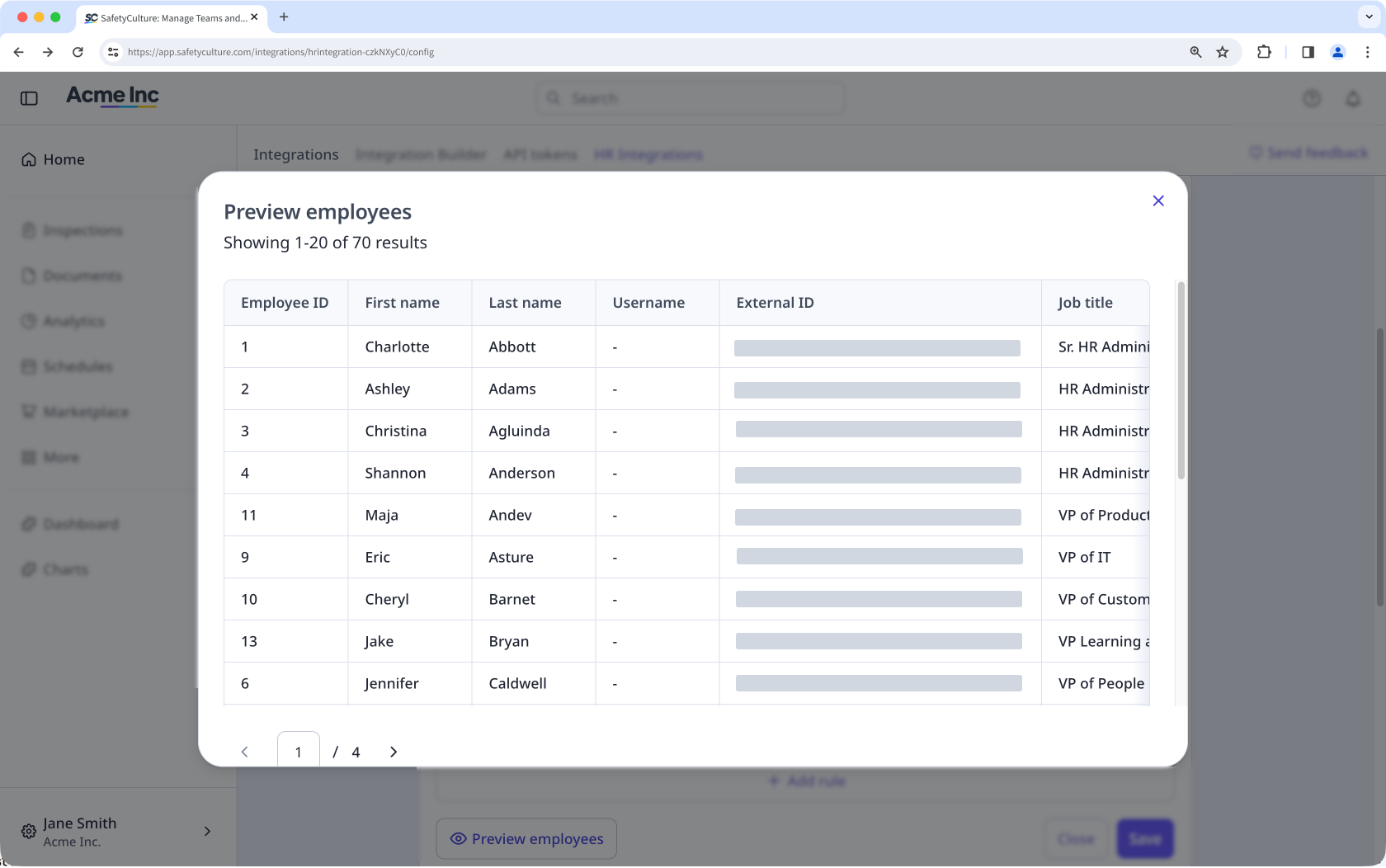
  3. Click Preview employees on the lower-left of the page to view the filtered list of users that will be imported. Preview the list of employees to be imported in SafetyCulture via the web app.

  1. In the "Map employee fields" box, click Map.

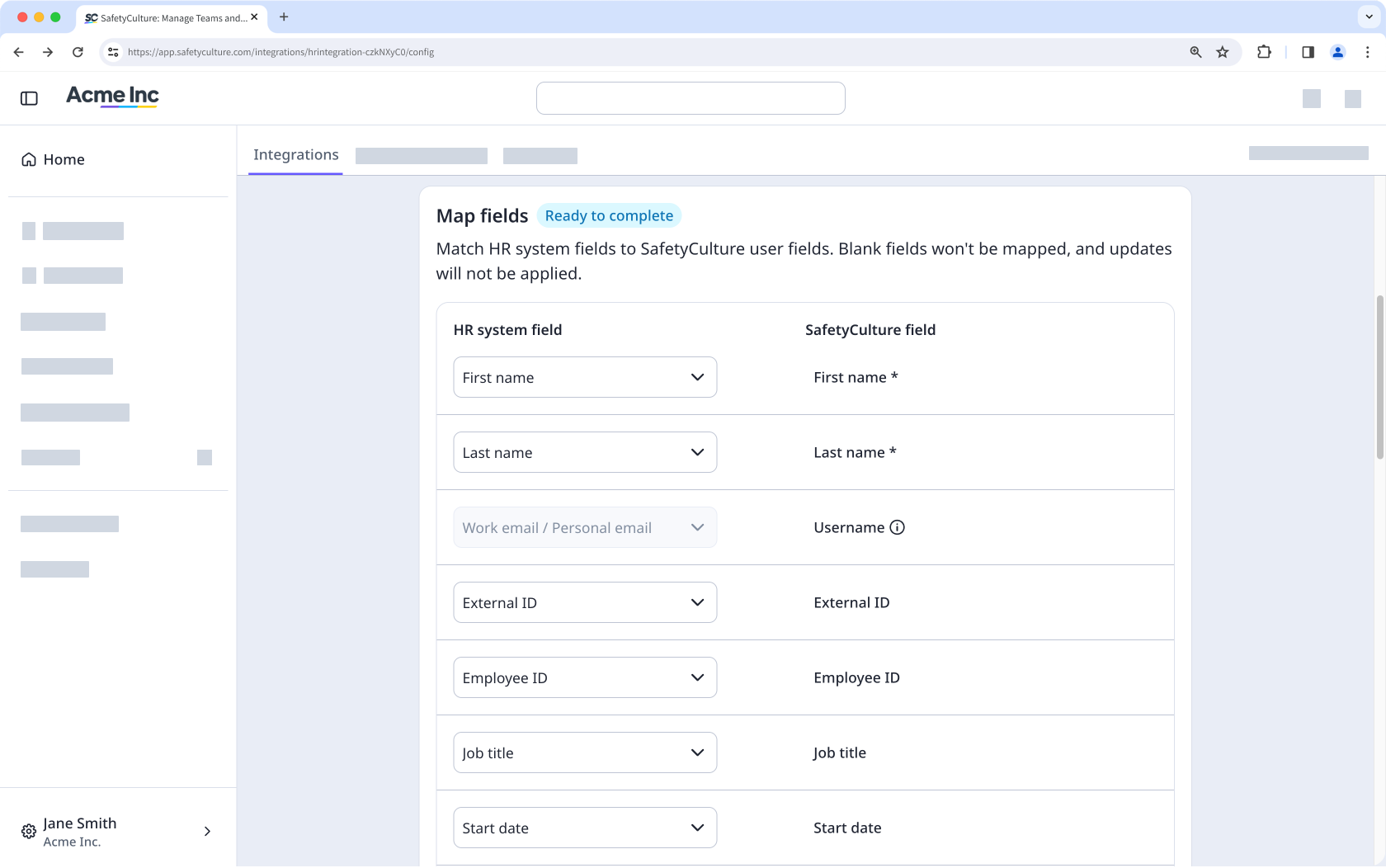
  2. Match each SafetyCulture field to the corresponding HR field, and then click Save when you're done. The integration uses these mappings on every sync to keep user data current. Map HR system employee fields to SafetyCulture user fields via the web app.

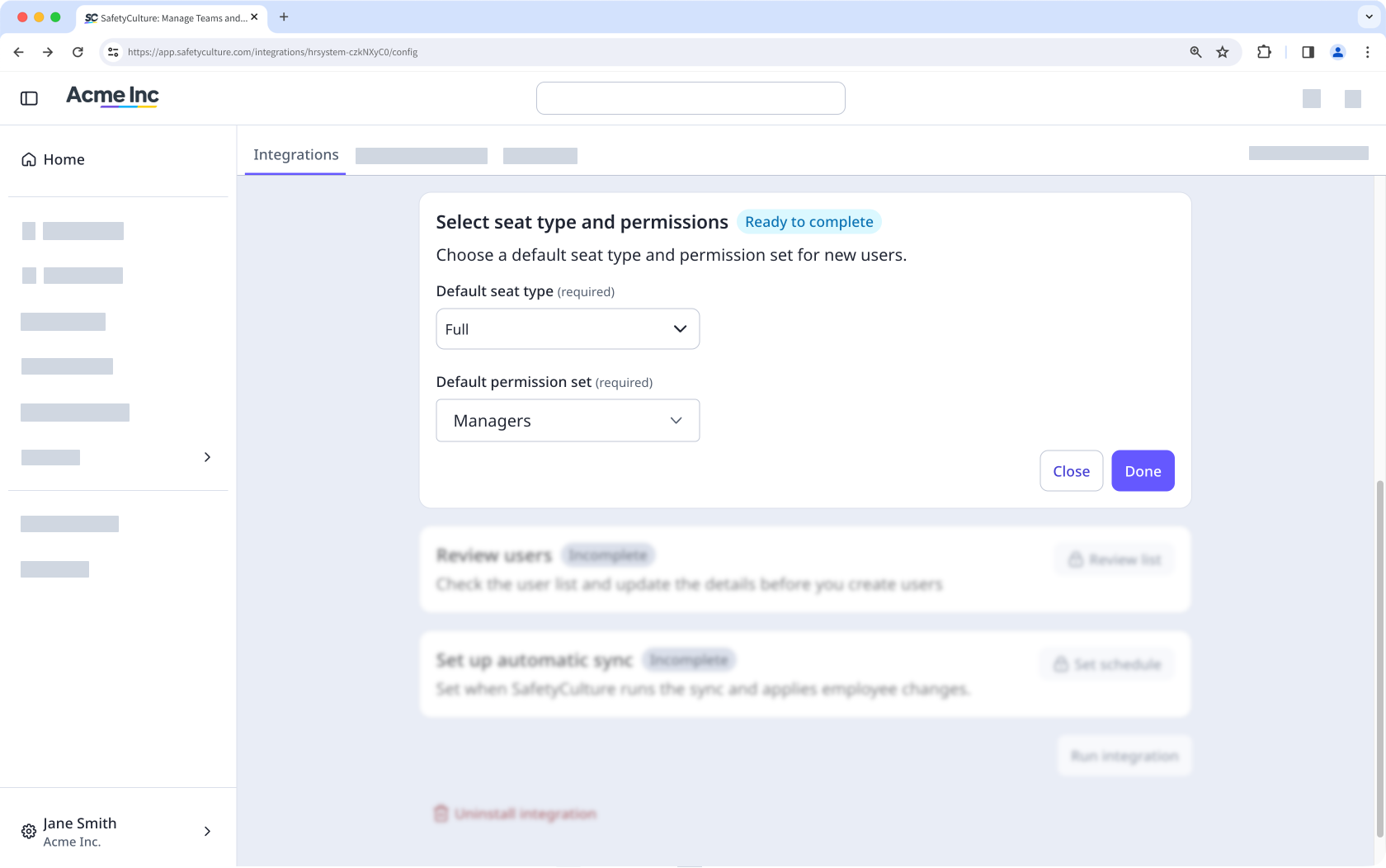
  3. In the "Select seat type and permissions", click Set permissions.

  4. Select a default seat type and permission set, then click Done. These settings will apply to every newly imported user. After a user is created in SafetyCulture, you can change their permission set without it being overwritten on the next sync. The HR integration configuration page shows fields to select the default seat type and permission sets for new users to be imported into SafetyCulture.

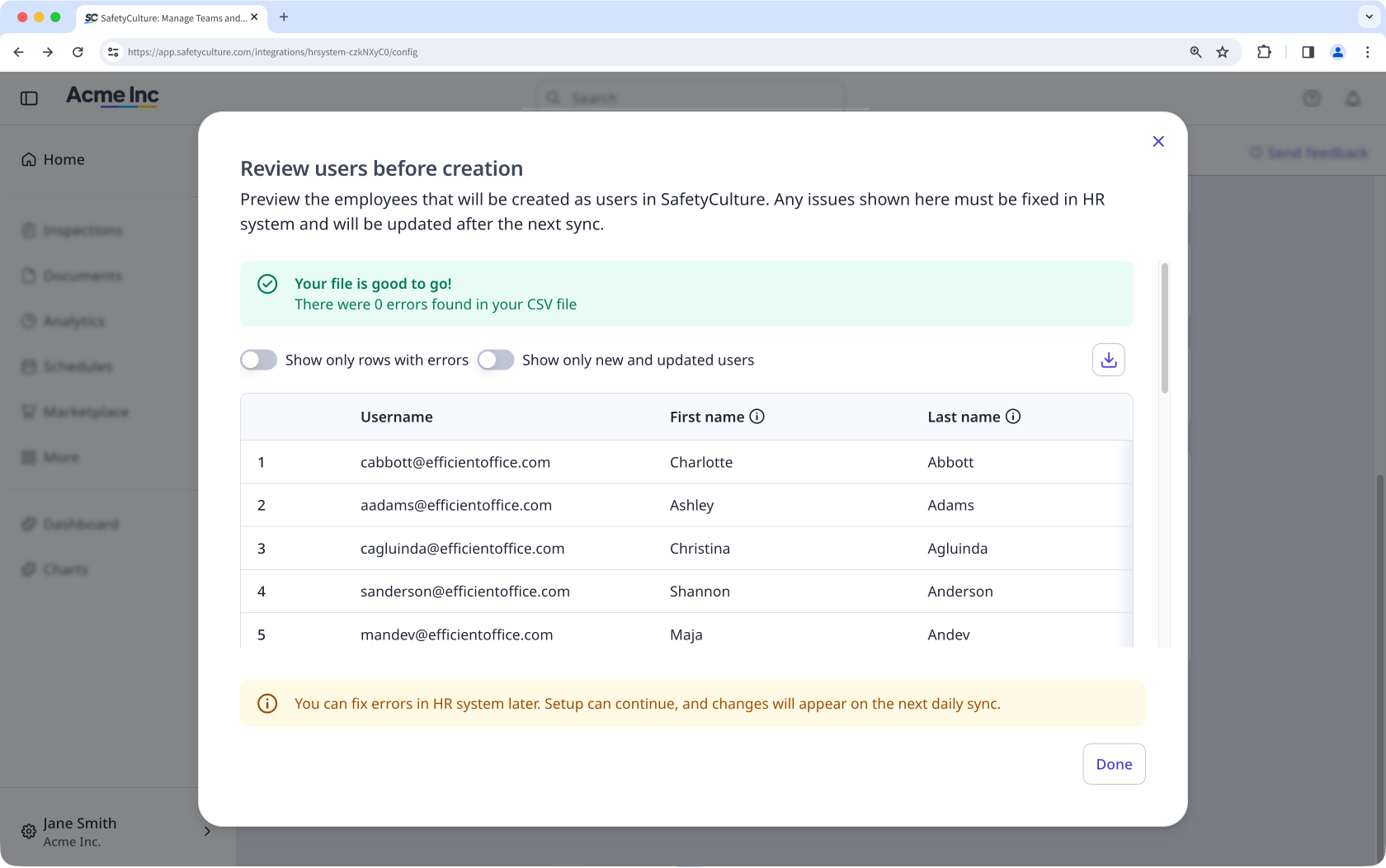
  1. In the "Review users" box, click Review list to preview the employees that will be imported and any validation errors found in the data. The Review users before creation window showing a list of users to be created from your HR system into SafetyCulture.

  2. Fix any issues at the source in your HR system right away, or at a later time. Employee information will be updated on the next sync.

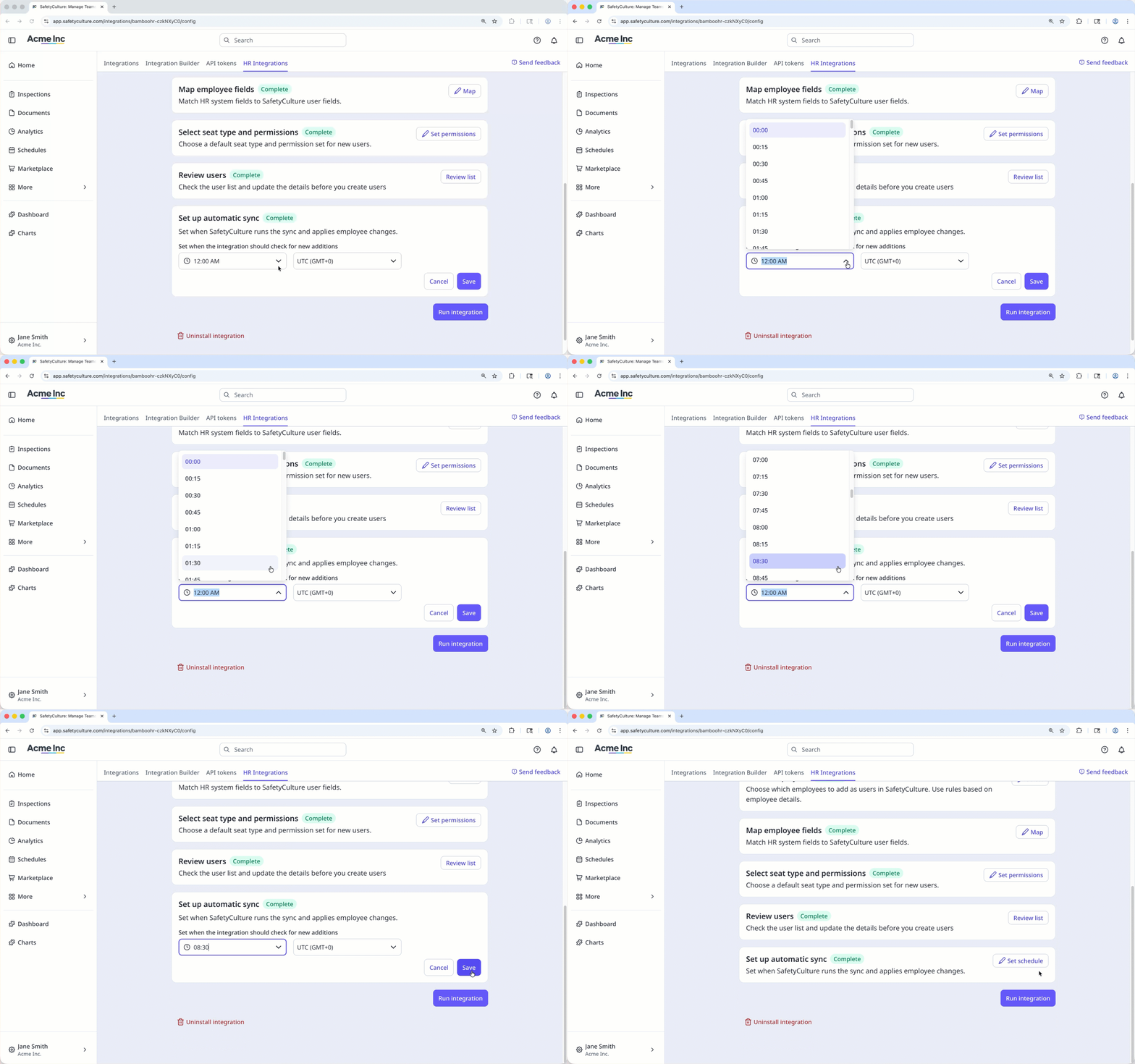
  3. In the "Set up automatic sync" box, click Set schedule.

  4. Select the daily run time for the integration, then click Save.

  5. Click Run integration.

  6. In the pop-up window, review the summary, and turn "Send invite email to new users" on if you prefer to send an email notification to new users.

  7. Click Run integration to start the first sync.

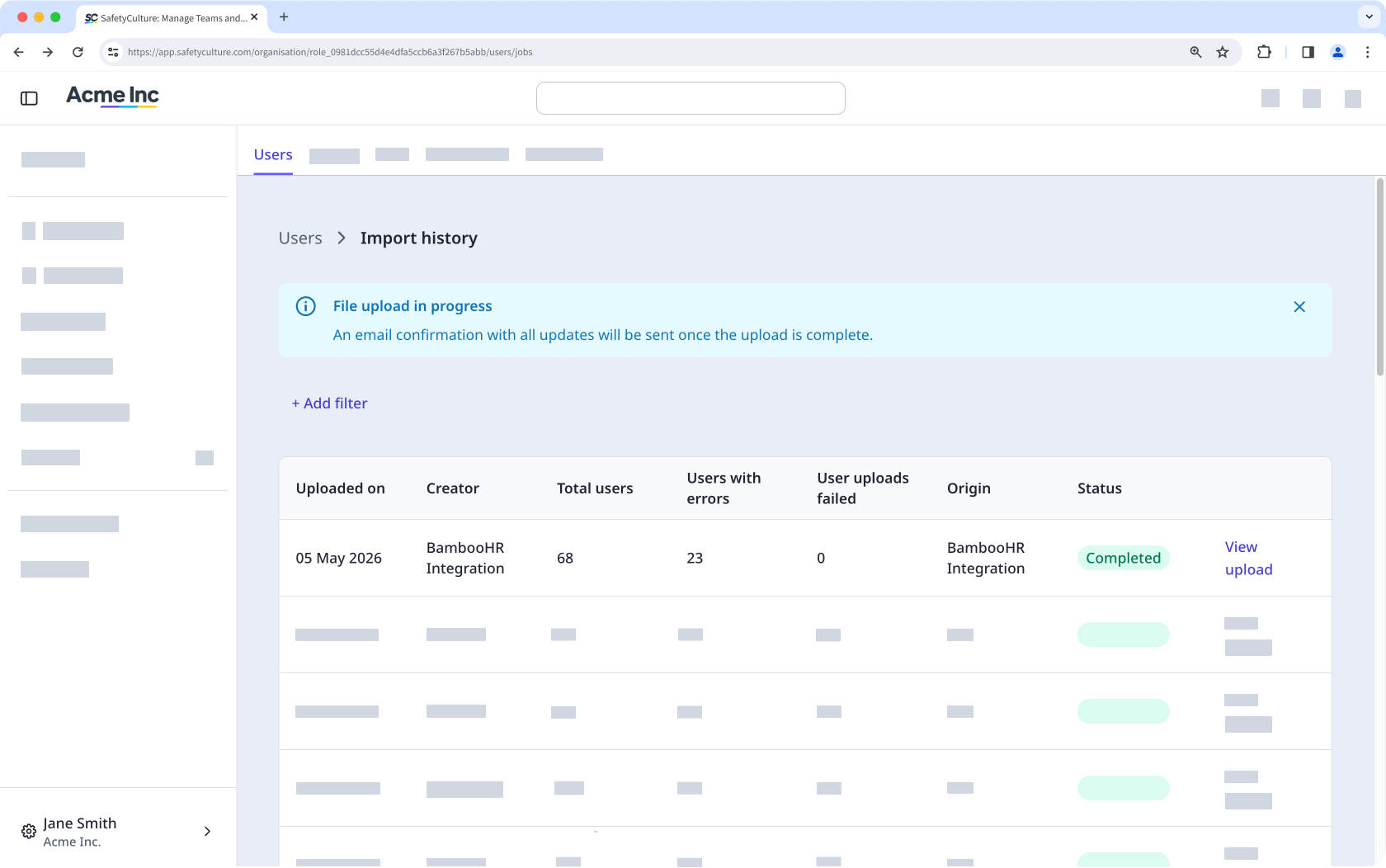
  8. SafetyCulture creates and updates users in the background. If you want to track the job, click View user import history on the lower-left of the page. The Import history page showing the progress of the user upload from your HR system

How syncs and billing work

Each sync updates mapped fields in SafetyCulture to match your HR system, overwriting any edits made in SafetyCulture. Correct data at the HR source, and the change reflects on the next sync.

If your organization has no available seats when a user is added, SafetyCulture automatically purchases one. Your billing administrator will receive an email notification, and your next invoice will include a prorated charge.

Limitations

  • You can run only one HR connector in your organization at a time. If you're using SCIM provisioning to manage your users, you cannot use an HR integration.

  • Group and site creation from your HR system is not supported. Manage your team's memberships through group and site assignment rules.

  • Every user imported through an HR integration needs an email address.

  • Custom HR fields are not imported. Only standard HR fields can be mapped to SafetyCulture user fields.

Frequently asked questions

SafetyCulture connects to your HR system through Merge.dev, an integration partner that handles authentication and translates each HR system's data into a standard format. You will see a Merge.dev screen during the connection step. SafetyCulture only retrieves the employee data fields needed to manage your users.

An organization can have one HR integration installed at a time. If you need to switch from one HR system to another, uninstall the existing integration first, then install the new one.

The HR integrations page shows how to uninstall the integration via the web app.

When an employee is deactivated in your HR system, their SafetyCulture account is deactivated on the next sync, the seat is freed, and the user loses access immediately. Inspections, training records, and other historical data are retained. If the employee is reactivated in your HR system, their account is reactivated on the next sync.

If an employee no longer meets the conditions in your filter rules, their SafetyCulture account is not automatically removed. You'll need to manually deactivate or remove them from your organization if they should no longer have access.

Need more help?