What are seat types?
We understand that in an organization, each team member has different responsibilities and tasks. To help organizations optimize their spending when it comes to using SafetyCulture, we offer three different seat types at varying price points:
Full seats
Lite seats
Guest seats (free)
This means that you only need to pay for the specific job requirements of each team member, ensuring that your investment in SafetyCulture is cost-effective and tailored to your needs.
Changing the seat types for users is only available to organizations on Premium Plan or Enterprise Plan. If your organization is on the Free Plan, then all users are in full seats by default.
What you'll need
Add full seats and lite seats
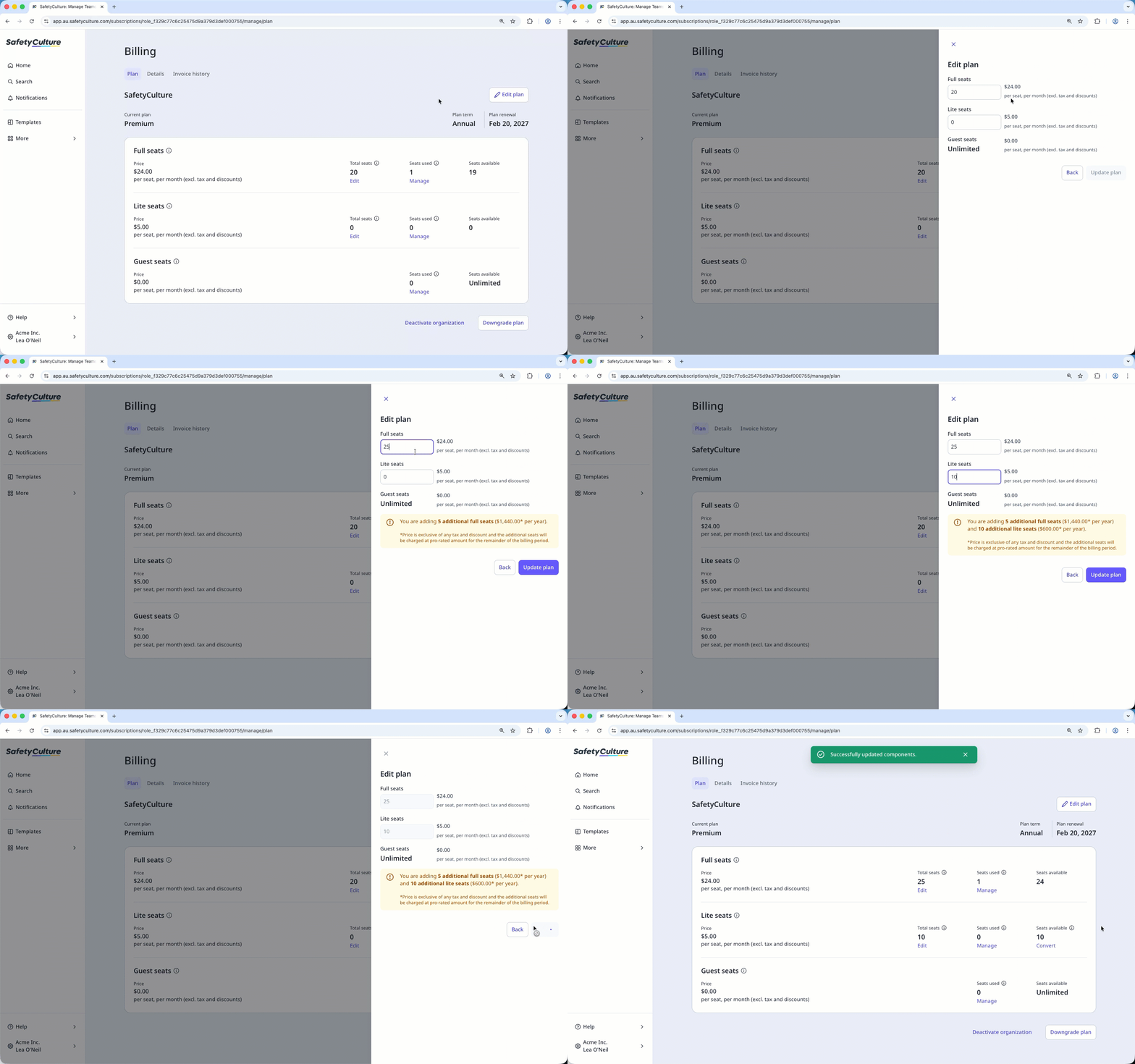
Click your organization name on the lower-left corner of the page and select Billing.
Click Edit plan on the upper-right of the page.
Enter the number of seats you want to have in the "Full seats" and "Lite seats" fields.
Click Update plan. This charges your payment method a prorated amount, proportional to the number of days left in the current billing period.
If your organization is trialing Premium Plan, you may be limited to 100 full seats and 100 lite seats for the duration of your trial. If you require more seats during your trial, you need to add your payment details to increase your seat limit.
Remove full seats and lite seats
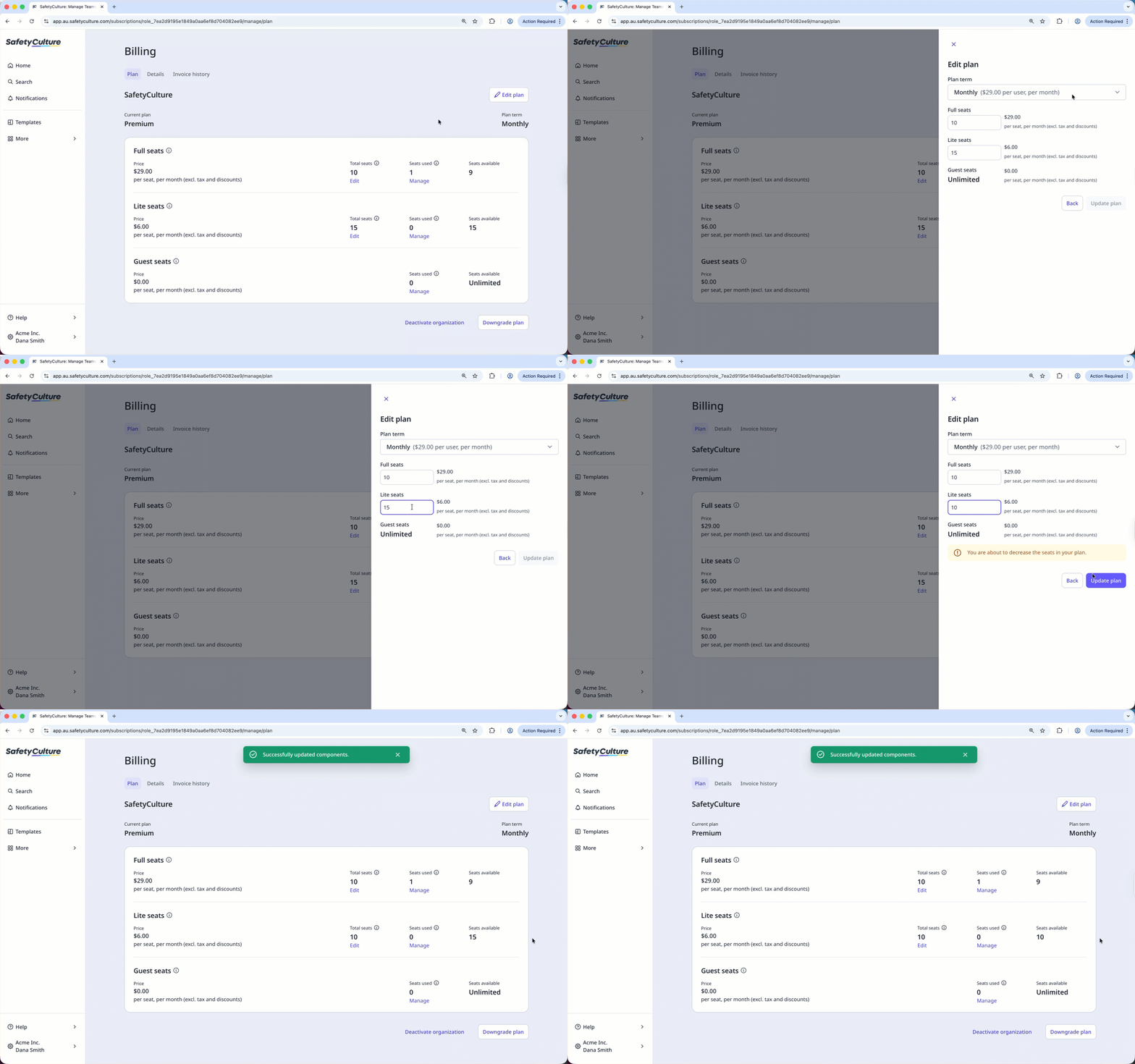
Click your organization name on the lower-left corner of the page and select Billing.
Click Edit plan on the upper-right of the page.
Enter the number of seats you want to have in the "Full seats" and "Lite seats" fields.
Click Update plan.
If your organization has a dedicated account manager, contact them to remove full or lite seats, or to deactivate or downgrade your organization.
If your organization's plan is billed annually, you can only remove full seats and lite seats within 28 days of renewals. If you need to remove full seats and lite seats outside of the 28 days, please contact our customer support team for assistance.