SafetyCulture
  1. Home
  2. Administration
  3. User management
  4. View and manage bulk user uploads

User management

Last updated: May 23, 2026

View and manage bulk user uploads

Learn how to view and manage upload histories when adding or updating users in bulk, allowing you to stay on top of organization changes via the web app.

What can I view in the upload history?

The user upload history provides an overview of all the new users added, existing users updated, and any possible errors that may have happened during the upload when managing users in bulk via CSV or Excel. You can also cancel any existing uploads to make it easier to manage uploads within your organization.

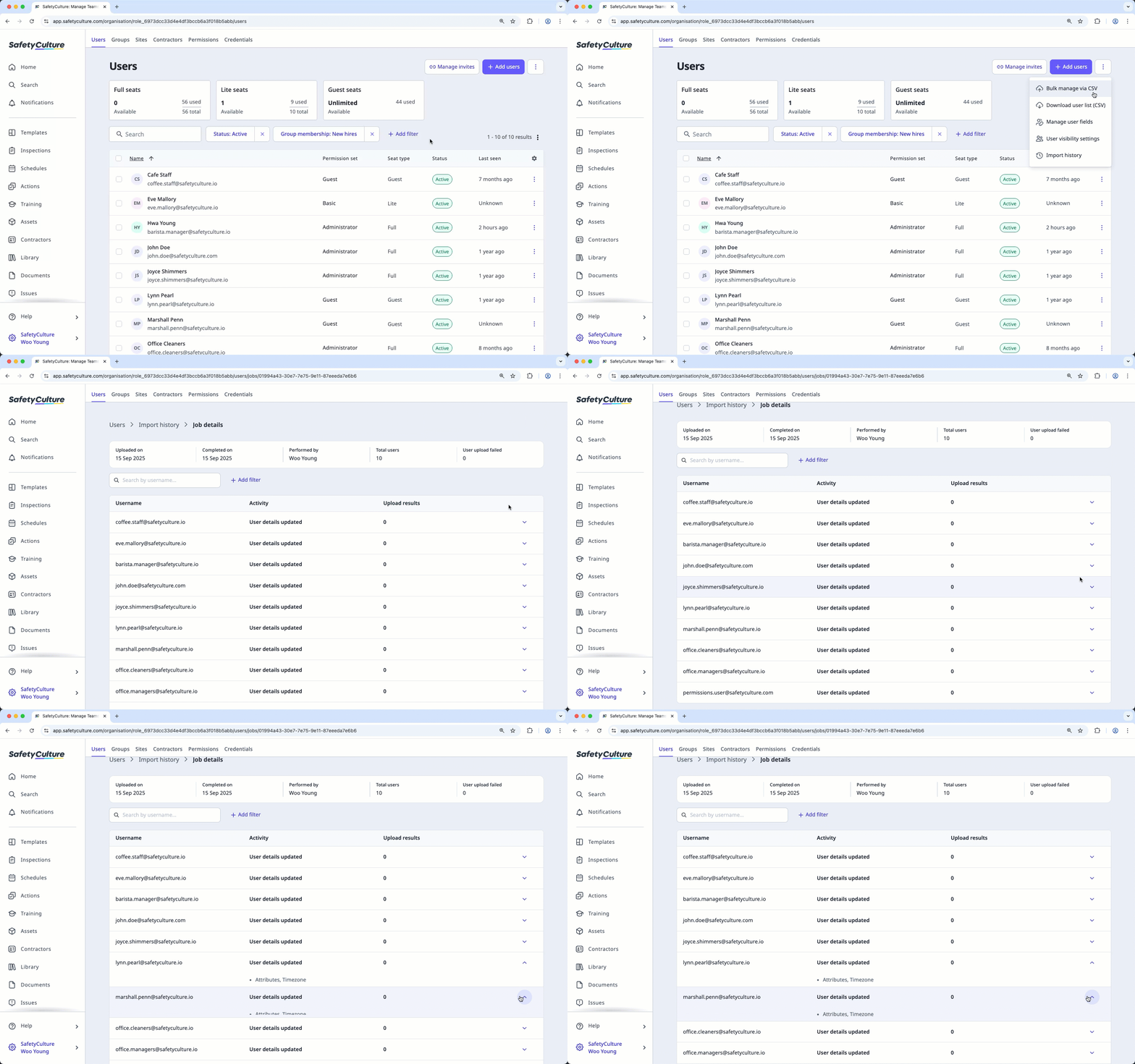
View the latest and previous upload history to track new users added and existing users updated when managing users in bulk using CSV or Excel via the web app.

View user uploads

  1. Log in to the web app.

  2. Click your organization name on the lower-left corner of the page and select Users .

  3. Click on the upper-right corner of the page and select Import history .

View the latest and previous upload history to track new users added and existing users updated when managing users in bulk using CSV or Excel via the web app.

Manage user uploads

  1. Log in to the web app.

  2. Click your organization name on the lower-left corner of the page and select Users .

  3. Click on the upper-right corner of the page and select Import history .

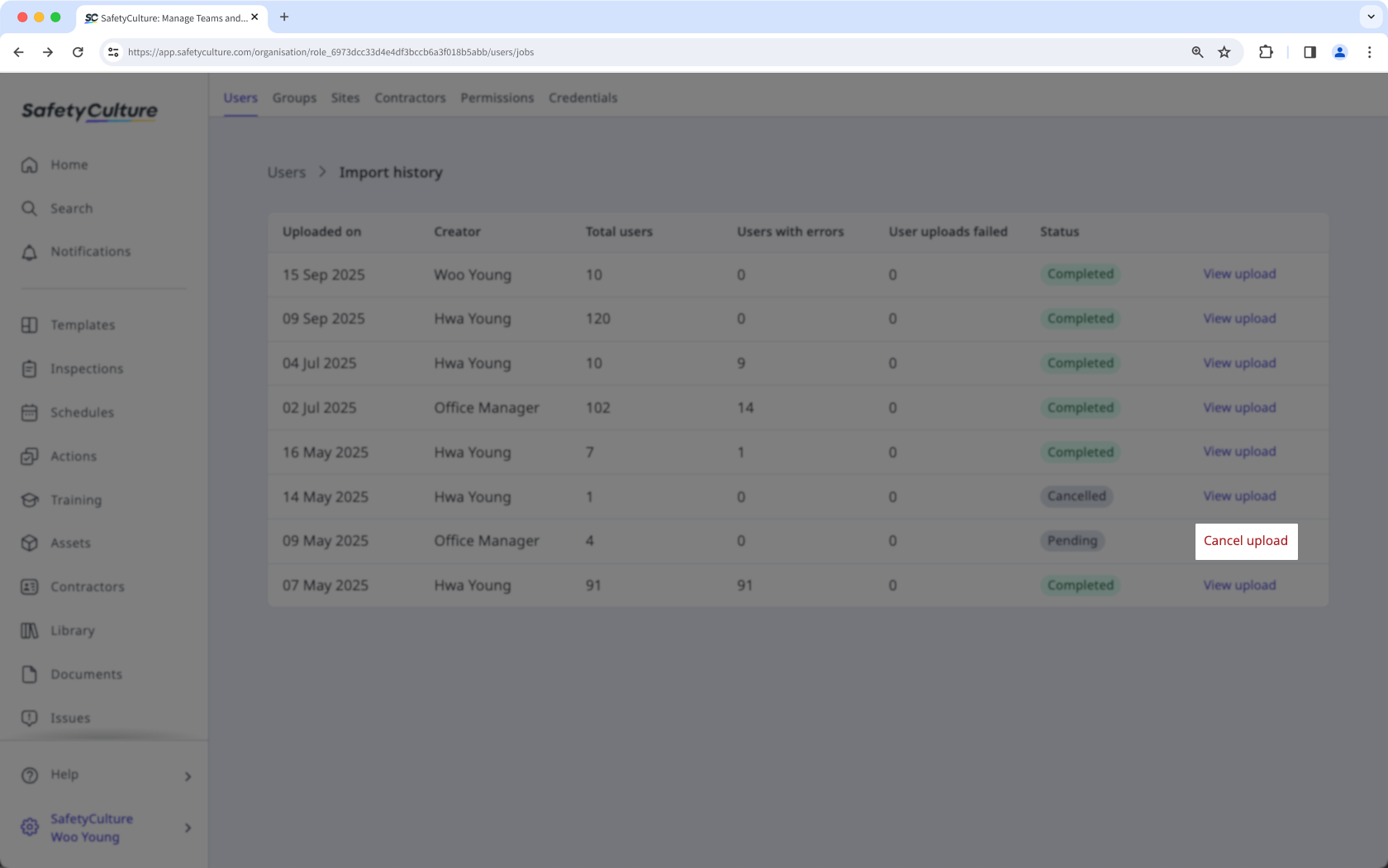
  4. To cancel any ongoing upload, click Cancel upload .

Cancel ongoing bulk CSV or Excel uploads to add new users or update existing users via the web app.

Was this page helpful?

SafetyCulture
App Store
Google Play