What does it mean to send course copies?
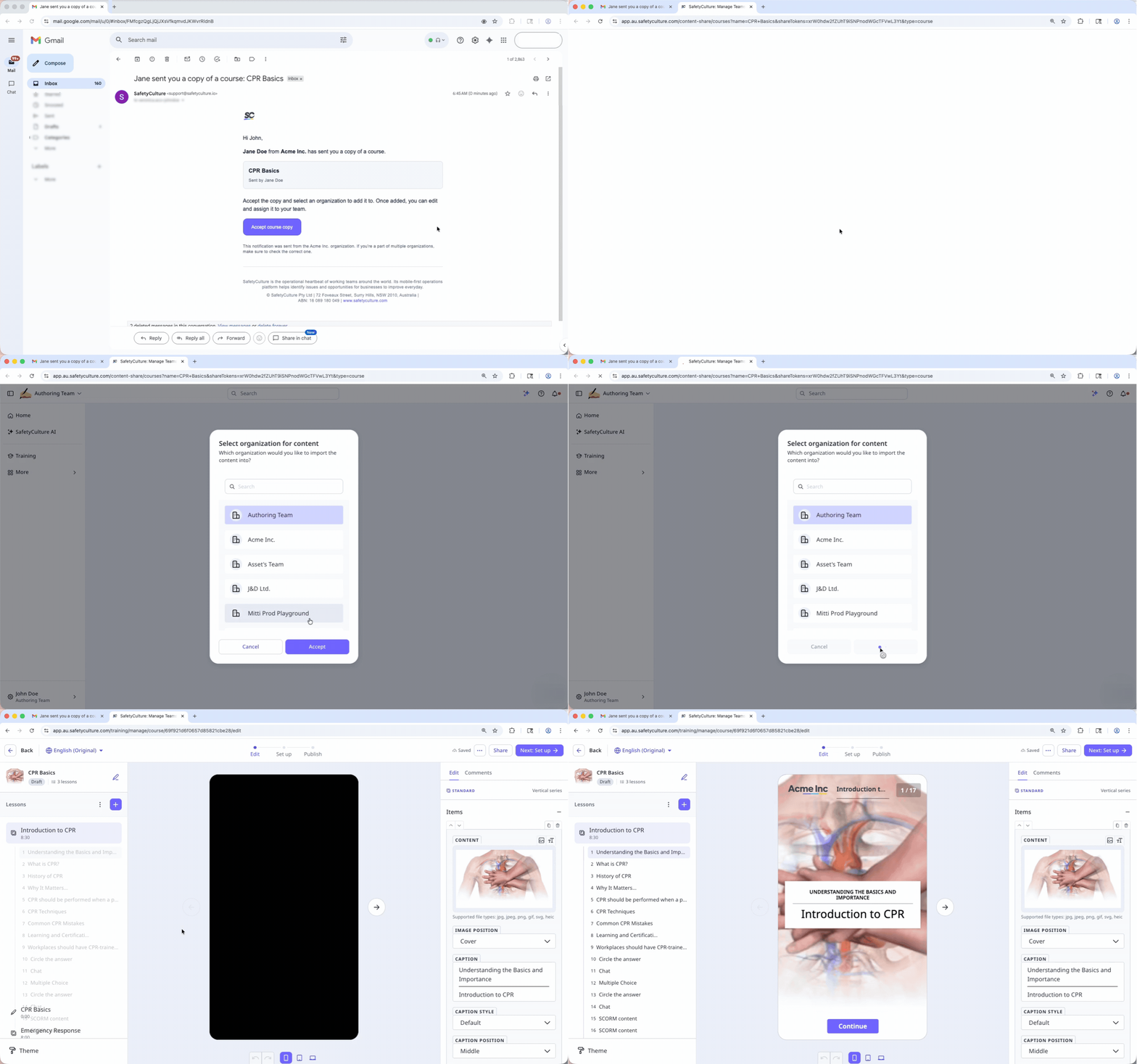
When you send a course copy, you send a duplicate of a course to a user in a different SafetyCulture organization. The recipient receives an email invitation and can accept it to add the course to their organization. The course copy is fully independent of the original. Any changes you make to your course after sending won't carry over, and any changes the recipient makes to their copy won't affect yours.
This makes it easy to distribute consistent training across multiple organizations without recreating courses in each organization.
What's the difference between sending, duplicating, and sharing courses?
Send course copies | Duplicate courses | Share courses | Share course links | |
|---|---|---|---|---|
Who it's for | Users in different SafetyCulture organizations. | Users in your organization who need their own copy of the course. | Users in your organization who need to edit or review the course. | Users in your organization who need to complete the course. |
What they can do | Use the course in their own organizations. | Edit the course independently within your organization. | Collaborate with the course author to edit or preview the course content. |
What you'll need
Organizations on Free Plan cannot send course copies, but they can receive and import them.
Send a course copy to a user in other organization
Select Training in the sidebar or select it in More.
If you're on the "Learn" page, click Content at the top of the page and select Courses.
You can choose how you want to view your courses by selecting between or on the upper-right of the page.
If you're on , hover your cursor over the course and select .
If you're on , click on the right-hand side of the course.
Select Send copy.
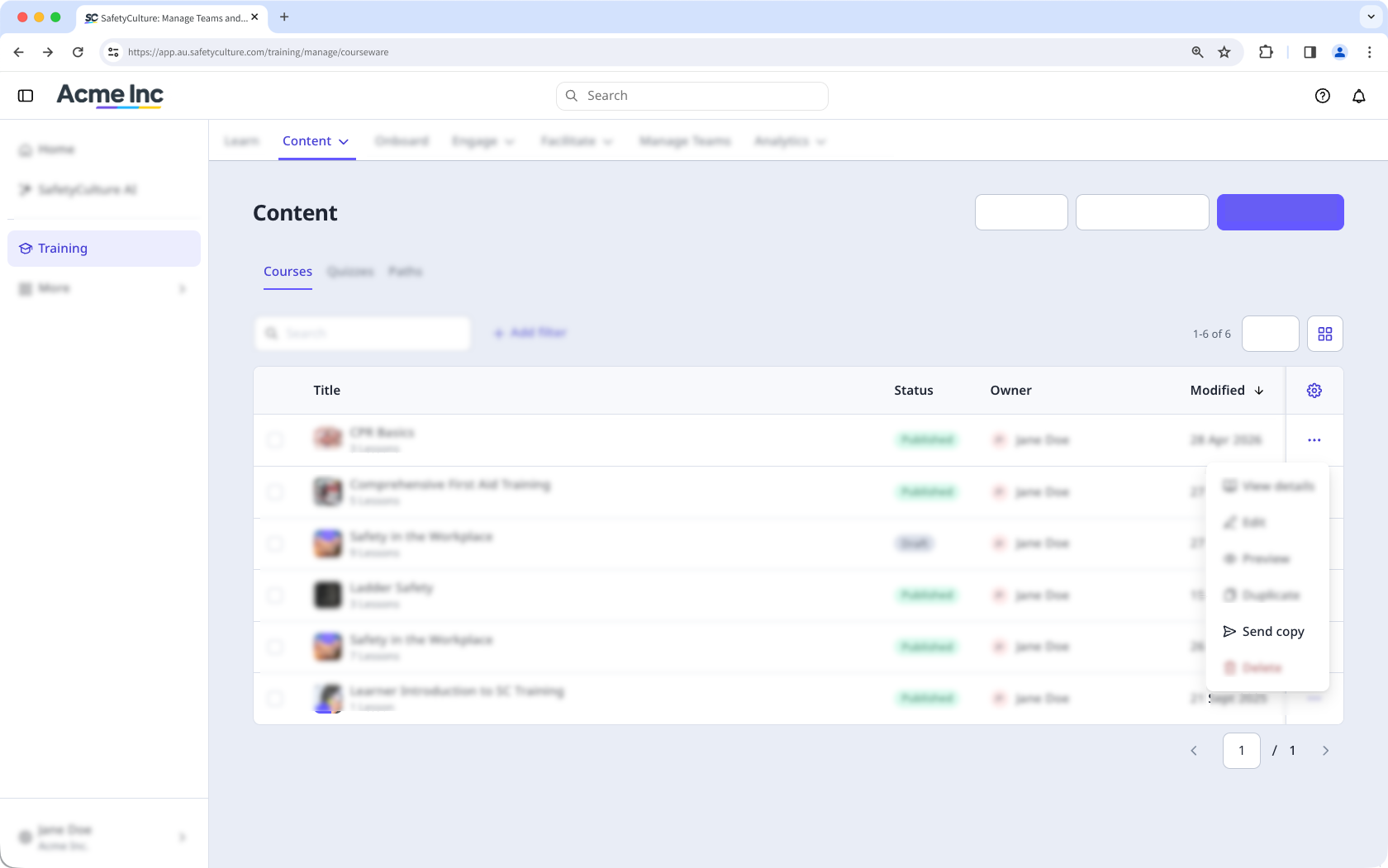
In the pop-up window, enter the recipient's email address and click Send copy.
You can only send a copy for 20 courses at a time.
Send multiple course copies to a user in other organization
Select Training in the sidebar or select it in More.
If you're on the "Learn" page, click Content at the top of the page and select Courses.
If you're on the view, switch to view on the upper-right of the page.
Check the course's boxes and select Send copies at the bottom of the page.
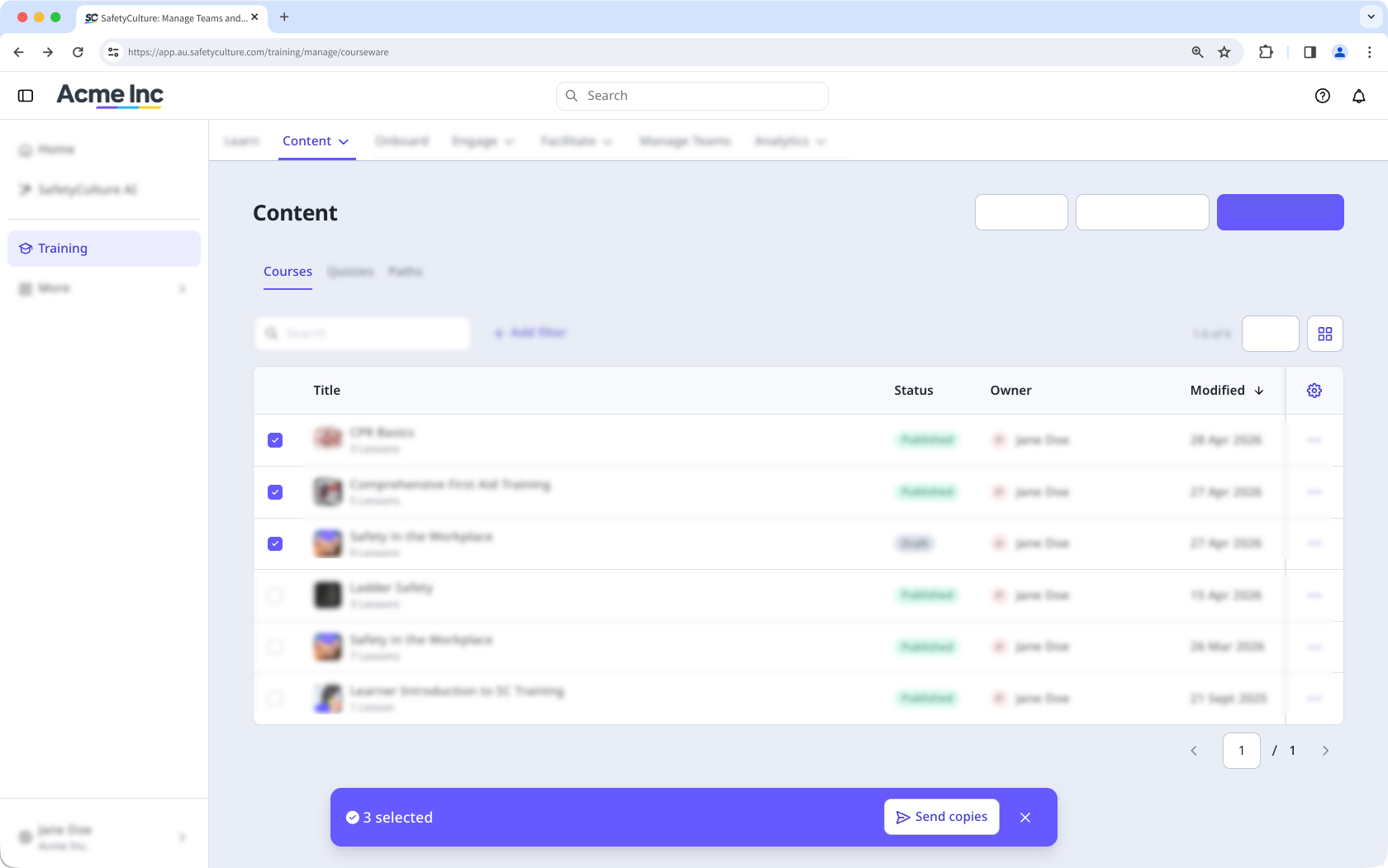
In the pop-up window, enter the recipient's email address and click Send copies.
Once a course copy has been sent, the recipient will receive an email invitation. The recipient must accept the invitation within three days to access the course copy.