
What you'll need
You can only work on jobs from one device at a time. If you use multiple devices, location updates during a job will only be sent from the device you used to start the job.
If your job is high-risk and you can’t easily take out your mobile device to ask for help when needed, you can pair with a supported Bluetooth device to start panic alerts with a press of a button or turn on fall detection to trigger alerts automatically.
When shifts are turned on for your organization, lone workers will be required to start a shift before starting a job.
Start and complete a lone-work job
Open the mobile app.
Tap More at the bottom of your screen.
Select Lone Worker from the list of options.
Tap at the lower-right of your screen.
You can also tap Home at the bottom of your screen, then tap and select Start lone work.
T ap Start shift if shifts are turned on in your organization.
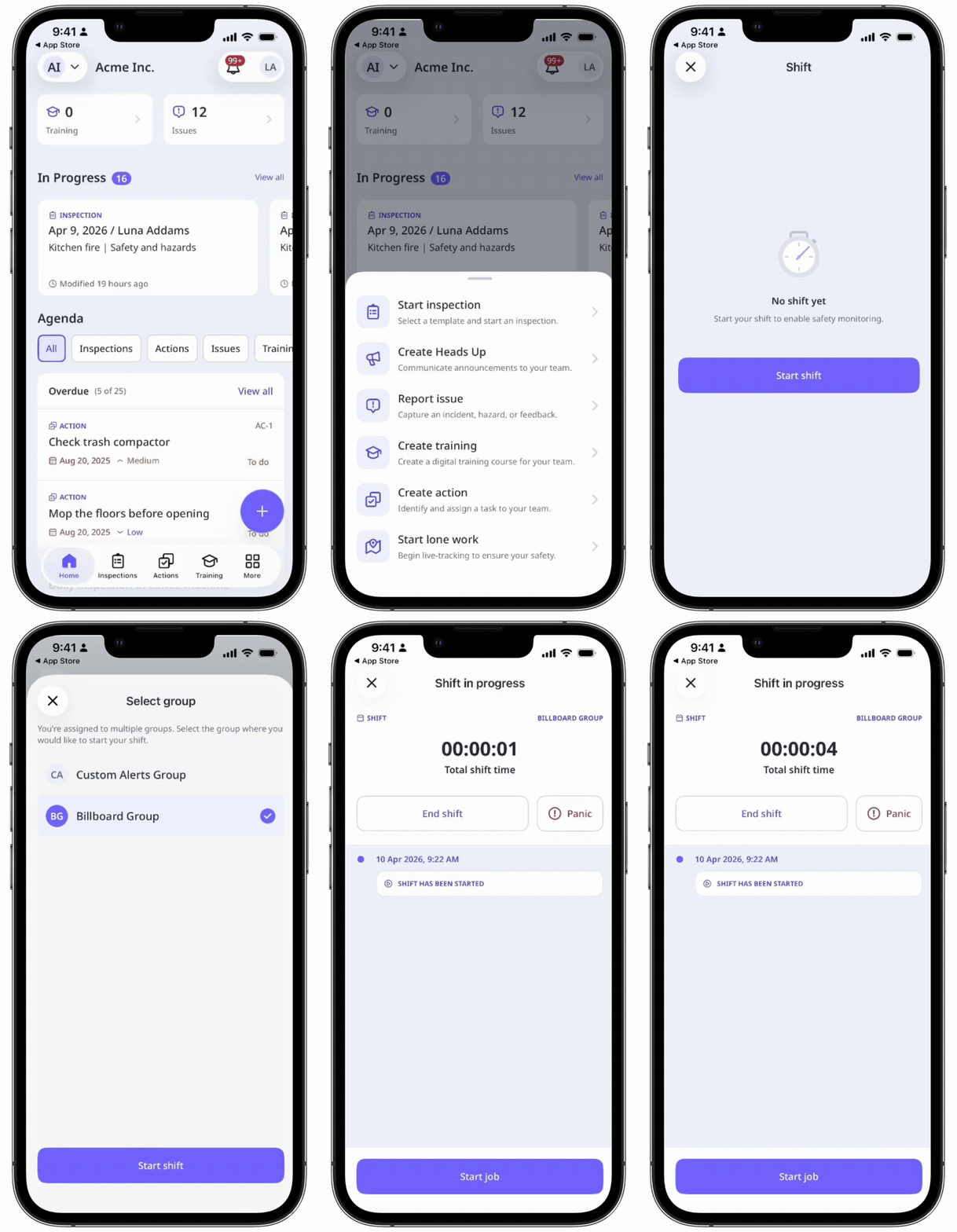
Tap Start job.
Enter the following job details:
Job type: Select the job type.
Group: Select the group you're starting the job for. This field only applies to job types assigned to multiple groups' escalations, and if you're part of more than one of those groups.
Duration: Select how long the job will take.
Location: Pin the job location using the map.
Location notes: Provide additional details about your location.
Tap Start work.
While a job is in progress, you can view your current location and check the duration of your job. The active job also appears on your device's lock screen, allowing you to monitor your progress without unlocking your phone.
If applicable, tap Check in to reset the countdown for your next check-in.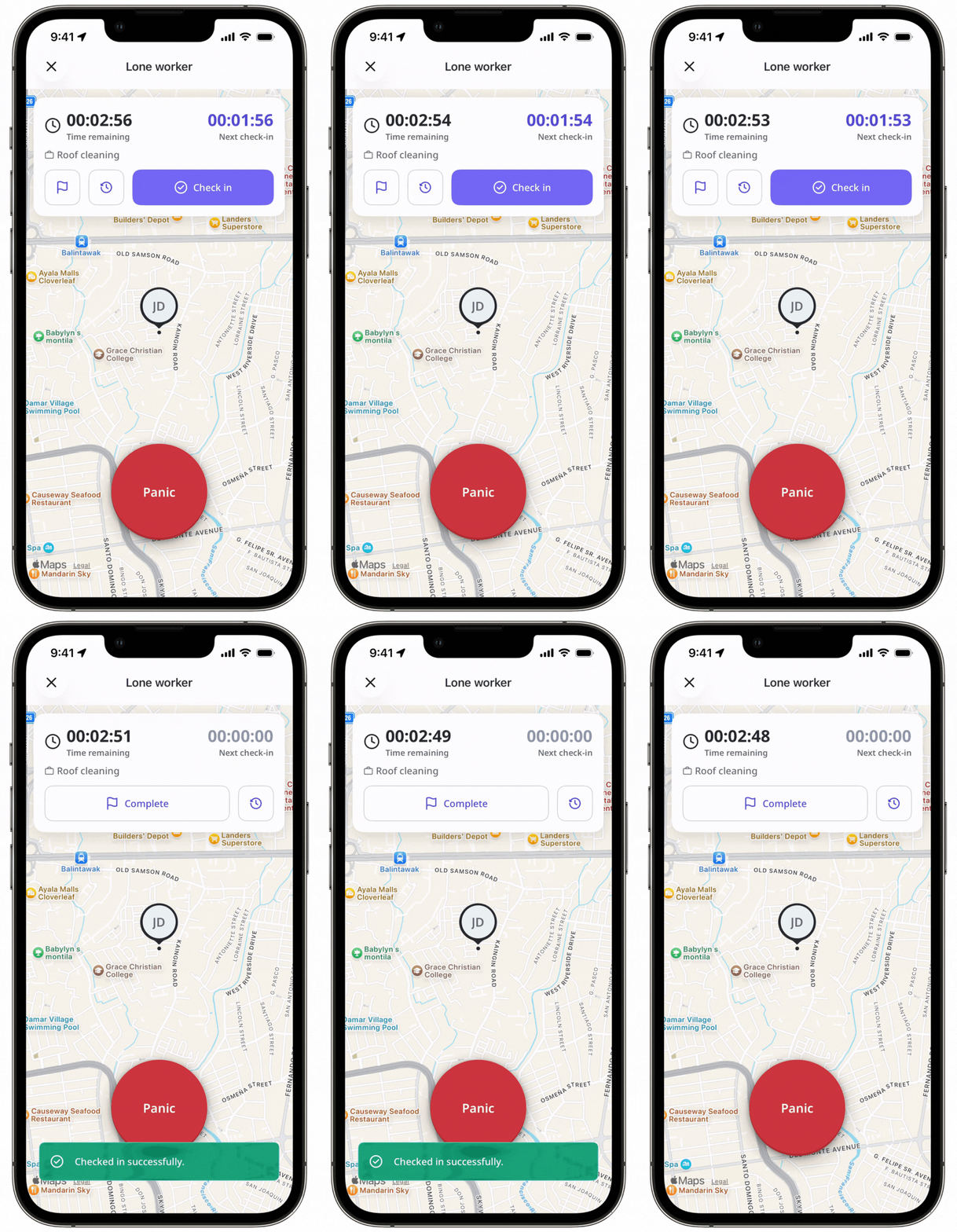
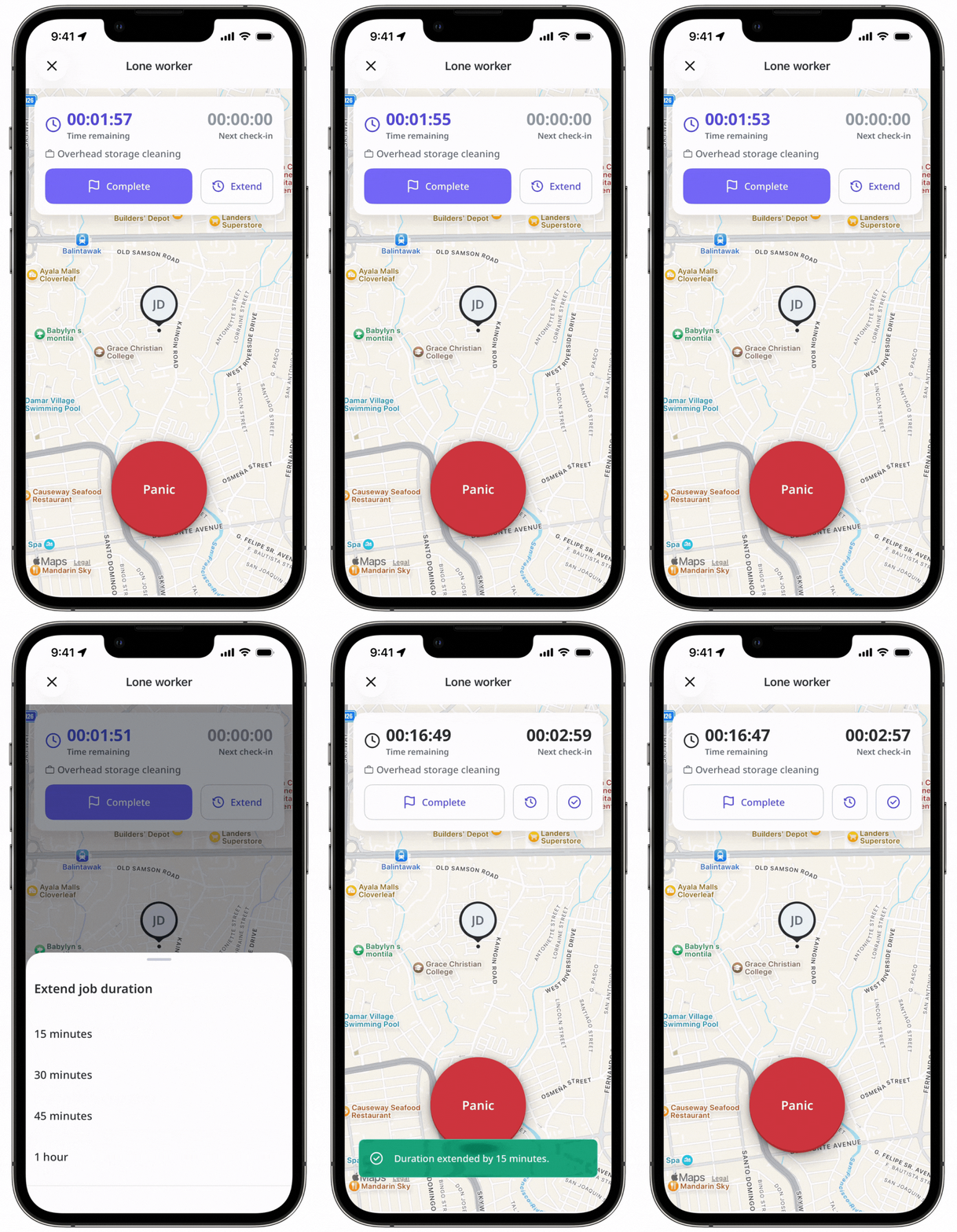
If the job is taking longer than expected, tap Extend to extend the job duration.
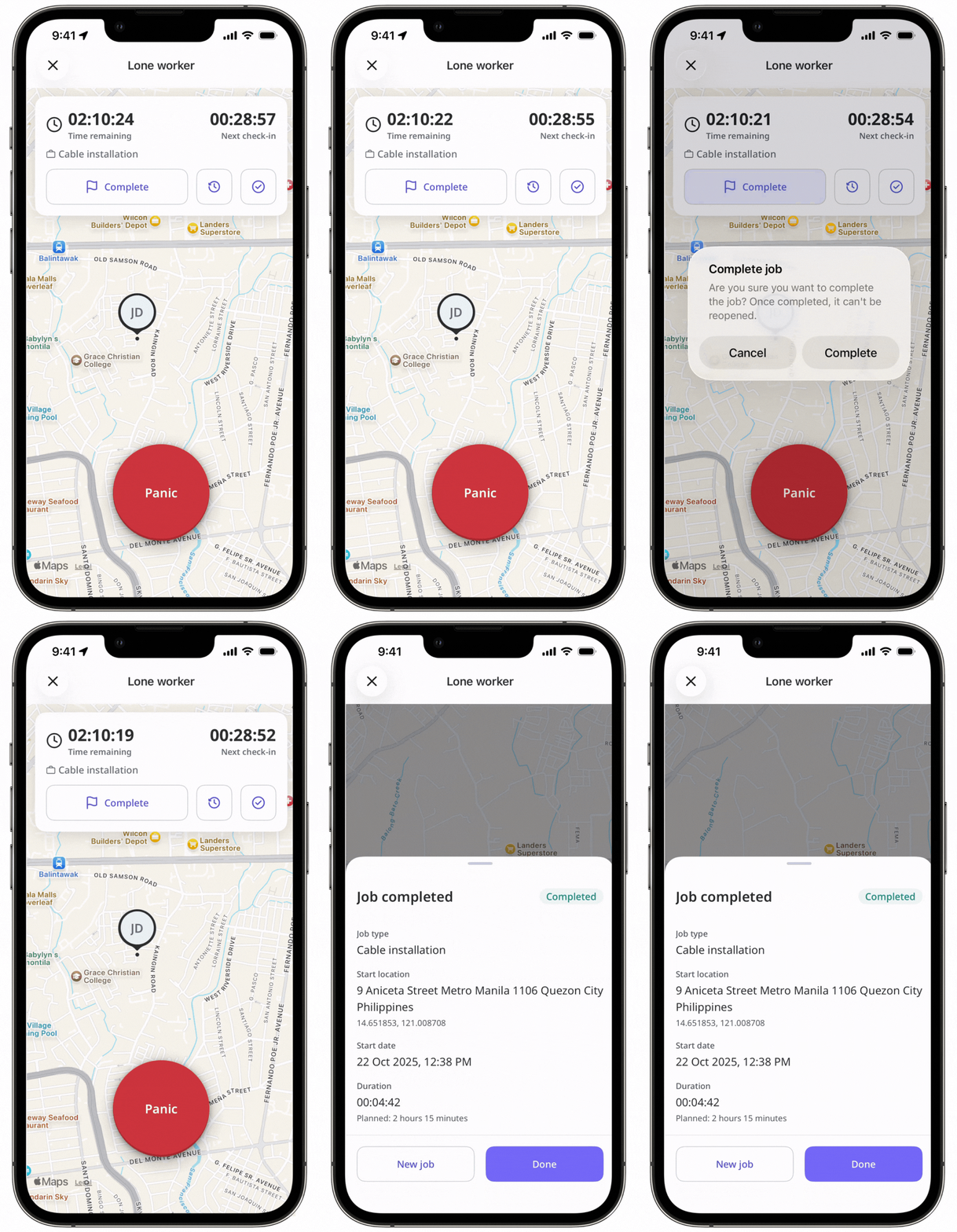
When the job is done, tap Complete and tap Complete in the pop-up window.
If something goes wrong at your job, tap and hold Panic for 3 seconds to manually trigger a panic.
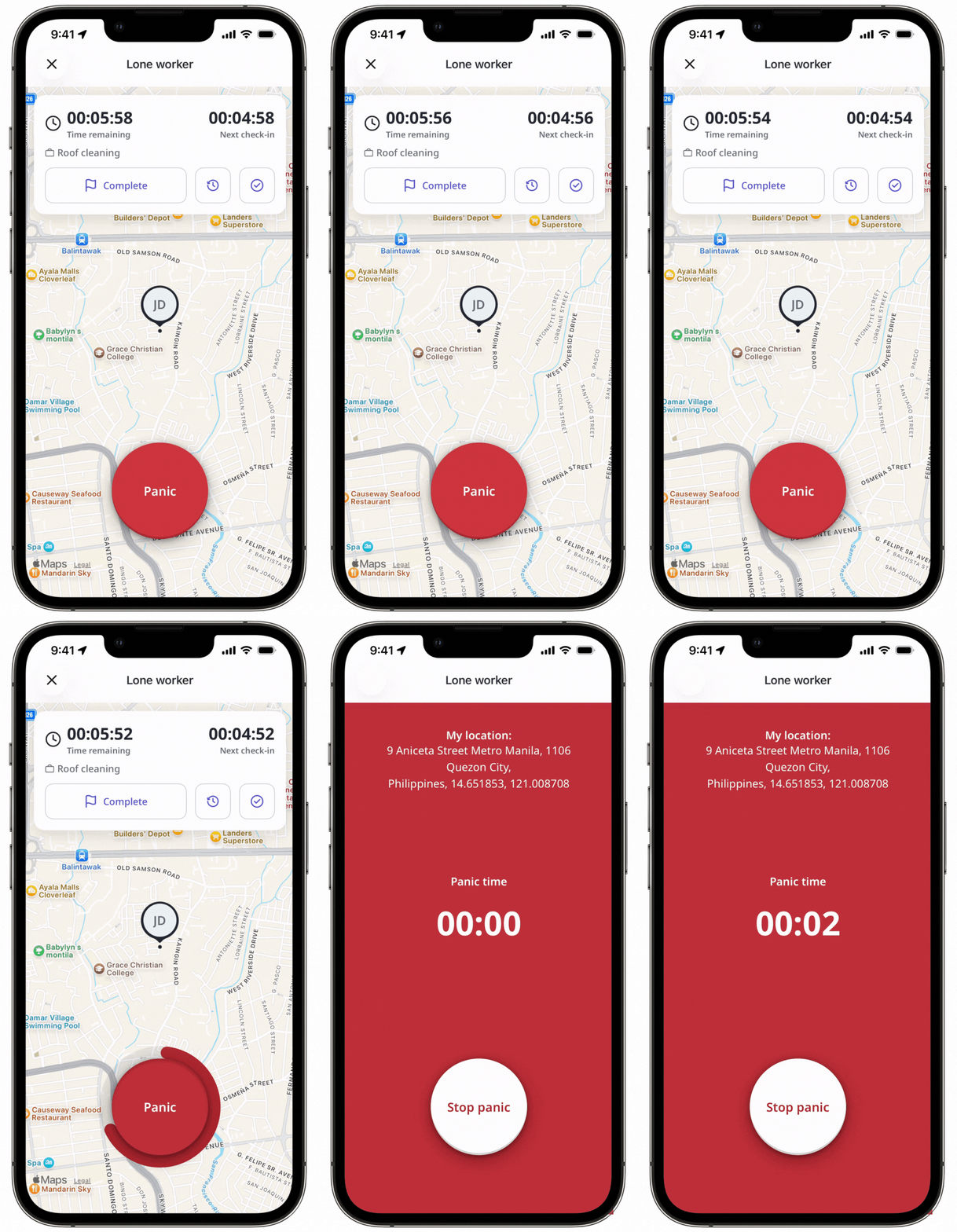
In case a panic was triggered by mistake, tap Stop panic. In the pop-up window, select a reason to cancel the panic:
 False alarm: The panic was triggered by mistake.
Near miss: A potential event was avoided just in time.
Incident: An actual event that required attention occurred.
In the pop-up window, tap Done.
If you fail to check in, extend, or complete the job by the end of the set duration, a looping Critical Alert will fire on your device before a panic triggers automatically.
When a job is active, the job timer displays the buttons that the user needs to tap, depending on the remaining time.
To ensure jobs and panics are not left active by accident, we automatically complete a job if 12 hours have passed since it started or was last extended, or resolve a panic as a “False alarm” after they've been active for 24 hours.


