
This article covers the new course translation experience. If you're using the legacy experience, you'll need to manually add your translation again to apply any edits to your course translation.
What you'll need
We recommend completing all edits in the original language before translating a course. This ensures that changes are consistent across all translations, and you won’t have to redo changes in each translation.
When you're editing a course's translation, you can only edit its content in terms of text and media files.
Edit a course translation
Select Training in the sidebar or select it in More.
If you're on the "Learn" page, click Content at the top of the page and select Courses.
Create a new course or hover your cursor on an existing one and click View or Edit.
If you're editing an existing course and it's published, click Edit on the upper-right of the page.
Click the language selector on the upper-left of the page and select the translation you want to edit.
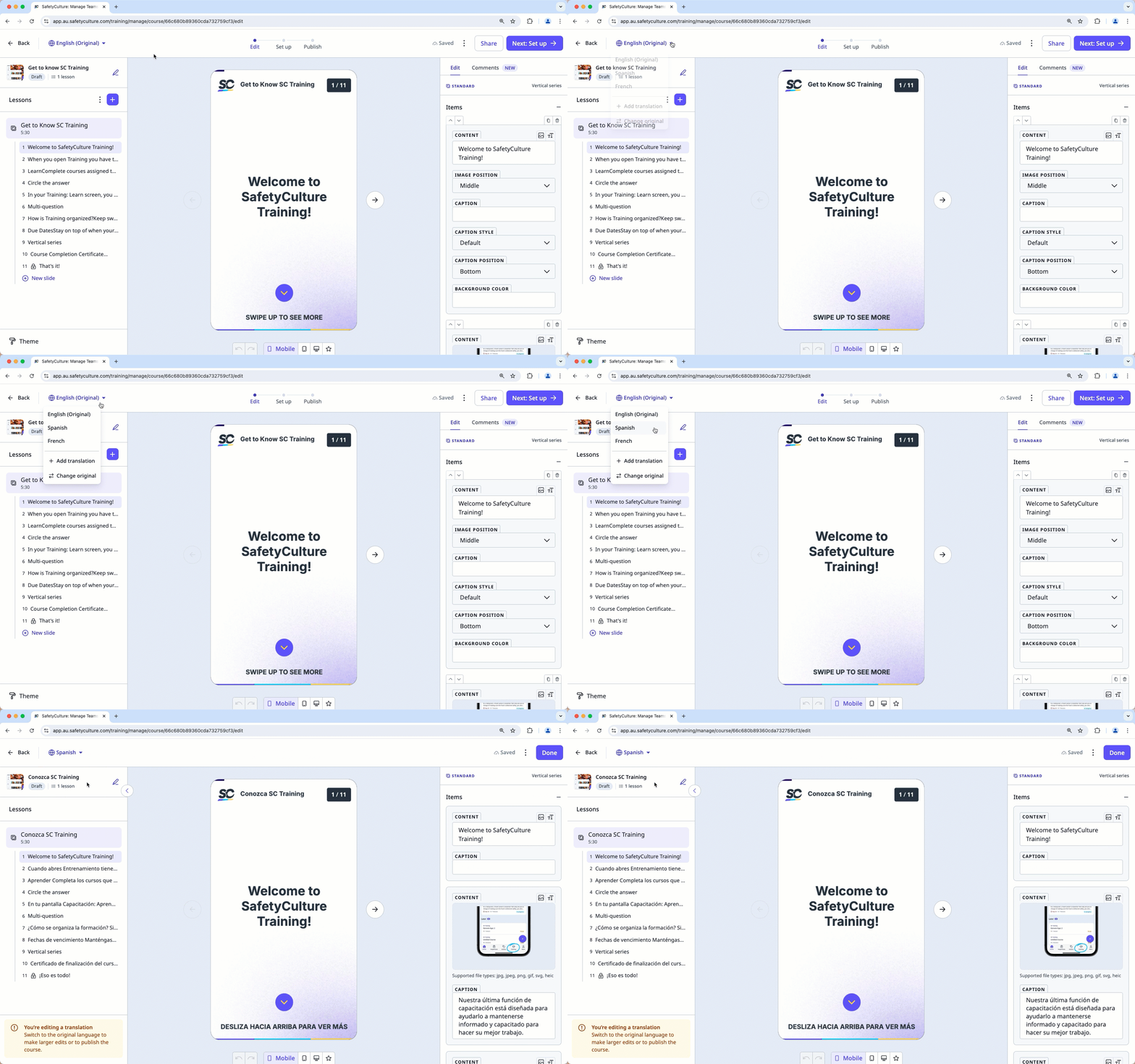
Edit the text and media content of the translation accordingly.
M ake sure to switch to the original language before you can publish a course.
Limitations
To make any of the following changes to a course, you'll need to edit the course in its original language:
Structural changes to the course, such as deleting, reordering, or adding new slides, are automatically synced across all translations. However, text and media edits need to be manually updated for each translation.
Practical lesson types need to be edited individually for each translation. Contents created in the original language aren't automatically included in translations.


