
What is considered completion for courses and lessons?
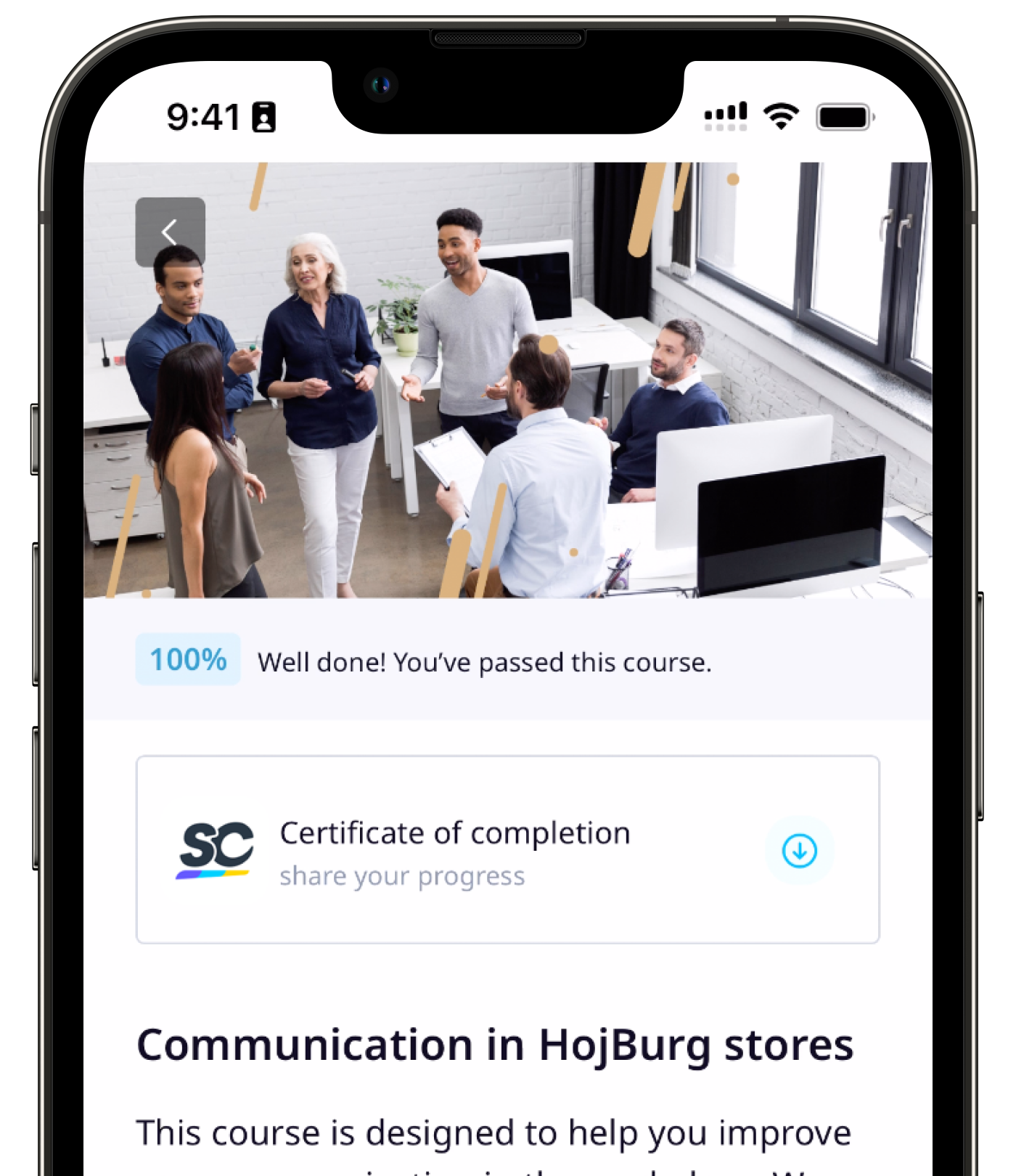
Completion is an important part of the Training feature as it allows you to track your team’s learning progress. To give you confidence that your team is completing their assigned training and help them improve, each course and lesson can be configured to expect certain requirements before it can be considered complete. To reward completion, each user can also receive achievements and completion certificates for their effort.
What you'll need
Manage a course's completion settings
Select Training in the sidebar or select it in More.
If you're on the "Learn" page, click Content at the top of the page and select Courses.
Hover your cursor over the course and click View or Edit.
If you're editing an existing course and it's published, click Edit on the upper-right of the page.
Select Set up at the top of the page and then select Completion on the left-hand side.
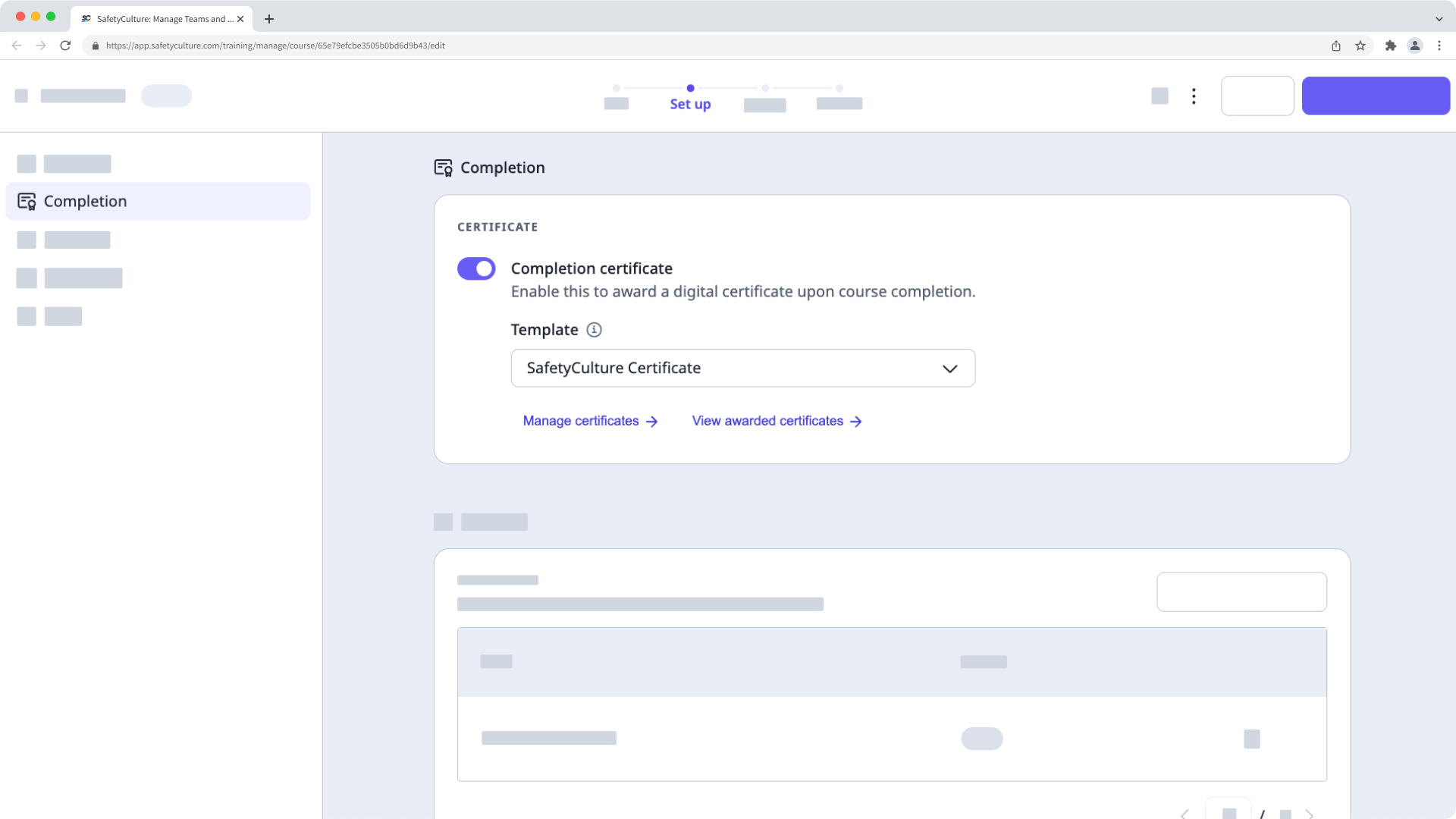
In this section, you have the option to select whether to provide completion certificates or not. If "Completion certificate" is turned on, you can choose which certificate template you want to apply.
Custom completion certificates are only available to organizations on Premium Plan or Enterprise Plan.
Manage a lesson's completion settings
Select Training in the sidebar or select it in More.
If you're on the "Learn" page, click Content at the top of the page and select Courses.
Create a new course or click View or Edit on an existing one.
If you're editing an existing course and it's published, click Edit on the upper-right of the page.
Create a new lesson or click on the standard lesson and select Settings.
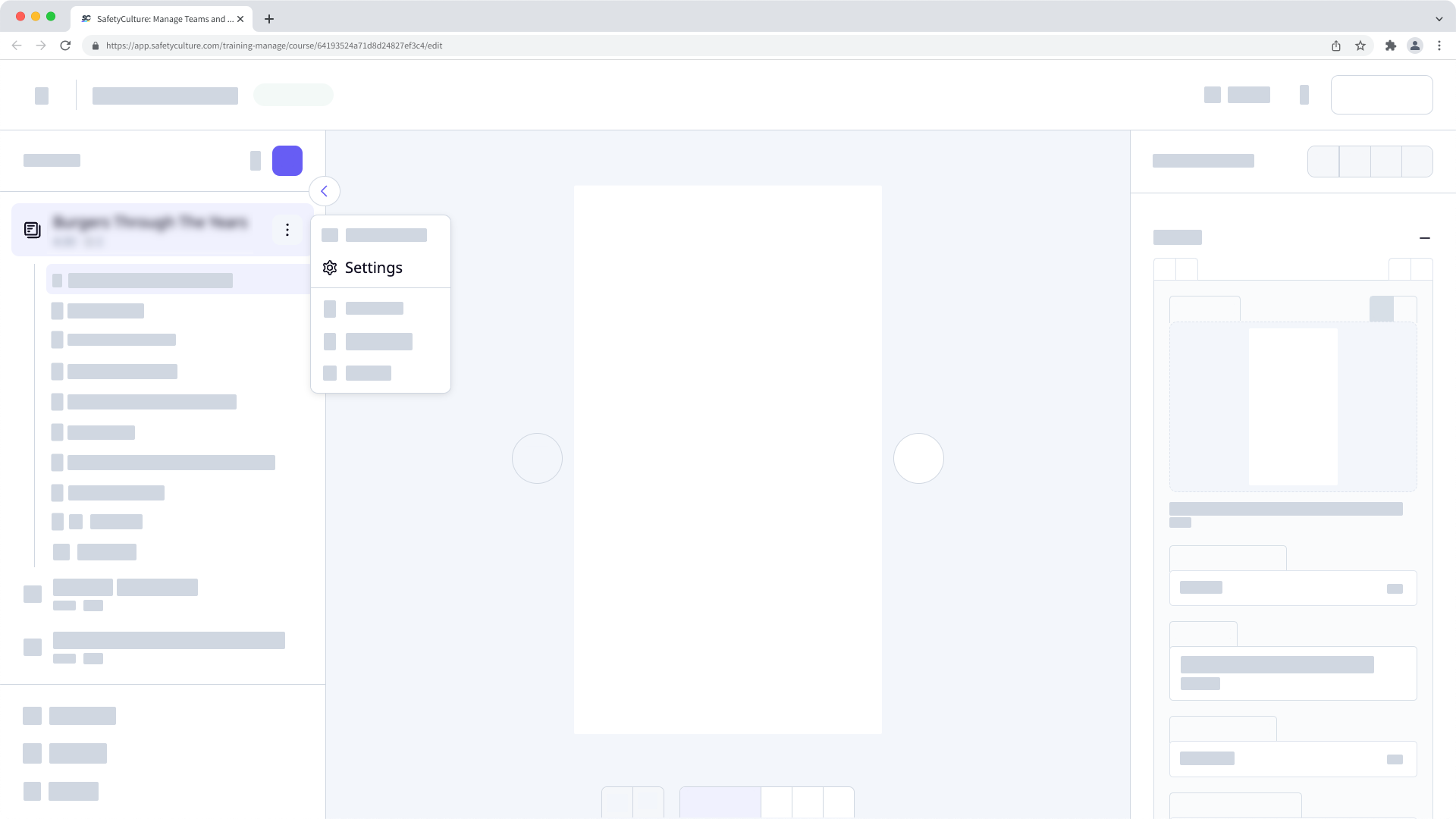
In the pop-up window, select Completion.
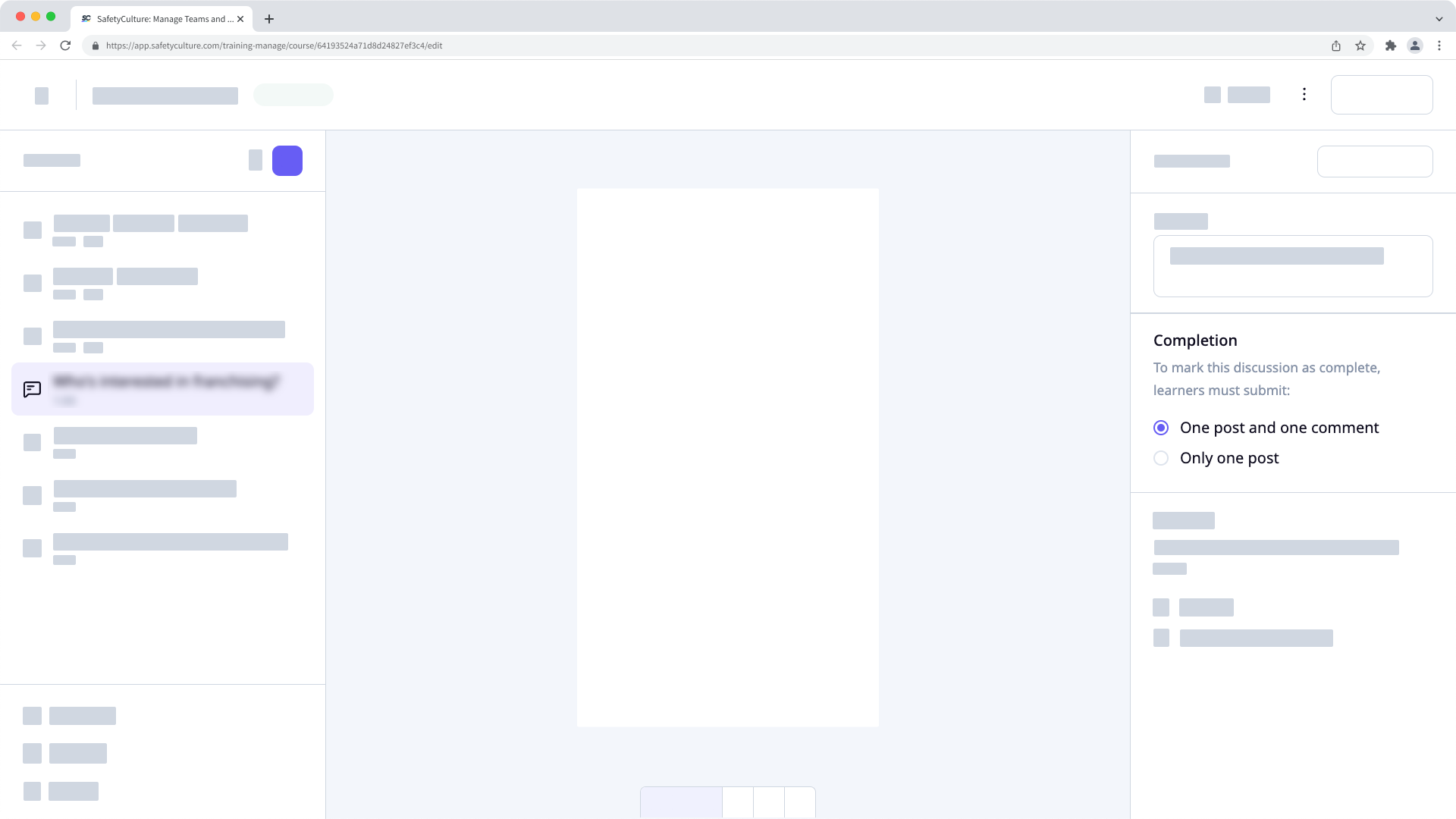
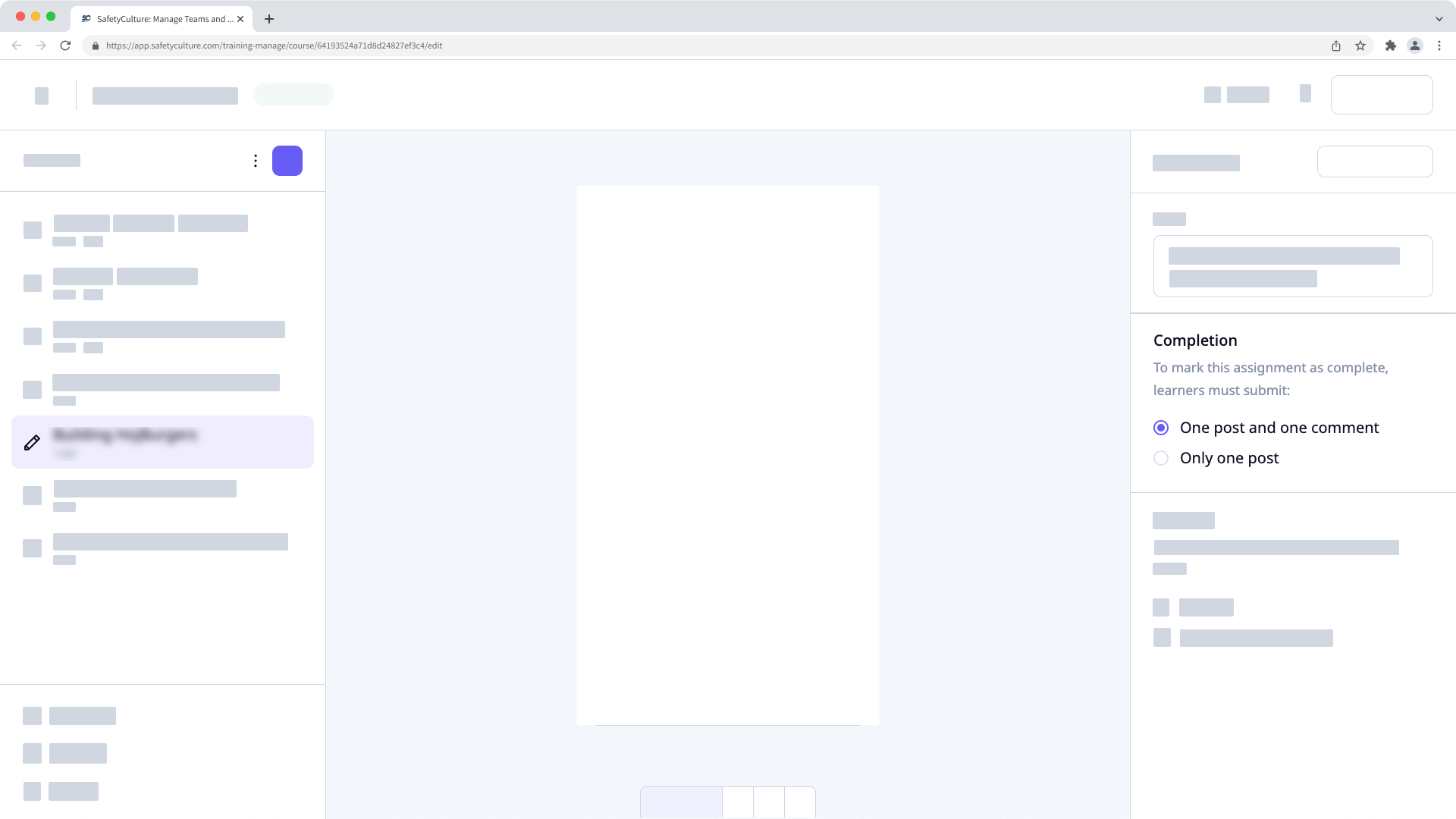
In this tab, configure the following settings:
Require a minimum score: Select whether to require a minimum score to be achieved before a lesson can be completed or not.
Lock after completion: Select whether to lock the lesson once it's completed or not, meaning users won't be able to restart the lesson.
If your course is currently a draft, remember to publish it to make your changes available to your team.


