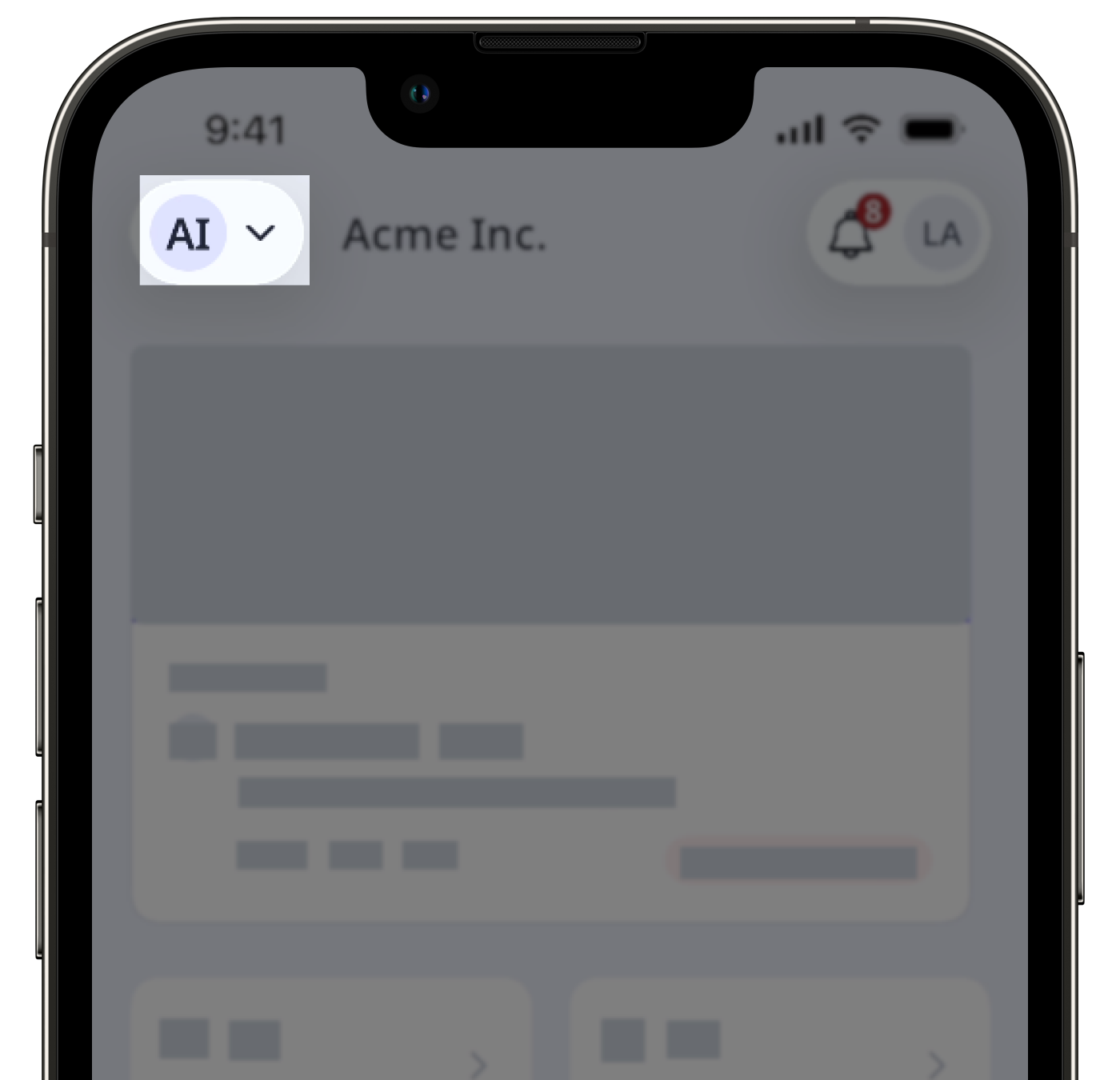
Multiple organizations in SafetyCulture allows a single user to belong to more than one organization using the same email address and password. After logging in via web or mobile, a user can switch between organizations to access each organization's dedicated workspace, data, and permissions.
Meanwhile, in EdApp, a user can only belong to one organization at a time. This means workarounds are required if the same user needs to exist across multiple organizations, such as using email aliases or deactivating and reactivating a user before re-adding them. The table below outlines the key differences:
Features | EdApp | SafetyCulture |
|---|---|---|
Switching between organizations | Unavailable | Users can switch between organizations via the web app and mobile app |
Workspace loaded | Users can only view data in the single organization they belong to | Data and permissions are org-specific and don't carry over across organizations |
Profile settings | Settings are not saved per organization because each user belongs to only one organization | Settings such as time zone, language, notifications, user fields, and more are saved separately per organization |
Email address | An email address can only belong to one organization — teams may need email aliases like "name+1@company.com", or request deactivation before re-adding a user in another org | An email address can be added to multiple organizations |
Organization switcher | Unavailable | The organization switch only appears if a user belongs to multiple organizations |
2ErPYo9r9hUJFPNHGeqK9Y' not found in links.assets.block array. Available: none]If a user already exists in another SafetyCulture organization with the same email address, you can't update their email to match it. Contact our customer support team for assistance.
Avant la migration, vérifiez si vos utilisateurs possèdent déjà des comptes SafetyCulture associés à une adresse e-mail différente. Cela permet d'éviter les conflits d'e-mail après la migration.
Ce dont vous aurez besoin
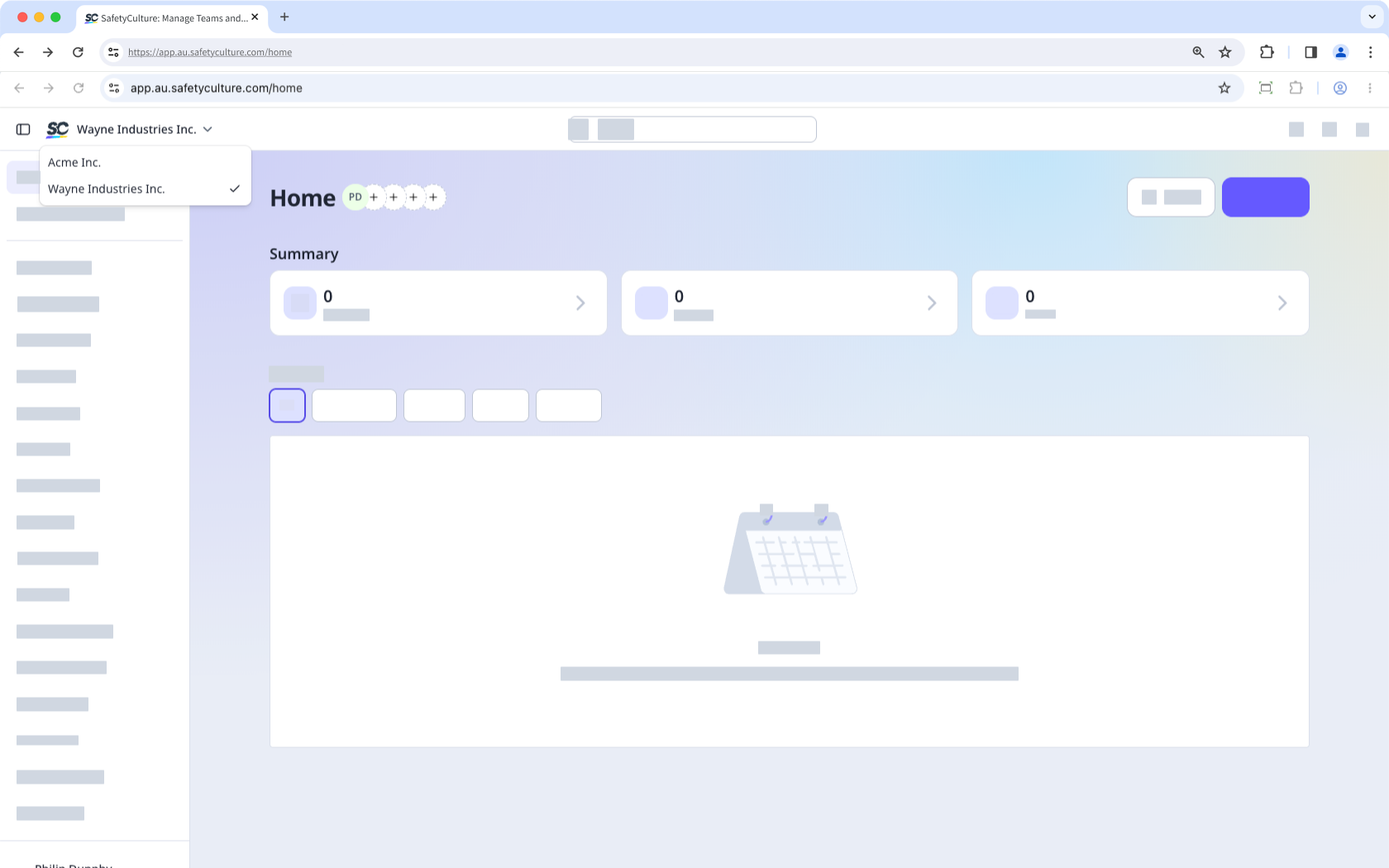
Passer d'une organisation à une autre
En haut à gauche de la page, cliquez sur et sélectionnez l'organisation vers laquelle vous souhaitez basculer.
Si vous ne vous êtes pas connecté à l'aide d'un mot de passe ou d'une authentification unique (SSO) depuis un certain temps, il se peut que vous soyez invité à vous connecter à nouveau lorsque vous passez à une autre organisation.