
Import course completions
Learn how importing course completions works and how to import them via the web app so you can maintain a complete and accurate record of your team's training history.What does it mean to import course completions?
Importing course completions transfers your team's existing training history into SafetyCulture, so you don't have to manage records across multiple systems. Once imported, the selected users are marked as having completed the course on the specified date, and completions are reflected in the performance dashboard. You can import completions, whether the training happened in another system, in person, or if you need to mark training as complete for courses already in SafetyCulture.
You can only add 5,000 rows per CSV file.
Import course completions
Select
 Training in the sidebar or select it in
  More.
More.If you're on the "Learn" page, click Content at the top of the page and select Courses.
Click
 Settings on the upper-right of the page.
Click Advanced on the upper-left of the page.
Click
 Import completions on the upper-right of the page.
Click Download template to download the CSV template you'll use to enter your completion data.
Click Download course IDs to download the list of course IDs you'll need to match each completion to the correct course.
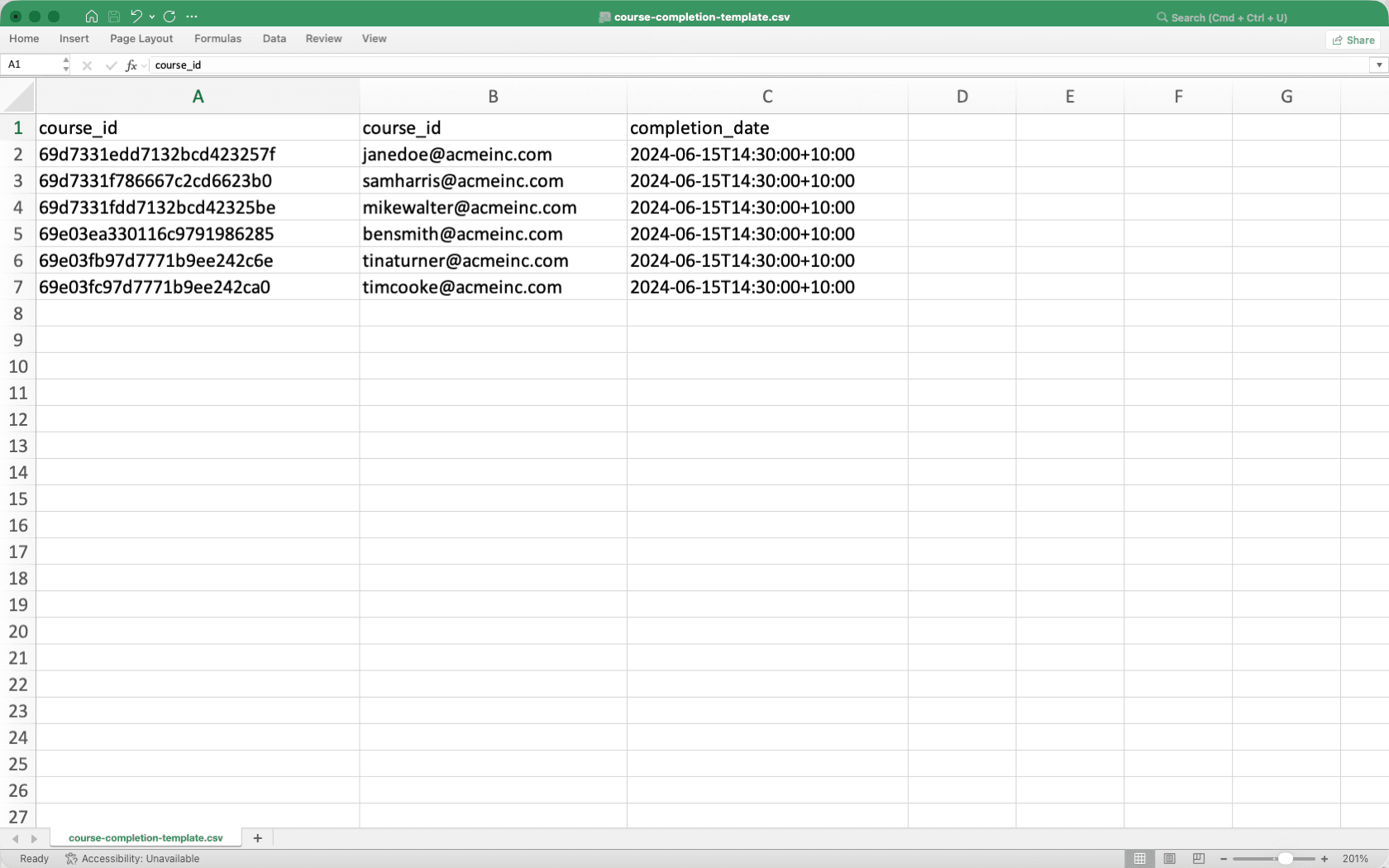
In the CSV file, fill in the completion data for each row. Use the course IDs file you downloaded to match each completion to the correct course.
Your CSV file must meet these requirements:
Link each completion to an existing course in SafetyCulture by copying the course ID from the course IDs file and pasting it into the corresponding column.
Use ISO 8601 format for completion dates, for example
2024-06-15T14:30:00+10:00for a specific time and time zone, or2024-06-15for a date only.Keep your data in a single tab. If your file has multiple tabs, split them into separate CSV files or consolidate your data into one tab.
Once you're ready, your CSV should look like the following example:
Return to the "Bulk update course completions" page on the web app.
Drag your files or click browse to select your CSV file.
In the "Review upload" page, review the data from your CSV file and resolve any errors or change details in-line.
To display only rows with errors, turn Show errors only on.
To delete a row, click
 on the right of the row.
To download all rows with errors, click
 .
.
Click Revalidate or
 Next.
Next.In the "Import summary" page, review the total number of completions to be imported.
Click
 Submit on the upper-right of the page.
Imported course completion data can take up to 2 hours to sync to the performance dashboard. We're working to reduce this sync time in the future.
Limitations
Imported completions are marked at 100% in the performance dashboard. The course is marked as complete, but individual lesson responses and scores are not recorded.
If a course contains practical assessments, the completion will be recorded, but a PDF of the assessment will not be generated.
If a user has existing progress on the course, their completion won't be imported, and their current progress will remain unchanged.
Completion dates must be a past or current date. Future dates are not supported.
CSV column headers
Column header | Description |
|---|---|
course_id | The unique identifier of the course in SafetyCulture. You can find this in the course URL or download it using Download course IDs. |
user_email | The email address of the user whose course completion you're importing. The user must exist in your organization. |
completion_date | The date and time the course was completed. Use ISO 8601 format, for example |
CSV troubleshooting guide
If there's an error in the CSV you've uploaded, we'll highlight it when you're reviewing your upload. You can refer to the following potential errors for resolutions.
Errors | Resolution |
|---|---|
Missing user email | Enter the email address of the user. The user must exist in your organization. |
Missing course ID | Enter the course ID. You can find this in the course URL or download it using Download course IDs. |
Missing completion date | Enter the completion date. Use ISO 8601 format, for example, |
Invalid course ID | Check that the course ID matches an existing course in SafetyCulture. You can download the list of valid course IDs using Download course IDs. |
Invalid date format | The completion date must follow ISO 8601 format, for example |
Completion date is in the future | The completion date can't be a future date. Enter a date that has already passed. |
Course not found | Check that the course ID is correct and the course exists in SafetyCulture. |
Course not published | The course must be published before you can import completions. Publish the course and try again. |
Course title doesn't match | The course title in your CSV doesn't match the actual course title in SafetyCulture. Update it to match exactly. |
User not found | Check that the email address is correct and that the user is active in your organization. |
User not found in Training | The user exists in your organization but hasn't been added to Training. Add the user to Training and try again. |
Processing error | An unexpected error occurred. Try importing again or contact support if the issue persists. |
Frequently asked questions
No. You can only import one completion per course for each user.
If you add a lesson to a course after importing completions, the completion for affected users will drop below 100%. For example, if a course had 4 lessons and you add a 5th, users with imported completions will show 80% complete instead of 100% complete.
To avoid this, make sure all lessons are added to the course before importing completions.
Yes. Completions can be imported for deactivated users and those without Training permissions. However, these completions won't appear in the performance dashboard.
Imported completion dates can appear earlier than the course's published date. These dates reflect historical records from another system or Learning Management System, and are expected for imported completions.
Yes. Completions can be imported for users who haven't been assigned to the course. The course will be reflected as completed in the performance dashboard for those users.
Was this page helpful?
Thank you for letting us know.