
- Get started
- 2. Prepare your organization
- Manage your users (Part 3)
Manage your users (Part 3)
Learn how to add users to your SafetyCulture organization or remove them from groups and sites via the web app.Users
Once you've determined who in your organization would need access to SafetyCulture, it's time to add them to the platform. Depending on their roles and core responsibilities, you should grant specific permission sets that will offer them a customized experience while allowing you to regulate which features they can use.
Add a user
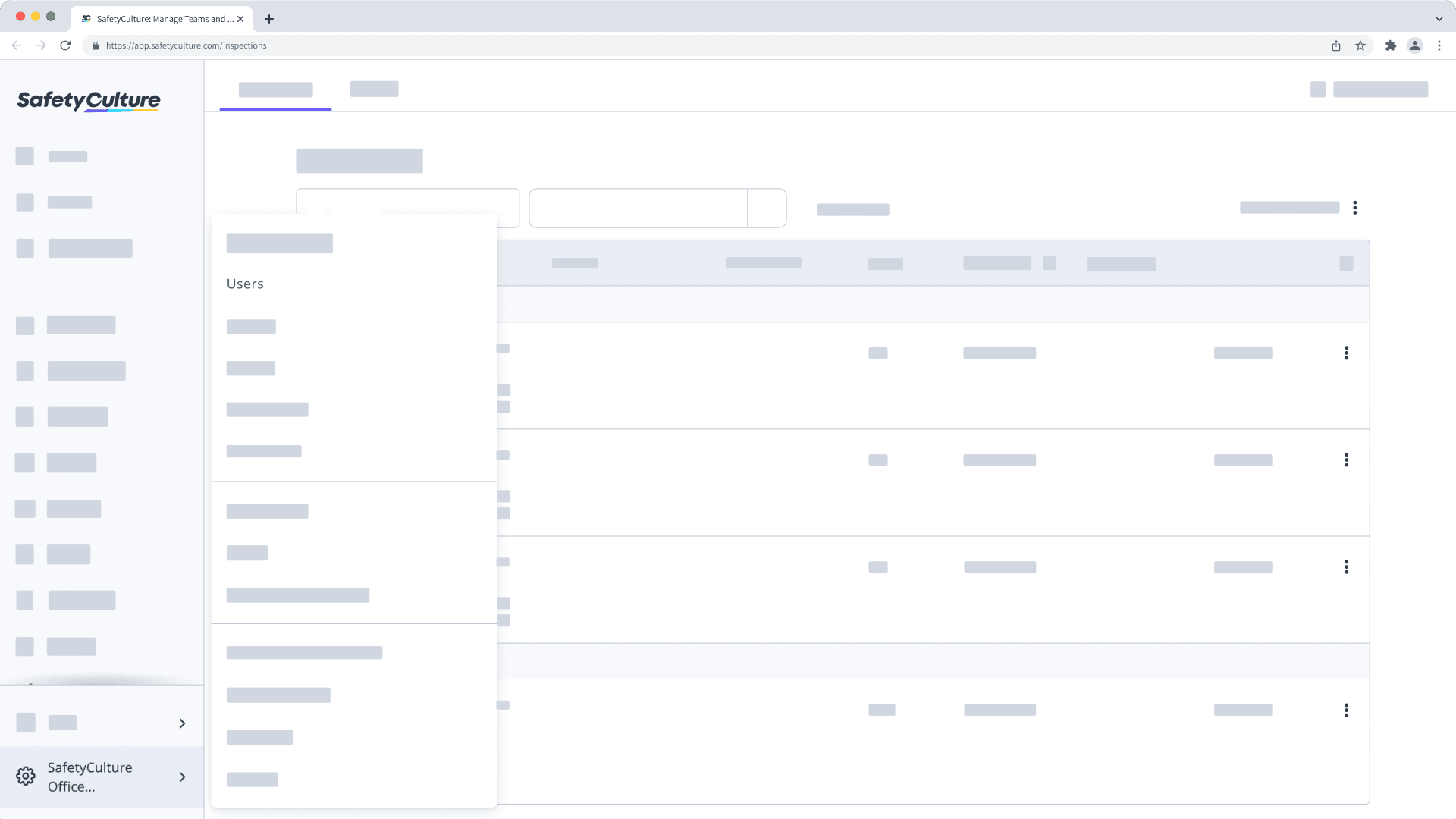
Click your organization name on the lower-left corner of the page and select Users.
Click
 Add users on the upper-right corner of the page.
Fill in the user's details accordingly. You can select the user's seat type if your organization is on the Premium Plan or Enterprise Plan.
Click Next.
Assign the user's permission set and membership details accordingly:
If you have "Platform management: Permissions" permission, you can assign the user's permission set.
If needed, you can assign the user to groups and sites, and add details with user fields.
Click Add users. The user will receive an email to activate their SafetyCulture account and set a password.
If you set a password for the user on the previous page, configure the settings in the pop-up window, then click Continue:
Send password instructions via email: The user will receive an email with password instructions. You can also edit the message.
Require password reset: The user will be required to reset the password provided for them when they first log in for security purposes.
Reviewing and maximizing your seats within the SafetyCulture platform is important as your organization grows and shifts. We recommend you read the following articles to learn more:
Group matrix
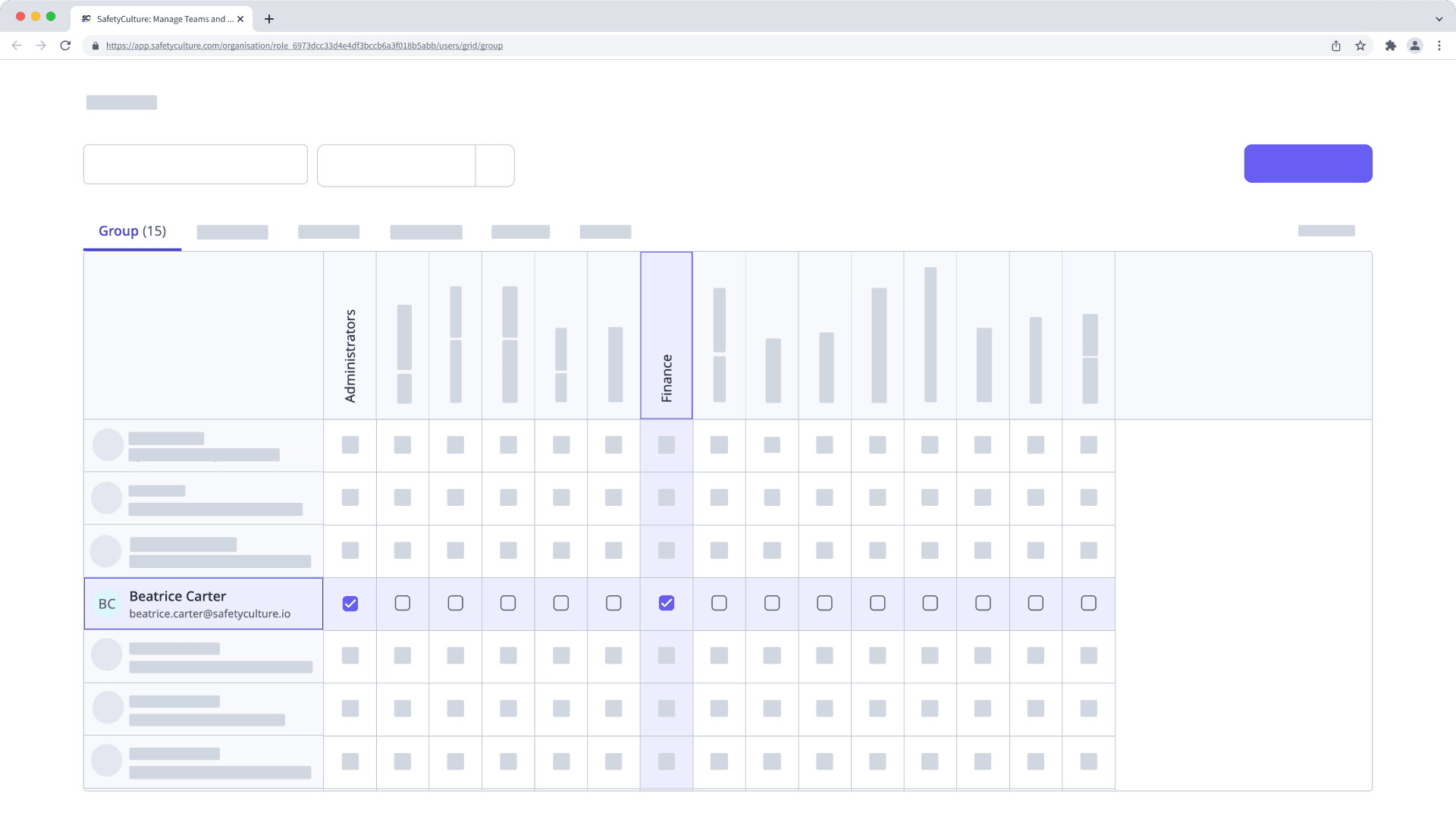
Groups are a great way to help you organize users and manage document access in bulk. Later down the line, you can use the Group matrix to effortlessly visualize the group memberships of each user and even assign them to groups collectively.
Bulk add or remove users from groups
Click your organization name on the lower-left corner of the page and select Groups.
Click Group matrix on the upper-right of the page.
On this page, group names are listed horizontally, and users are listed vertically in alphabetical order.
Check or uncheck the box on the left-hand side of the user's name. Changes are applied automatically.
Site matrix
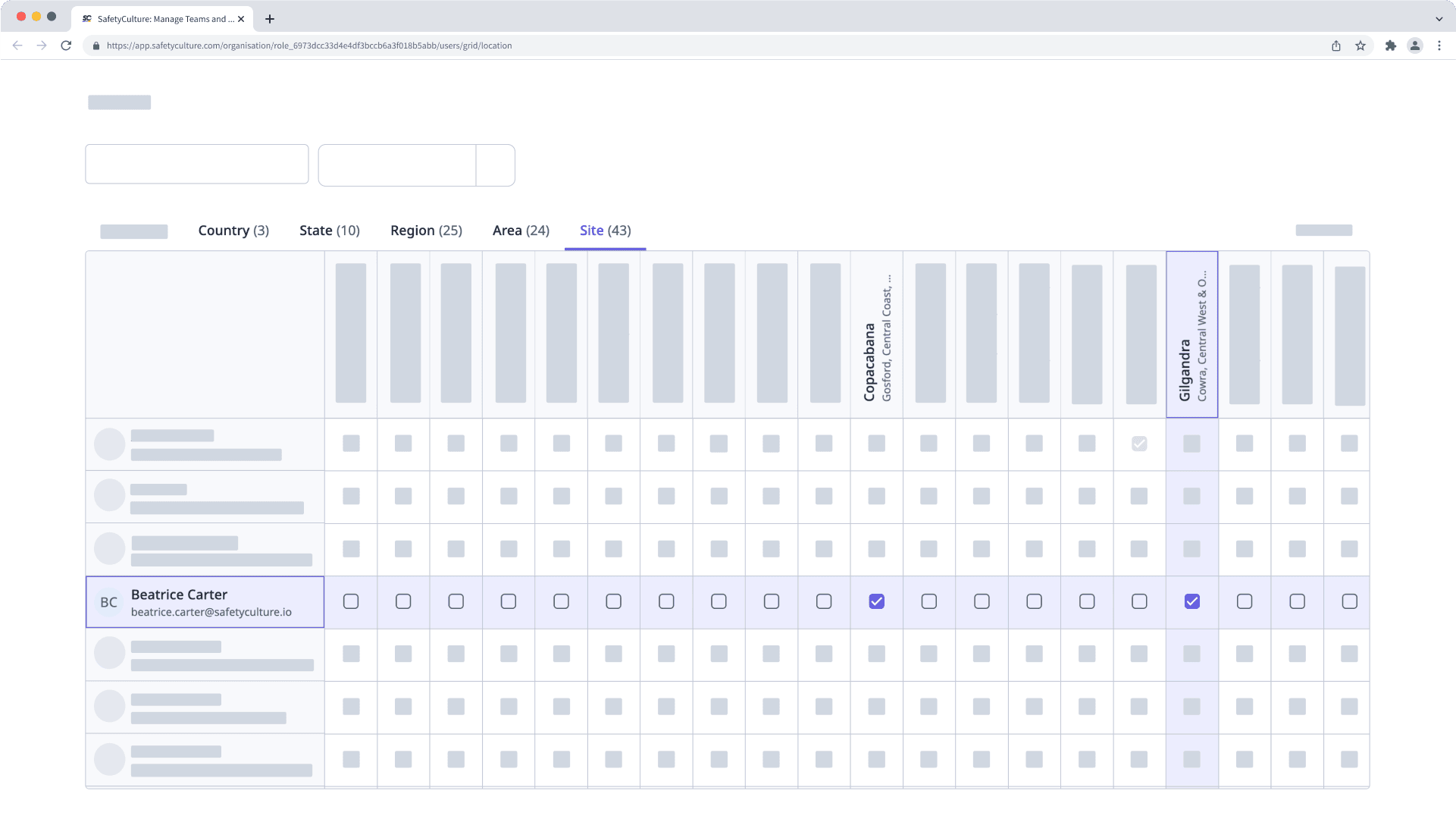
If you're looking to add several users to multiple sites or levels, adding them as site members using the Site matrix is the most efficient way. It provides a comprehensive overview of all the sites in your organization, including which users are currently assigned to them.
Bulk add members from sites via the Site matrix
Click your organization name on the lower-left corner of the page and select Sites.
Click Site matrix on the upper-right of the page.
On this page, site names are listed horizontally, and users are listed vertically in alphabetical order.
Check the boxes on the right-hand side of the user's name. Changes are applied automatically.
← Previous article: Manage your users (Part 2) | Next article: Digitize checklists (Part 1) →
Was this page helpful?
Thank you for letting us know.