
What are linked items?
Linked items are assets, heads ups, courses, templates, and inspections that have a file from Documents linked to them. When you link a file to an item, the file stays stored in Documents but becomes accessible directly from that item, without uploading it again. Managing linked items in Documents gives you a full view of where each file is used across your organization, so you can review and unlink items from one place.
You can only view items you have access to.
View linked items
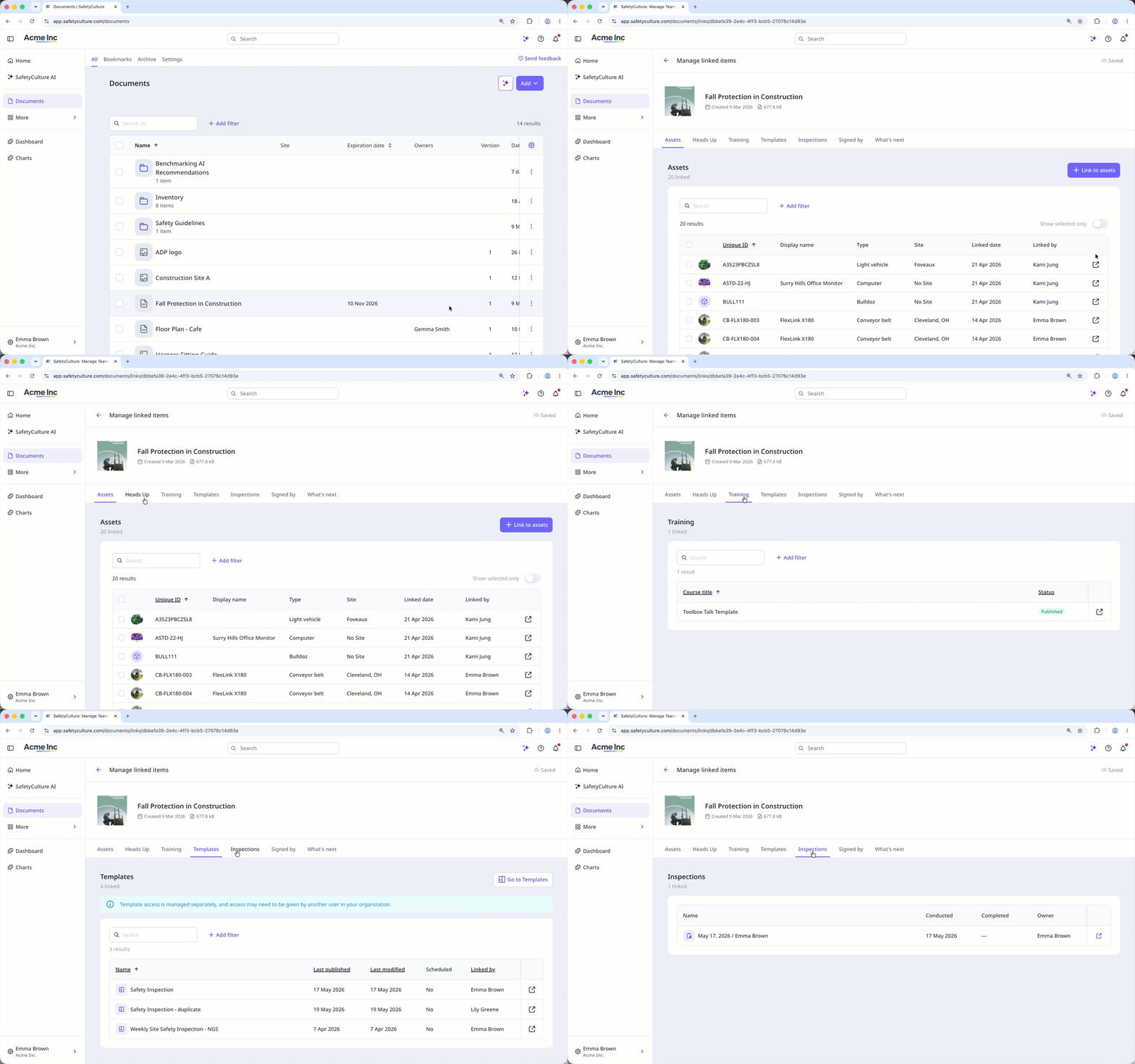
Select Documents in the sidebar or select it in More.
Click on the right-hand side of the file and select
 Manage linked items.
Click Assets, Heads Up, Training, Templates, or Inspections to view linked items.
Unlink an item
Select Documents in the sidebar or select it in More.
Click on the right-hand side of the file and select
Manage linked items.Click Assets or Heads Up.
Check the box on the item's left-hand side.
C lick Unlink at the bottom of the page.
In the pop-up window, click Remove.
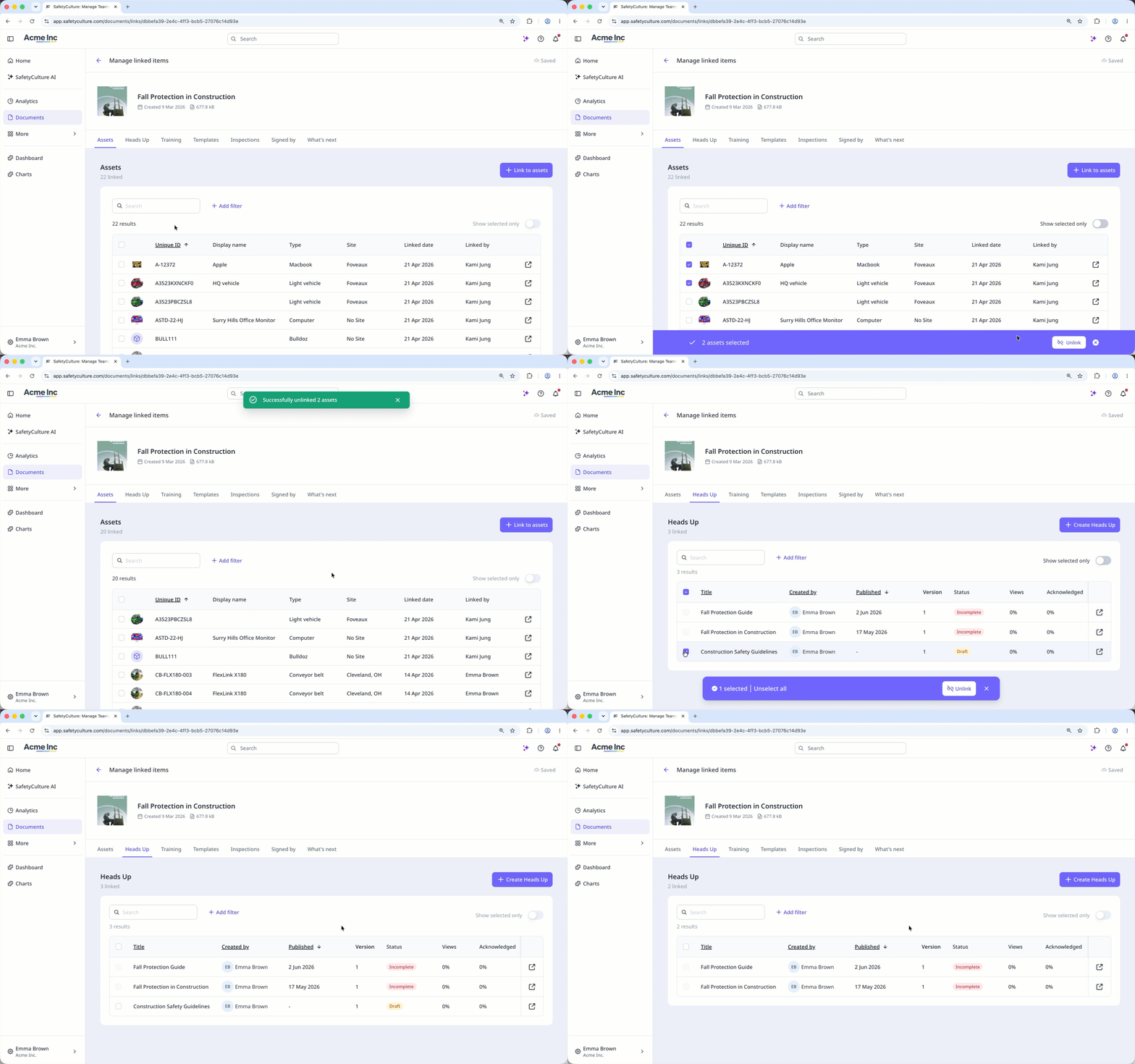
You can only unlink assets and heads-ups from Documents. To unlink other items, click to open the linked item, then unlink the file from that item.


