
What are course and lesson themes?
Course and lesson themes allow you to customize individual courses and lessons beyond the default theme to make the learning experience even more engaging for your teams. From selecting color schemes to adding logos, you can create visually stunning courses that help distinguish between companies, sub-brands, and topic groupings.
What you'll need
Please note that theme customization options are limited for "Discussion", "Assignment", "Practical", and "Meeting" lessons.
Manage the theme for a course or lesson
Select Training in the sidebar or select it in More.
If you're on the "Learn" page, click Content at the top of the page and select Courses.
Create a new course or click View or Edit on an existing one.
If you're editing an existing course and it's published, click Edit on the upper-right of the page.
You can edit the theme for your course in two ways. Either at the course level or the lesson level:
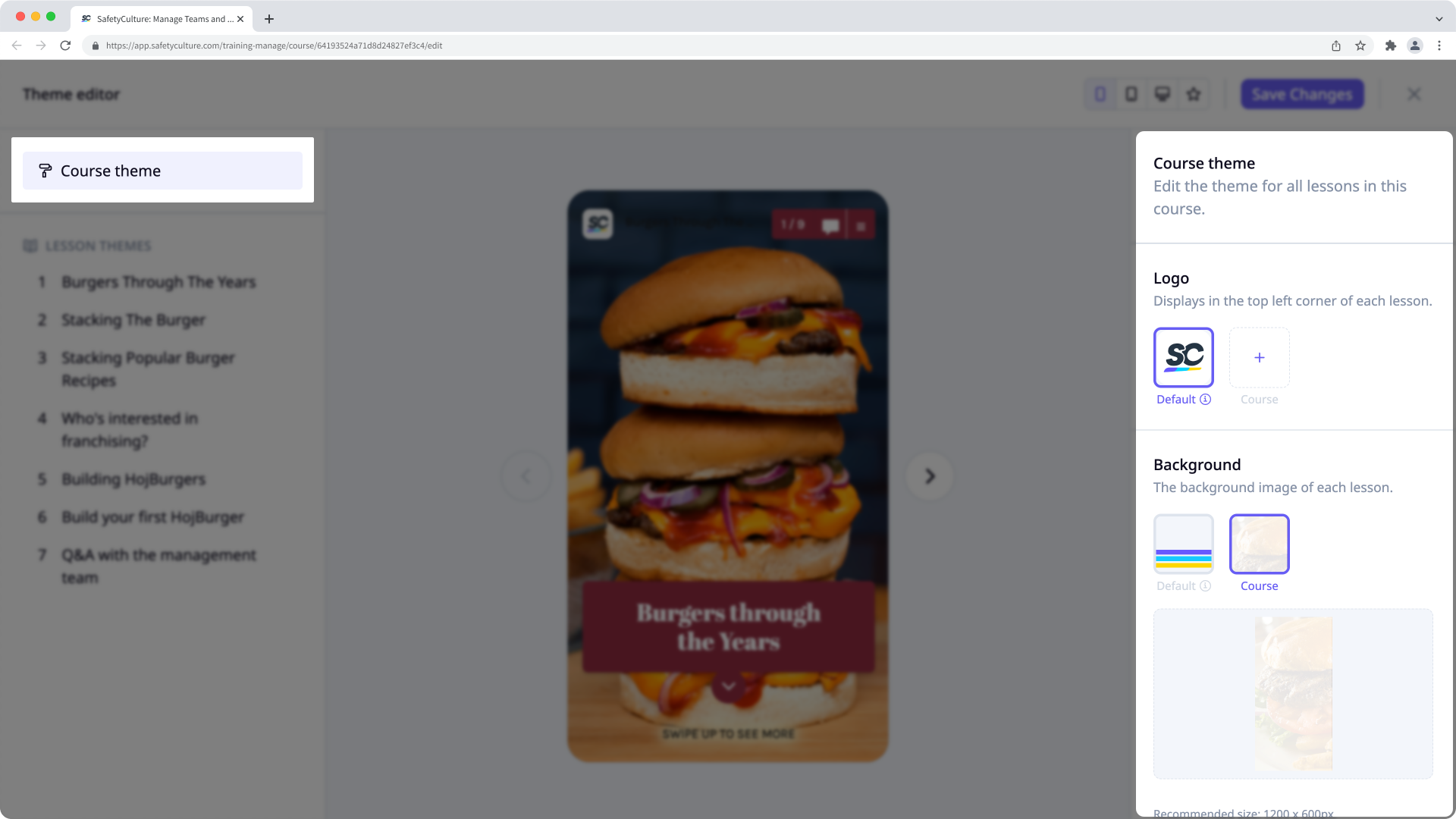
Course level: Click Theme on the lower-left corner of the page. Then, edit the course's theme on the right-hand side.
Lesson level: Click Theme on the lower-left corner of the page. Then, click the lesson on the left-hand side to edit its theme on the right-hand side.
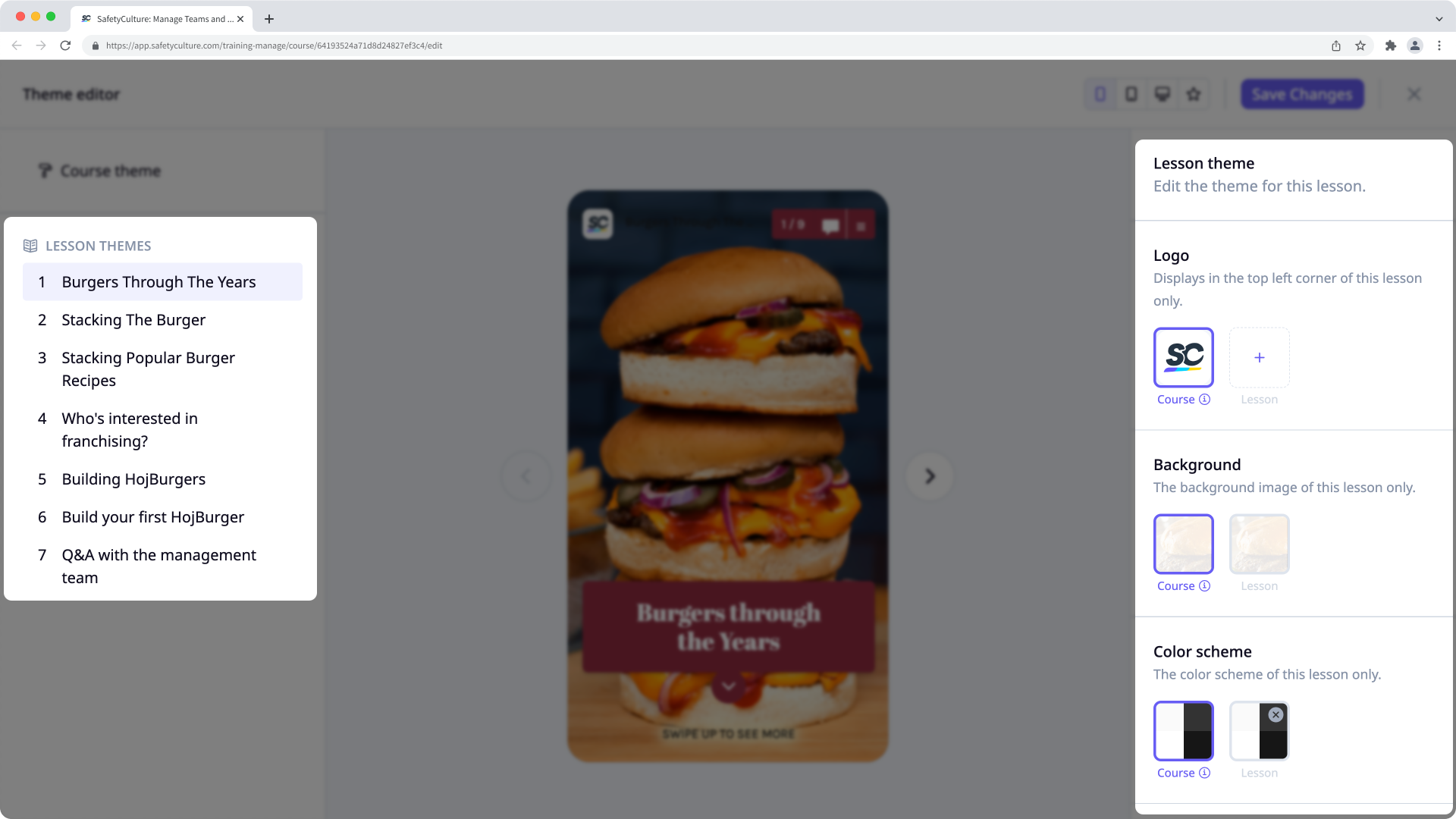
Depending on how you're managing your course's theme, you have the following settings available:
Logo: Upload a logo to use in your course. We recommend that you use an image that's 40 x 40 pixels.
Background: Upload a background to use in your course. We recommend that you use an image that's 1200 x 600 pixels.
Color scheme: Configure the primary and secondary colors and fonts. We recommend that you use contrasting colors.
Advanced: Add custom CSS code to your course. You can also add CSS code at the lesson level.
Once you're ready, click Save changes on the upper-right of the page.
Publish or republish the course to make the changes available.
Course themes don't apply to quizzes, and depending on where you update your course themes, customizations may override each other. For example, slide customizations override lesson themes, lesson customizations override course themes, and course customizations override the default theme.


