
What are course default themes?
Course default themes are customization options applied automatically to all new courses in your organization, unless a specific course or lesson theme is set. These themes help maintain consistency across your training materials by defining default colors, logos, and other visual elements.

What you'll need
Manage the course default theme
Select Training in the sidebar or select it in More.
Click Settings on the upper-right corner of the page.
Select Content and manage the following settings for your default theme:
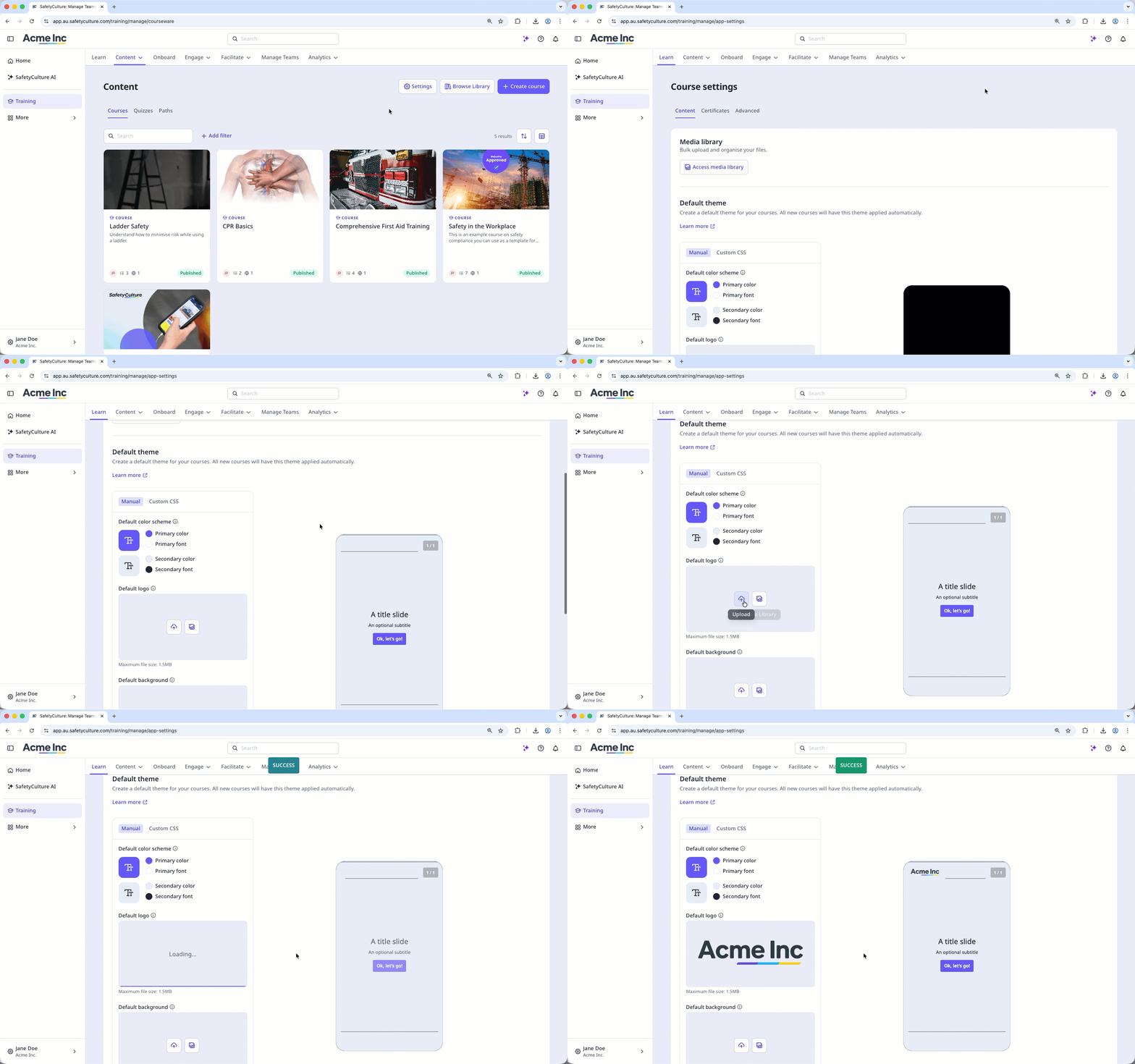
Default color scheme: Configure the primary and secondary colors and fonts. We recommend that you use contrasting colors.
Default logo: Upload a logo to use in your courses. We recommend that you use an image that's 40 x 40 pixels.
Default background: Upload a background to use in your courses. We recommend that you use an image that's 1200 x 600 pixels.
Default CSS: Check the box to add custom CSS code to your courses.
Changes are saved automatically.


