What are issue QR codes?
Issue QR codes are scannable codes that allow your team to report issues in SafetyCulture, even without an account. When you scan a QR code, you can select a category, add a title and description, attach photos or videos, choose a relevant site, and answer custom questions. You can also provide contact details to receive updates on the reported issue. This ensures your team can fully understand the issue and resolve it efficiently.
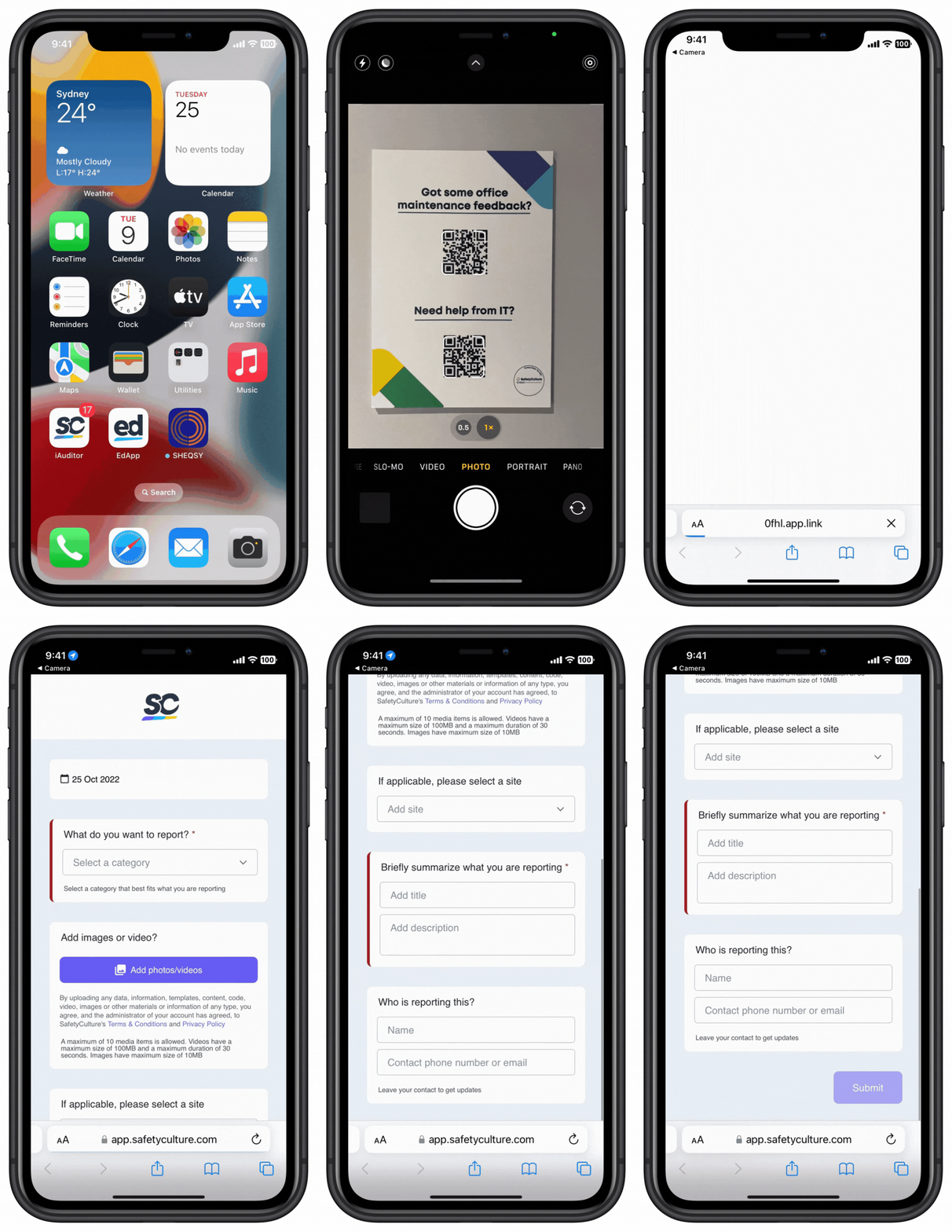
You can place your issue QR codes at convenient locations so your team can scan them to report issues. Consider locations that are easily accessible, such as entrances, vehicles, or even your personal protective equipment (PPE).
Download an issue QR code
Select Issues in the sidebar or select it in More.
Select QR codes at the top of the page.
Click on the right-hand side of the issue QR code.
Select Download QR code.
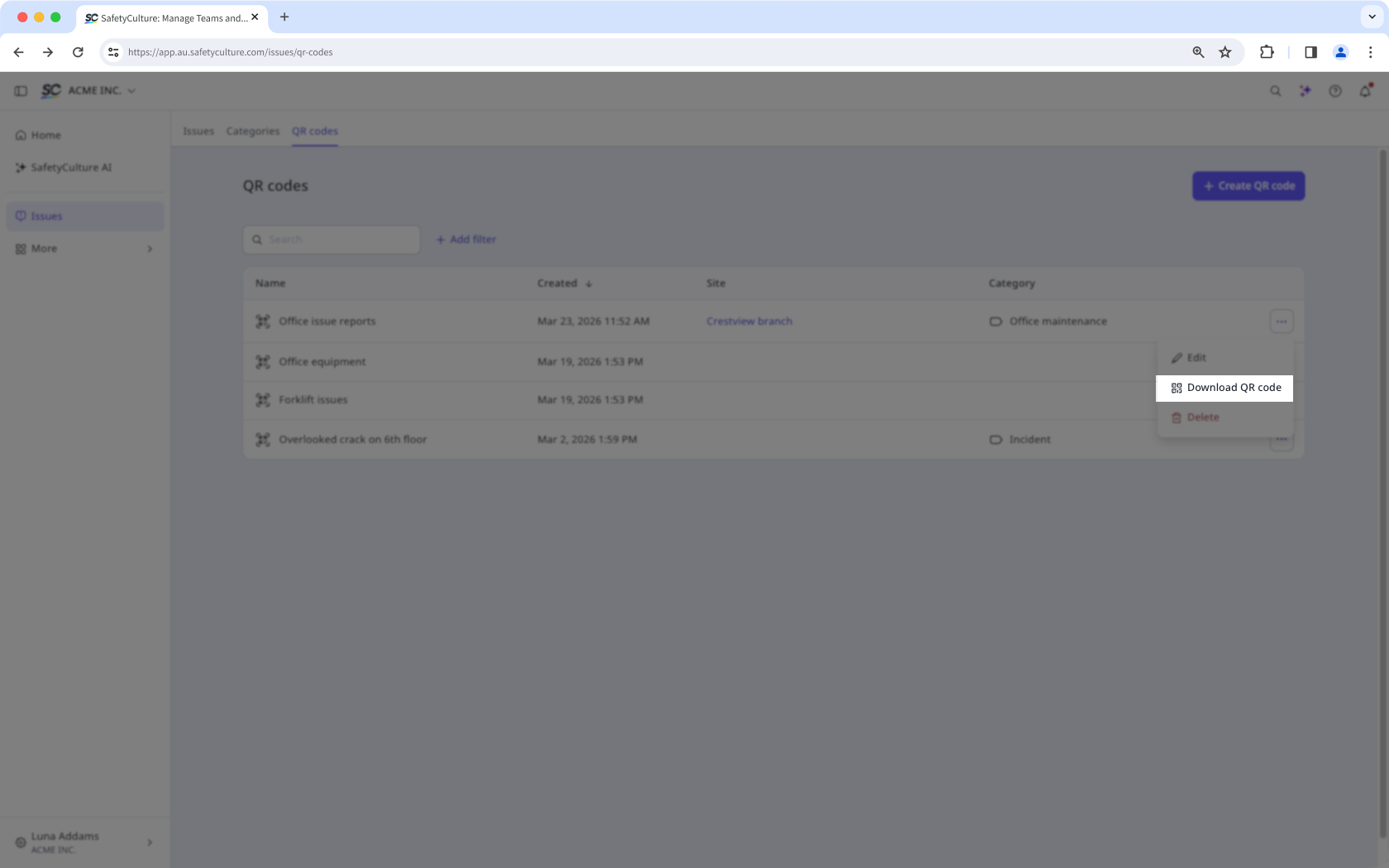
Once you've created an issue QR code, you can click it and click Download QR code in the side panel to download it. If you prefer to use a link, click next to the link to copy it. Then, you can print the issue QR code or share the link so anyone can scan and report issues.