
How do course assigned notifications work?
Course assigned notifications help you and your team stay on top of training by automatically alerting users when new courses are assigned through direct or rule-based assignment. Notifications are sent by email, push, or SMS as soon as the course becomes available, including when it’s part of a Path.
This eliminates the need for manual reminders, keeping teams informed, engaged, and on track to complete their training.
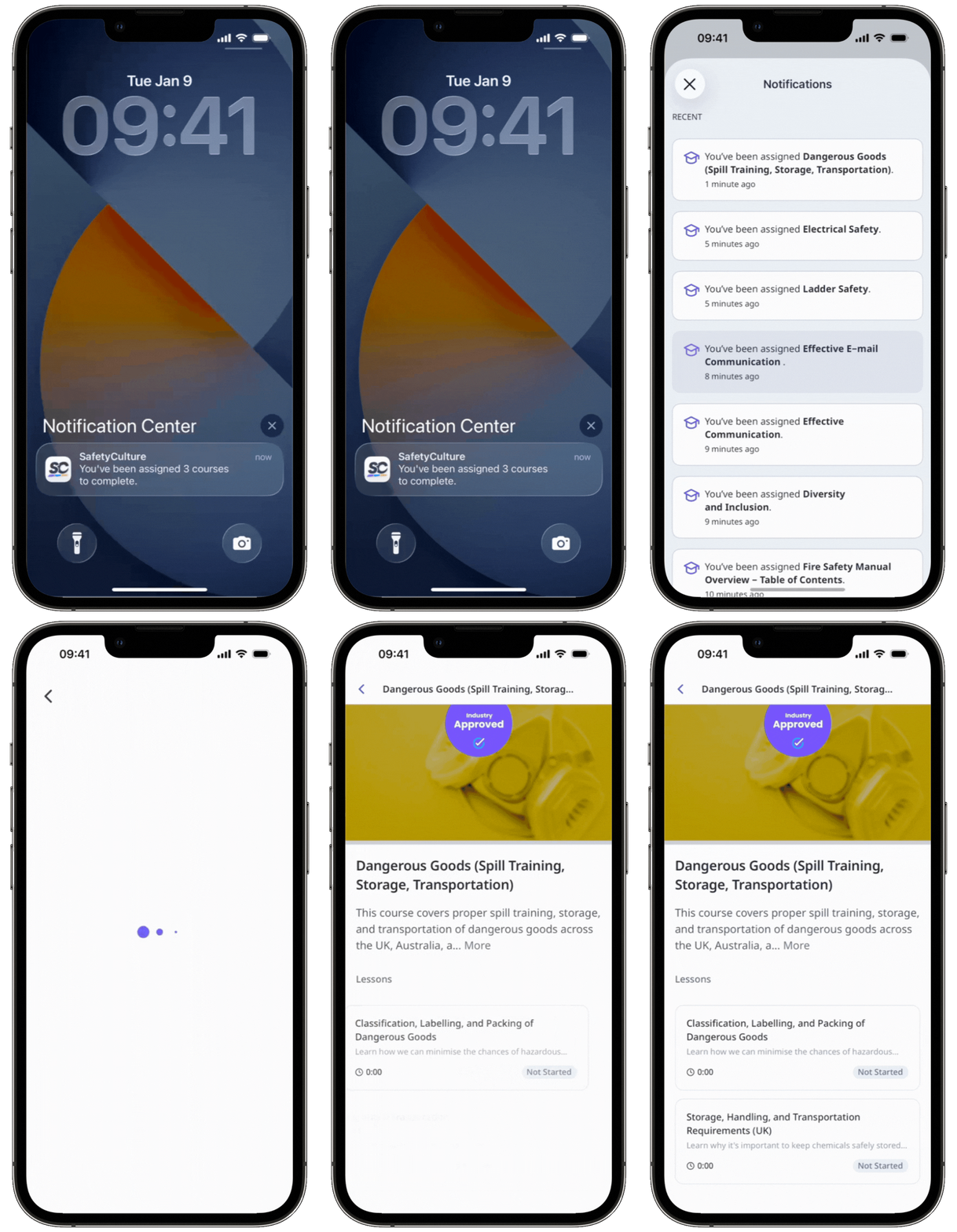
Course assigned notification applies only to the initial assigned notification. This doesn't affect course reminders, due dates, and overdue status notifications, which are triggered by applying a due date to a course.
What you'll need
Course assigned notifications are turned on by default when you create a new course.
Turn course assigned notifications on or off for a course
Select Training in the sidebar or select it in More.
If you're on the "Learn" page, click Content at the top of the page and select Courses.
Hover your cursor over the course and click View or Edit.
If you're editing an existing course and it's published, click Edit on the upper-right of the page.
Click Set up at the top of the page.
Scroll to the "DELIVERY" section and turn Course assigned notifications on or off.
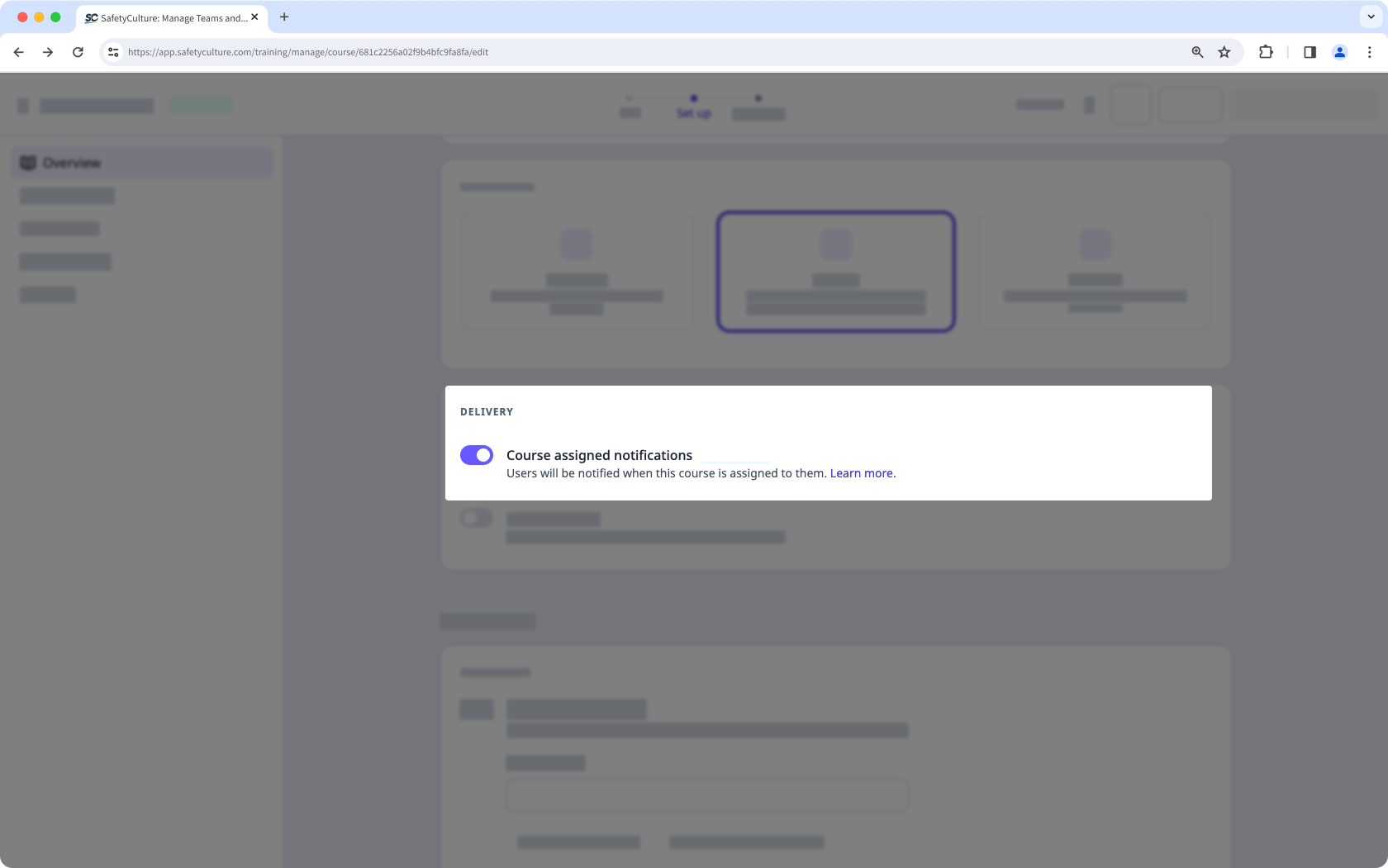
Changes are saved automatically.
If your course is currently a draft, remember to publish it to make your changes available to your team.


