
- Administration
- Organization settings
- Manage organization fields
Manage organization fields
Learn what organization fields are and how you can manage them via the web app to provide additional information to your groups and sites.This feature is currently in Early Access. If you're interested, please contact your customer success manager to check if your organization is eligible.
What are organization fields?
Organization fields provide additional structured information for groups and sites. These fields can store operational data without relying on external systems. Admins can use pre-set system fields such as time zone, address, and contact details, or create custom fields for any information specific to their organization.
For example, admins can add the physical address of a site (such as a store) so they have a reference for its location. Organization fields help record important details for groups and sites in SafetyCulture.
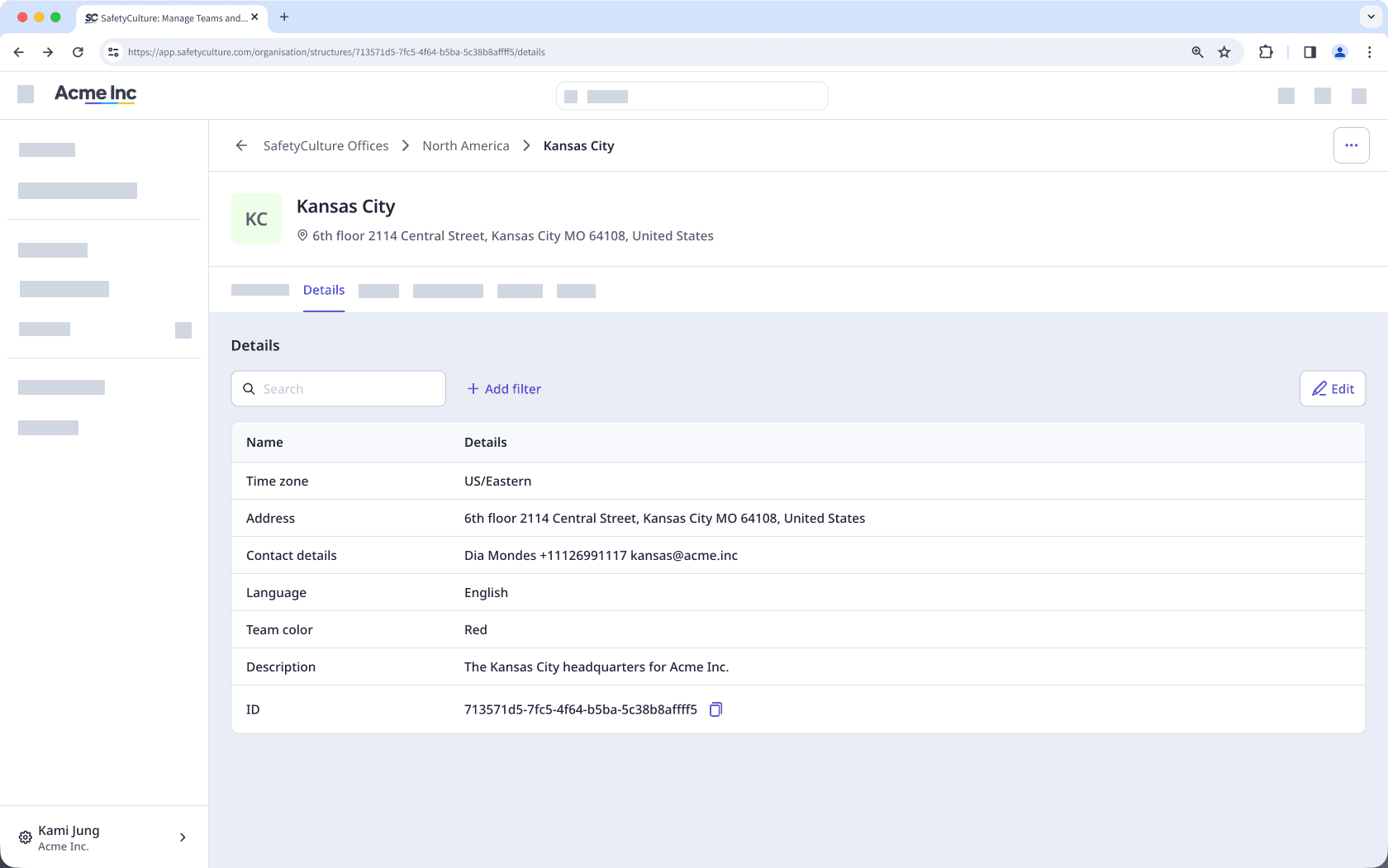
Organization fields
There are two types of organization fields: system fields and custom fields. Both appear together in your organization's field list and can be displayed on group and site profiles.
System fields
System fields are pre-defined fields available in every SafetyCulture organization. These cover standard workforce information and are ready to use.
You cannot create, rename, or archive system fields. However, you can select whether they apply to groups or sites.
Field name | Description |
|---|---|
Time zone | The time zone of a group or site. |
External ID | A unique identifier for the group or site used in external or third-party systems. |
Address | The physical location of a group or site. |
Contact details | The name, email address, and phone number of the key contact of a site or group. |
Custom fields
Custom fields are fields you create to capture information specific to your organization. You can configure the name, description, field type, and display settings for each field, and update them at any time.
Custom fields have these limits:
Custom fields cannot share a name with a system field or an archived custom field.
An organization can create up to 20 custom fields on Premium Plan, or up to 100 on Enterprise Plan.
Editing the field type of an existing custom field is currently unsupported.
Field type options
The Text field type allows you to capture alphanumeric input.
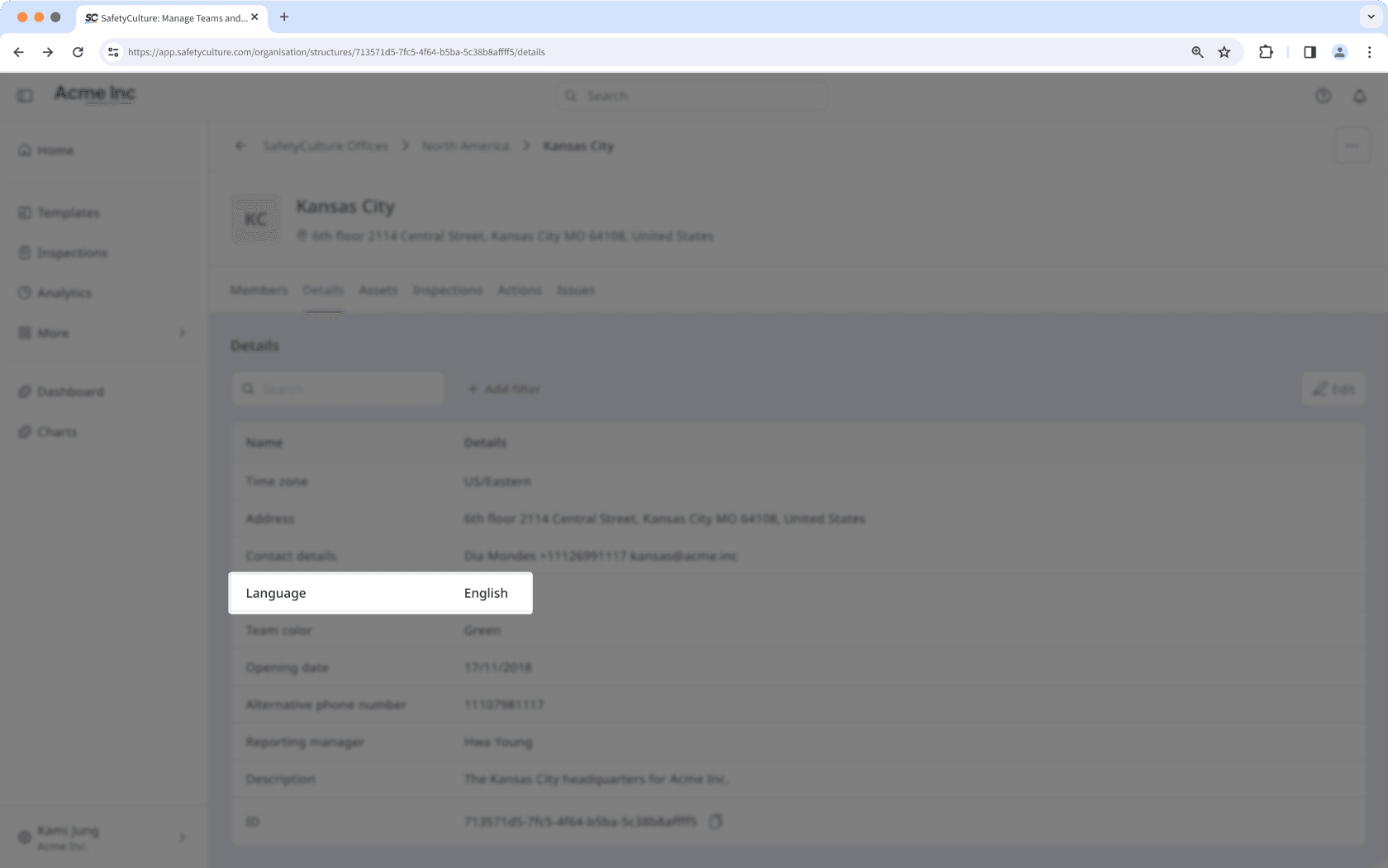
The Date field type stores a single date value selected from a date picker.
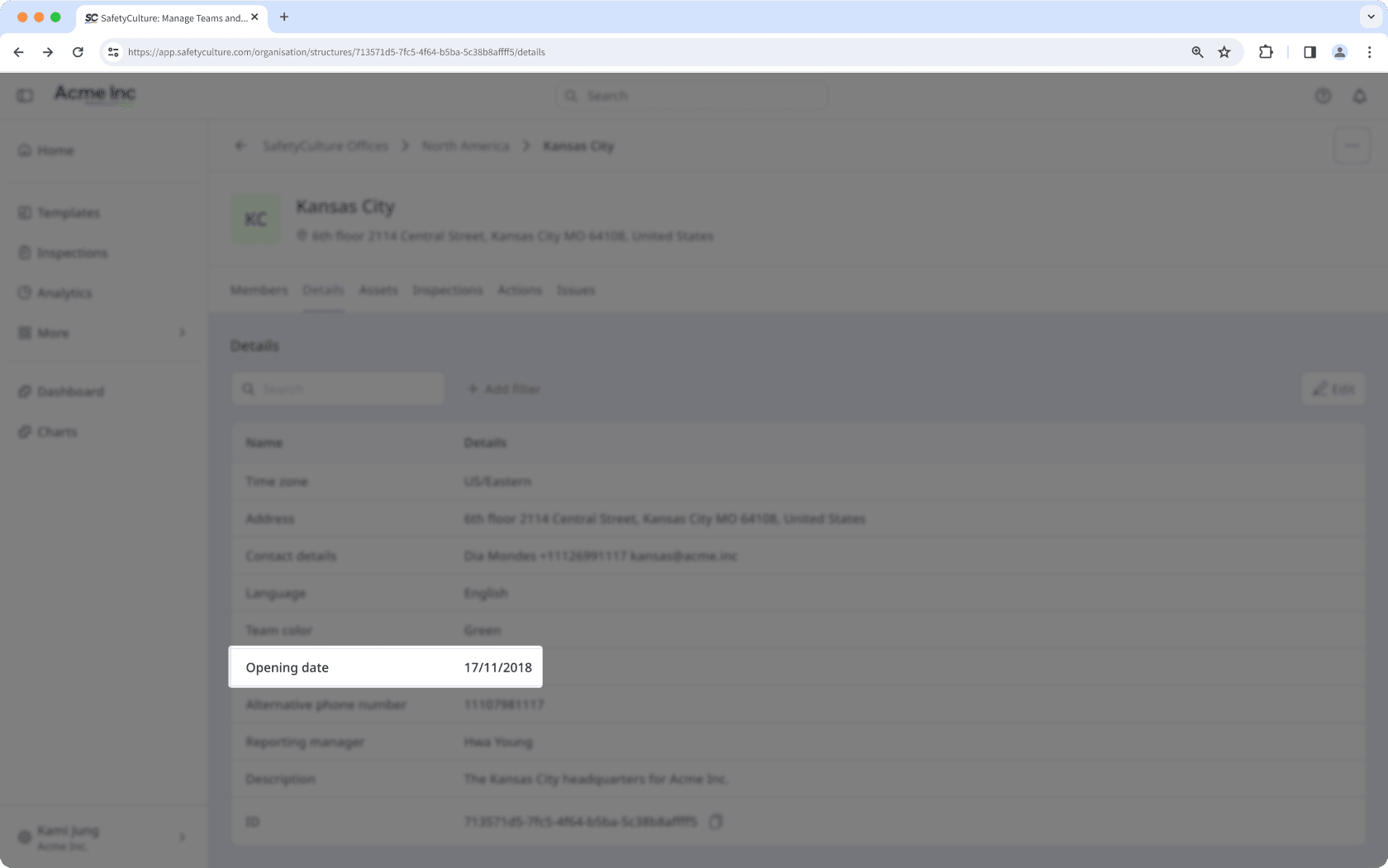
The User field type allows you to select an active user from your organization. You can only select one user at a time.
The Single select field type allows you to provide a set of options to select from. Only one option can be selected at a time. You can add up to 1,000 options per field.
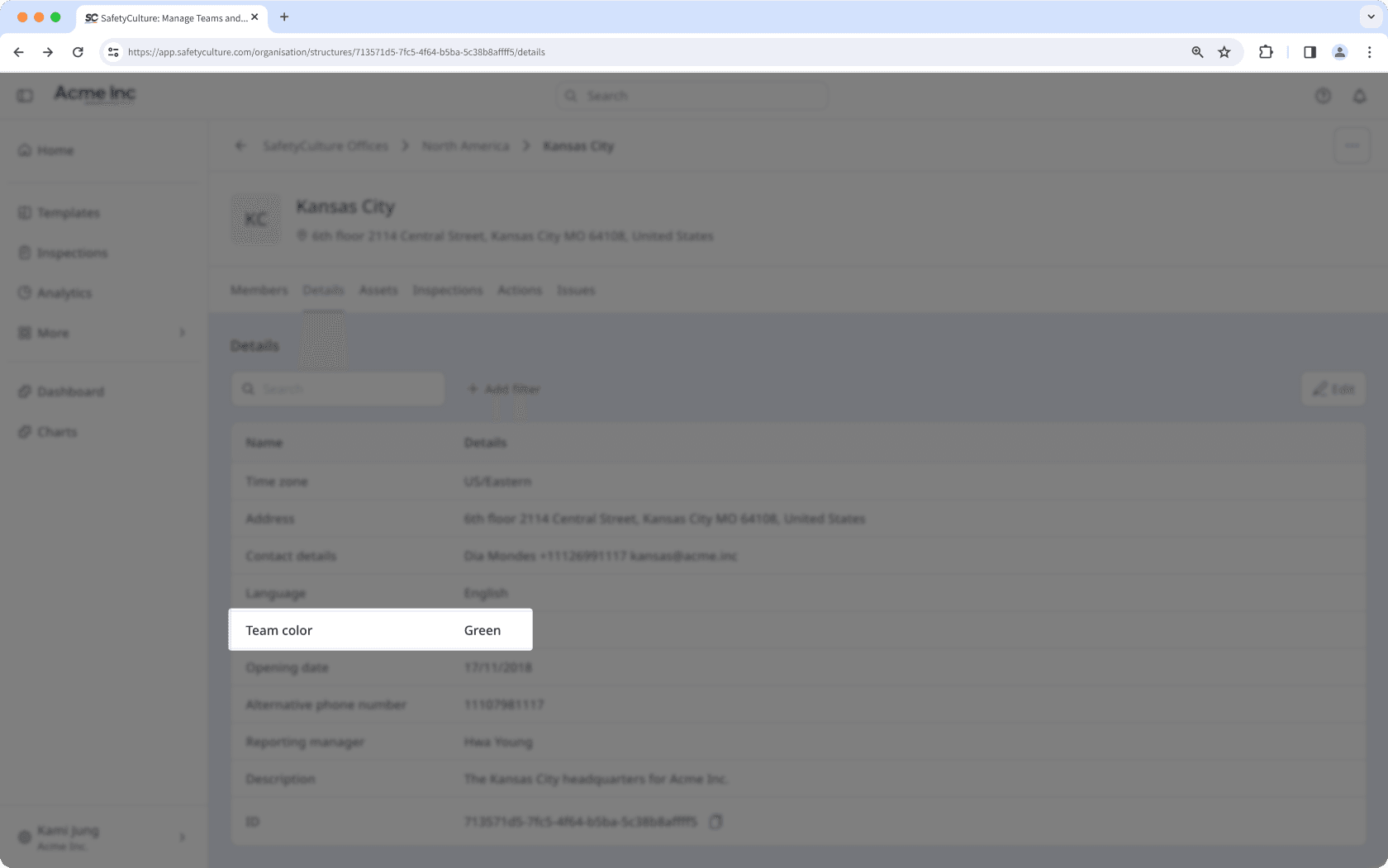
The Number field type allows you to capture numeric input.
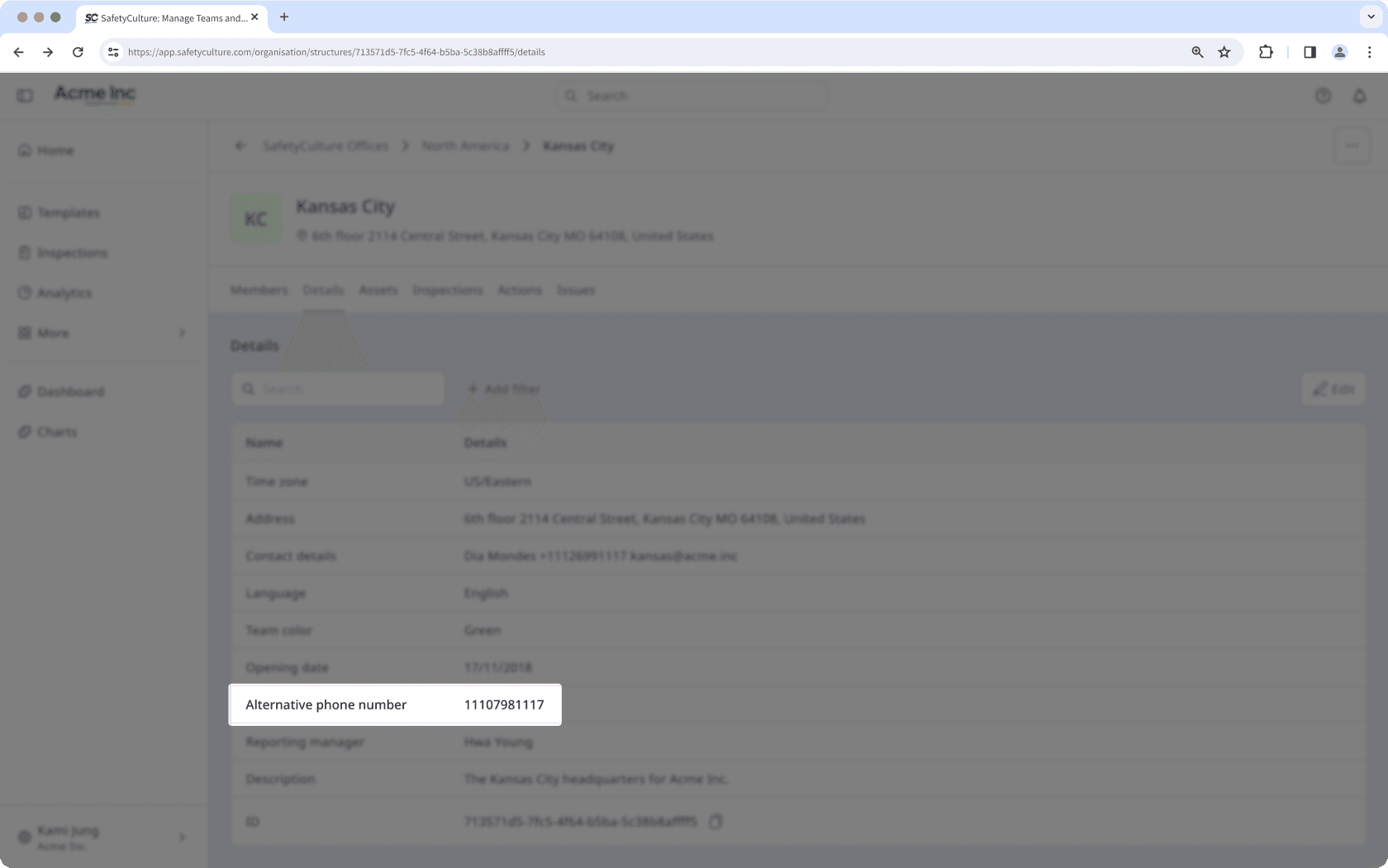
Create a custom organization field
Click your organization name on the lower-left corner of the page and select Fields.
Click
 Create field on the upper-right of the page.
In the side panel, enter the "Name" and "Description", and configure the "Field type" accordingly.
Click
 Next.
Next.Select
 Group, Site, or both to choose where this field applies to. For each selected type, click
  Settings to manage the field settings.
Make this a required field: Makes the field mandatory on group and site profiles.
Set a default value: Sets a value that applies automatically when the field is required but left empty.
Display on profiles: Shows or hides the field on group and site profiles.
Click Create field.
Edit an organization field
Select your organization name on the lower-left of the page, then select Fields.
Click
 on the right-hand side of the organization field, then select Edit.
In the side panel, update the Name or Description as needed.
For Single select field types, you can manage the options.
To add an option, click
Add option and enter a value.To delete an option, click
 Delete on the right-hand side of the option.
Click
Next.Select
Group, Site, or both to choose where this field applies to. For each selected type, click Settings to manage the field settings.Make this a required field: Makes the field mandatory on group and site profiles.
Set a default value: Sets a value that applies automatically when the field is required but left empty.
Display on profiles: Shows or hides the field on group and site profiles.
Click Save changes.
Archiving an organization field hides it across SafetyCulture and removes it from group and site profiles.
Archive a custom organization field
Click your organization name on the lower-left corner of the page and select Fields.
Click
on the organization field's right-hand side, then select Archive.In the pop-up window, click Archive.
Restore a custom organization field
Click your organization name on the lower-left corner of the page and select Fields.
Click Archive at the top of the page.
Click
on the organization field's right-hand side, then select Restore. Restoring the field will retain the details you've added to it.
Was this page helpful?
Thank you for letting us know.