What happens when I reset a course's progress?
When you reset a course's progress for users, their completion status and progress for that course are cleared and set to 0%. This removes the user's previous completion data from training analytics and requires them to complete the course again from the beginning.
Admins can reset progress for completed courses in two ways:
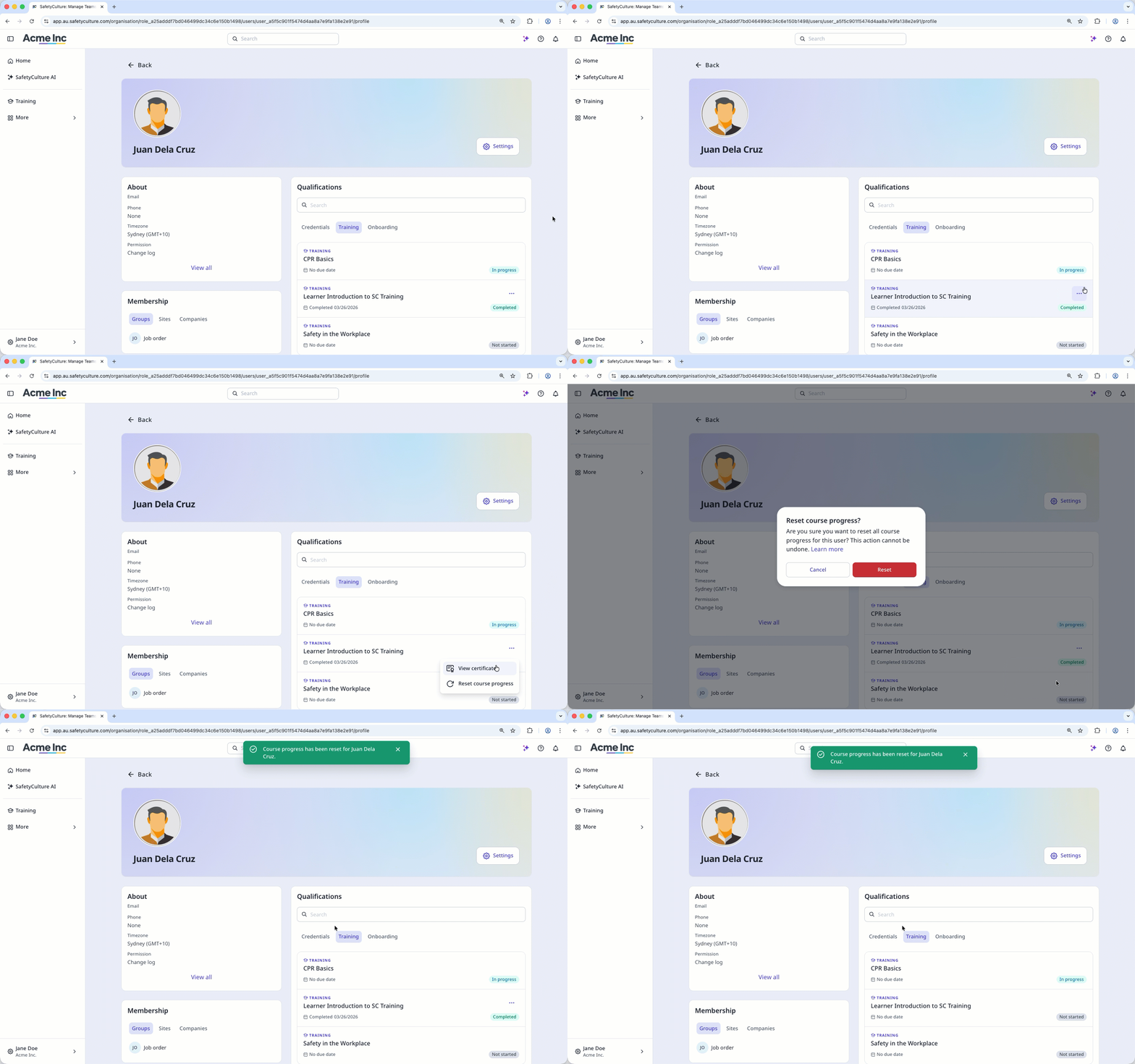
From a user's profile to reset that user's progress
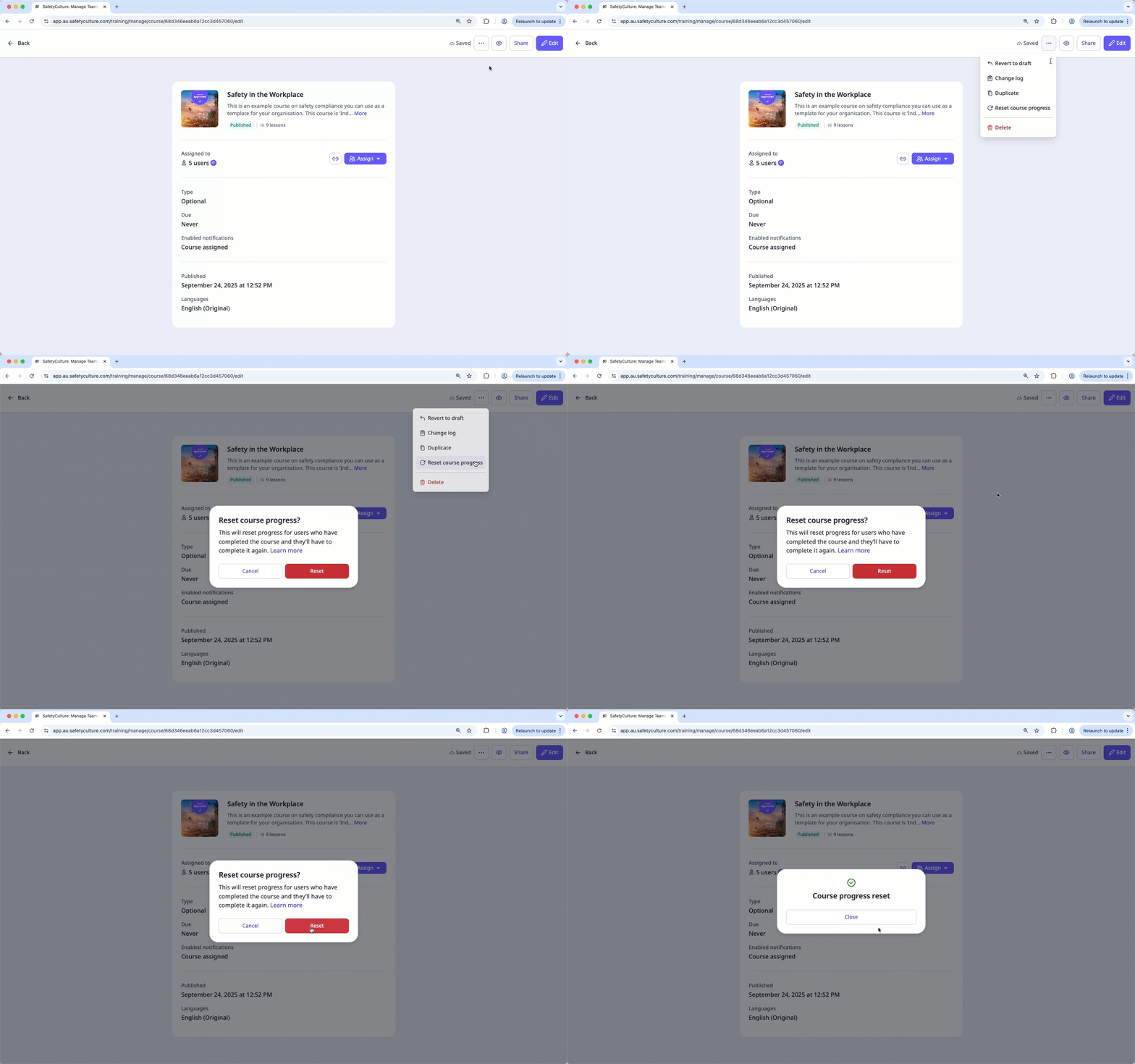
From the course's summary page to reset progress for all users assigned to the course
Resetting progress is useful when retraining is required, such as after an incident, a non-compliance event, or when reinforcing updated procedures, without creating a new course.
When you reset the progress for a course, any progress made in practical assessments, discussions, and assignments within that course will also be cleared.
You need to have "Platform management: Users" permission to reset course progress from a user's profile.
Resetting course progress is irreversible. Once progress is reset, users and admins can no longer view past completion records for that course. Confirmation is always required before any reset, so be sure you're not accidentally resetting the progress of the wrong course.
Reset a user’s progress in a course
Click your organization name on the lower-left corner of the page and select Users.
Click the user's name.
Under the "Qualifications" section, click Training.
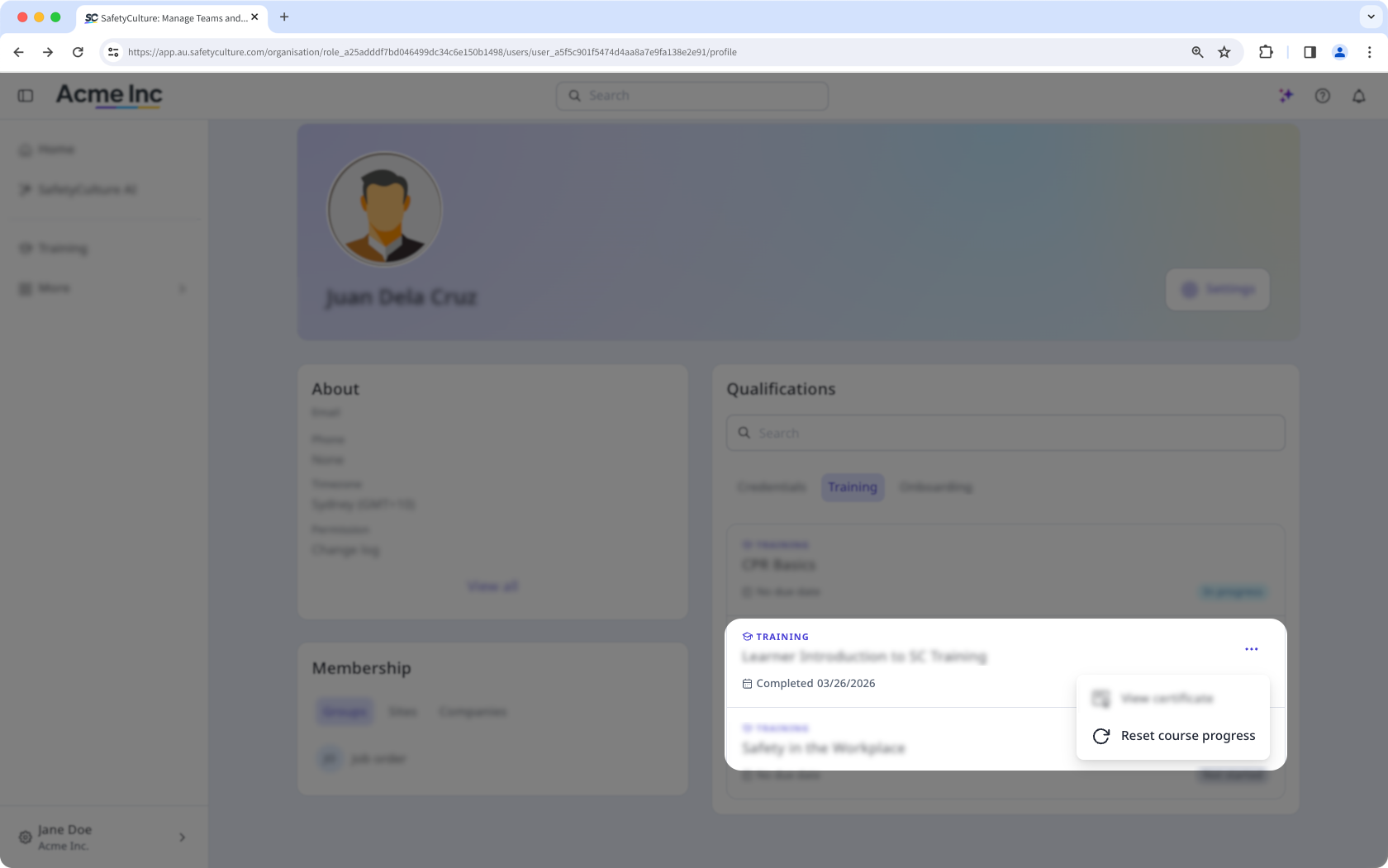
Click on the course's right-hand side and select Reset course progress.
In the pop-up window, click Reset.
Reset progress for all users in a course
Select Training in the sidebar or select it in More.
If you're on the "Learn" page, click Content at the top of the page and select Courses.
Select the course.
Click on the upper-right of the page and select Reset course progress.
In the pop-up window, click Reset.