
How do course assignments work?
Course assignments allow you to check whether team members have understood the information covered in a course. When you add an assignment lesson to a course, you set a task for team members to submit as a written response. Once a team member submits their response, you can grade it as pass or fail and share feedback directly with them.
Depending on your preference, you can control who can view posts and comments in an assignment:
Anyone: All users taking the course can view each other's posts and comments.
Only their user group: Users can only view posts and comments from members of their own user group.
Administrators only: Only administrators can view posts and comments, giving team members a private space to submit their work.
When you reset the progress for a course that includes an assignment, it resets all user progress for that course, including any completed assignments. To complete the course again, users need to retake the course and resubmit their assignments.
What you'll need
If you have the "Training: Administration" permission, you can grade course assignments in your organization.
Create an assignment lesson
Select Training in the sidebar or select it in More.
If you're on the "Learn" page, click Content at the top of the page and select Courses.
Create a new course or click View or Edit on an existing one.
If you're editing an existing course and it's published, click Edit on the upper-right of the page.
Click on the upper-left and select Assignment.
I n the side panel, configure your assignment:
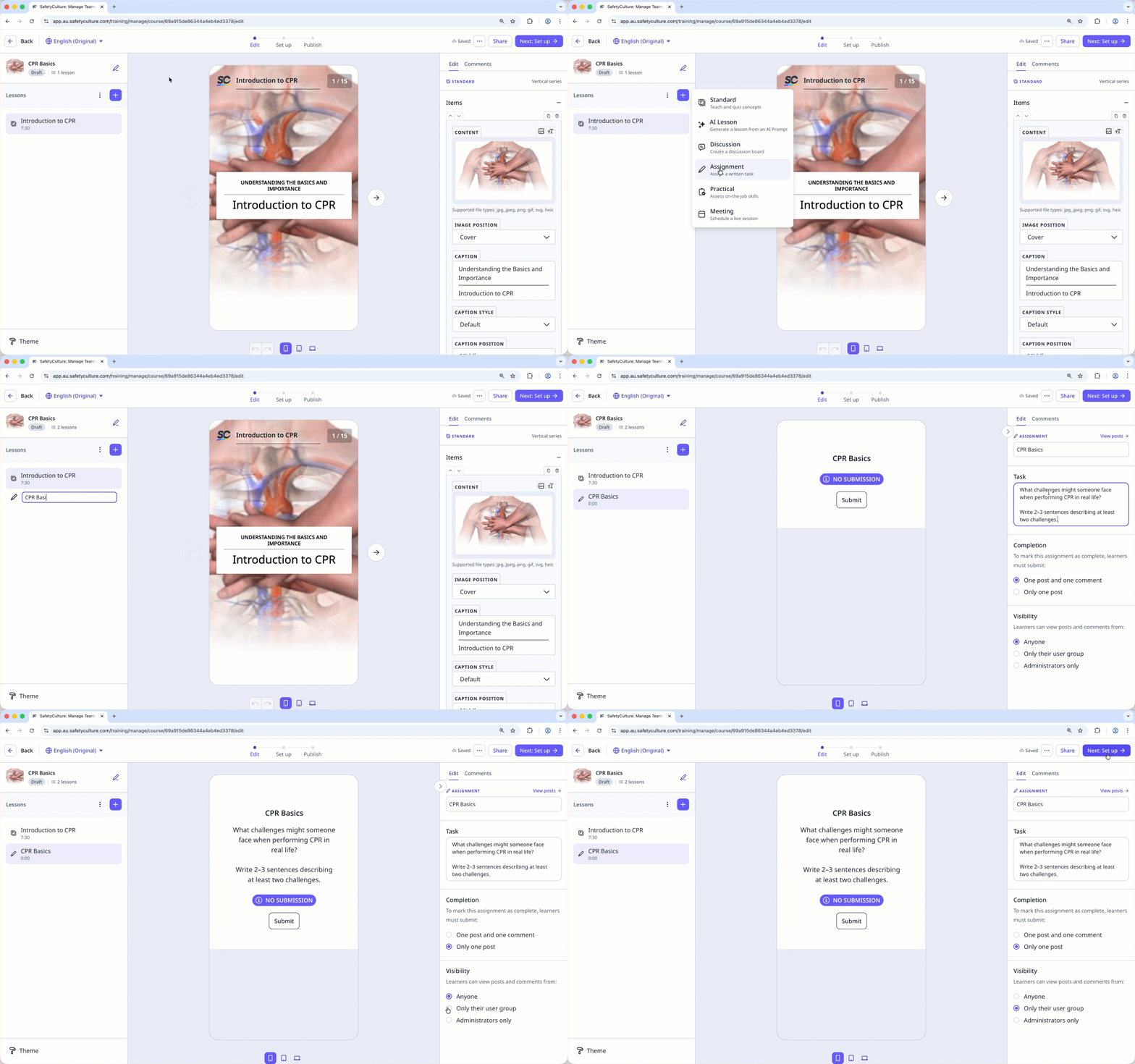
Assignment: The title of the assignment.
Task: Enter a task for users to submit.
Completion: Select what users must submit to complete the assignment by choosing between "One post and one comment" or "Only one post".
Visibility: Select who can view posts and comments from choosing between "Anyone" , "Only their user group", or "Administrators only".
Changes are saved automatically.


