
- Using SafetyCulture
- Issues
- Create views for issues
Create views for issues
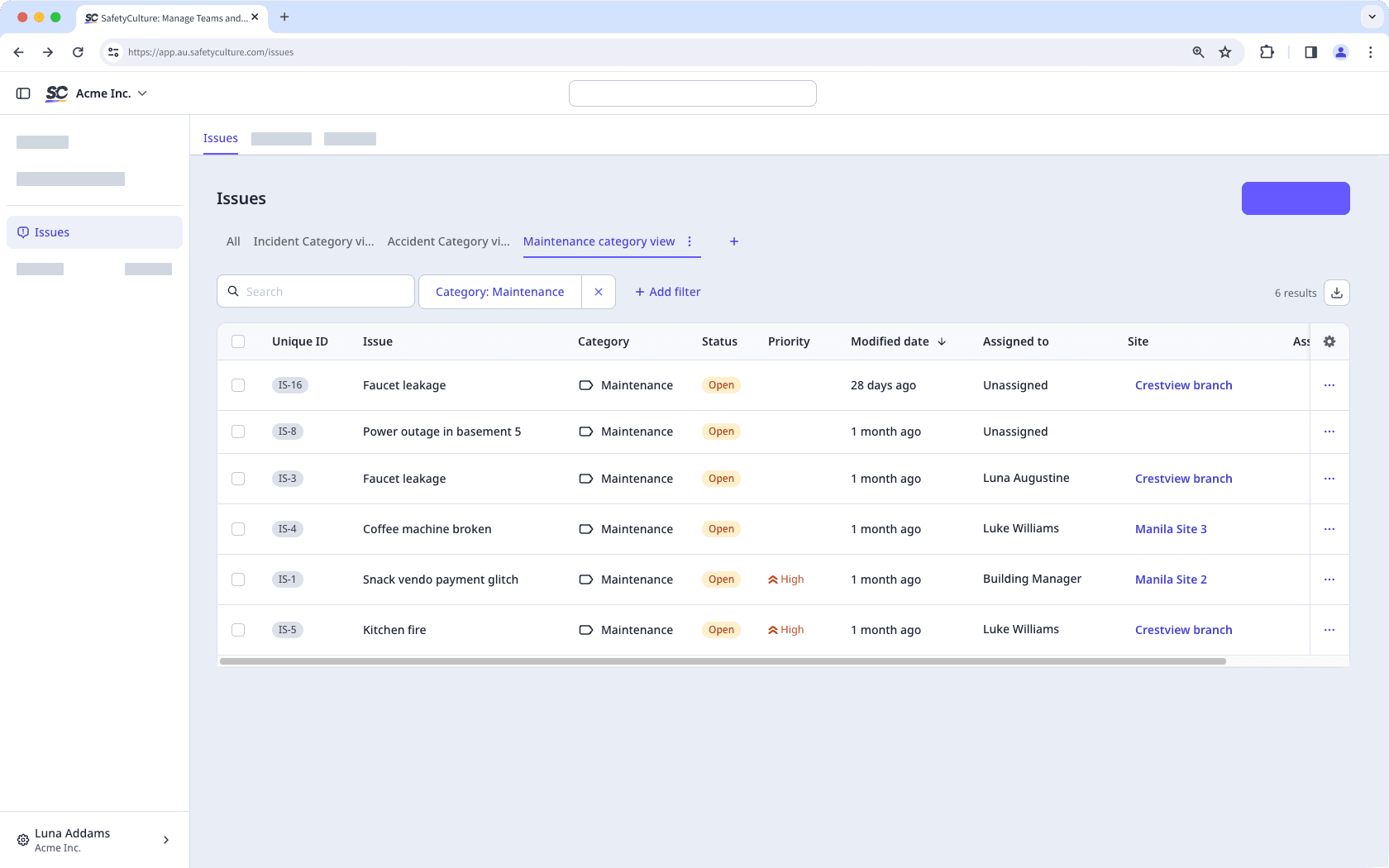
Learn how to create an issues view via the web app to only display information that fits your individual needs and streamline incident management.What is a view?
A view is a customized list of issues in your organization, filtered and organized to show ongoing and past incidents. As more issues are reported, views make it easier to focus on what matters instead of sifting through everything manually. Views are designed to help you easily track and analyze the status and specifics of each issue. You can search, filter, and sort issues to match your needs, then export and share your view with your team from the issues list.
You can only create up to 10 views that are visible only to you. However, you can download your issues list as a CSV and share the file with anyone. In addition, views you delete cannot be restored.
Create an issues view
Select
 Issues in the sidebar or select it in
  More.
More.Click
 on the top of the page to add a new view and enter a name accordingly.
Click Create.
Apply filters to customize your view based on your criteria. The filters and search terms you apply will be automatically saved to your view.
Click
 next to the view name to rename or delete the view.
Was this page helpful?
Thank you for letting us know.