- Account settings
- Fix a problem
- Delete my SafetyCulture account
Delete my SafetyCulture account
Learn how to delete your SafetyCulture account via the mobile app and what to consider to protect important data.You can only delete your account via the mobile app. If you’re unable to use the mobile app, please contact our customer support team for assistance.
Things to consider
If you don’t have "Platform management: Organization" permission, please contact your organization’s admin for assistance in deleting your account.
If you’re the only user in your organization and your organization is on the Premium Plan, you’ll need to downgrade to the Free Plan before you can delete your account.
If you’re in multiple organizations, you’ll need to repeat the account deletion process for each organization you’re a part of.
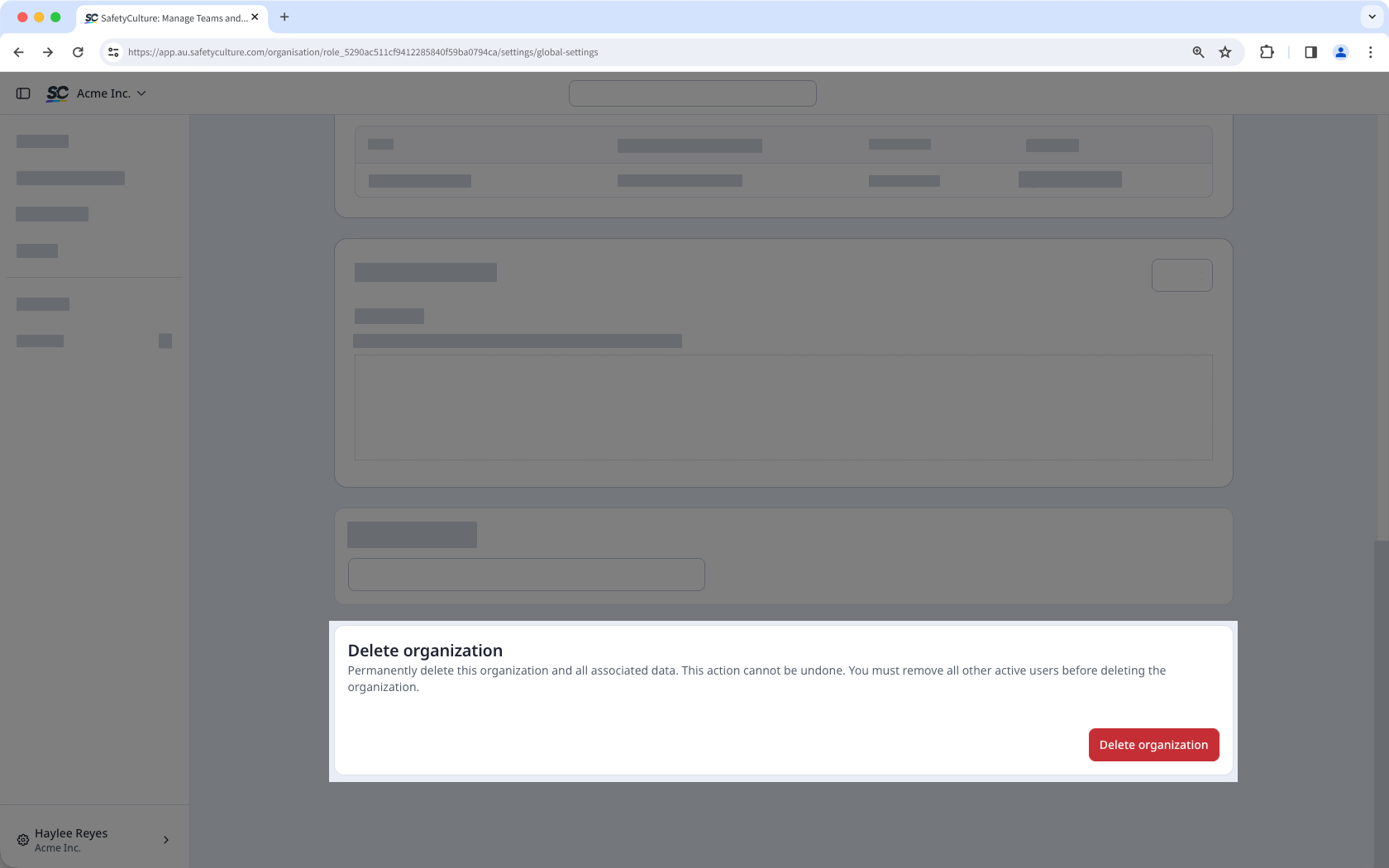
If your organization has other users, you’ll need to transfer your data to another user before deleting your account. To delete the entire organization, you must first deactivate all other users. This process will delete their accounts and your organization as part of your account deletion.
Delete my SafetyCulture account
Open the mobile app.
Tap
Home at the bottom of your screen.
Tap your user profile icon at the upper-right corner of your screen.
In the pop-up menu, select
Settings.
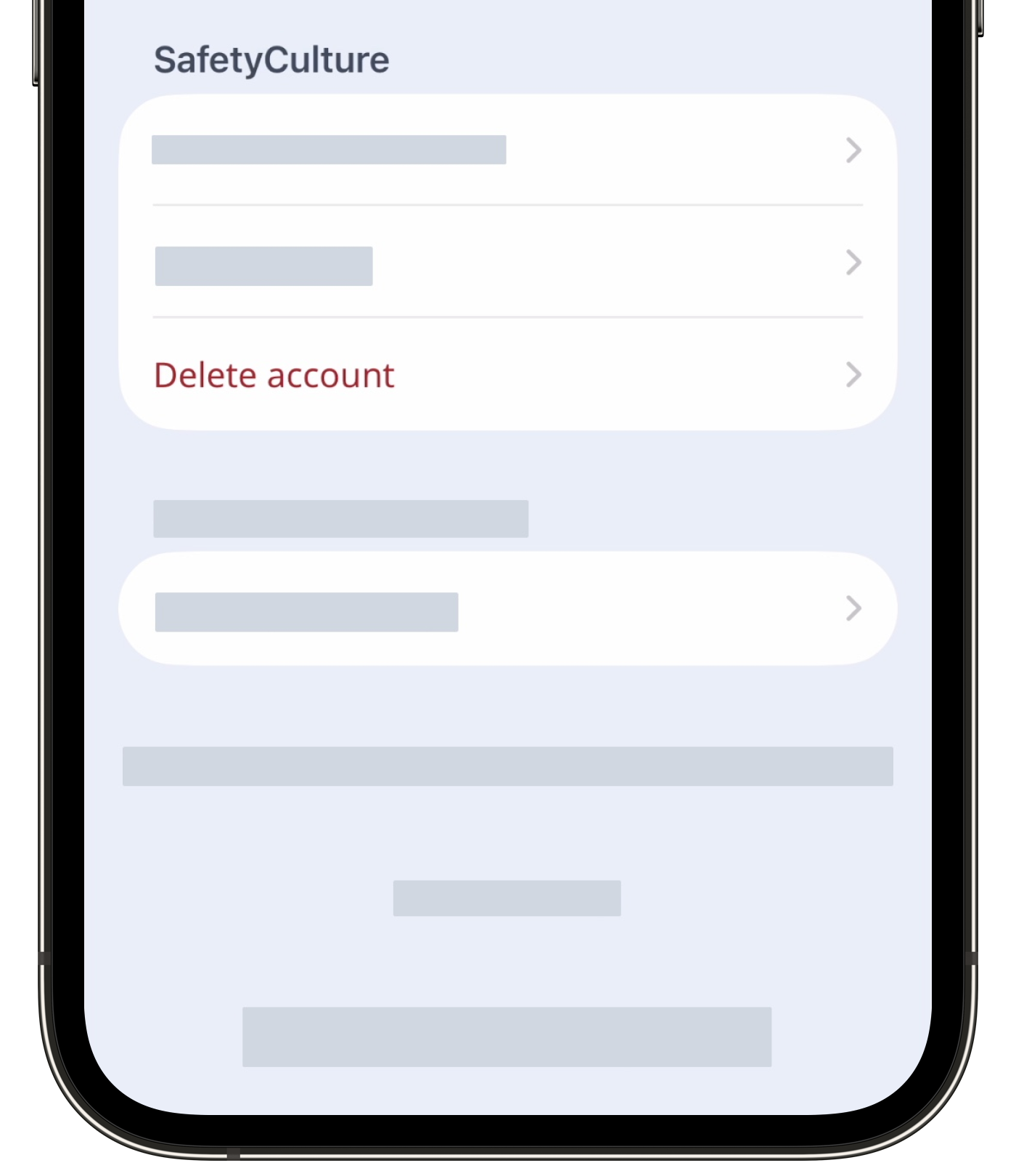
Scroll down to the "SafetyCulture" section and tap Delete account.

In the pop-up window, tap Transfer ownership and delete account if other users exist in the organization. Select a user and tap Confirm transfer and delete account. Otherwise, tap Delete my account and organization.
By requesting to have your SafetyCulture account deleted, you understand that all SafetyCulture data in your current organization will be permanently removed.

Was this page helpful?
Thank you for letting us know.