Was Sie brauchen
Wenn Schichten für Ihre Organisation aktiviert ist, müssen Alleinarbeiter eine Schicht beginnen, bevor starting a job.
Eine Schicht starten und abschließen
Open the mobile app.
Tap Mehr at the bottom of your screen.
Select
 Alleinarbeiter from the list of options.
Tapat the lower-right of your screen.
You can also tap Start at the bottom of your screen, then tap and select
Alleinarbeit starten .
Tap Schicht starten .
If you're assigned to multiple groups in your organization, select the group where you would like to start your shift.
Tap Schicht starten .
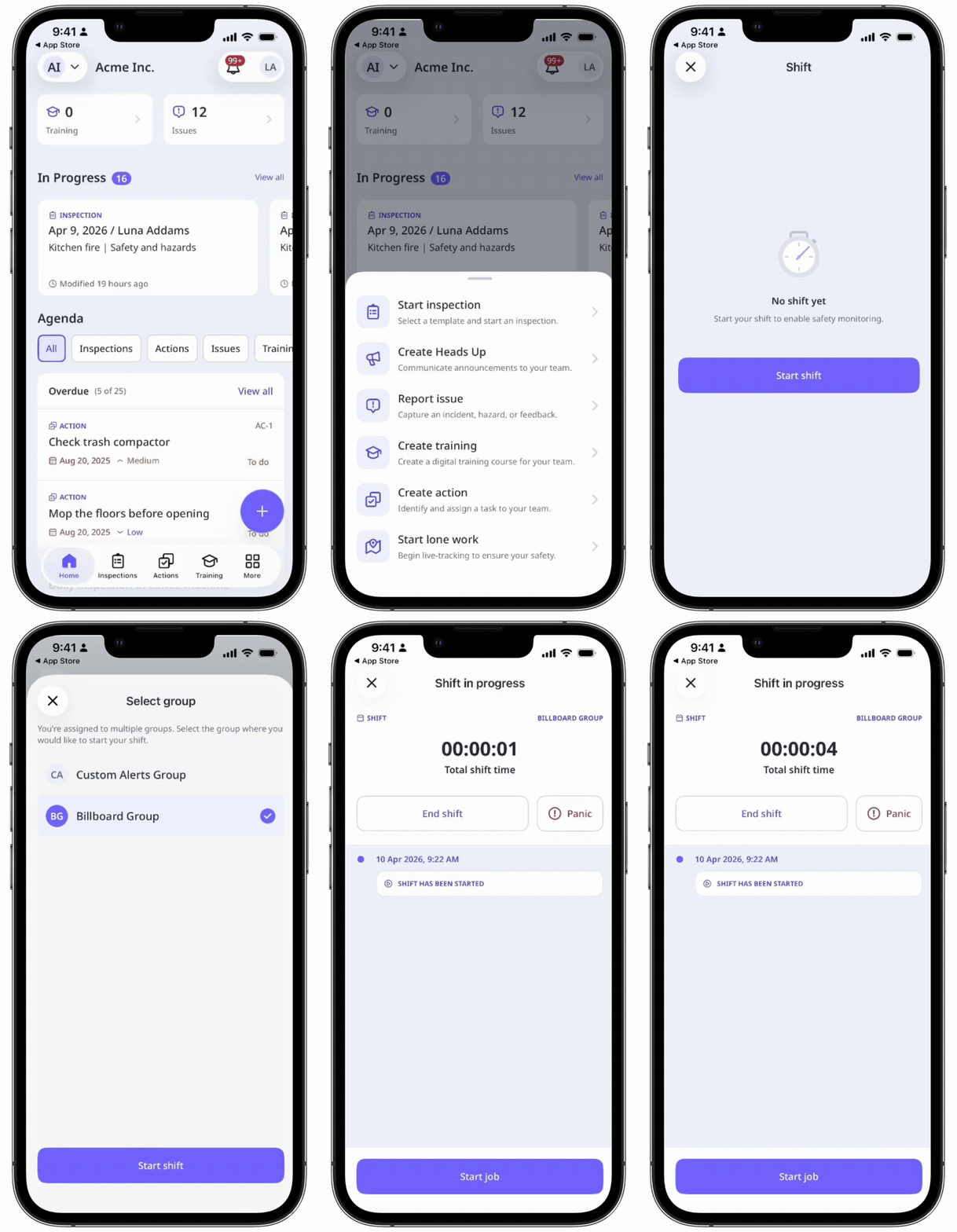
While a shift is in progress, you can:
Start and complete a lone-work job. In the duration of your shift, you can complete more than one job.
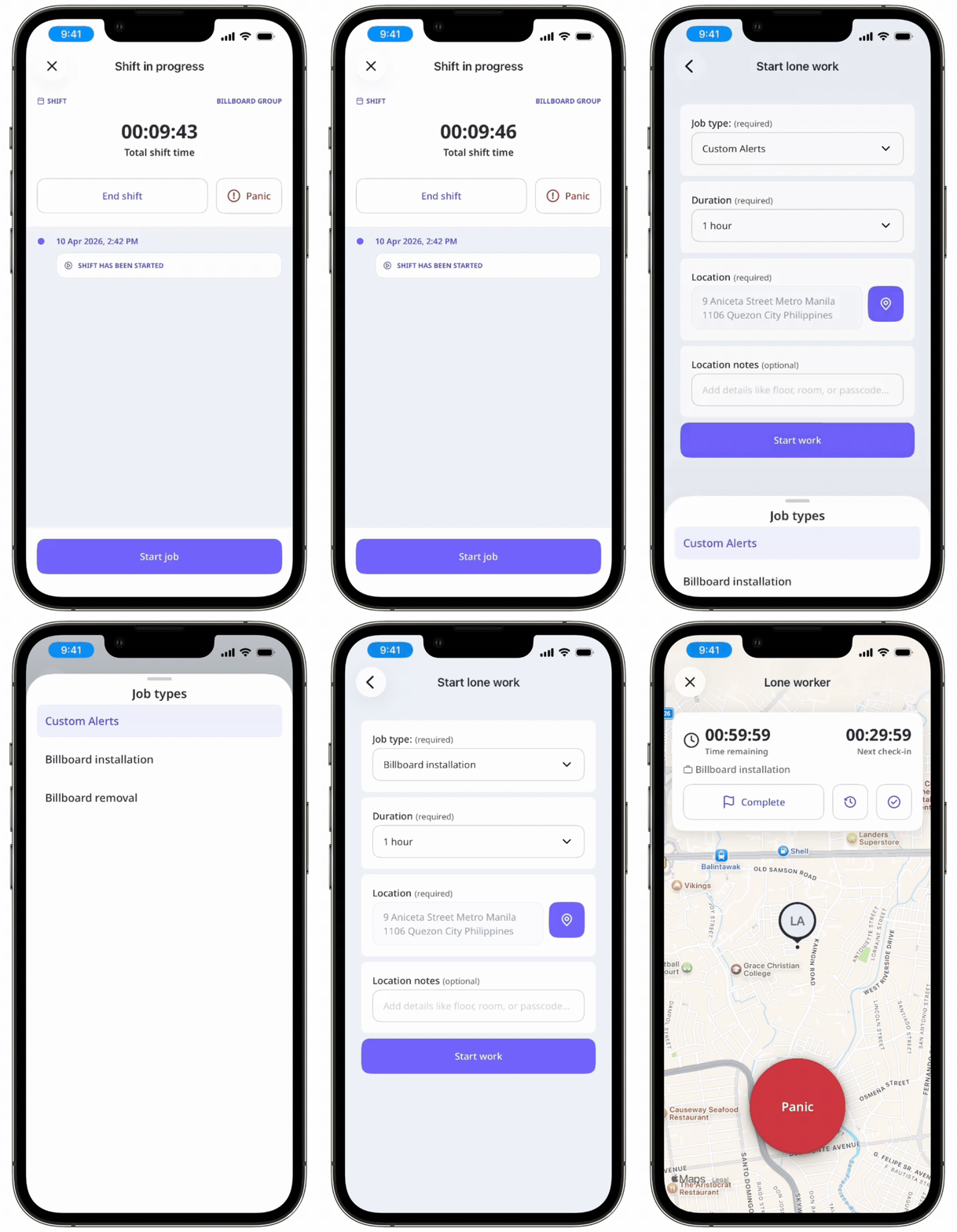
Tap and hold Panik for 3 seconds to manually trigger a panic at any time during your shift, even without an active job.

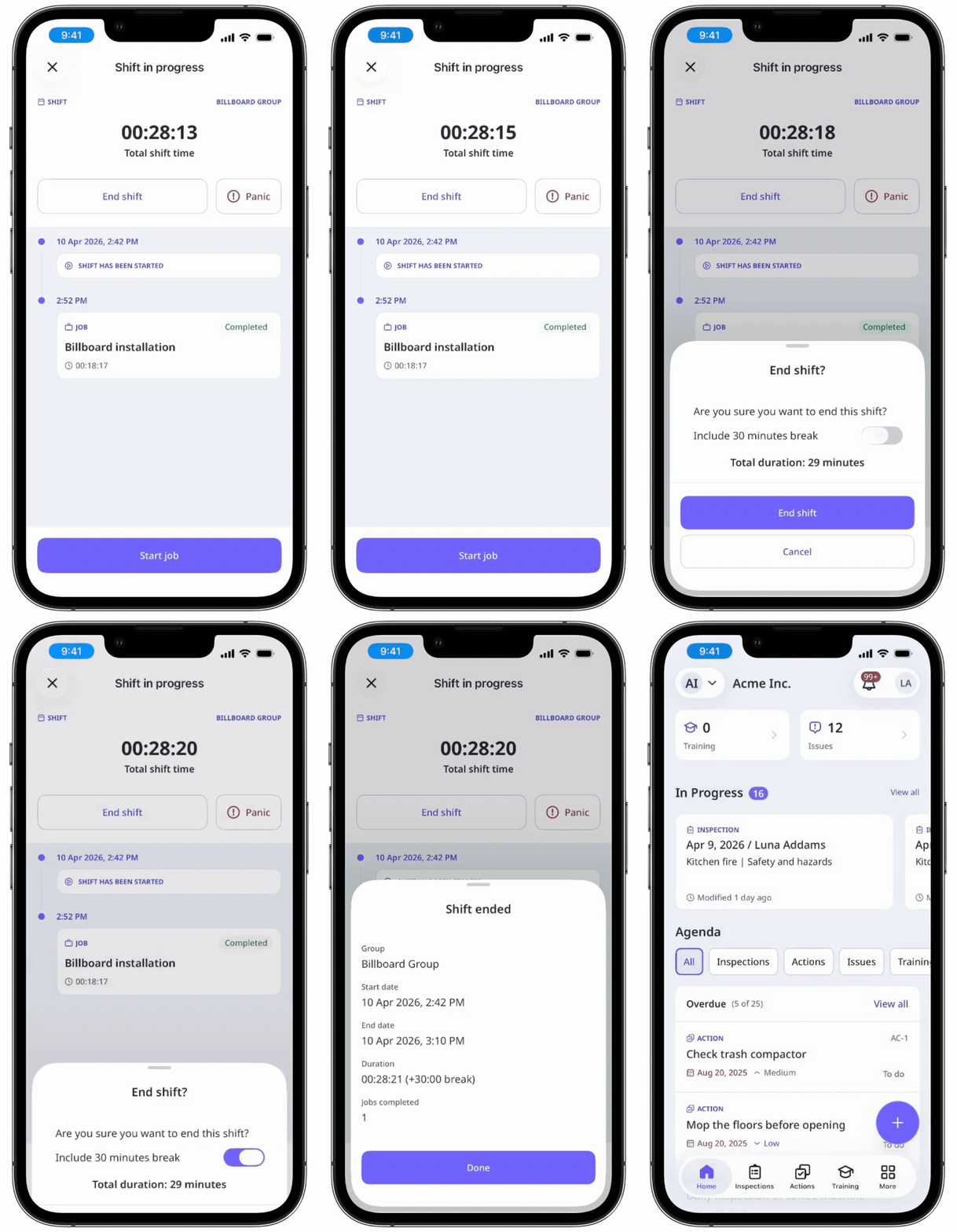
When your shift is done, tap Schicht beenden .
If applicable, you can include your break in the total duration of your shift.
Tap Schicht beenden .
In the pop-up window, tap Fertig .
Sie können eine Schicht immer nur von einem Gerät aus starten. Wenn Sie mehrere Geräte verwenden, werden Standortaktualisierungen nur von dem Gerät gesendet, das Sie zum Starten der Schicht verwendet haben.