
What are benchmarking criteria?
Benchmarking criteria are the standards used to measure site performance in SafetyCulture. Each criterion tracks a specific metric, such as inspection completion rate, average inspection score, or action count. A site's score is based on how many criteria it meets, with higher-weighted criteria having a greater impact on the overall score. By using the same criteria across all sites, you can measure performance consistently, compare results fairly, and identify the areas that contribute to or reduce a site's overall score.
Add a criterion
Click Site Benchmarking in the sidebar.
Click Configuration at the top of the page.
Click Add criterion on the upper-right of the criteria list.
Configure the following details accordingly:
Category: Select what the criterion measures from available categories based on your organization's industry. You can also click Change industry to select a different industry.
Data source: Select what type of data you want to use to measure your criterion.
Metric: Select a metric you want to track to measure your criterion such as the number of actions or completed inspections.
Target: Define what a good score looks like by setting a threshold value and time window.
Click Save on the upper-right of the page.

You can only have up to 20 criteria in your organization. Question-level filters only support questions using the global response set and multiple-choice questions.
Edit a criterion
Click Site Benchmarking in the sidebar.
Click Configuration at the top of the page.
Click on the right-hand side of the criterion you want to edit.
Edit the fields accordingly and click Save on the upper-right corner of the page.
You can also click on the right-hand side of the category name to enter a custom criterion title. Click enter on your keyboard, then click Save changes at the botton of the page to save.

Set the criteria weight
Click Site Benchmarking in the sidebar.
Click Configuration at the top of the page.
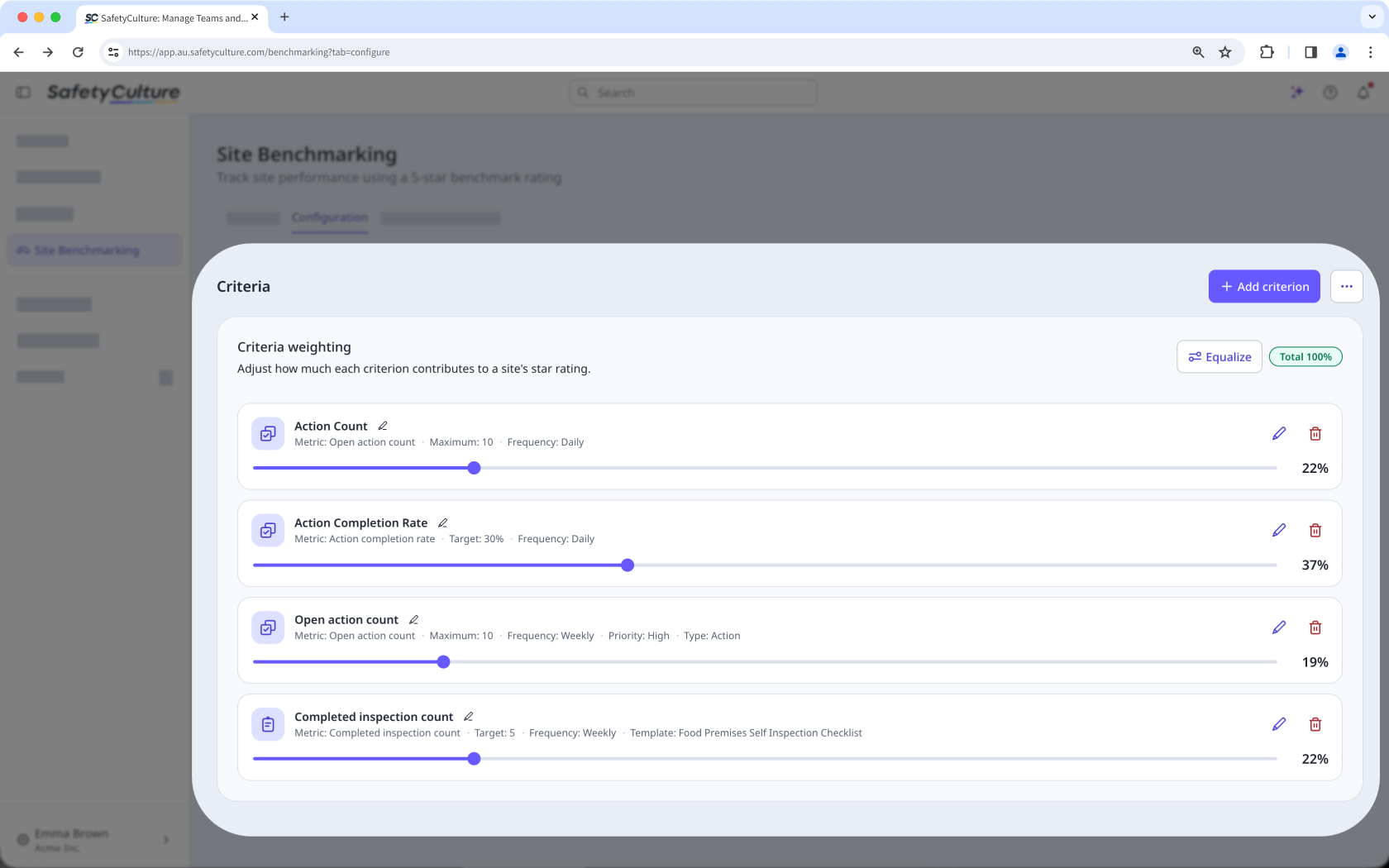
Adjust the slider at the bottom of each criterion to set its weight, or click Equalize to distribute the 100% across all criteria.
Click Save changes at the bottom of the page.

Adjusting the weight of one criterion automatically adjusts the rest so the total always equals 100%. When you use Equalize, some criteria may be assigned a slightly higher or lower weight if the number of criteria doesn't divide evenly.


