
What does it mean to upload data in Site Benchmarking?
Uploading your business data in Site Benchmarking gives additional context beyond your sites' actions, issues, and inspection activities. This data can include customer satisfaction surveys, mystery shopper reports, location sales and revenue, customer feedback, staff training records, and equipment logs. By analyzing these internal and external data sources, Site Benchmarking generates AI-powered site insights that identify trends and provide a better picture of your sites' performance.
Uploading data strengthens the AI insights and Data strength score only. It does not affect the 5-star score.
Upload data in Site Benchmarking
Click Site Benchmarking in the sidebar.
Click AI Recommendations on the upper-right corner of the page.
In the Site performance section, click Upload data on the right side.
In the pop-up window, click Browse to select your files, or drag and drop them in the file upload tile.
Click Add to upload your files.
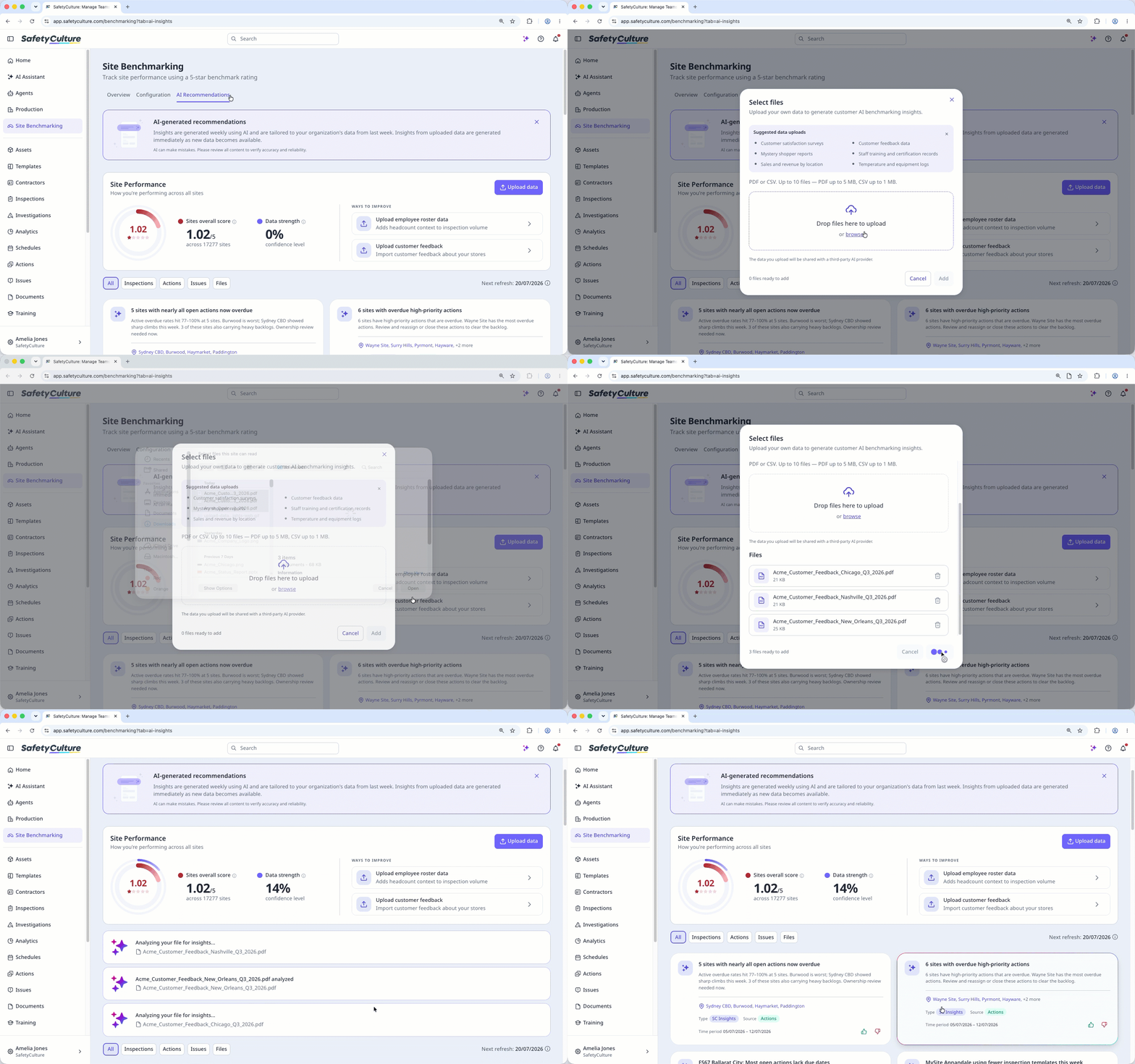
Files you upload are stored in Documents.
Limitations
You can upload files up to 5MB each in PDF and 1MB each in CSV formats.
If your organization is on Premium Plan or Enterprise Plan, you can add up to 10,000 files in total.
If your organization is on Free Plan, you can add up to 100 files.
You can drag and drop up to 10 files in one go.


