What are schedule insights?
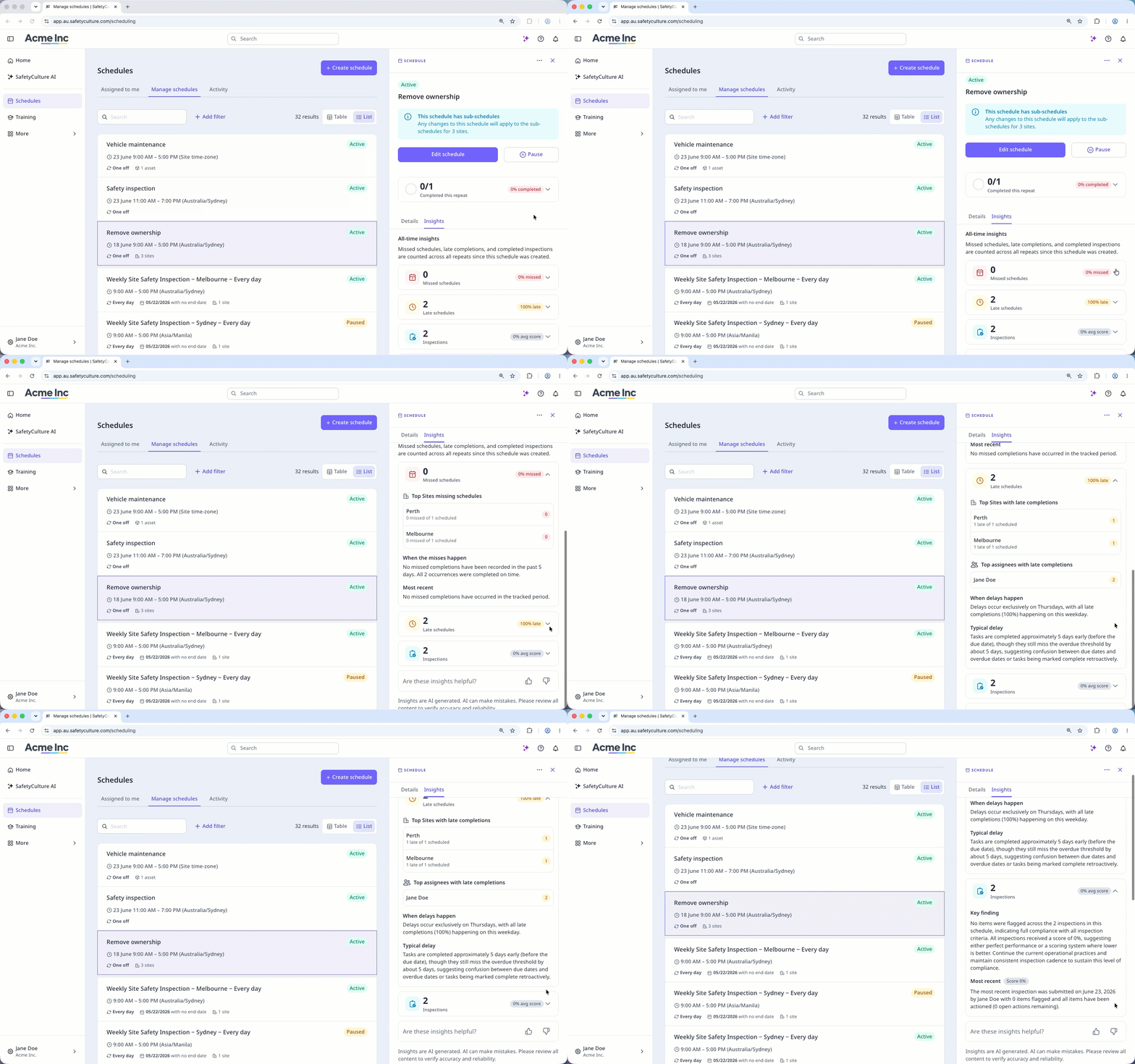
Schedule insights are AI-generated summaries and performance data that show how a schedule is tracking at a glance. You can view insights for the current repeat and all-time data across the following:
Missed schedules: Total count and percentage missed, a breakdown of top assignees, sites, or assets with missed schedules, an AI-generated analysis of when misses tend to happen, and the most recent miss details.
Late schedules: Total count and percentage late, a breakdown of top assignees, sites, or assets with late completions, an AI-generated summary of delay patterns, and typical delay duration.
Inspections: Total count and average score of completed inspections, any open actions flagged from completed inspections, an AI-generated key finding summarizing completion patterns, and the most recent inspection details.
Using schedule insights, you can spot where things are consistently falling behind and take action without switching between pages. This saves you from manually reviewing schedule activity to identify issues, which can be time-consuming and easy to overlook."
What you'll need
If you have "Schedules: Manage" permission, you can view all schedule insights in your organization
View a schedule's insights
Select Schedules in the sidebar or select it in More.
Click Manage schedules at the top of the page.
Select between Table and List on the upper-right of the page to choose how your schedules are displayed.
Click the schedule.
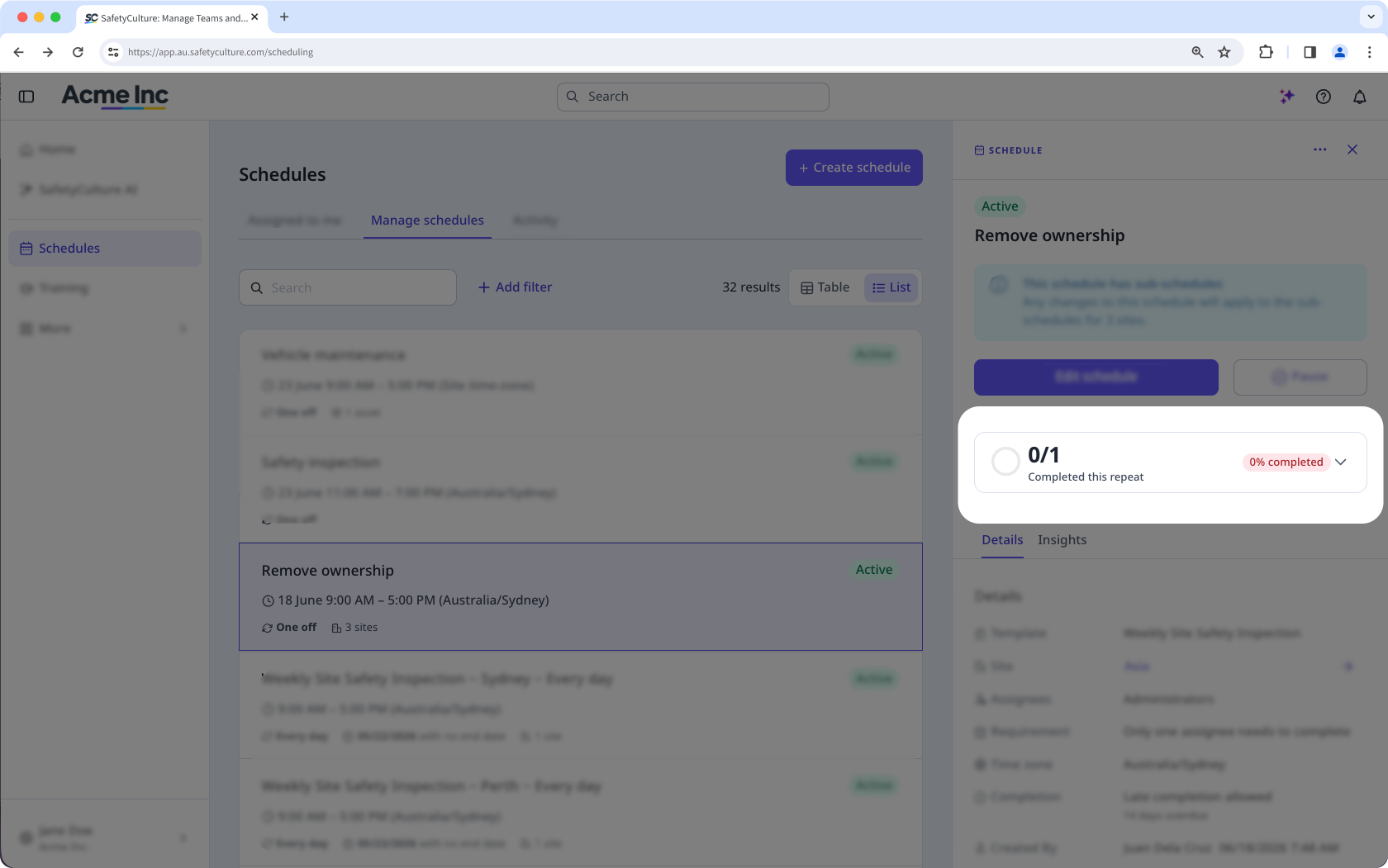
In the side panel, click the repeat summary card to view insights for the current repeat, or click Insights to view the all-time insights.
In Insights, click "Missed schedules", "Late schedules", or "Inspections" to view all-time insights for each.