We currently have a legacy and a new experience with the Schedules feature.
This article covers the new Schedules experience. Please ensure you're in the new experience by using the toggle on the upper-left of the Schedules page.
How does access in Schedules work?
Access in SafetyCulture controls who can view and interact with features in your organization. In Schedules, you can also manage access at the individual schedule level. By default, the schedule creator becomes the owner. You can assign three access levels to users or groups: view, edit, and owner. Each level controls what users can do with a schedule.
Feature | View | Edit | Owner |
|---|---|---|---|
View schedule details and analytics | Yes | Yes | Yes |
Duplicate schedules | Yes | Yes | Yes |
Edit, pause, resume, and end schedules | No | Yes | Yes |
Delete schedules | No | No | Yes |
Give view and edit access | No | Yes | Yes |
Give owner access | No | No | Yes |
Access assigned to a main schedule automatically applies to all its sub-schedules.
If you have "Schedules: Manage" permission you can manage the access of all schedules in your organization.
Manage access to a schedule
Select Schedules in the sidebar or select it in More.
Click Manage schedules on the top of the page.
You can choose how you want to view your schedules by selecting between Table and List on the upper-right of the page.
Click the schedule.
Click on the upper-right corner of the side panel.
Select Manage access.
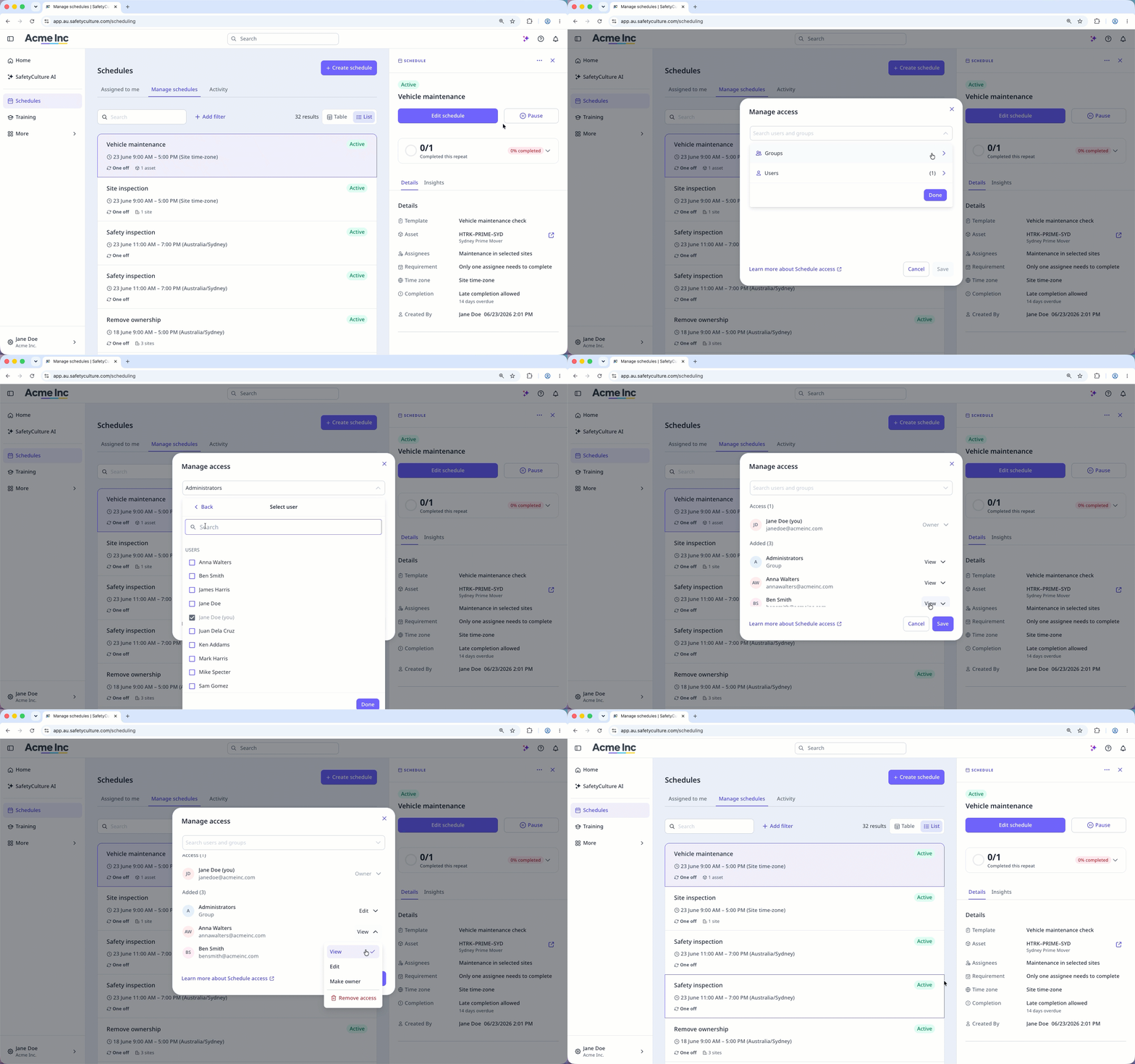
In the pop-up window, search and select groups and users you want to give access.
By default, each user and group is given the "View" access to the schedule. You can click the dropdown next to each user or group to update access.
Click Save.
Users receive a notification when you give them access to a schedule.
Limitations
Only users with Owner access can make other users owners of a schedule.
Giving access to a schedule does not give access to templates linked to that schedule.
Users must have "Schedules: Create" permission to duplicate schedules.
Schedule access does not override site membership access. Users must have access to the assets and sites assigned to a schedule to view or interact with those items.