
What are sub-schedules?
In the new Schedules experience, sub-schedules are created automatically when you assign a schedule to multiple sites or assets. If you assign a schedule to multiple sites, or to a higher-level site in your site hierarchy, a sub-schedule is created for each site. Likewise, if you select multiple assets, a sub-schedule is created for each asset.
For example, assigning a schedule to a “Downtown” site that contains 15 construction sites creates 15 sub-schedules. Creating a schedule for 10,000 assets creates 10,000 sub-schedules.
Any changes you make to the main schedule automatically apply to all sub-schedules, helping you manage schedules at scale, reduce repetitive admin work, and keep everything consistent.
By default, when a schedule is assigned to multiple sites, only users who are direct members of those sites are included as assignees. To include members of the parent site, turn on Assign to inherited site members when you assign the schedule based on site and group membership.
What you'll need
If you have "Schedules: Manage" permission, you can view all sub-schedules in your organization.
View sub-schedules
Select Schedules in the sidebar or select it in More.
Click Manage schedules on the top of the page.
Click the schedule.
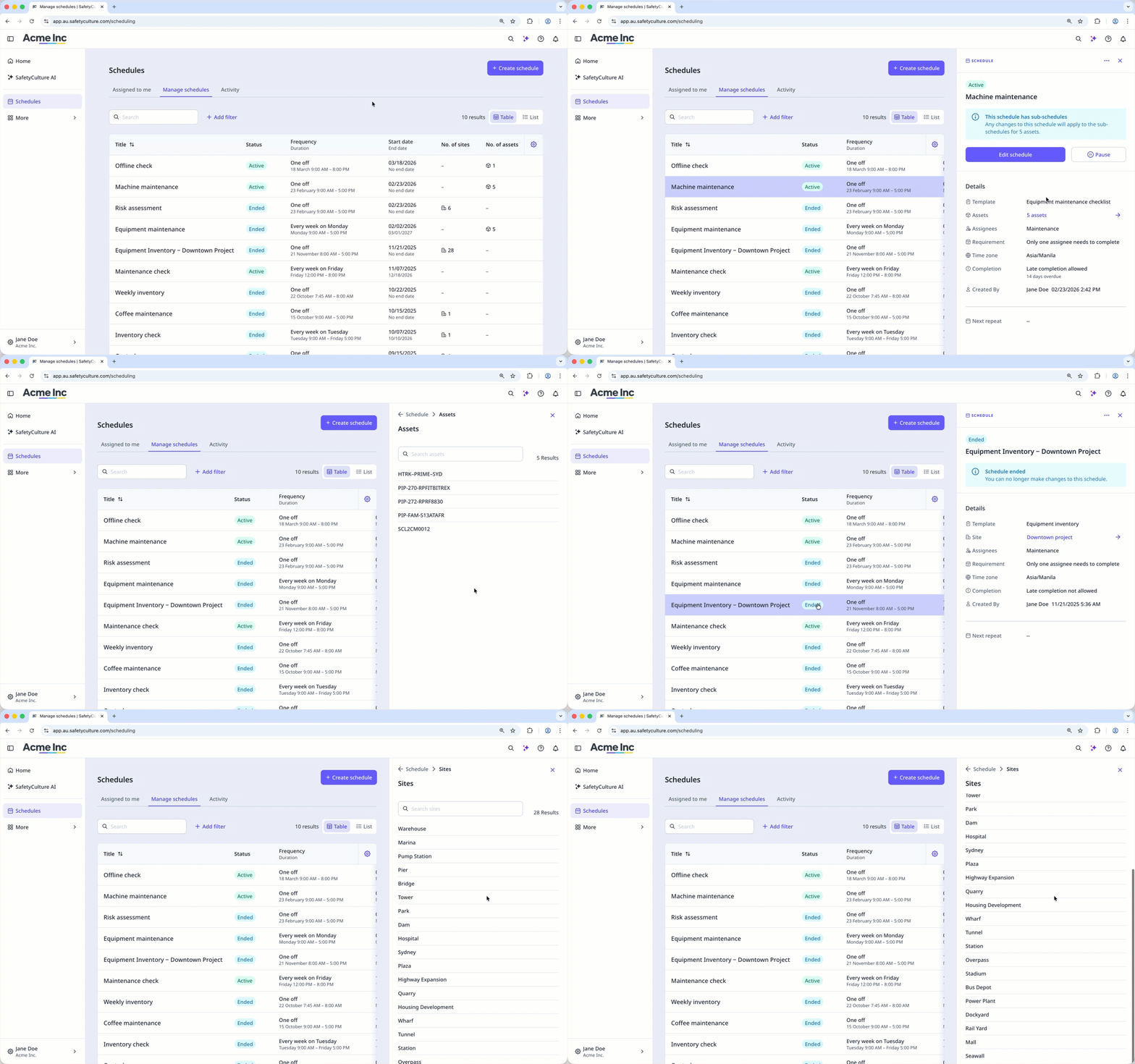
In the side panel, click the site or asset listed next to the "Sites" or "Assets" field.
On this page, you can view all the sub-schedules created. You can also search for a specific sub-schedule by using the search bar at the top and entering the site or asset name.


