What does it mean to manage users in bulk via CSV or Excel?
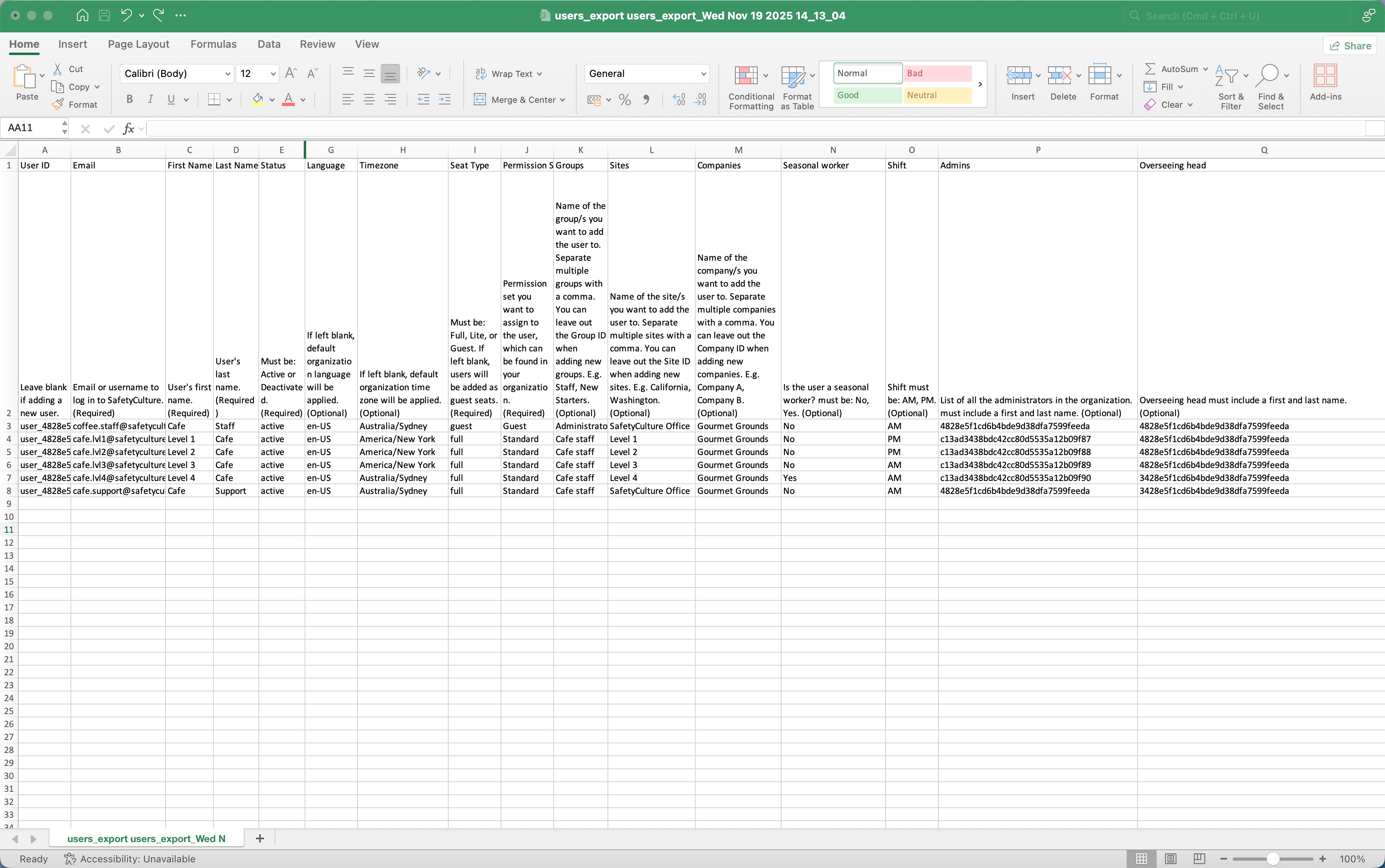
Managing users one by one can be time-consuming, especially when you're working with a large team and a lot of details. By managing users in bulk, you can add new users and update existing ones in one go, making it easy to keep user details like seat types, permission sets, sites (opens in new tab), groups, and user fields up to date using one CSV or Excel file. It’s a simple way to efficiently maintain your user list and keep your organization running smoothly.
How does bulk user management in SafetyCulture differ from EdApp?
Feature | EdApp | SafetyCulture |
|---|---|---|
CSV functionality | It exports and edits users with fields such as name, username, first name, last name, user groups, roles, password, external ID, and custom fields. | It exports user list to add and update users, including user details such as seat types, permission sets, groups, sites, companies, language, timezone and custom user fields. |
Password handling | Passwords for existing users can be updated via CSV. Leaving the password field blank keeps the learner's current password. | Passwords can only be set for new users being added to the organization. Bulk updating existing users’ passwords is not supported. |
Group and site membership | Admins can choose whether CSV updates to user groups and roles will add to current membership or replace them. | CSV data will overwrite existing group and site membership. |
Delimiters | Values in CSV are separated by a semicolon (;). | Values in CSV are separated by a comma (,). |