Why view issues on an asset?
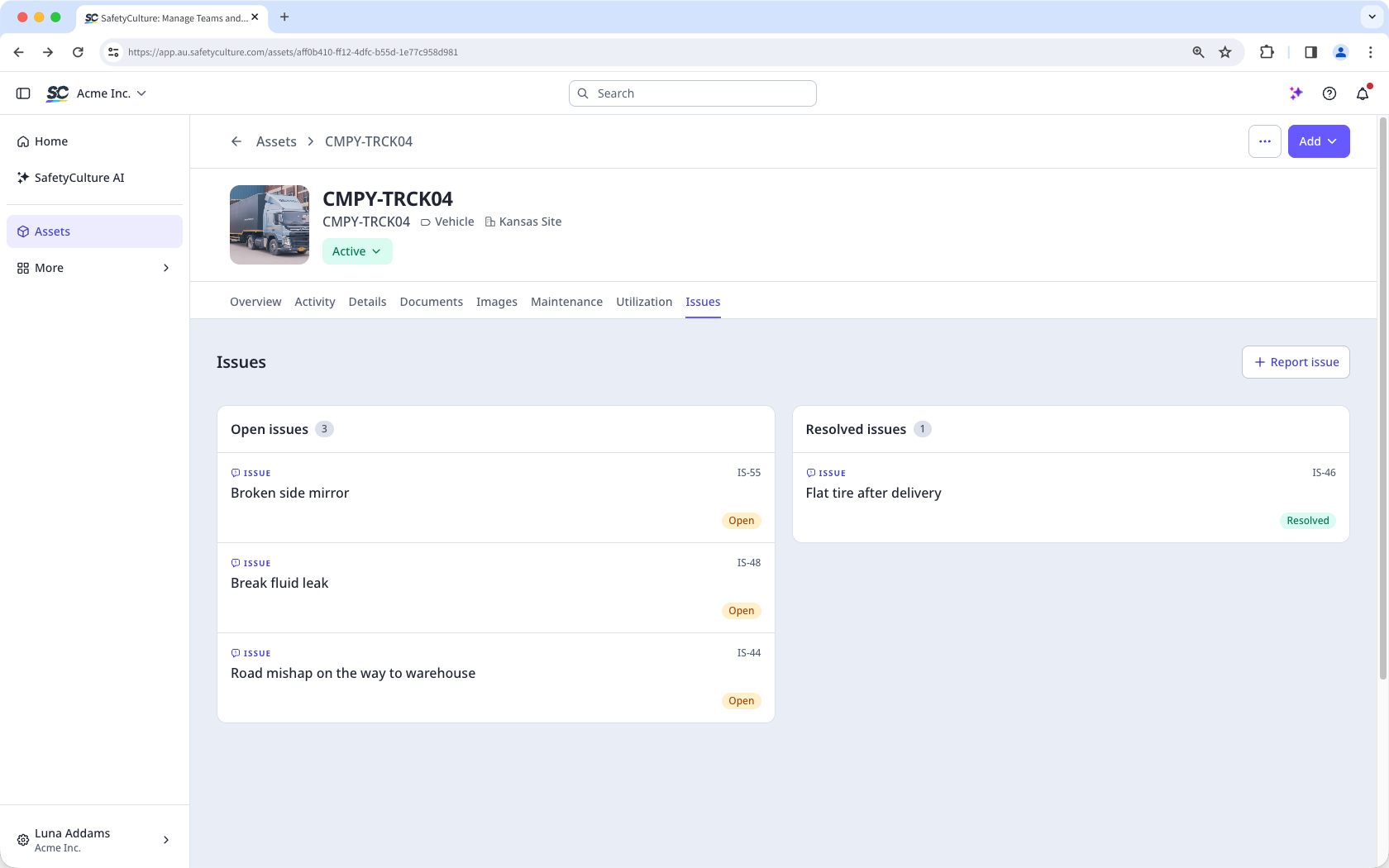
Viewing issues on an asset shows you all issues linked to it, both open and resolved. This gives you full visibility so issues stay on track, whether you're assigning tasks or reviewing progress. Checking issues helps you verify coverage, spot what's missing, and ensure work is addressed in the right order. Over time, this visibility helps you identify patterns, reduce duplicated effort, and improve how you manage issues across your assets.
What you'll need
View an asset with open issues
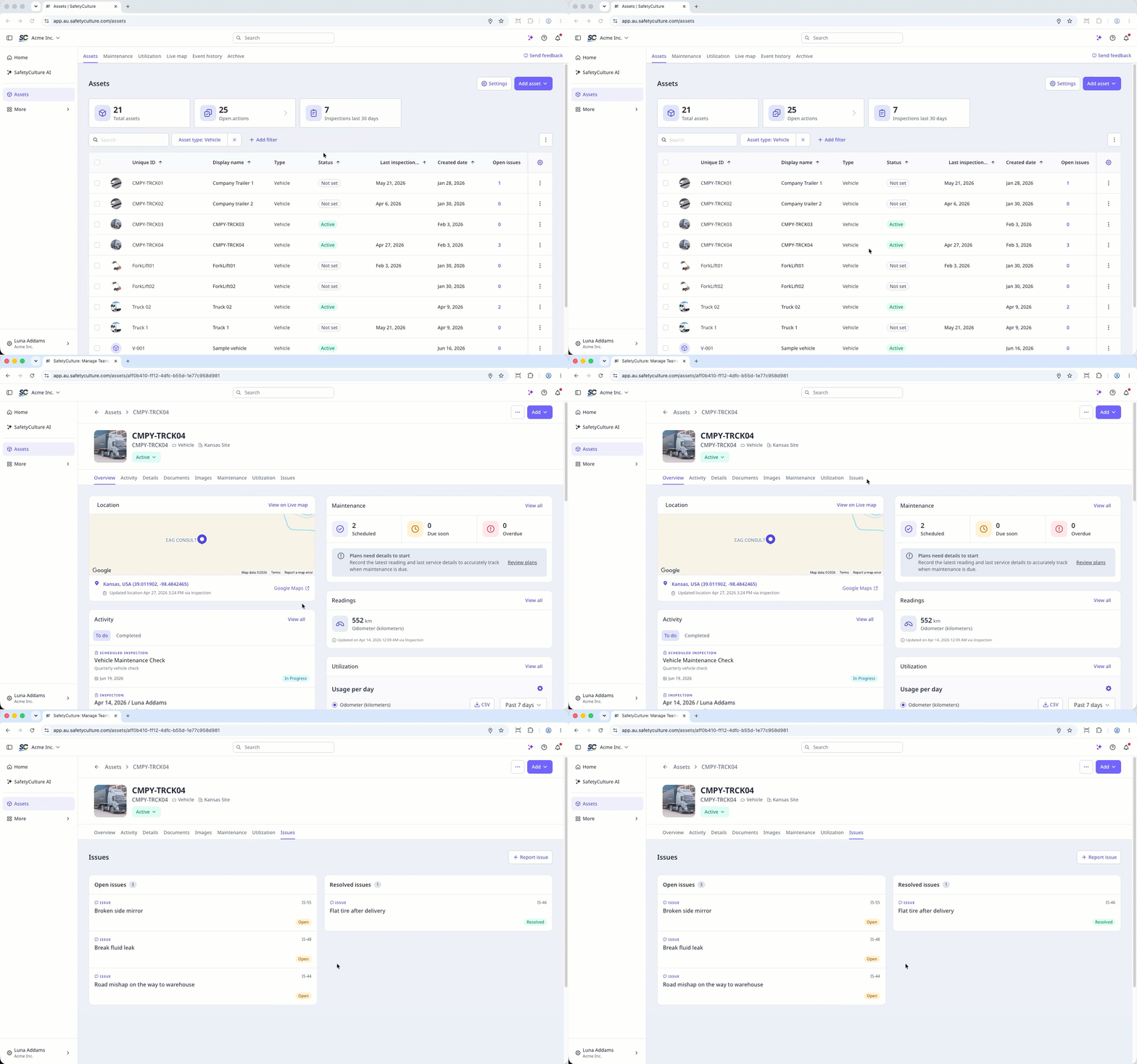
Select Assets in the sidebar or select it in More.
To view open issues for each asset in the list, add the Open issues column:
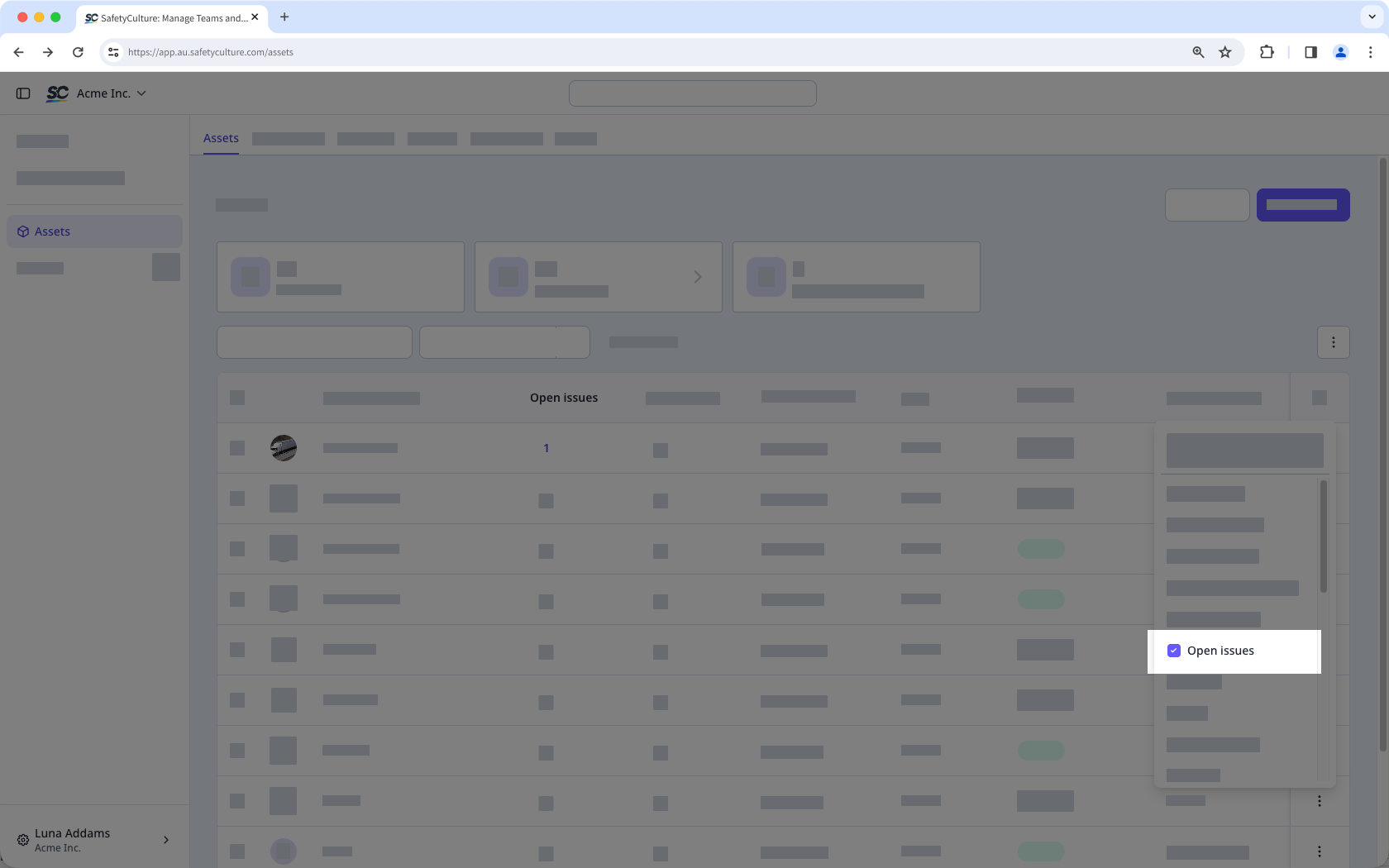
Click the at the upper-right of the asset list.
Select Open issues.
Click the issue count for the asset.
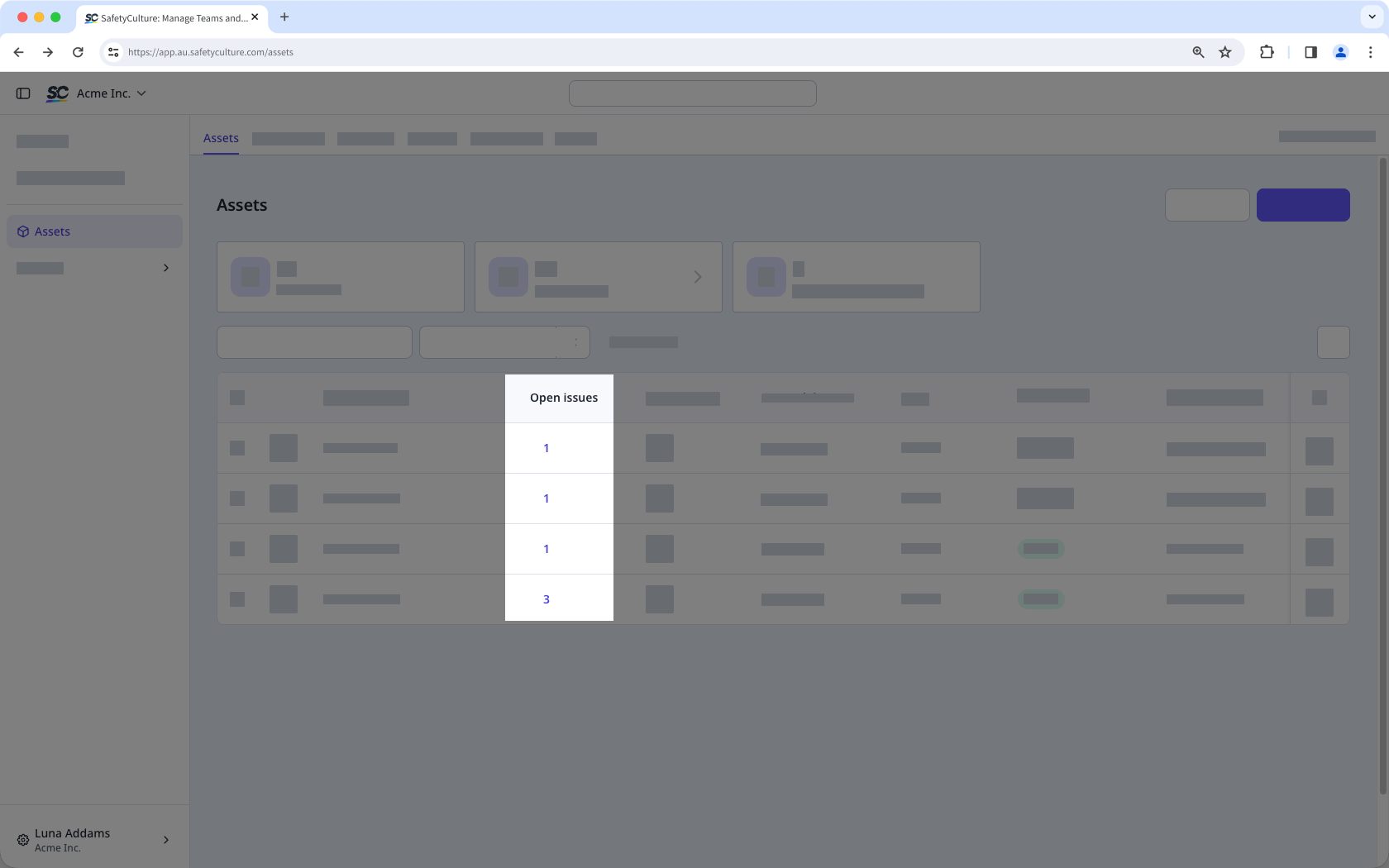
View the open issues in the side panel.
Alternatively, in the asset profile click Issues tab to view the issues linked to the asset:
Open issues: Issues that have been created and require action. They are visible on the asset, and your team can assign, update, or resolve them.
Resolved issues: Issues that have been addressed and closed. Resolved issues are kept on the asset record so your team can track what was reported and how each issue was handled.