
We currently have a legacy and a new experience with the Schedules feature. Your experience may vary depending on the schedule you’re assigned.
Problem
When starting a scheduled inspection, you might encounter errors depending on the schedule's state. This article explains the possible errors and provides solutions to help you resolve them quickly and keep your work on track.
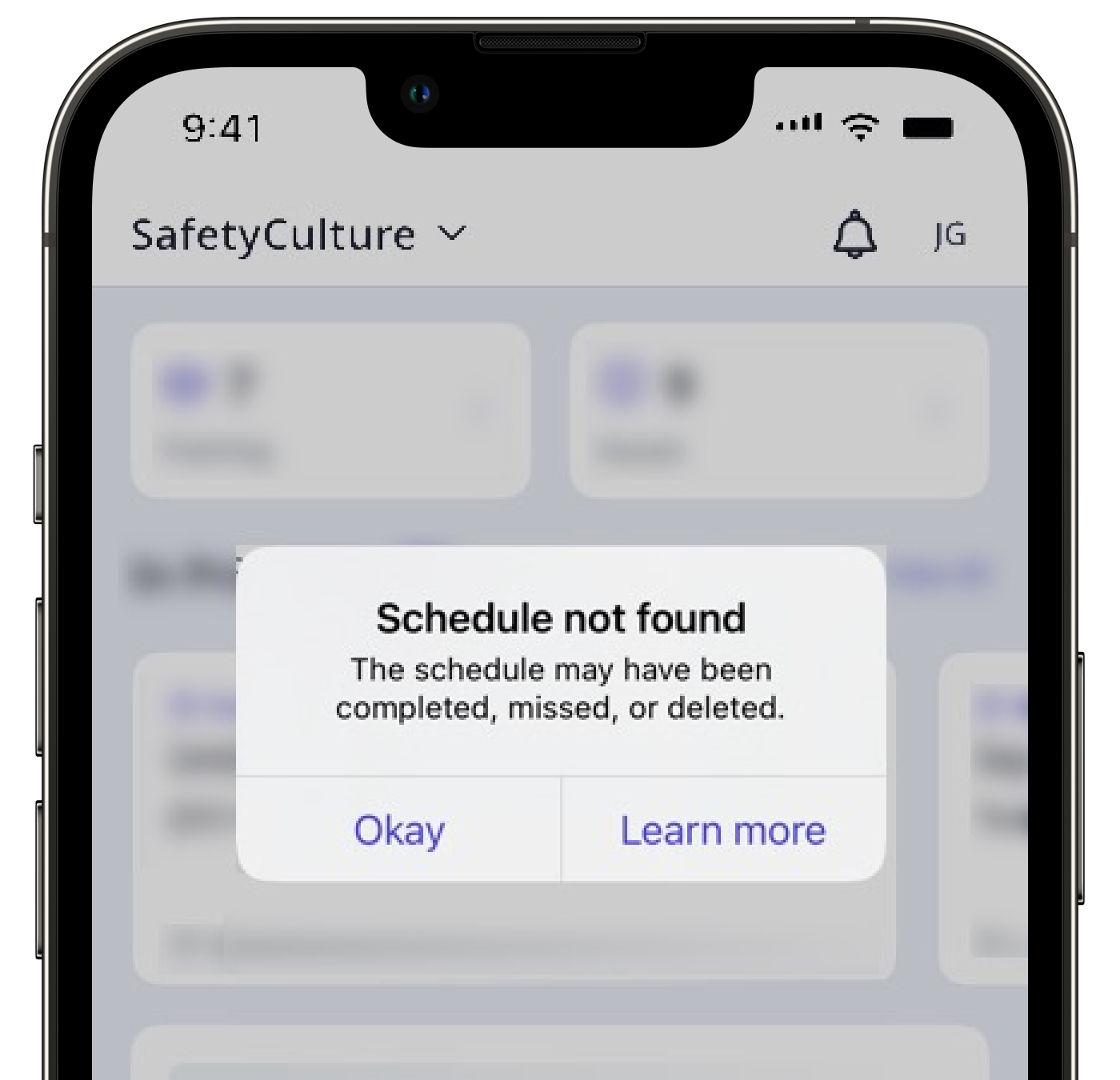
“Schedule not found” error
If you attempt to open a scheduled inspection from a notification and see the “Schedule not found” error, this could be the result of one of three reasons:
The schedule has been completed already, perhaps by someone else.
The schedule has been missed, so it's no longer available.
The schedule has been deleted.
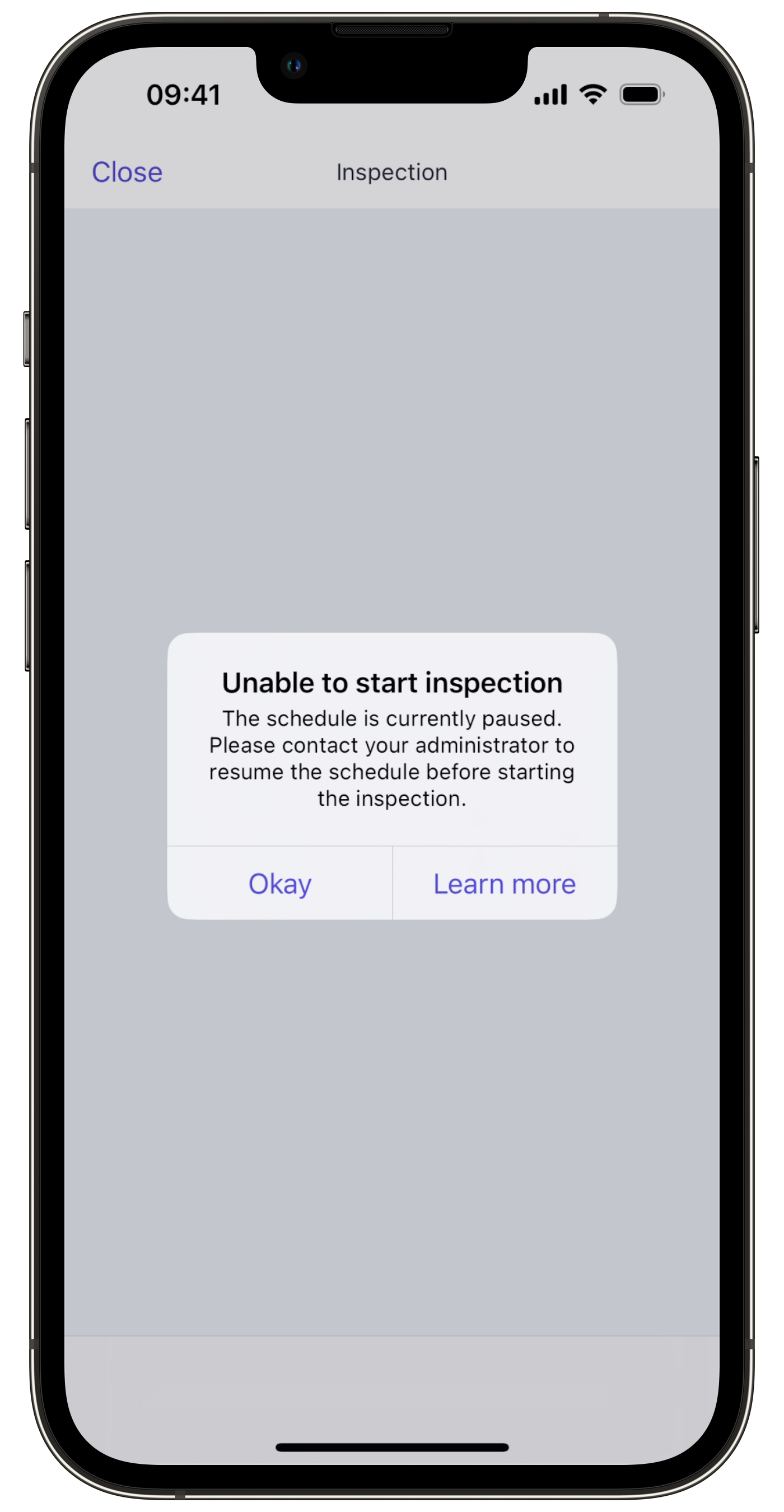
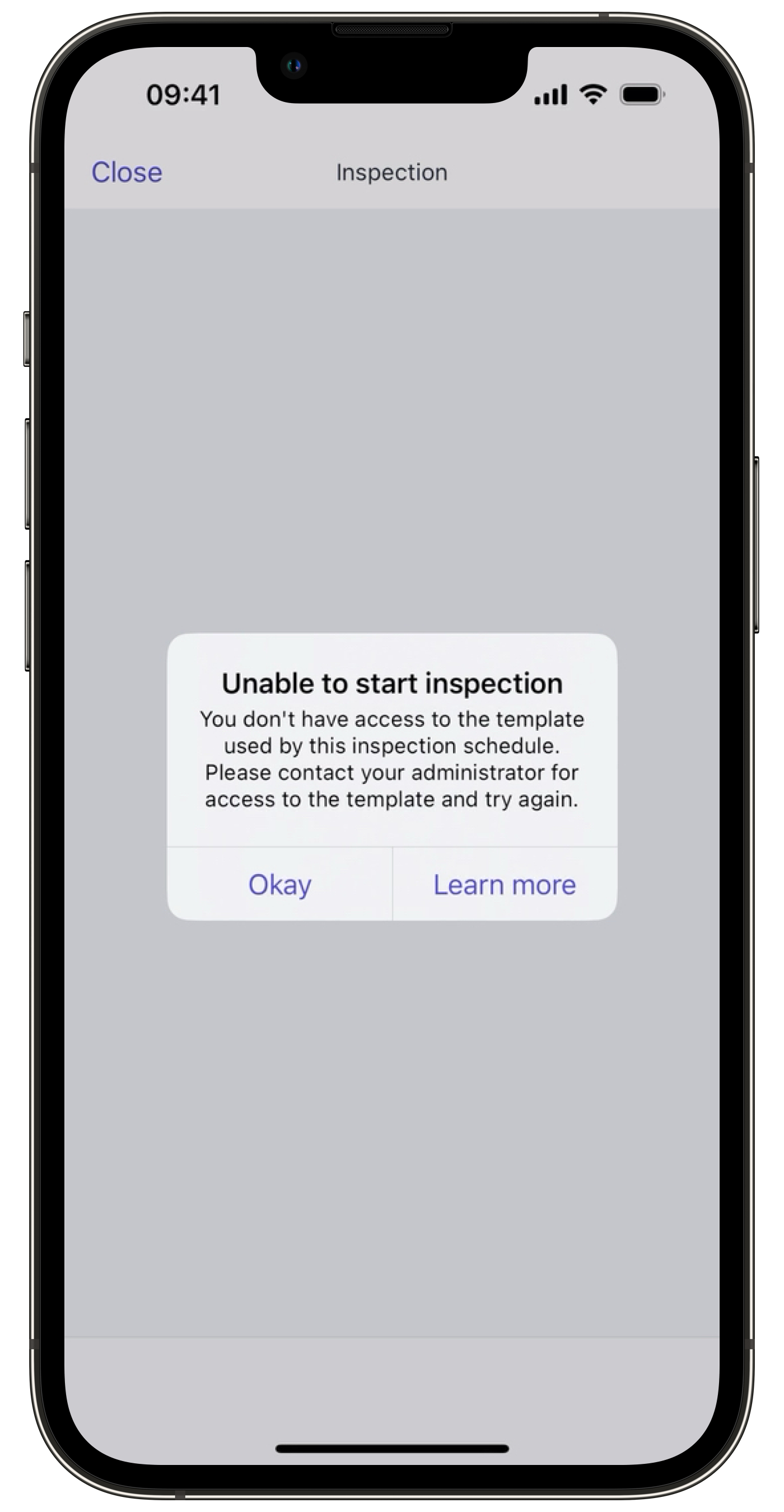
“Unable to start inspection” error
If you try to start a scheduled inspection and you see the “Unable to start inspection” error, this could be due to either one of the following reasons:
“Unable to view schedule” error
If you’re on the new Schedules experience and see the “Unable to view schedule” error, this is usually a temporary issue. This can happen when:
Solution
"Schedule not found" error
Given that the immediate schedule no longer exists, there's no clear solution for this error. However, we recommend that you contact your administrator to check if any work related to the schedule still needs to be completed to ensure you're not missing anything.
"Unable to start inspection" error
Whether the inspection schedule has been paused, or your access has been removed, you should contact your administrator to discuss the next steps, whether it's to resume the schedule or give you access to the template.
"Unable to view schedule" error
Wait a few minutes and try opening the schedule again. In most cases, it will load successfully. If the error persists after several minutes, contact your administrator.


