
Template owners are set as approvers by default in newly-created approval workflow pages.
What you'll need
Deleting an approval workflow page is the same process as deleting other template pages. Please note that even after deleting the page, Approval workflow will remain visible in the template until you add an approval workflow page again.
Add an approval workflow page
Select Templates in the sidebar or select it in More.
Click the template and select Edit template in the side panel.
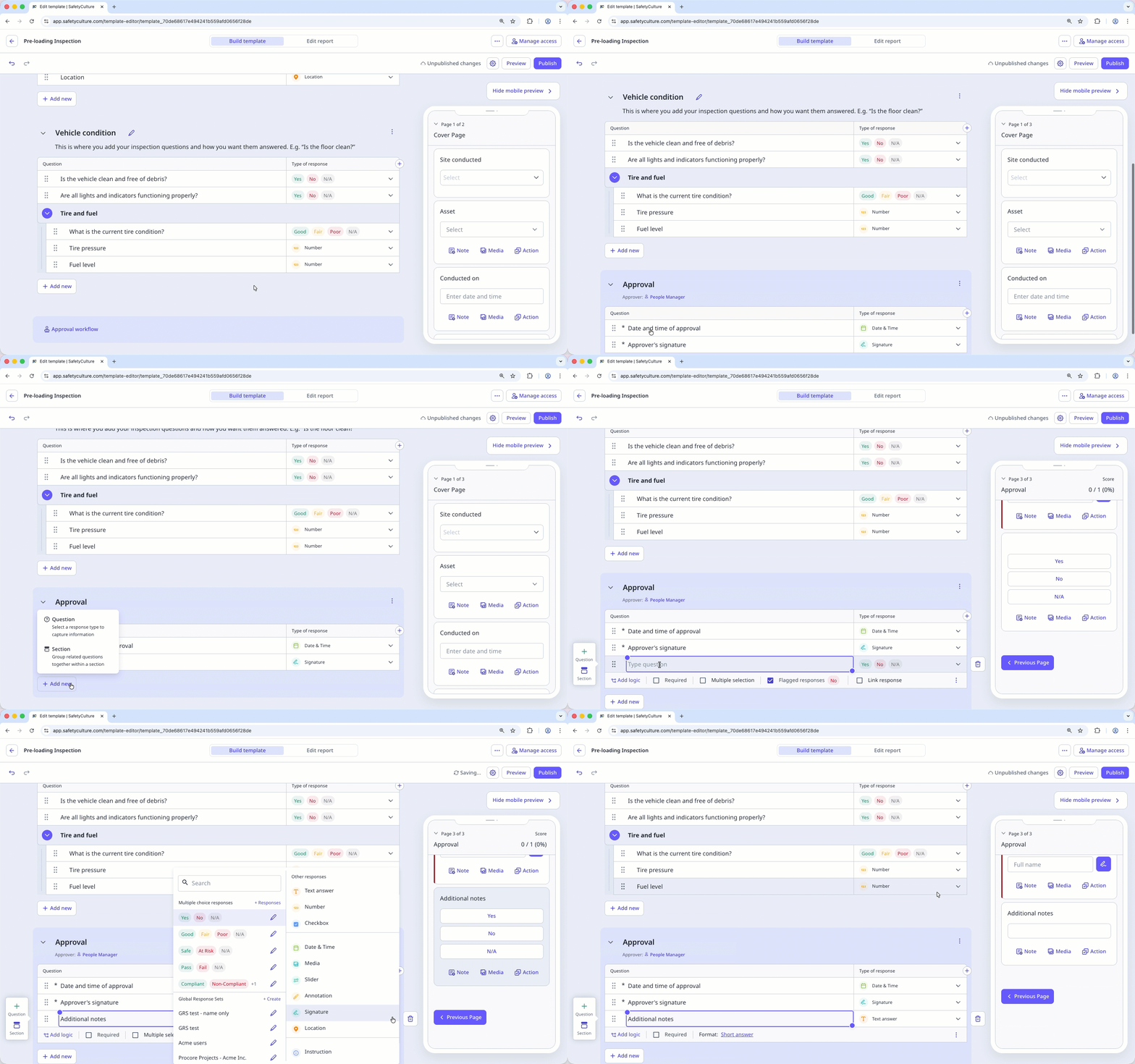
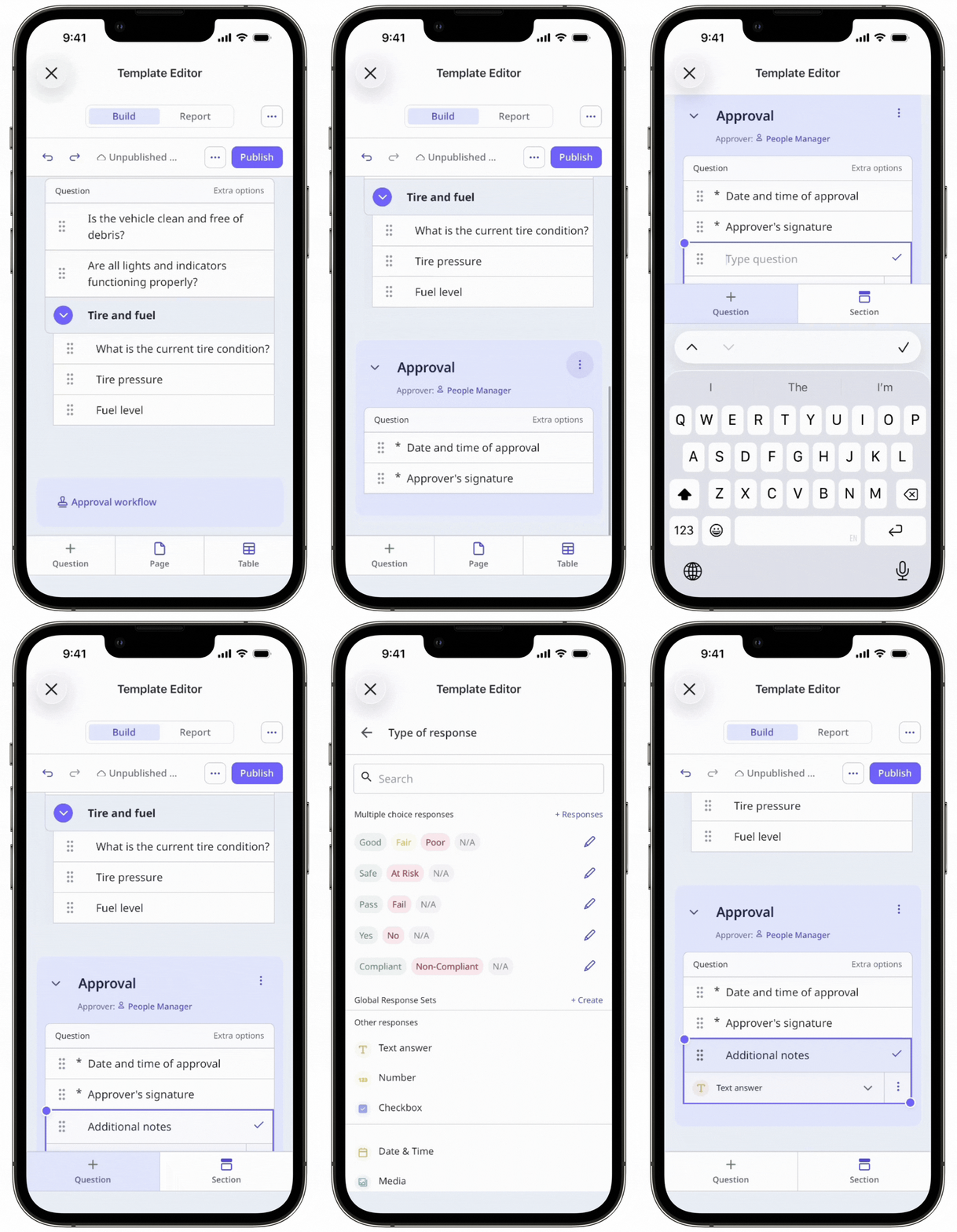
Scroll to the end of the template and click Approval workflow to add an approval workflow page.
By default, the page comes with two questions to capture approval details. You can edit, add, or delete questions, or mark them as required or optional.
Click Publish on the upper-right of the page to publish the template. If you're not ready to publish the template, you can go back to the templates list and come back when you're ready.
To assign approvers based on site and group membership, the site question must be marked as required.
To view all users and groups when assigning an approver, make sure your organization's user visibility settings allow users to select everyone in the organization.
Assign an approver
Select Templates in the sidebar or select it in More.
Click the template and select Edit template in the side panel.
Scroll to the approval workflow page.
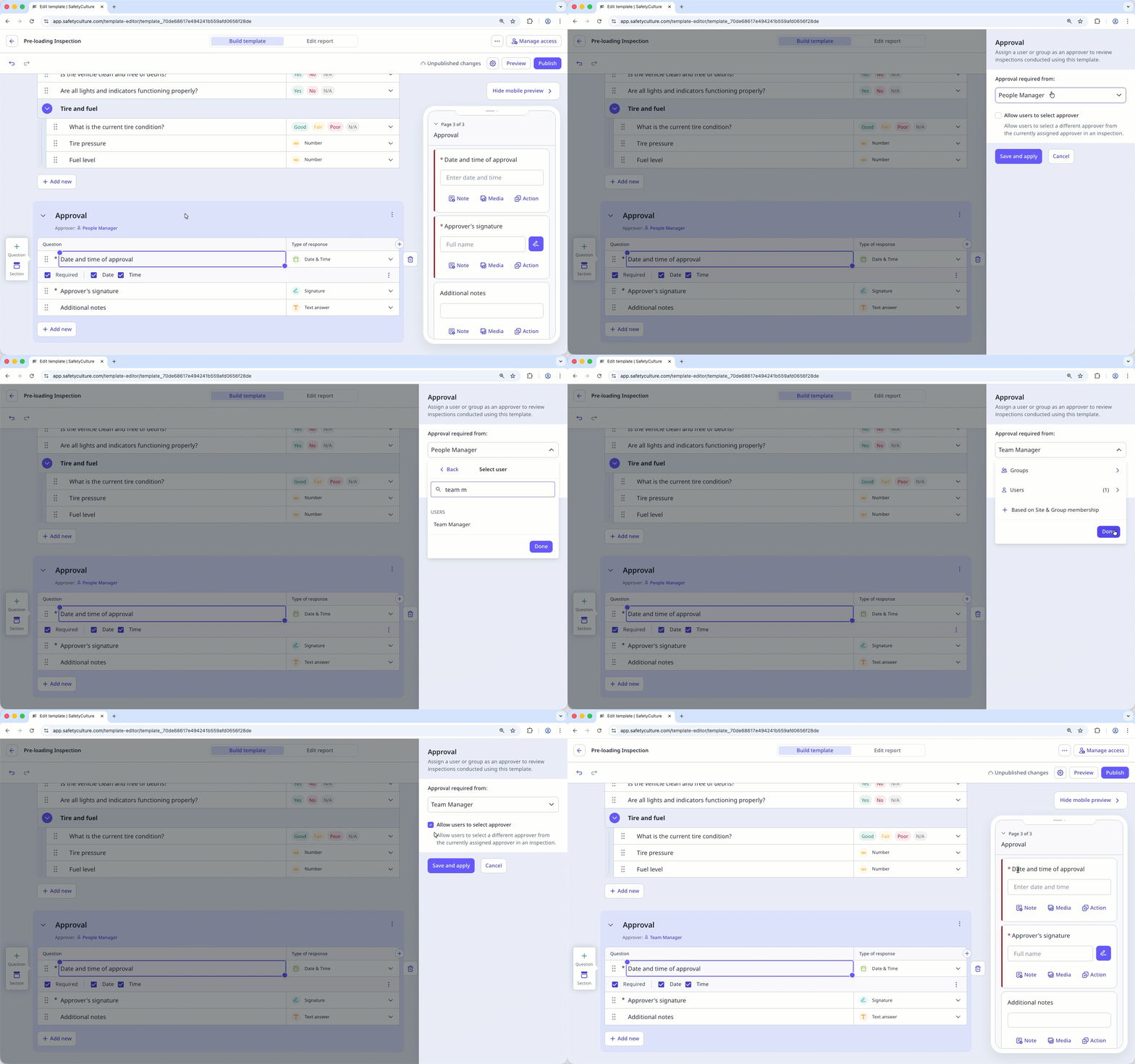
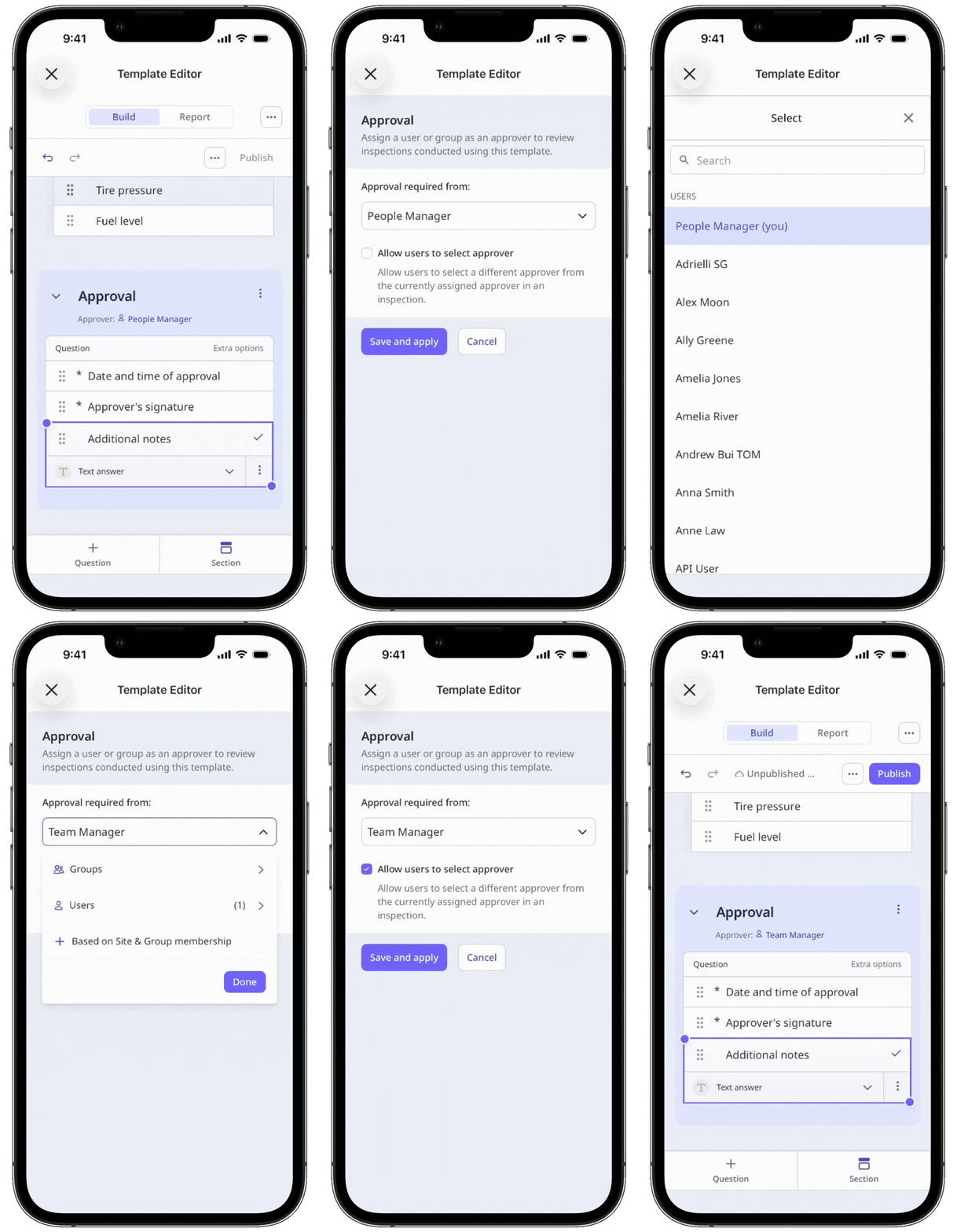
Click on below the page's title.
In the side panel, select a user, group, or create rules based on group and site membership to assign the approver automatically. You can also check the "Allow users to select approver" box to give your team control over who can approve their inspections.
Click Save and apply.
Click Publish on the upper-right of the page to publish the template. If you're not ready to publish the template, you can go back to the template list and publish the changes when you're ready.
Approvers will automatically be provided "View, edit" access to newly-created inspections. If you want an approver to access all previous inspections from a template for approval, please edit the template’s access rules to ensure they have the necessary access level.


