
How do user visibility settings work?
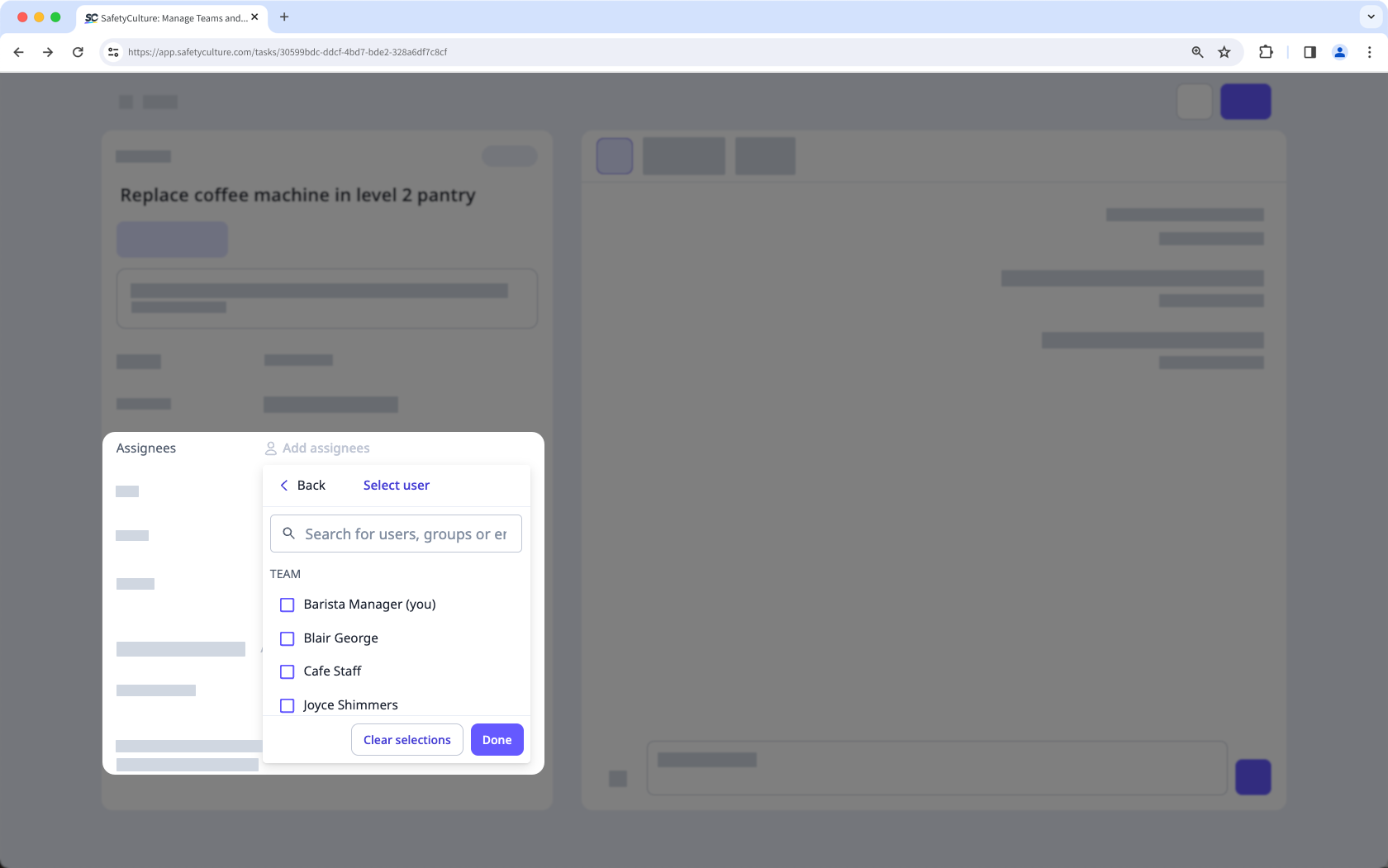
User visibility settings help you simplify collaboration while protecting your team's privacy by limiting which users are visible to each other. You can restrict visibility based on users'site and group memberships, so that your team can only see what's relevant when they're collaborating across the platform.
For example, a user assigning actions only sees other users from the same site or groups that they're part of, helping reduce noise and keep things focused.
What you'll need
If you have "Platform management: Users" permission, you can view and select all users and groups in the organization at all times.
Configure user visibility settings
Click your organization name on the lower-left corner of the page and select Users.
Click on the upper-right of the page and select User visibility settings.
In the pop-up window, choose which setting you want to apply for your organization:
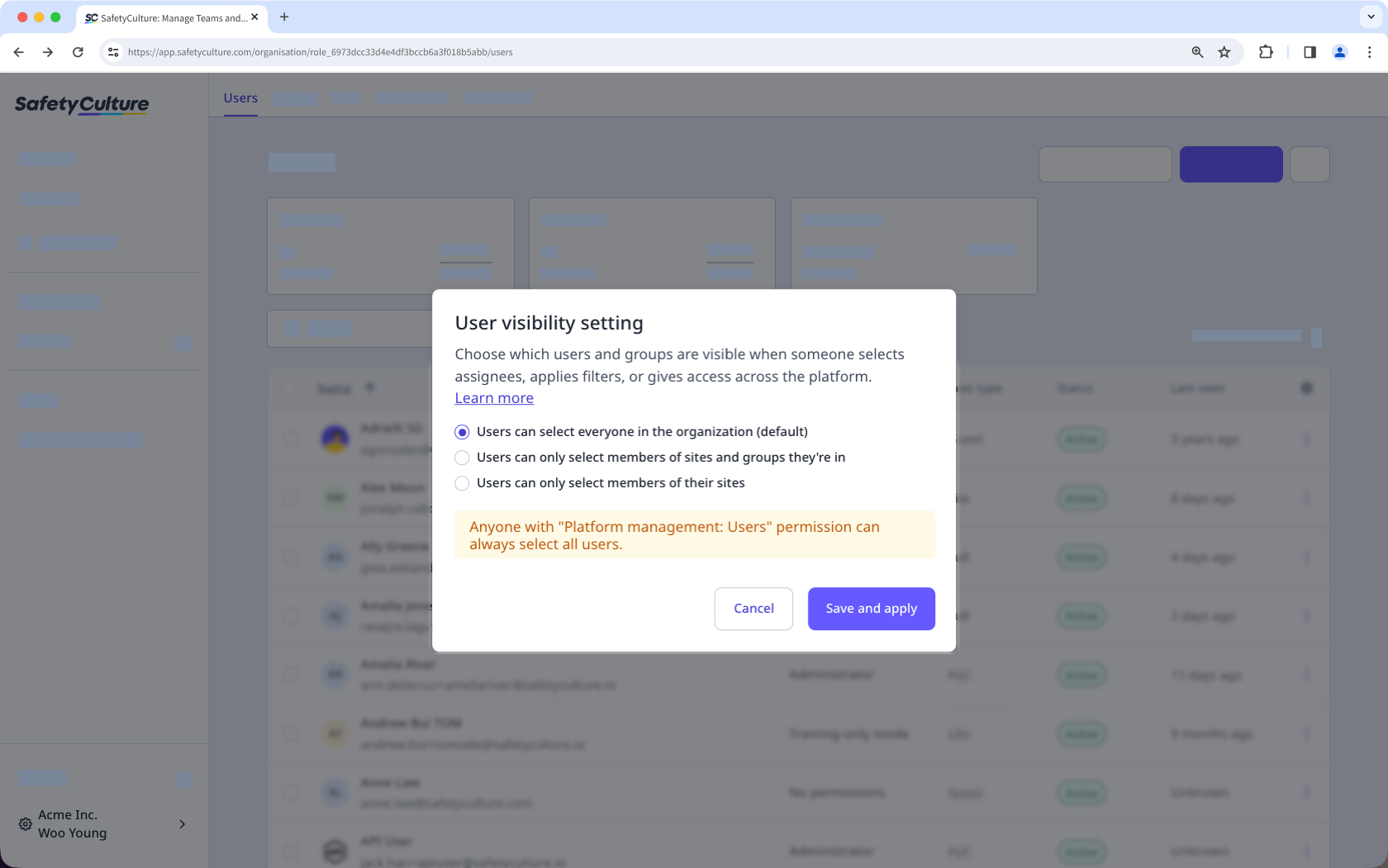
Users can select everyone in the organization: Everyone can view and select all users and groups in the organization.
Users can only select members of sites and groups they're in : Users can view and select members of the same sites, or from a list of groups they're part of.
Users can only select members of their sites : Users can view and select members of the same sites.
Click Save and apply.
Limitations
Selecting an approver in an inspection requires visibility to be set to "Users can select everyone in the organization".
User visibility settings aren’t supported in Documents, Lone Worker, or Training. When managing escalations, file and folder access, and course assignments, all users and groups remain selectable regardless of the visibility setting.


