Why use barcodes or QR codes to find assets?
Scanning a barcode or QR code lets you and your team find an asset in the SafetyCulture mobile app. You no longer need to enter an asset's display name or identification number. This is useful when you have many assets to search through or when you're next to the asset in the field or a warehouse. Scanning lowers the risk of selecting an asset by mistake when several assets have similar names. Scan the code to go straight to the asset profile, then conduct an inspection, create an action, or view more details.
If your organization manages multiple assets, you can easily create asset profile QR codes in bulk via the web app and attach the QR codes to your assets so that your team can scan them when they're on site.
Depending on asset access settings, the assets you can view and manage may vary based on your site membership.
Search for an asset using a barcode or QR code
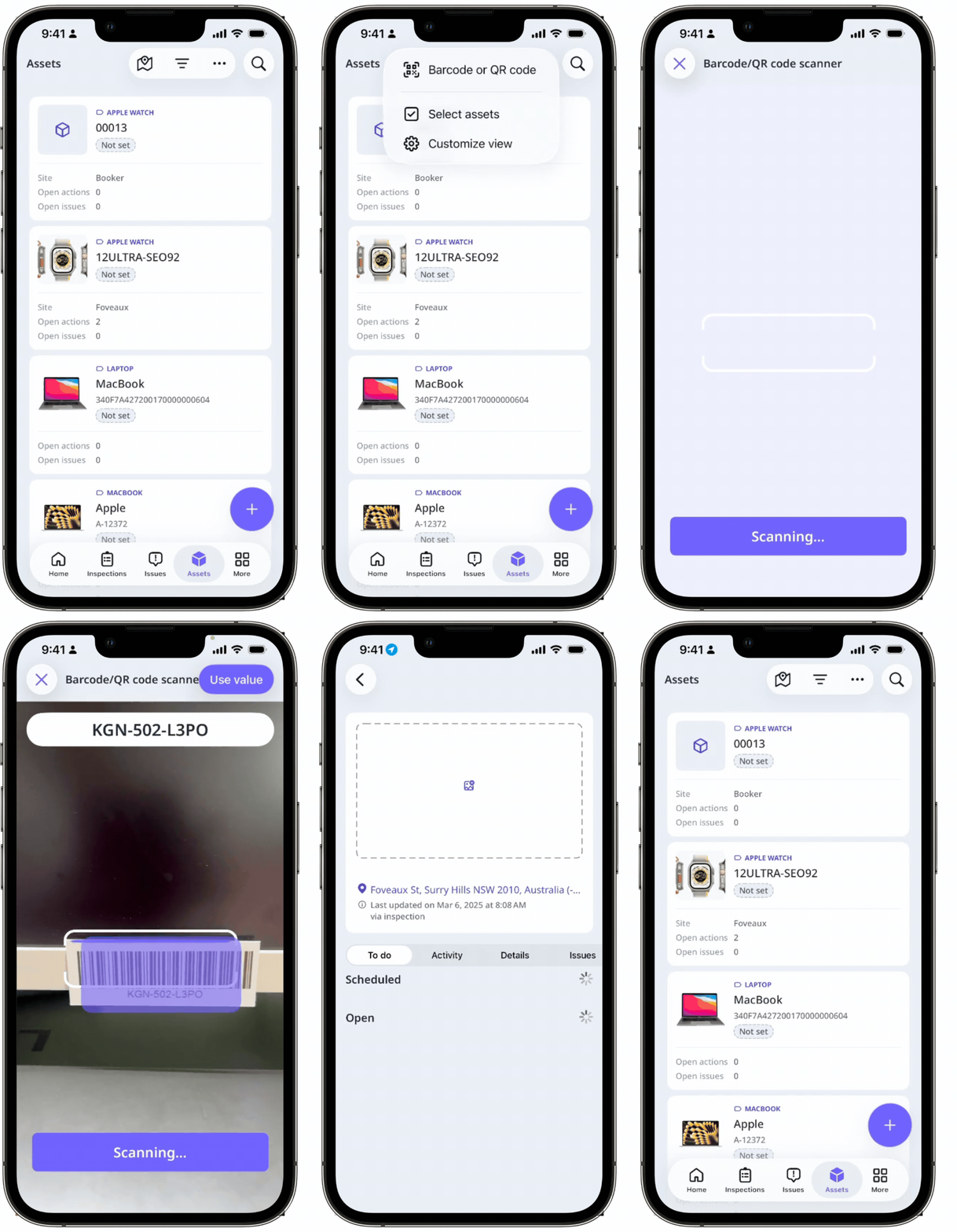
Open the mobile app.
Tap Assets from the navigation bar or in More.
Tap or at the top of your screen.
Select Barcode or QR code.
Scan the asset barcode or QR code.
Tap Use value at the upper-right of your screen.
If the barcode or QR code contains an asset's unique ID or display name, the asset profile displays.
If the barcode or QR code contains an asset type, all assets from this type are shown.
Search for an asset in an inspection
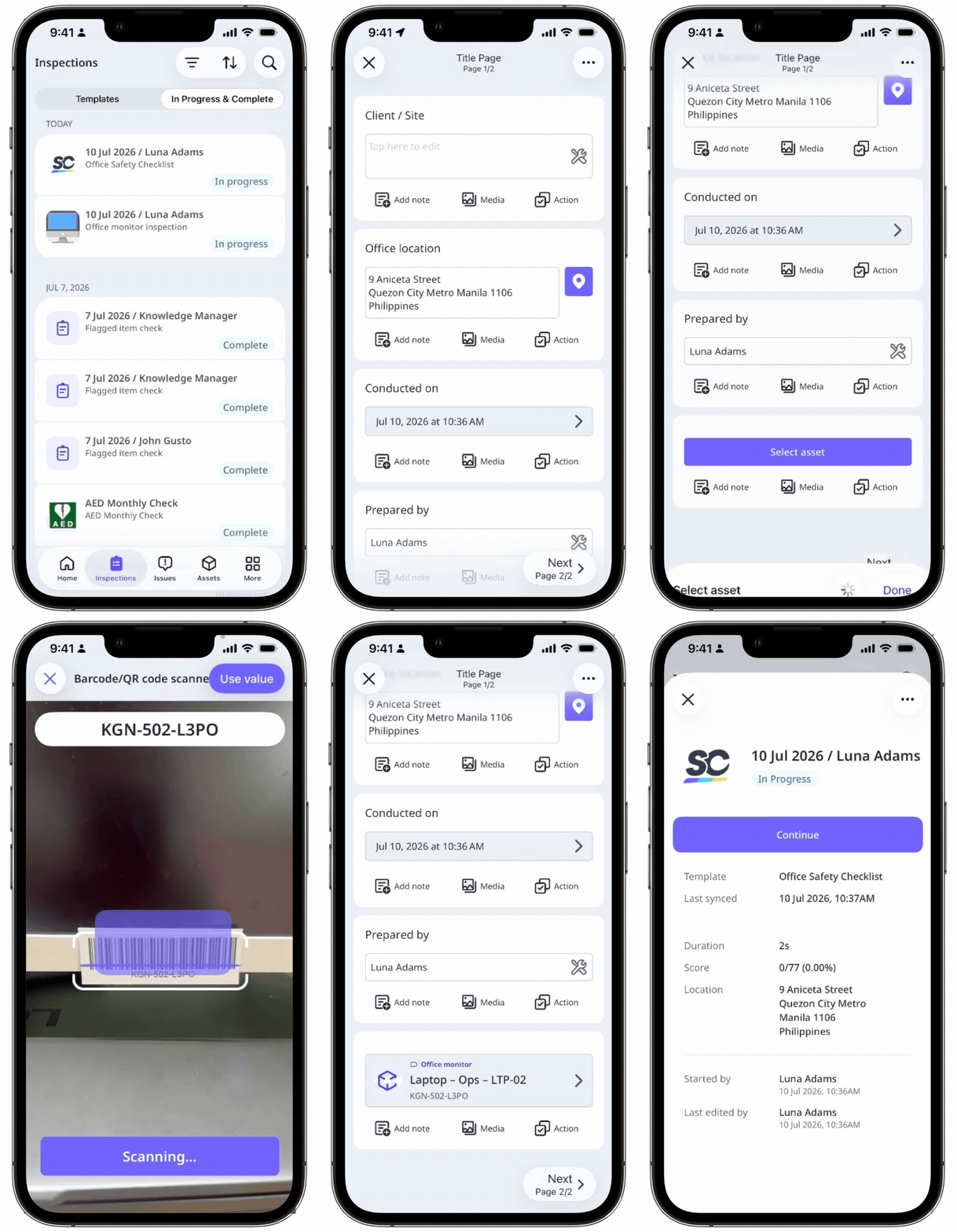
Open the mobile app.
Tap Inspections from the navigation bar or in More.
Select In Progress & Complete tab at the top of your screen.
Tap the inspection containing an asset question, and select Continue.
Alternatively, if the inspection has been marked as completed, tap at the upper-right of your screen. And then, select Edit inspection from the pop-up options.
On the asset question in the Title page, tap Select asset.
Tap .
Scan the asset barcode or QR code.
Tap Use value at the upper-right of your screen.
If the barcode or QR code contains an asset's unique ID or display name, the asset profile displays.
If the barcode or QR code contains an asset type, all assets from this type are shown.
Search for an asset in an action
Open the mobile app.
Tap Actions from the navigation bar or in More.
Tap at the lower-right corner of your screen to create a new action or select an action you want to edit.
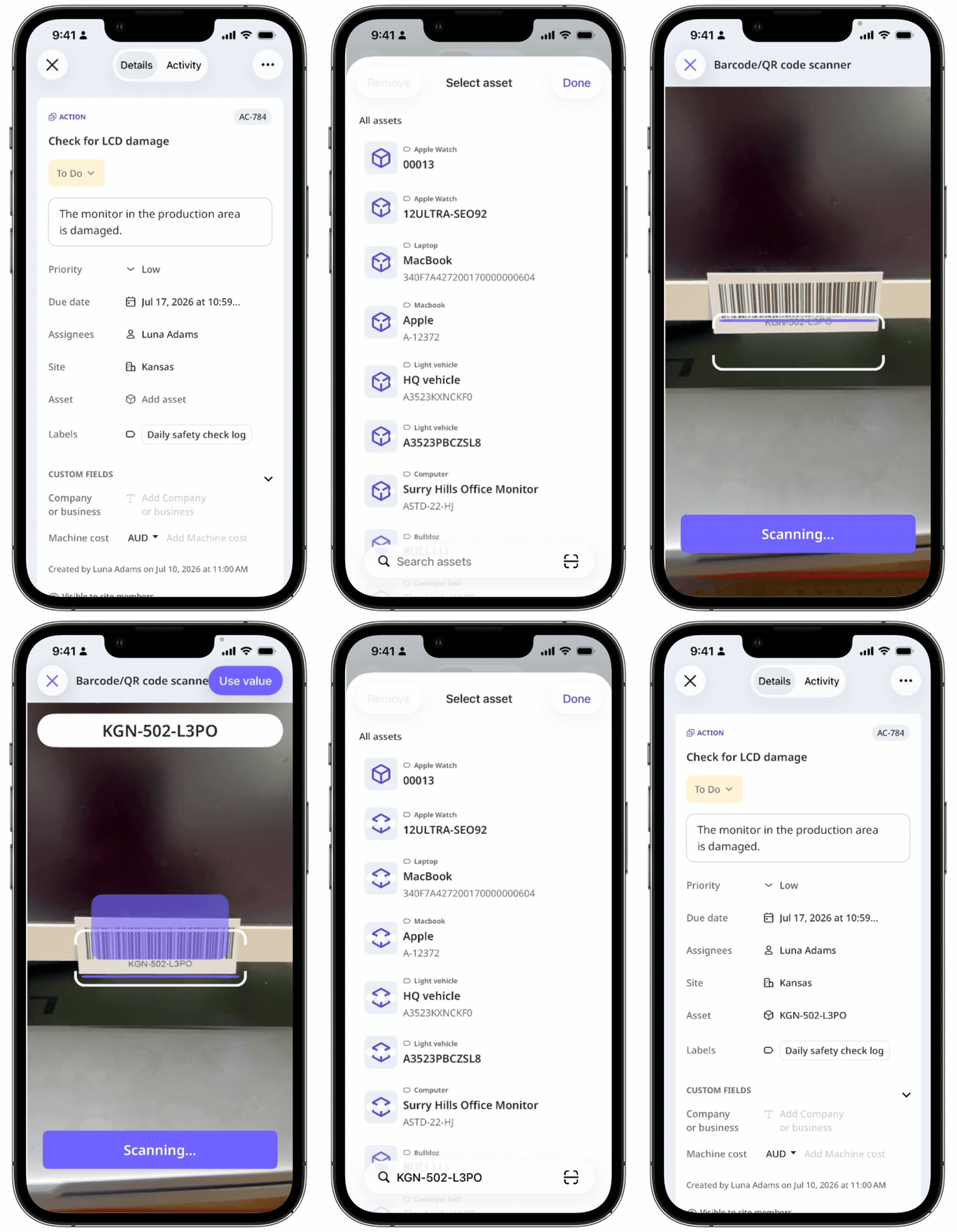
In Details, tap Add asset.
Tap .
Scan the asset barcode or QR code.
Tap Use value at the upper-right of your screen.
If the barcode or QR code contains an asset's unique ID or display name, the asset profile displays.
If the barcode or QR code contains an asset type, all assets from this type are shown.