Last updated:

Request approvals in inspections

Learn how to request approval in inspections via the web and mobile apps to streamline your review process.

Submitting approval requests while offline on the mobile app isn't currently supported. If a user attempts to submit an approval request, the approver will only receive the notification once the user's mobile app is back online.

Request approval for an inspection

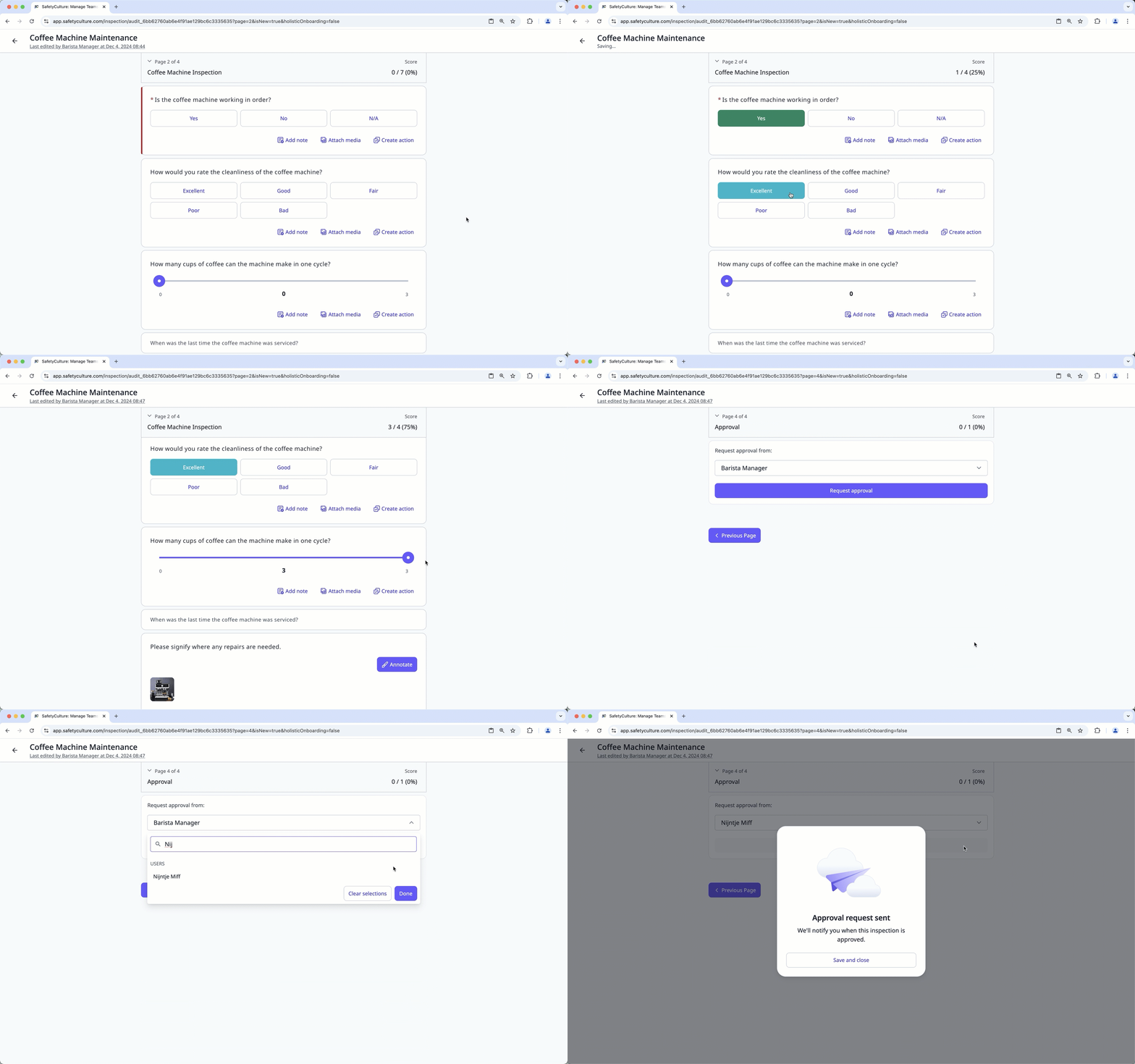
  1. Log in to the web app.

  2. Select Templates iconTemplates in the sidebar or select it in Assets gallery view iconMore.

  3. Click Start inspection on the template's right-hand side.

  4. Progress through the inspection accordingly and take note of any required questions, which can be identified by an asterisk next to the question label.

  5. Once you reach the end of the inspection, click Request approval.

  6. The approver will be notified that their approval is requested. Please note that approval notifications are subject to the recipients' notification settings.

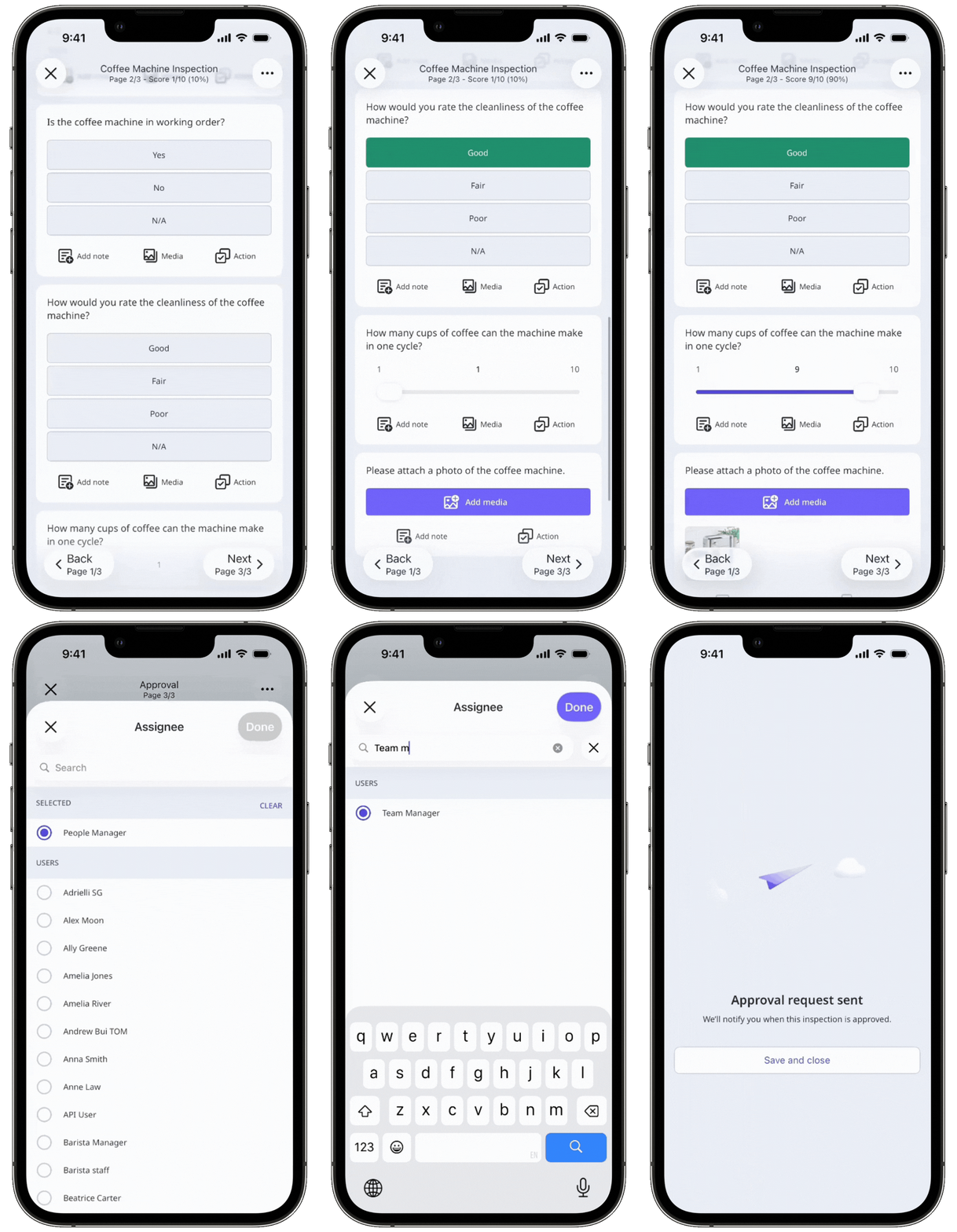
  1. Open the mobile app.

  2. Tap Inspections icon mobileInspections in the navigation bar or select it from Assets gallery view iconMore.

  3. Select Templates tab at the top of your screen.

  4. Tap the template and tap Start inspection from the pop-up options.

  5. Progress through the inspection accordingly and take note of any required questions, which can be identified by an asterisk next to the question label.

  6. Once you reach the end of the inspection, tap Request approval.

  7. The approver will be notified that their approval is requested. Please note that approval notifications are subject to the recipients' notification settings.

Users must have SafetyCulture version 24.23 or above to submit inspections for approval on the mobile app.

Frequently asked questions

You might not see other users because approvals doesn’t currently support user visibility settings. Selecting an approver only works when visibility is set to “Users can see everyone in the organization.”

If your organization uses “Users can only select members of sites and groups they’re in” or “Users can only select members of their sites,” you won’t be able to see any other users from the list.

No. Once an inspection with an approval page is approved, it can no longer be edited or marked as incomplete.

Need more help?
In this article