
We currently have a legacy and a new experience with the Schedules feature.
This article covers the legacy Schedules experience. Please ensure you're in the legacy experience by using the toggle on the upper-left of the Schedules page.
If your organization was created on or after August 11, 2025, you only have access to the new Schedules experience.
If you have "Schedules: Manage" permission, you can edit all schedules in your organization.
Create a schedule
Select Schedules in the sidebar or select it in More.
Click Schedule inspections on the upper-right corner of the page.
Configure the schedule accordingly.
Click Create. If the schedule is assigned to more than 20 users, click Create schedule in the pop-up window.

If you want to create a schedule for specific days of each week, select Custom... from the "How often" dropdown menu and select the preferred days.
To bulk create schedules, the "Site" field must be used to select multiple sites. On creation, a schedule will be created for each selected site.
Bulk create schedules
Select Schedules in the sidebar or select it in More.
Click Schedule inspections on the upper-right corner of the page.
Configure the schedule accordingly, ensuring you check the boxes of the sites or levels you want to create schedules for.
Click Create.
In the pop-up window, click Create schedules.
The schedules will be created in the background and you'll be notified via email once all schedules have been created.

You cannot edit one-off schedules that have already passed their due dates and can no longer be completed even as late submissions.
Update a schedule
Select Schedules in the sidebar or select it in More.
Click Manage schedules on the top of the page.
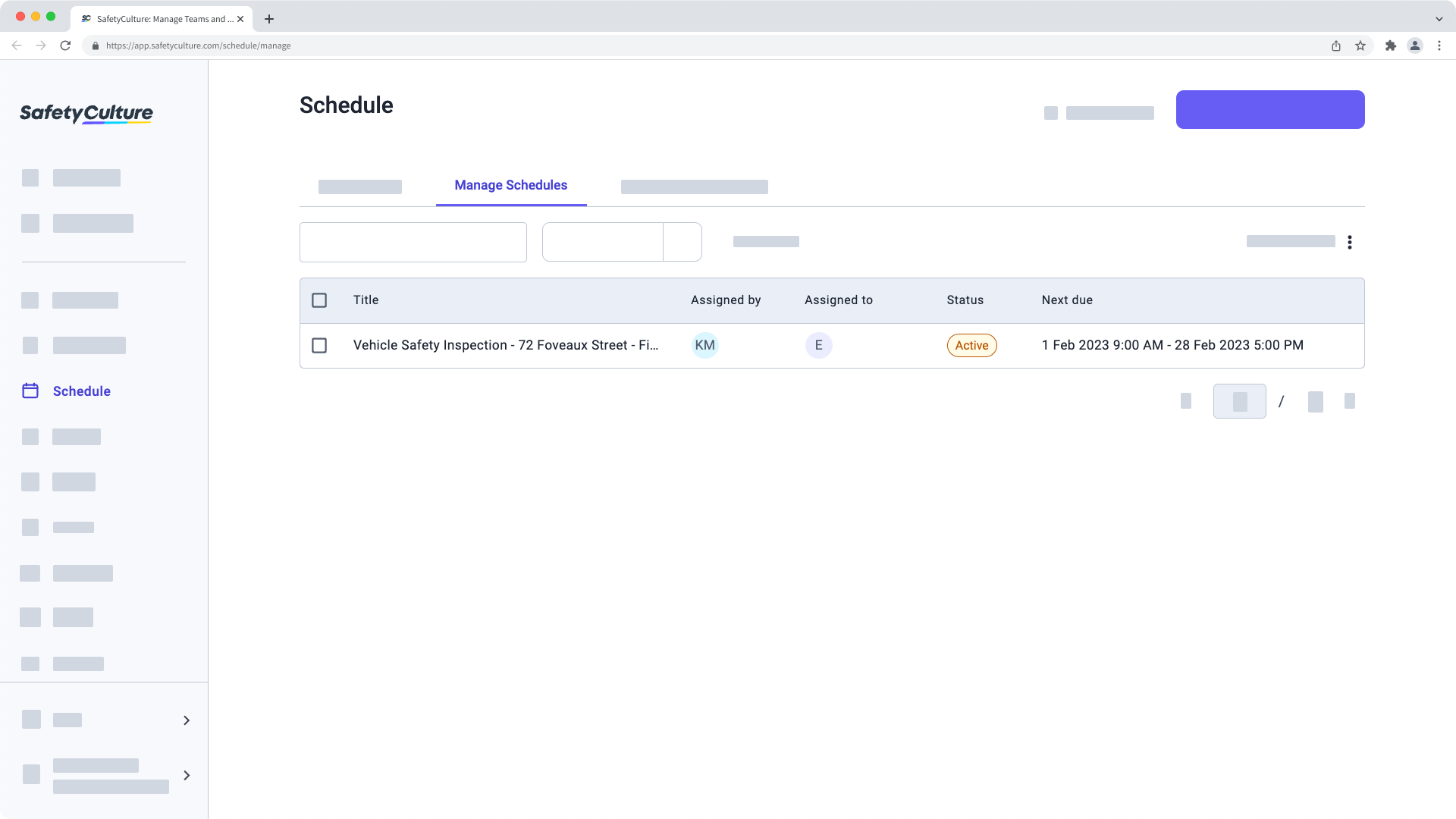
Click the schedule.
Update the schedule accordingly.
Click Save and apply. If your schedule includes more than 20 users after editing, click Save and apply in the pop-up window.
When you assign schedules based on site membership, all members, both those directly assigned and those inherited from higher levels, will be assigned in the schedules.
What are the differences between the legacy and new Schedules experience?
Feature | New | Legacy |
|---|---|---|
Bulk management for sites | When you create a schedule for multiple sites, it is managed as a single item. Any changes you make to this main schedule will automatically apply to the sub-schedules for each site. | Creating a schedule for multiple sites would result in separate, individual schedules that had to be managed one by one. |
Time zone selection | You can define a specific time zone for a schedule. This ensures consistent timing for all assignees, regardless of their account settings. | There's no option to select a time zone for a schedule, so each repeat's availability is based on each assignee's account time zone setting, which can sometimes be inaccurate. |
Advanced control for duration and frequency | You can be more granular with time selection for a schedule's duration setting in 5-minute intervals. Frequency setting also offers more advanced options like every 2nd Tuesday, every month on the last Friday, and more. | Time selection for duration setting is limited to one-hour blocks, which means a scheduled repeat cannot start at 8:30 AM, for example. Frequency options are also limited compared to the new experience, with basic repeating patterns. |
Option to set schedule to end | You can set a schedule to end on a specific date or after a certain number of repeats. | A schedule continues indefinitely until it's paused manually. |
Schedule setting summary in natural language | Before creating or saving a schedule, you can review all settings in the "Review" section, which summarizes them in natural language. | There's no review section to check all the settings before creating or saving changes. |
More relevant details in schedule list and side panel | The schedule list and each schedule's details in the side panel have been refreshed to ensure the information you see is more relevant. | The information on the schedule list is very limited, and there's no side panel view to check settings in a read-only mode. |


