What's the difference between SafetyCulture Groups and EdApp Groups?
In SafetyCulture, Groups are a collection of users you can set up and manage collectively. All users in a group automatically get the group's access permissions. In EdApp, User Groups segment learners for course assignment and analytics.
Groups in SafetyCulture and User Groups in EdApp have some key differences:
Area | SafetyCulture Groups | EdApp Groups |
|---|---|---|
Primary Use | Organize users for access management, course and quiz assignment, and lone-work alert escalations. | Segment learners for course assignment and group-specific analytics. |
Hierarchy | Groups in SafetyCulture don't support a parent and child structure. All groups sit at the same level within your organization. | Supports User Group Collections with parent and child structure, multiple parents, multiple hierarchies, and up to 6 levels. |
Dynamic Membership | Rule-based groups use user fields to add and remove users automatically. You can have up to 5 rules per group and up to 15,000 users in a rule-based group. | Dynamic User Groups use custom fields and SSO and bulk-upload matching; matching can be case-sensitive and may require exact matches depending on the operator. |
Plans | Standard groups are available on any SafetyCulture plan. Rule-based groups require Plan Premium o Plan Enterprise user fields . | User Groups are on paid plans. Dynamic User Groups are on Pro plans. |
Admin Management | Users can be added or removed individually or in bulk via the Group matrix. Each user can belong to up to 100 groups. | Managed from the User Groups area. Courses can be assigned via Access Rules or from the group page. |
Bulk upload behavior | When bulk uploading existing users, SafetyCulture overwrites current group and site assignments rather than offering an option to add or replace. | EdApp lets admins choose whether to add to or replace existing group assignments when uploading a CSV. |
Migration caveat | If you recreate dynamic behavior in SafetyCulture, rule-based groups depend on user fields. If those fields change or are removed, rules may need to be rebuilt. | Dynamic groups and complex hierarchies can block or complicate migration. Groups that don't meet the required format may need manual cleanup first. |
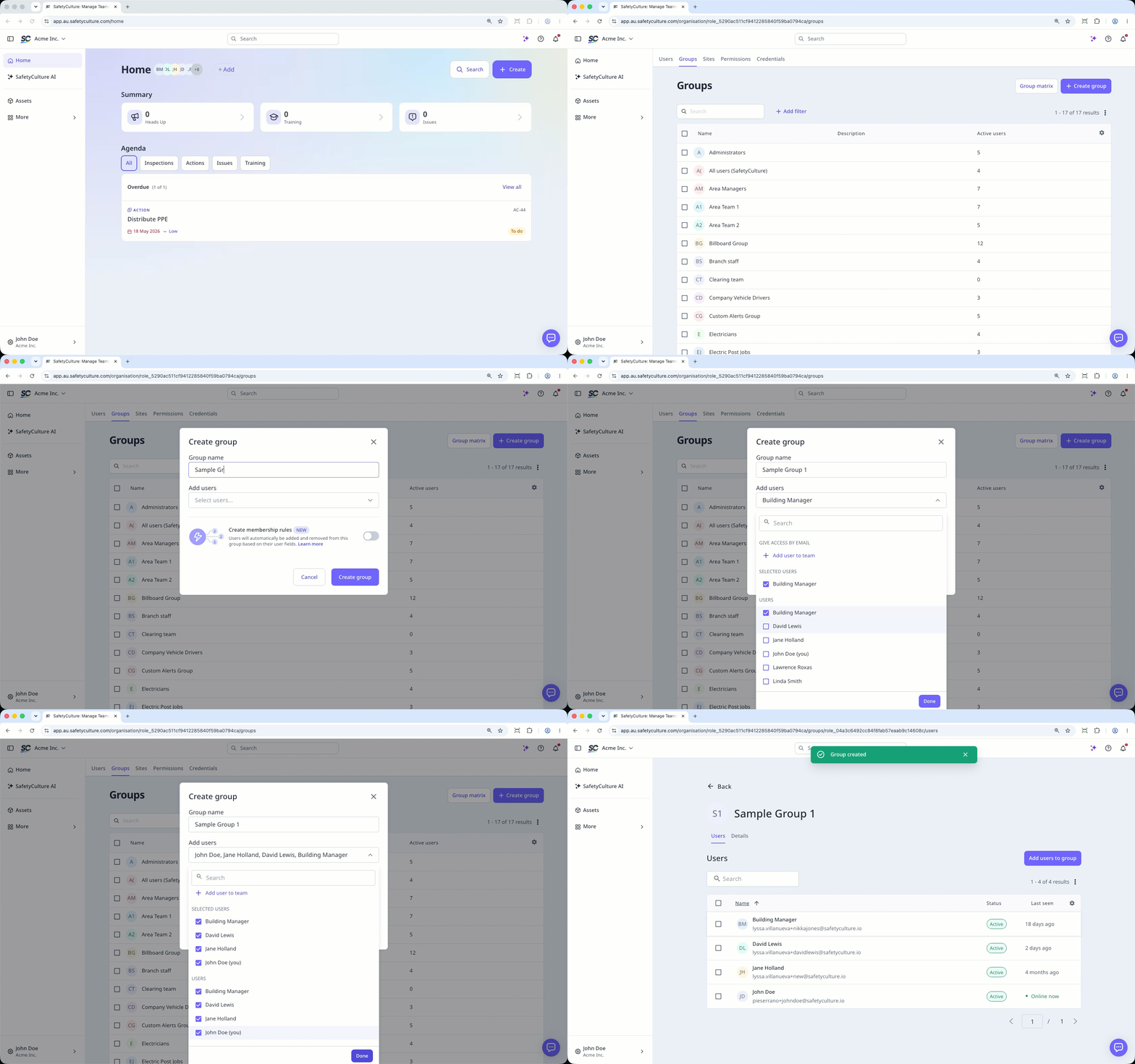
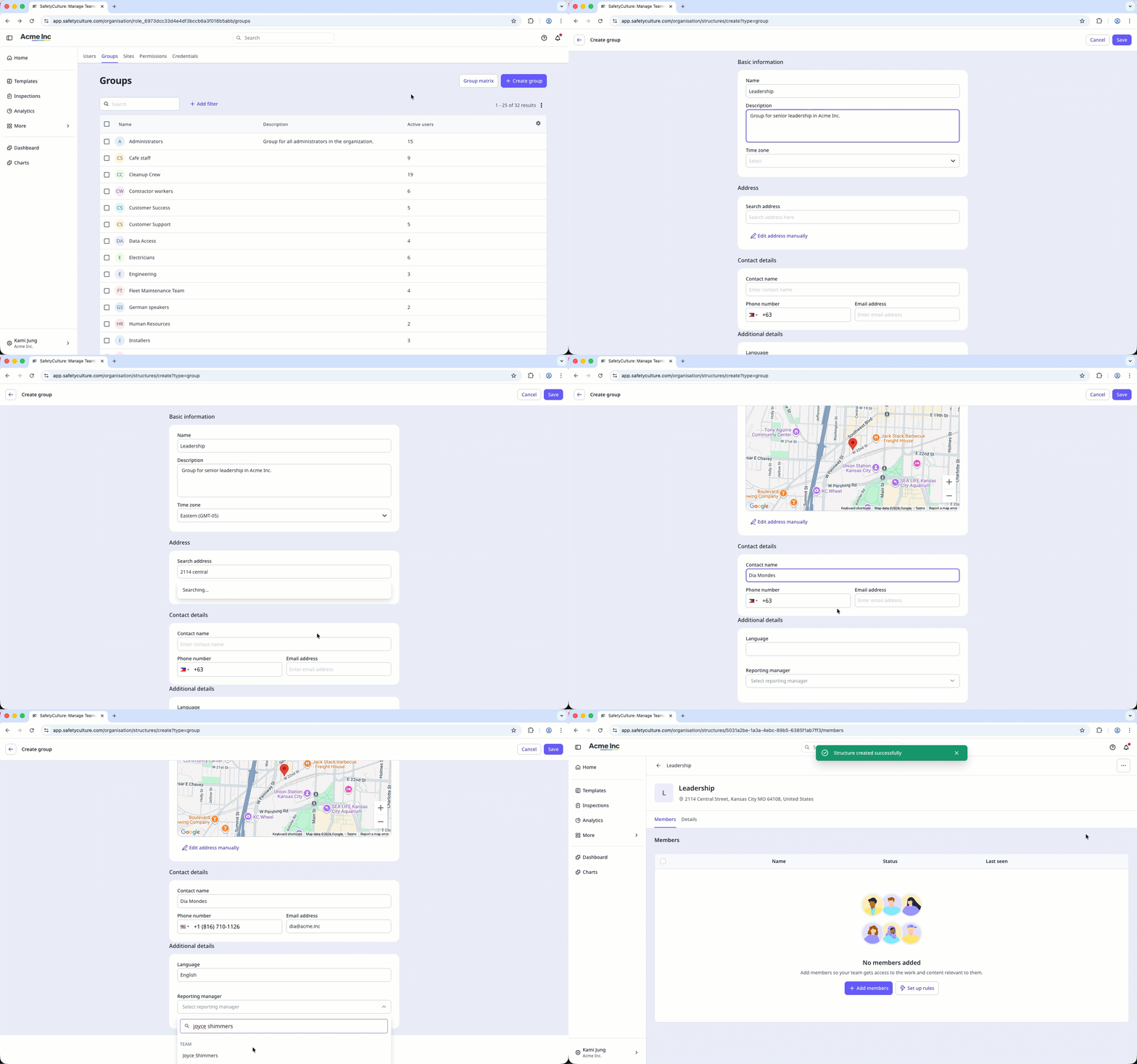
Cree grupos antes de asignar permisos o añadir miembros. Esto le ayudará a trazar la estructura de su organización y determinar cómo organizar sus usuarios.
Lo que necesitarás
Crear un grupo
Haga clic en el nombre de su organización en la esquina inferior izquierda de la página y seleccione Grupos.
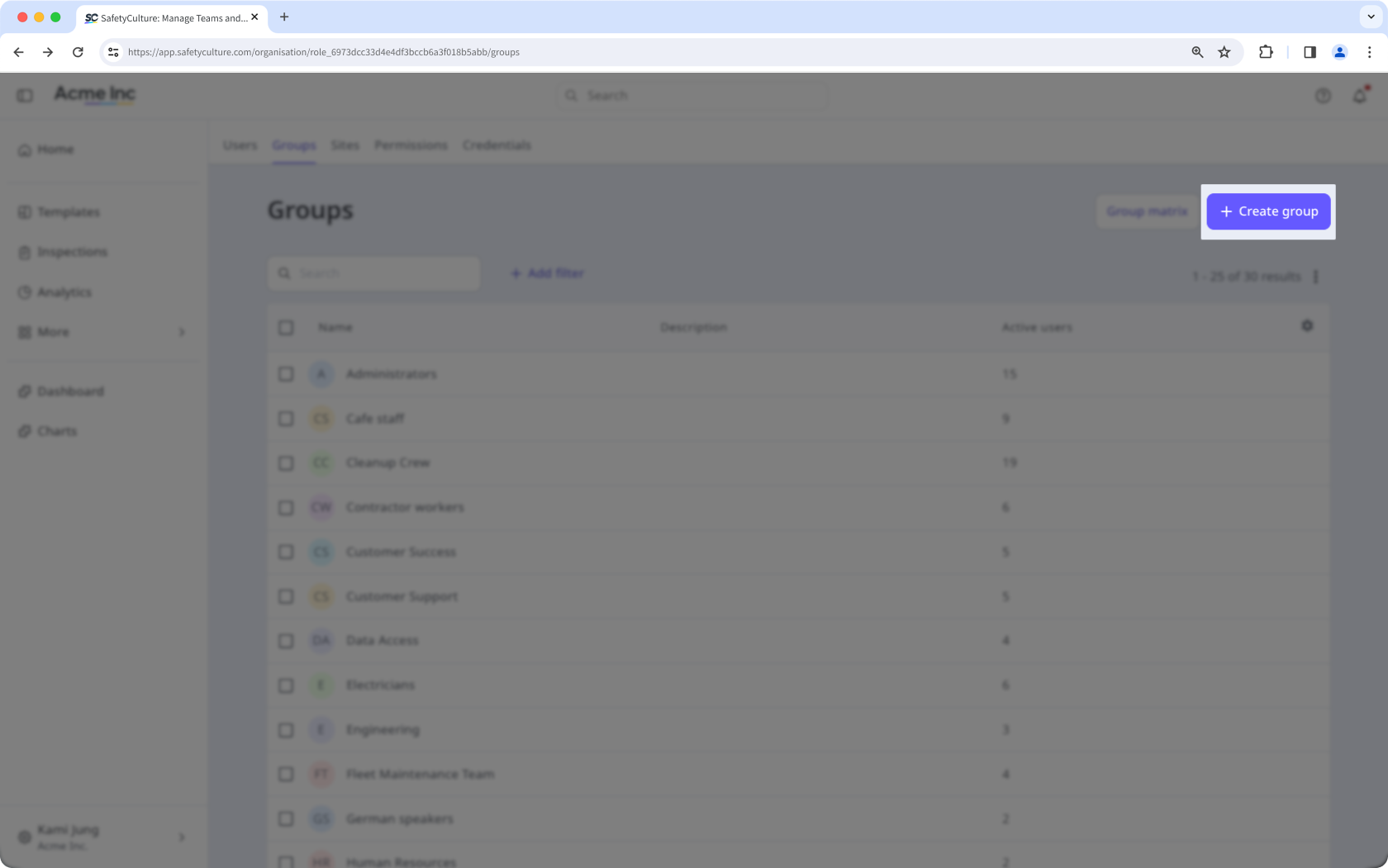
Haga clic en Crear grupo en la parte superior derecha de la página.
Introduzca el "Nombre" y la "Descripción" y configure los campos de organización según corresponda.
Haga clic en Guardar en la esquina superior derecha de la página.