
- Administración
- Gestión de usuarios
- Gestionar campos de usuario
Gestionar campos de usuario
Aprenda a crear y gestionar campos de usuario en su organización a través de la aplicación web para optimizar la información de usuario para los miembros de su equipo.¿Qué son los campos de usuario?
Los campos de usuario le permiten capturar información adicional sobre sus usuarios para facilitar la gestión, el soporte técnico y la comprensión de su equipo. Puede adaptar estos campos a las necesidades de su organización para realizar un seguimiento de información como roles, departamentos, ubicaciones u otros atributos importantes. Al mantener todos los datos de los usuarios en un solo lugar, los campos de usuario le ayudan a mantenerse organizado, reducir el trabajo administrativo manual y tener perfiles de usuario precisos y más completos en toda su organización.
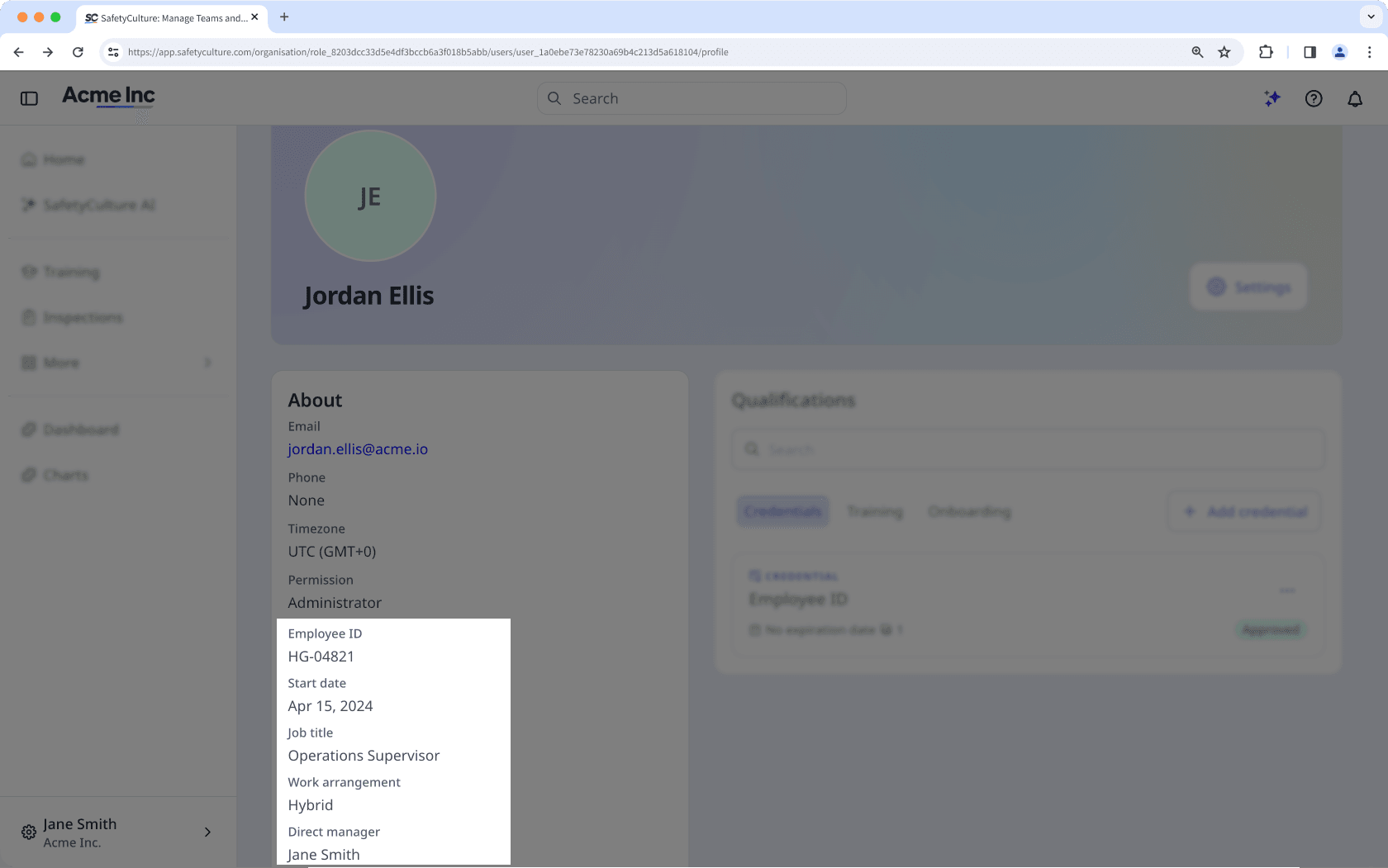
User fields
There are two types of user fields: system fields and custom fields. Both appear together in your organization's user field list and can be displayed on user profiles.
System fields
System fields are pre-defined fields available in every SafetyCulture organization. These cover standard workforce attributes and are ready to use. You cannot create, rename, archive, or delete them. However, you can add or edit options to system fields that have single select and multi select data types.
Field name | Data type | Description |
|---|---|---|
External ID | Text | A unique identifier for the user sourced from an external HR system. Used for user matching during HR integration imports. |
Employee ID | Text | The organization's internal employee number. |
Start date | Date | The date the employee started with the organization. |
Employee type | Single select | The nature of the employment arrangement. For example, Full-time, Part-time, or Contractor. |
Job title | Text | The user's role or position title within the organization. |
Locations | Multi select | The work locations where the user is based. |
Teams | Multi select | The teams the user belongs to in the organization. |
Cost center | Multi select | The cost centers the user is assigned to for financial reporting purposes. |
Department | Multi select | The departments the user belongs to. |
Business unit | Multi select | The business units or divisions the user is part of. |
External groups | Multi select | Groups assigned to the user from an external HR system, used for access and membership management. |
Entities | Multi select | The legal entity or entities the user is associated with. |
Custom fields
Custom fields are fields you create to capture information specific to your organization. You can configure the name, description, data type, and display settings for each field, and update them at any time.
A few things to note about custom fields:
Custom fields cannot share a name with a system field.
You can create up to 2,000 custom fields in an organization.
Editing the data type of an existing custom field is currently unsupported.
Si su organización tiene campos personalizados con el mismo nombre que los campos del sistema, es posible que vea un error al gestionar la lista de Usuarios de su organización. Migre sus campos personalizados para resolver las reglas de asignación, las incompatibilidades de tipos de datos y los errores de subida en masa.
Opciones de tipos de datos
El tipo de datos de Texto almacena entradas alfanuméricas de formato libre. Úselo para identificadores, números de referencia o valores descriptivos cortos. Por ejemplo, las identificaciones de empleados de su equipo.
Fecha
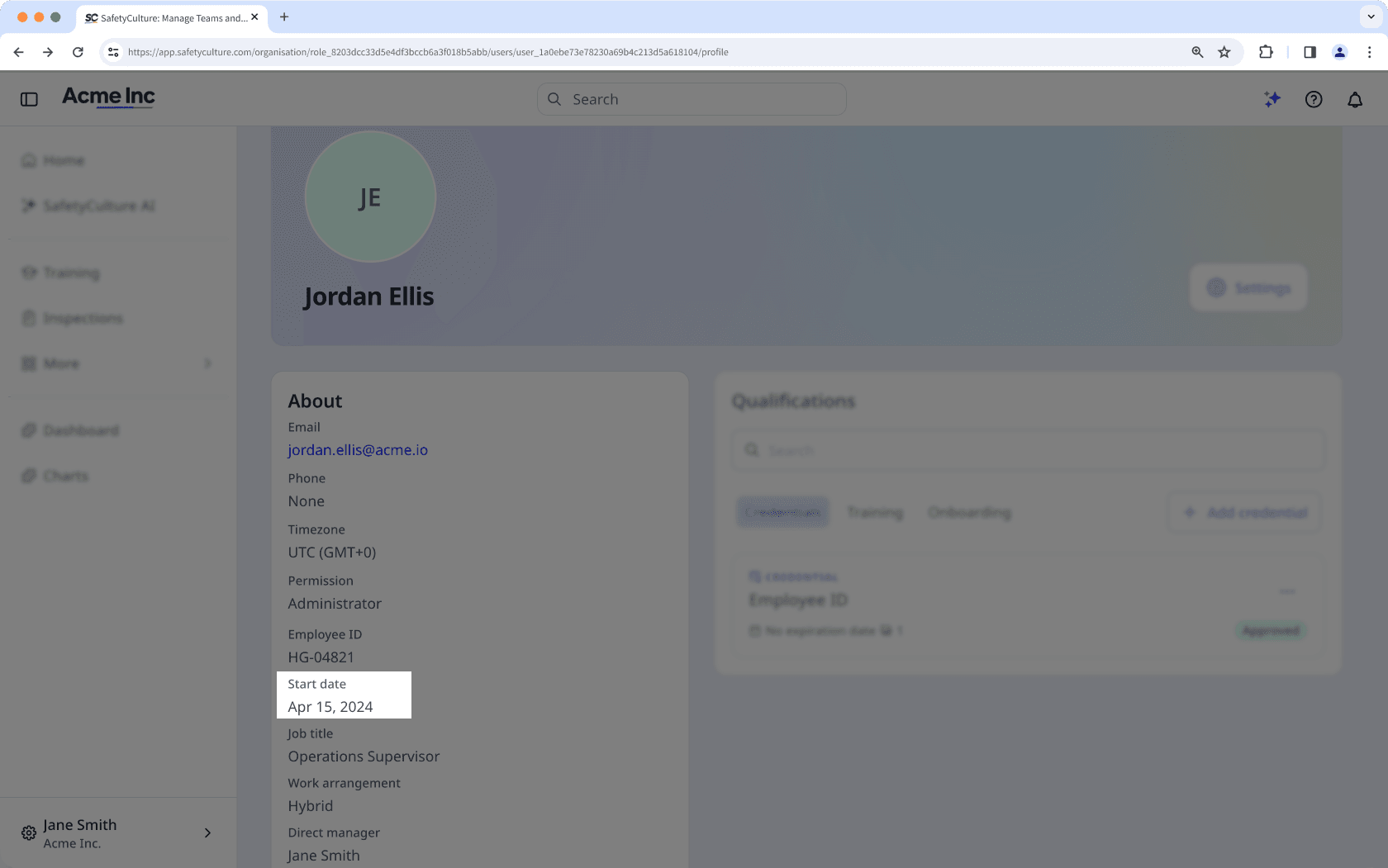
El tipo de datos Usuario almacena una referencia a un usuario activo de su organización. Solo se puede seleccionar un usuario a la vez. Úselo para registrar relaciones entre personas, como un gerente directo o un mentor asignado a un aprendiz.
El tipo de datos de Selección única almacena un valor elegido de una lista de opciones. Úselo cuando solo una respuesta sea válida a la vez. Por ejemplo, para el campo de usuario "Tipo de empleado", puede añadir opciones como "En el sitio", "Híbrido" y "Tiempo completo", y seleccionar solo una opción para el usuario. Puede añadir hasta 1000 opciones por campo.
The Multi select data type stores one or more values chosen from a list of options. Use this when a user can have multiple valid values simultaneously. For example, a user can be in several teams. You can add up to 1,000 options per field.
Crear un campo de usuario personalizado
Haga clic en el nombre de su organización en la esquina inferior izquierda de la página y seleccione Usuarios.
Haga clic en
 en la esquina superior derecha de la página y seleccione
  Gestionar campos de usuario.
Haga clic en
 Añadir campo.
En el panel lateral, introduzca un nombre y una descripción para el campo y, a continuación, seleccione un tipo de datos.
Active los siguientes ajustes de campo según sea necesario:
Permitir que los usuarios actualicen: esta opción permite que los usuarios editen sus detalles en el campo especificado. Cualquier persona con Permiso de "Administración de plataformas: Usuarios" podrá modificar los detalles de un usuario.
Mostrar en perfiles de usuario: la opción para mostrar u ocultar un campo del perfil de un usuario.
Haga clic en Crear.
Editar un campo de usuario personalizado
Click your organization name on the lower-left corner of the page and select Usuarios.
Click
on the upper-right corner of the page and select Gestionar campos de usuario.Click
on the user field's right-hand side, then select  Editar.
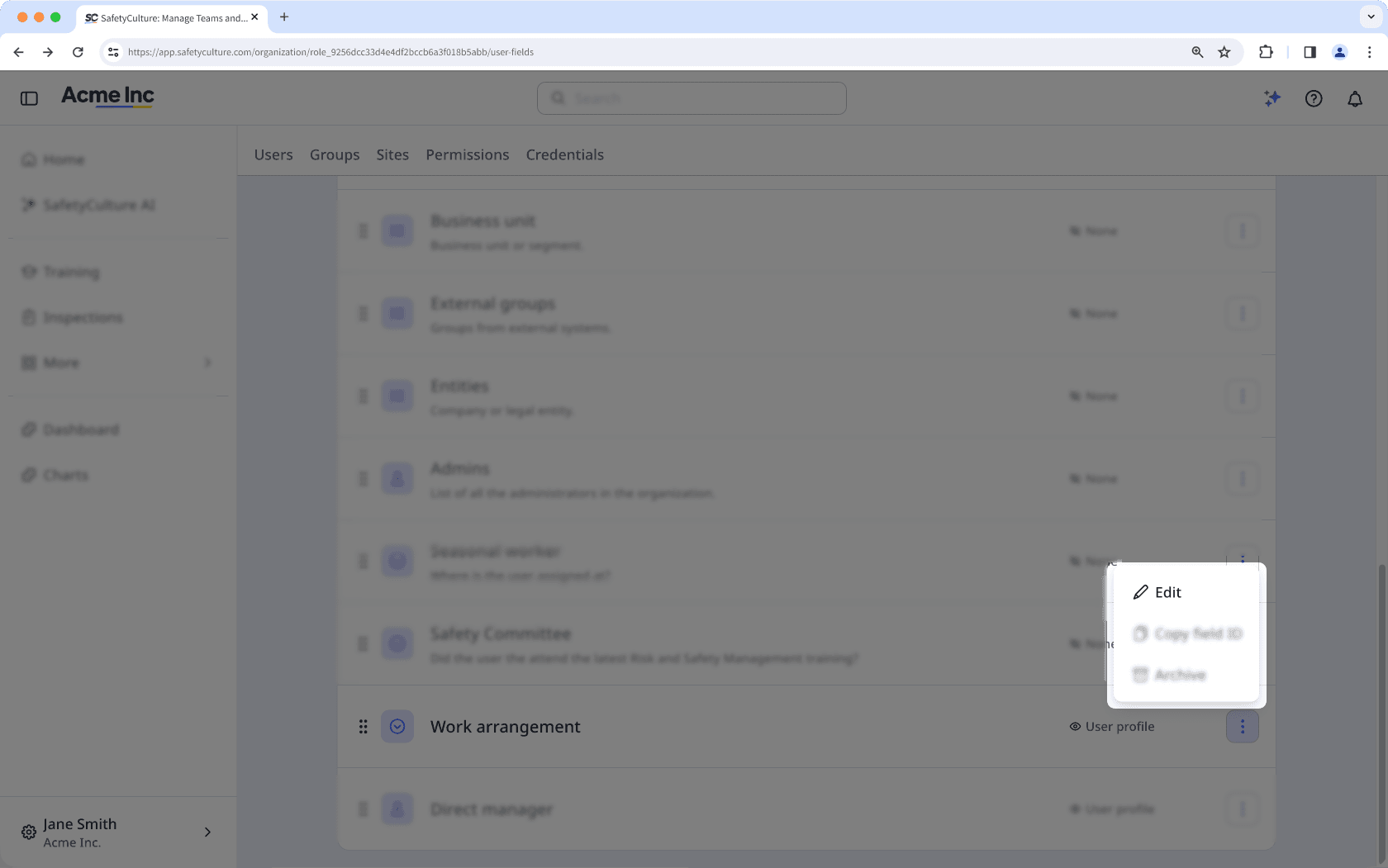
In the side panel, update the name or description as needed.
For Single select and Multi select data types, you can manage the options.
To add an option, click
Añadir opción and enter a value.To delete an option, click
 Eliminar next to the option you want to remove.
In the "Field settings" section, turn the settings on or off:
Allow users to update: Controls whether users can edit their own value for this field.
Display on user profiles: Controls whether this field is visible on user profiles.
Click Guardar.
Eliminar opciones de un campo de usuario de opción múltiple convierte cualquier grupo con reglas de afiliación en un grupo normal, incluso si las opciones eliminadas no se usan en esas reglas de afiliación.
Reordenar campos de usuario
Haga clic en el nombre de su organización en la esquina inferior izquierda de la página y seleccione Usuarios.
Haga clic en
en la esquina superior derecha de la página y seleccione Gestionar campos de usuario.Haga clic en
 para arrastrar y soltar el campo en el orden en que prefiera que aparezca en el perfil de usuario. Los cambios se guardan automáticamente.
Mostrar u ocultar campos en el perfil de usuario
Haga clic en el nombre de su organización en la esquina inferior izquierda de la página y seleccione Usuarios.
Haga clic en
en la esquina superior derecha de la página y seleccione Gestionar campos de usuario.Haga clic en
en el lado derecho del campo de usuario y luego seleccione Editar.En el panel lateral, vaya a la sección de Ajustes de campo y active o desactive el ajuste Mostrar en perfiles de usuario según sea necesario.
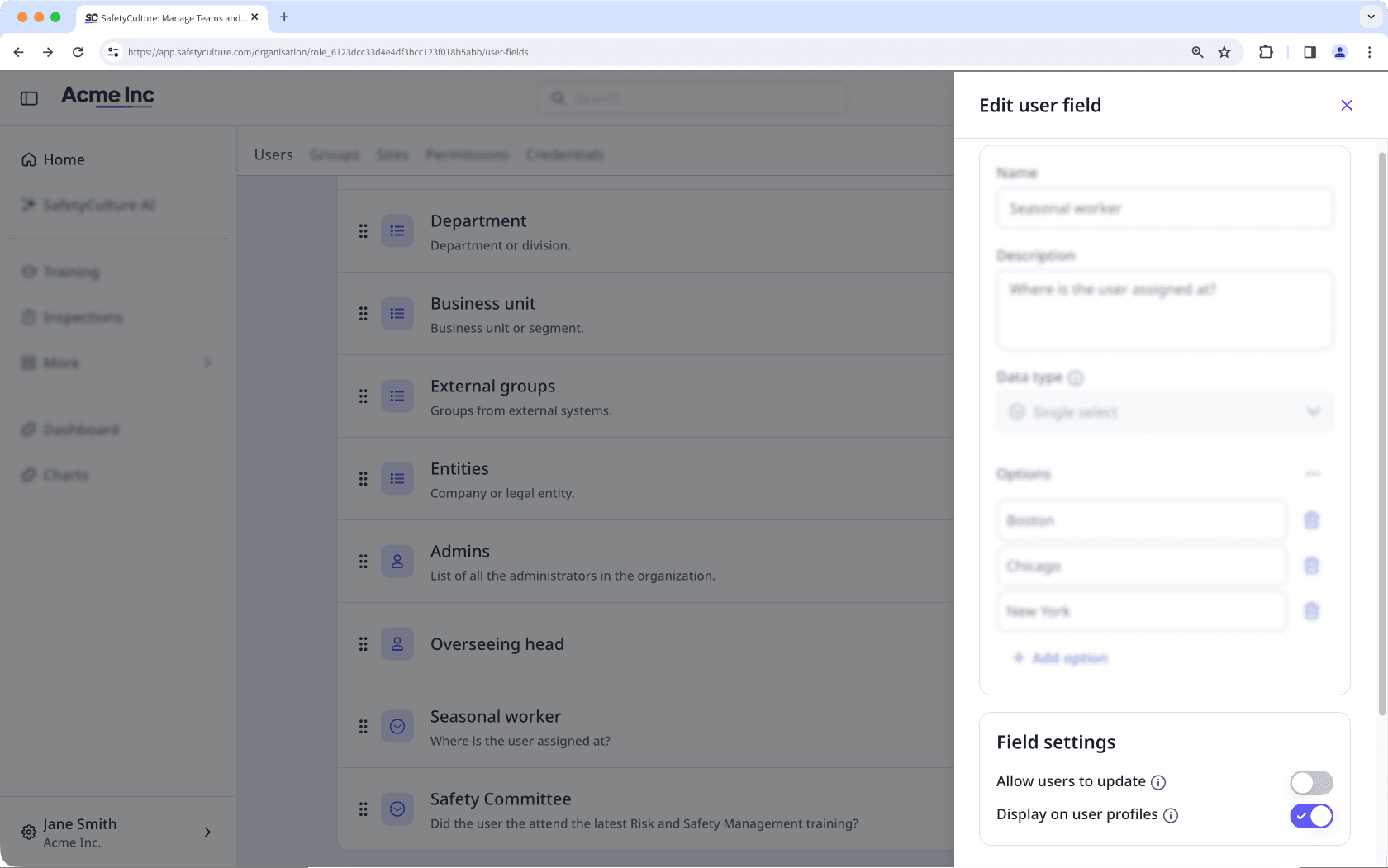
Haga clic en Guardar.
¿Esta página le fue de ayuda?
Gracias por hacérnoslo saber.